

03/02 # 1.032.6 (Experimental + Development)
Hi folks,
This patch adds native & steam input support for various controllers. If you have a controller and want to test it out, or just wanted to play Chronicles from your couch, you can now switch to the experimental branch without a password and give it a go.
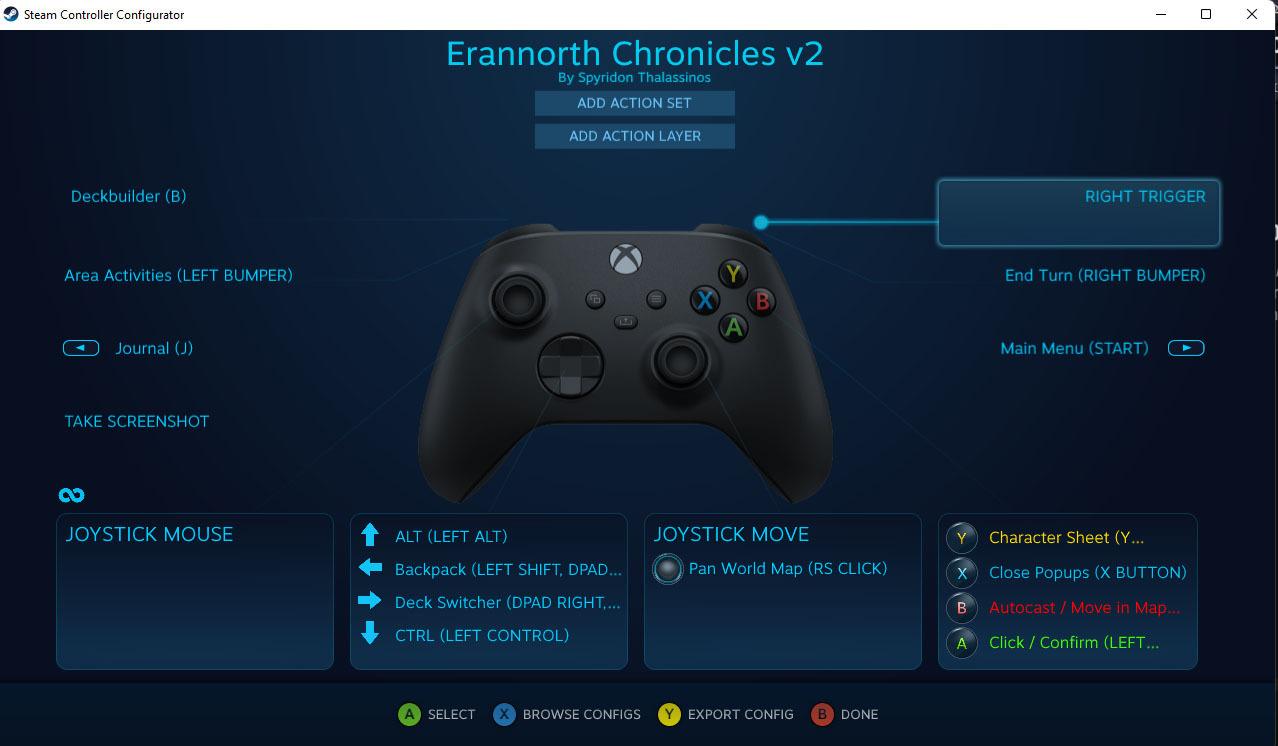
If you were using a Steam profile to emulate mouse/keyboard behavior you should probably now want to switch to the gamepad template (or use the provided "Erannorth Chronicles v2" profile for best experience).
Patch Notes - 03/02 # 1.032.6
- Added a button in Settings to change the Controller Profile bindings
- (New) Steam Input profile (Erannorth Chronicles v2):
- The LStick will emulate virtual mouse through Steam Input and A,B will act as virtual mouse buttons.
- Right stick will pan the world map.
- D-Pad will now offer a different option:
- Up => ALT (Can be used with A button to display the card info.)
- Down => CTRL (Can be used with A button to discard the card.)
- Left => Backpack
- Right => Deck Switcher
- Up => ALT (Can be used with A button to display the card info.)
- Button Y will open/close the character sheet.
- Button X will close all open popups.
- Right Bumper will end the turn.
- Left Bumper will open the activities menu if available and center at the PC.
- Left Trigger will open the Deckbuilder.
- Left Command will open the Journal.
- Right Command will will bring up the Menu.
- The LStick will emulate virtual mouse through Steam Input and A,B will act as virtual mouse buttons.
- Without a profile the following Native Controller Bindings will still work (but it's recommended to use the profile).
- Left stick will emulate a mouse cursor.
- Right stick will pan the world map.
- D-Pad is unused.
- Button A will act as left click
- Button B will act as right click (auto cast cards, move in the world map etc.)
- Button Y will open/close the character sheet.
- Button X will close all open popups.
- Right Bumper will end the turn.
- Left Bumper will open the activities menu if available and center at the PC.
- Right Command will will bring up the Menu.
- Left stick will emulate a mouse cursor.
The new build should make no difference if you don't have a controller. (Both should be working along seamlessly.)