We’re back after our holiday break with a new Future Perfect update. We’ve switched to releasing updates to the main Steam build on Monday, but you can get daily updates by switching to the beta branch. Get access to updates buy purchasing Future Perfect Architect Edition.
Heist Game
We’re continuing work on the Heist game mode that we started a few weeks ago during our game jam. The core of the game is about manipulating electronic systems, so we’ve been working on expanding the set of building blocks for making interesting levels.
Some of the new pieces are a “security cage” which can be used to prevent sockets from being hacked and a lock which requires a specific key to activate. We’ve also implemented a timer component which you can see here:
https://www.youtube.com/watch?v=erfEh6ZL4uo
And there’s also a reclaimer that will destroy anything on top of it when it’s activated:
https://www.youtube.com/watch?v=EA53yy3lGw8
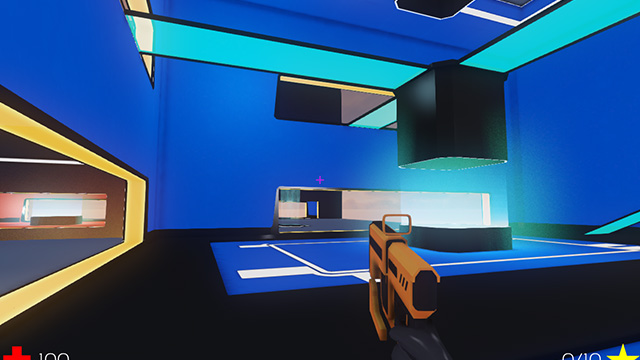
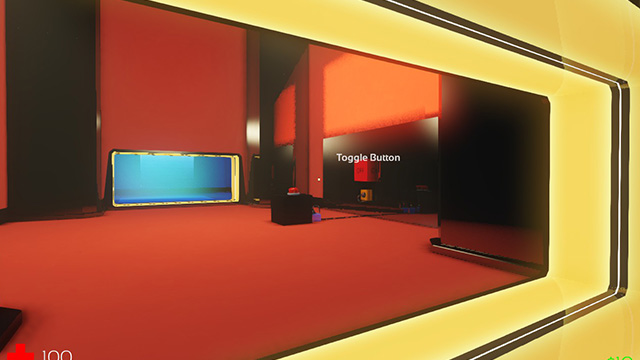
We’re putting all of these elements into a new level:
Artwork
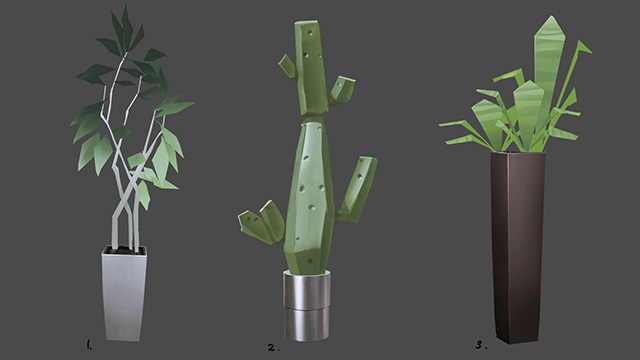
We’ve got some new artwork, including security cameras, monitors, tables, chairs and plants. You can use all of these assets in your own games by selecting the “Security”, “Plants” and “Tables and Chairs” packages in the editor.
Color Picker
We added a color picker into the editor which is used for adjusting the colors on lights and materials.
The color picker is a bit bare bones at the moment, but we’ll continue to improve it along with other pieces of the UI as we go. If you have any suggestions, we’re always interested in hearing them on the forums.
Editor Hot Keys
In earlier versions, changing the size of the grid that was used for snapping was done using the + and – keys. This was inconsistent with other tools (including our own editor from NS2!) so we changed it to be [ and ] by default and added options for customizing the keys. We also added a hot key for moving the camera to focus on the selected entities which is Z by default.
Collision Improvements
When the entity is static we use the actual triangles of the model to determine collision detection, but due to performance considerations we need to use a simplified representation when it’s moving. This simplified representation is called a convex hull and it’s essentially the shape you’d get if you tried to cover it in wrapping paper.
For a lot of objects, and single convex hull won’t match the original shape very well, so we’ve added support for using multiple convex hulls that glued together. In this image, the blue dinosaur shows the full triangle mesh that’s used when the object is static. The pink model on the lower left shows a single convex hull which is what earlier versions used if the dinosaur is being simulated by physics. The lower right shows the the same model represented by multiple convex hulls, which you can see matches the shape much more accurately.
The process to build these convex hulls when you add a model to the game is slower than we’d like, so we’ve made it so that it has to be explicitly enabled. Once we have an opportunity to optimize that, we’ll make it happen automatically for all models.
We’ve also made some improvements to the handling of collision in the editor. Now collision files will hot load while the game is running and objects that are moving due to physics can be moved with the gizmo in the Editor while you are playing a game. We also made it so that collision objects attached to bones move properly when the entity animates.
There are a bunch more smaller changes and fixes in this update; if you want to see the whole list, including what we have planned, check out our Trello Board.
A new development update is now available! Get access at FuturePerfectGame.com, and find out about what is in the update on the Future Perfect blog. Hint: Heists, lasers, and office plants...
Dev Update 5
It’s the holiday season, which means Future Perfect development has slowed a little bit. Despite the end of year festivities, the team is still keeping progress ticking over. Here’s a look at some of the things that have been done recently. A few days ago, a new Steam update was released. If you own Architect Edition (Get it here), you will have received the update automatically.
This might come as a surprise, but here at Unknown Worlds we do occasionally make errors while scripting. While we’re sure none of you will ever make script errors, Future Perfect has a new feature to make dealing with them easier, just in case. Script errors will now show up in the world, with a little warning icon:
https://www.youtube.com/watch?v=n3tajlsPyg8
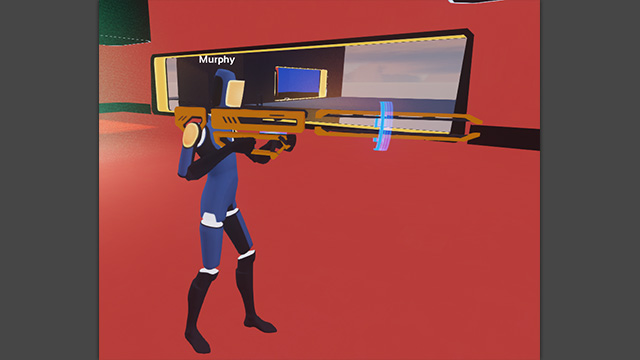
Railguns are part of the default pack of weapons that are included in Future Perfect. Along with the rocket launcher, they now have their own set of animations.
Speaking of default assets, pay attention. This is important! Office plants are coming…
Doors now have a texture colour assigned based on room colour, which looks sweet!
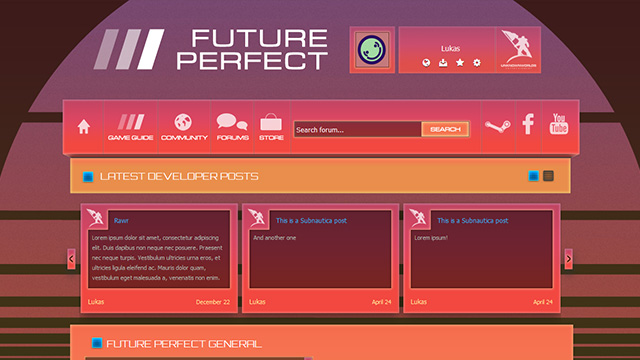
Future Perfect’s forums no longer use the Natural Selection 2 theme (Hell, it’s about time!), and have their own shiny new design.
Andrew has been working on a ‘gallery’ level, that lays out how to use and connect various ‘Heist’ related entities.
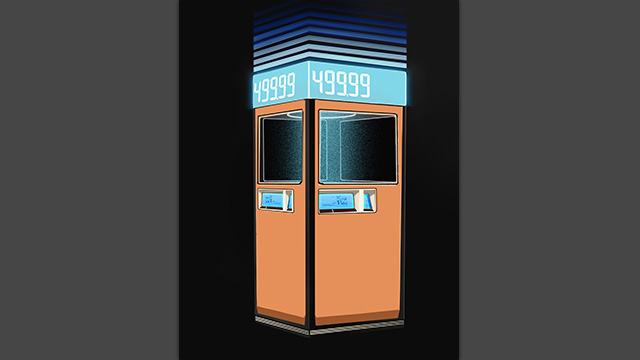
Some more ‘Heist’ related art is coming down the pipe too. Here’s an example, the ‘buy station.’
You can tinker with all this stuff, and get involved in Future Perfect development, by buying Architect Edition. You can also see what the development team is up to by visiting the Future Perfect Trello board. As the holidays come to an end, you can expect development pace to pick up again. Join the dev update mailing list to receive updates on progress.
A new Future Perfect development build is available on Steam! If you own Architect Edition, you will get this update automatically. Find out about what went into this update on the Future Perfect blog. Hint: It's time to play with some high-voltage wiring...
A new Future Perfect development build is available on Steam! If you own Architect Edition, you will get this update automatically. Find out about what went into this update on the Future Perfect blog. Hint: It's time to play with some high-voltage wiring...
Anatomy of a Feature
Originally posted by Max on the Future Perfect blog: Click here.
One of the decisions we made early on in development was that we weren’t going to treat the view of the body from first person differently than from third person.
In Natural Selection 2 (and most first person games) when you see your arms and hands from first person, you’re looking at a special model that’s designed specifically for that view. When another person looks at you, they’re looking at a different model that includes the full body and most likely less detail. Different animations are used for each view and the first person mode can even use additional tricks like drawing the hands with a different field-of-view than the world to make it look as good as possible.
As you can imagine, this doubles the work involved with creating artwork for the player. Since we want users to make their own artwork — and since we have a small team — we wanted to minimize the art requirements.
The tricks with the field of view are optimized for the case where you’re holding something (typically a gun). Using a small field of view for the weapon can make it look more natural, but it causes problems when you want the player to be able to interact with the world. In games like Far Cry and Battlefield you may have noticed how the camera’s field of view changes when you go to interact with something or drive a vehicle.
First person model of the hands from Natural Selection 2
Although we’ve made some guns, the games in Future Perfect aren’t going to be all about shooting things, so it doesn’t make sense to optimize the first person mode for that.
With all that taken into consideration, we made that decision to use the same model and animation for first and third person.
There’s a bit of a problem though.
In “real life” you see through your eyes which are attached to your head. As your head moves your view point moves with it. When you run, your view point bounces all over the place. Your brain is very adept at stabilizing the view based on its sense of the motion so you don’t perceive the bouncing.
In a video game, if the camera is attached to the head you will experience the bouncing, since your brain doesn’t do the stabilization. The result is a game that’s hard to play and will probably make you feel queasy.
For this reason, games rarely attach the camera to the head. Instead the camera is fixed relative to the player’s position and is usually somewhere inside the space of the head. Without any special treatment, this gives you a creepy inside-out view of the player’s face.
Creepy view from inside a head
For Future Perfect, we wanted to solve this problem by hiding the head when drawing the player for the first person view, but showing it for the third person view.
One of the really interesting parts about working on Future Perfect is the amount of consideration we put into engine features. Since the engine is a tool for users, we want any feature we create to be flexible and simple (we jokingly use the portmanteau “flexsimple”).
We considered many different approaches for hiding the head for the local player. The main challenge is that your player’s model needs to be treated differently on your machine than on other people’s machines. It’s even a bit more complicated though since the model needs to be treated differently locally when rendering the main view or when rendering the shadow, which should include the head.
Ultimately, we didn’t want to involve complicated scripting or special materials to make this work, since that fails the “simplicity” test. Since our artwork is designed to be reused in new games, we wanted the same player model that we use for first person to be placed in a third person game.
To accomplish this, we augmented our model format: certain pieces could be designed as parts that are automatically hidden for a camera if the view point is inside the volume of that piece. This means that all of the player models are treated uniformly without special logic. It also means the game doesn’t need to do anything different if it’s operating in first person or third person mode, the rendering system handles that automatically. The same is true for the player’s shadow, since shadows are computed by rendering the scene from the light’s point of view.
You can see the system in action here:
https://www.youtube.com/watch?v=6NKhoSyra2U
When the game camera is inside the head it’s not rendered so it doesn’t interfere with the view. When the camera is moved to an over-the-shoulder view it’s visible. Moving the editor camera inside the head shows how it changes dynamically.
There is a little bit of extra setup necessary when creating a new model that uses this feature. We considered automatic approaches, but ultimately these would have been more work to implement, been slower, and not given as much control to the artist. Since the process of creating a model is for more advanced users, we’d rather have a little extra complexity in that process than for the newer user who just wants to use the model in their game.
While the idea for this solution might seem obvious, to arrive at it we needed to explore and reject a bunch of other avenues. If we were building an engine only for our team, one of those earlier solutions might have been fine. Since we’re building an engine to empower players to create things, each feature demands a lot more consideration.
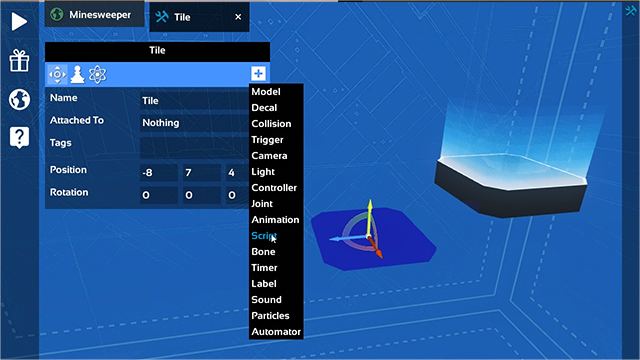
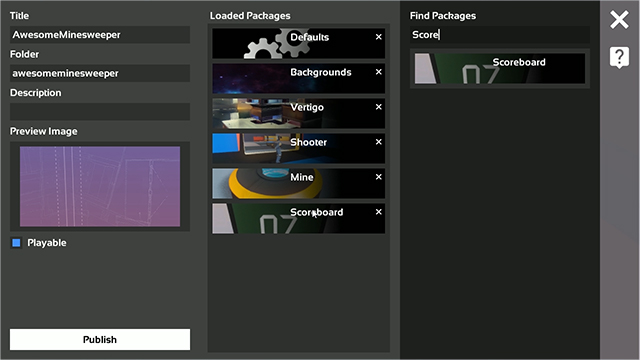
This comprehensive tutorial will get you started scripting in Lua in Future Perfect. It’s chock full of code snippets, videos, and pictures to help you go from zero to Minesweeper-fiend in about… Thirty minutes.
Next on the agenda, art import, physics, and other topics. But for now, we’re off to eat & drink something other than bread and water.
This has been a short week for development due to the Tuesday release and the Thanksgiving holiday in the US. We still have some good things for you though!
Most importantly we’ve been working on fixing a handful of critical bugs. Fortunately we were able to catch them quickly and put out fixes the same day. We’re in “earliest access” so there will be bugs, but we’ll try as hard as we can to make sure they don’t interfere with anyone’s enjoyment.
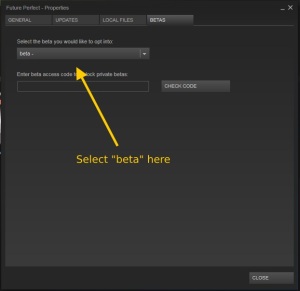
Our plan is to update Steam with a new stable version of the game every week. However, if you’re willing to put up with a few extra bugs, you can get daily updates from the Steam “beta” branch. To switch to using the beta branch, all you have to do is right click on Future Perfect in Steam, select Properties and then choose it on the Betas tab.
Platform Automator
Dushan added automator scripts for the platforms to help make building levels easier:
https://www.youtube.com/watch?v=n8N7Ybhop6M
The artwork for these modular platform pieces was in the initial release, but they had to be manually placed one-by-one. Now that they’re hooked up with an automator it’s much easier; you can drag out straight paths and the automator does all the work of placing the pieces and connecting them when they intersect.
We’ll talk more about these later, but simply put automators are Lua scripts that allow you to control the editor. We’ve added them to do procedural level building, but we think there will be lots of other uses for them as well.
Sweeper of Mines
Dushan wrote up a guide explaining how scripting in Future Perfect works with an example Minesweeper-like game. The tutorial will be posted soon, but Sweeper of Mines is already up on the Steam Workshop:
https://www.youtube.com/watch?v=n8N7Ybhop6M
You can play it by subscribing to it from the Workshop website, or by choosing it from the “Find Games” panel in the main menu in-game. Once it’s downloaded it will show up in list when you select “Start Game”.
Create Asset Menu
We found the simple dropdown list for creating a new asset had some usability problems, so we revised the interface for creating new assets:
https://www.youtube.com/watch?v=mcs2deIjKdA
We’re going to constantly iterate and improve on the user interface to make things as easy and clear as possible. Feedback is very useful, so if you have any suggests be sure to post them in the Future Perfect forums, either here on Steam or on our website.