

Galactic Dominion
[Update] 1.0.2018.08.18.h2 - Fix Chapter End Outro Not Showing Up!
A number of people have reported that they did not get the Chapter end game popup and saw strange things happen at the end of the game (e.g. Troop counts were jumping erratically, etc).
The Campaign progression still progressed as the end objectives were met.
The issue was actually related the Steam Stats being updated upon completing the Chapter. Your achievements and stats are incremented and synchronized with Steam but there was a possibility that it could not synchronized correctly with Steam causing the game to "soft" hang. Today, being Steam's regular Tuesday maintenance cycle - seems to have caused this issue to happen to more people.
This has been fixed now! ːsteamhappyː
But if your stats/achievements did not unlock you will unfortunately have to try again.
[Update] 1.0.2018.08.18.h - Remove the Pause Menu Transition Anim
Previously, in the game scene, every time you went into the menus the game would play a small transition animation to pan the camera to the side before the content loaded.
While this was cool at first (at least I thought so) - it broke the pacing after extended play. Particularly if you needed to jump in and out as you macro your Empire.
This animation took about 1 second to pan in and another 1 second to pan out. It meant that you were losing 2 seconds every time you went into the pause menu.
This has been removed completely so the transition is now near instantaneous!
I've also started working on some slightly bigger updates but will keep that for a future announcement. Until then!
[Update] 1.0.2018.08.18.g - Balance Campaign Chapter 3
Since I've played each Chapter so much I knew exactly what had to be done in each one so it is a bit difficult to balance - perhaps even more so than Quick Play mode since in the Chapters there are some scripted events.
In any case - Spoilers warning - don't read if you haven't tried to play Chapter 3 at least once. You will have to start Chapter 3 from the start for the update to take effect.
Changes:
---
- The time before the Machines spawn has been increased.
- The number of Fighters they spawn each click has been reduced.
- The time before they auto-conquer a Star has been increased.
If even after the changes you still find the Chapter too difficulty, try these hints - and we can look into it more.
Hints:
---
- The objective is to get to the final Star as soon as possible.
- Move your Colony Ship immediately to find the path to the final Star (the path randomizes a bit in each play through)
- Enable the Industry governors to auto-build and accumulate Minerals and Ship Parts
- Optionally you can mass Fighters (set Repeat build on) to help slow down the Machines but keep an eye on your resources, you will need it for the Star Fortress
- Once you get the Colony Ship to the destination Star, colonize it, and start upgrading Infrastructure. Remember to put your workers into Infrastructure.
- Also mass Fighters here, again, keep an eye on Ship Parts.
- When the Infrastructure is complete, immediately start building a Star Fortress
- Once it's complete, you will have escaped successfully.
- If the Machines manage to colonize all the Stars up to you at the final Star they will start sending all their fighters to you. Even here you have a chance to win until they start sending Transports to invade you.
Maybe it's time to start a Guide section on Steam... ːsteamfacepalmː
[Update] 1.0.2018.08.18.f - Disabling Unity Analytics & Big Font Mode for ToolTips
---
- Unity Analytics is now disabled
- Added Big Font Mode for ToolTips
---
First, I want to address the issue of data collection and why I decided to disable it altogether.
There's a lot of misconception surrounding data collection particularly in recent months with what happened to Facebook and all the horror stories we hear about data privacy.
In the software industry, particularly in gamining, there's a lot of collection of user data going on. Companies want to know the patterns and things we do in-game so that they can either serve ads and purchase offers or reduce risk and design game modes that from data they can be more certain players will play.
All AAA companies does this and they DO NOT give you the option to Opt-Out. Instead, they put the disclaimer in their EULA (End-User License Agreement) when you first install and start the game. If you don't accept, you cannot play.
After what happened with Cambridge Analytica and Facebook, the GDPR (General Data Protection Regulation) came into affect forcing many companies to provide clear descriptions about data collection and an opt-out option.
---
Now, specifically, for Galactic Dominion, it's built on the Unity Engine and Unity has an optional service for Analytics where you can opt-out - unfortunable as pointed out by Chyknlyps, giving the player the option in fact scares them a lot more than if I just hid the fact that there was collection and threw it in some EULA hidden somewhere on a website.
I am removing Unity Analytics from the game as it has in fact done more damage in 3 days than the amount of good it was doing. The main collection points were regarding which menus players were going to, what game settings and mode players were using more, and which missions were to hard or to easy.
The initial hope was that, this would provide more insight (with data proof) down the road to see which modes can be expanded on for the game - but I have quickly discovered that the posts on the Discussion threads provide much more valuable information than from the data collection.
The main downside of this approach is that I'll be making changing to the game based on opinions rather than statistical data thus raising questions like - does everyone really want this xyz change or just this one person?
So with all that said and data no longer being collected - I'll need your help to let me know what to improve (or dis-improve ;)) in the discussion forums! ːsteammockingː
---
And now onto more fun stuff ːsteamhappyː
An idea suggest by SolCat - Increase the Font Size!
- There's now new "Big Font" option now in the Options Menu. When selected, the Tool Tip fonts will increase in font size across the board.
- I'll have to investigate more into how to make other UI fonts bigger in an elegant way but the Tool Tips are an easy win at this point.
- I also increased the font size of the Tool Tip slightly even when Big Font is not enabled.
- Unfortunately, your Option settings (sound volumes) will be reset with this update. I apologize for this.
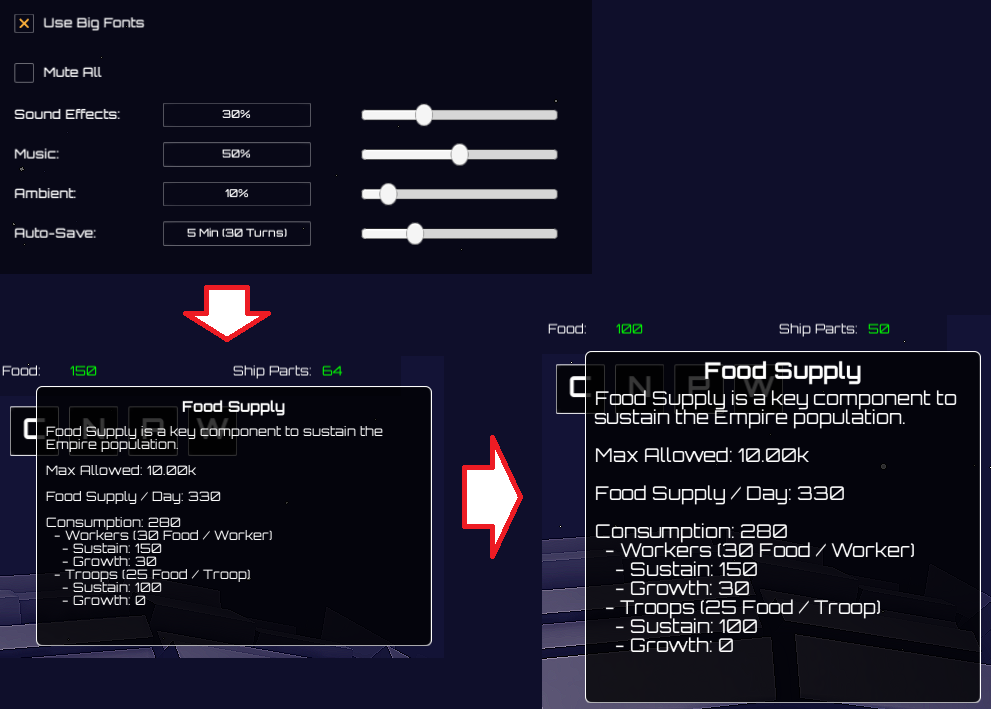
I can squint less now!
[Update] 1.0.2018.08.18.e - Changing Star Names & Showing them while Zoomed Out
---
- Added the ability to change Star Names you own
- Star Names will now be shown while Zoomed Out if your Scanner Verbosity is set to at least Low (default value)
---
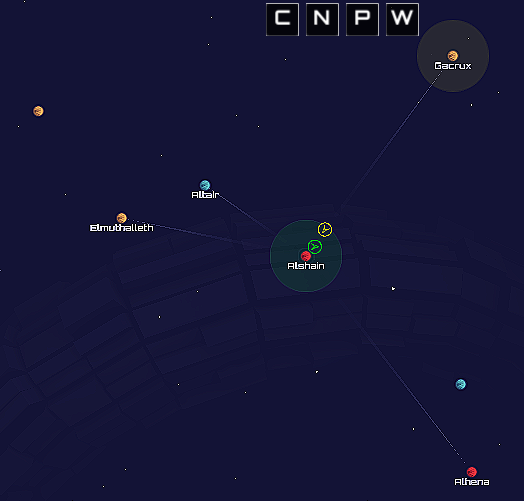
Thanks SnottyGremlin for the original idea - i.e. to be able to see the Star Names while you're zoomed out as it helped to give positional context.
Very true - and not too difficult to add. The biggest challenge was resizing the text when you zoom out out - The font size differs depending on the Galaxy Size your playing in since you can zoom out more in a larger galaxy.
Some things to note:
- You must have discovered the Star (i.e. found the connecting Star Lane)
- Your Scanner Verbosity must be set to at least Low for it to show up - This is in case someone wants to take a screenshot without Star Names in the way:

---
The second change is you can now rename the Stars you have under your control now!
You can do this by clicking on the Star Name in either the:
- Star Control Panel
- Stars Menu

When you click on the name the Input TextField will activate and you can change it to something different. Once you click away or hit enter the new name will be applied to the Star.
Enjoy!
Post-Launch - Product Backlog and Ideas!
We're getting some great feedback (and criticism) on the user interface and controls.
All feedback is appreciated so we want to get all the ideas organized and prioritized so we can start improving the base game immediately.
To help with this we started 2 Discussion threads:
Product Backlog & Updates
We'll be providing you guys visibility on what we're working on currently and any changes that goes into the game.
Product Ideas & Feature Request
Here you can pitch your ideas and feature requests and we can see how we can get it into the game.
Galactic Dominion is Now Live!
We're excited to announce that Galactic Dominion has officially gone live.
In celebration of the launch of our first game we're offering a 15% launch discount on Steam!
https://store.steampowered.com/app/871710/Galactic_Dominion/
Enjoy!
Forever Years
http://foreveryears.com
Combat Mechanics and Research
But before that we will go into a bit more details about a couple more mechnics.
1. Combat
- a. Fleet Combat
- b. Fleet Tactics
- c. Star Fortresses
- d. Planetary Bombardment
- e. Ground Invasion
2. Research
---
1. Combat
Combat can either take place in space or on the ground so we'll go into a bit more details here.
1.a Fleet Combat
Fleets are composed of Ships. And Ships can come in a few types. Colony Ships, Transports, Fighters, Bombers, and Battleships.
Colony Ships and Transports are non-combative and used mainly to colonize and invade enemy Star systems respectively. (More on the invasion further down)
Fighters, Bombers, and Battleships are the main weapons in your Fleet. Each Ship type has it's strengths and weaknesses.
Fighters - Cost the least, have a boost to movement and fires a laser canon at a high rate. It does however, have lower hit points and are vulnerable to Battleships.
Battleships - Cost a more, moves slower, and are weak against Bombers. But they have high hit points and fires a strong and effect Beam weapon against Fighters.
Bombers - Are designed to Battleships, Star Fortresses, and bombard Planets but they are extremely vulnerable against Fighters so would require an escort. More on Star Fortresses and Bombardment further below.
When a Fleet gets within range of an enemy Fleet, they will automatically open fire. Taking into account each Fleet's Attack, Defense, and Hit Points. Defense will reduce any Attack before applying the damage to the Hit Points so researching advance technologies (more on this in a bit) will be critical in your Fleet missions.
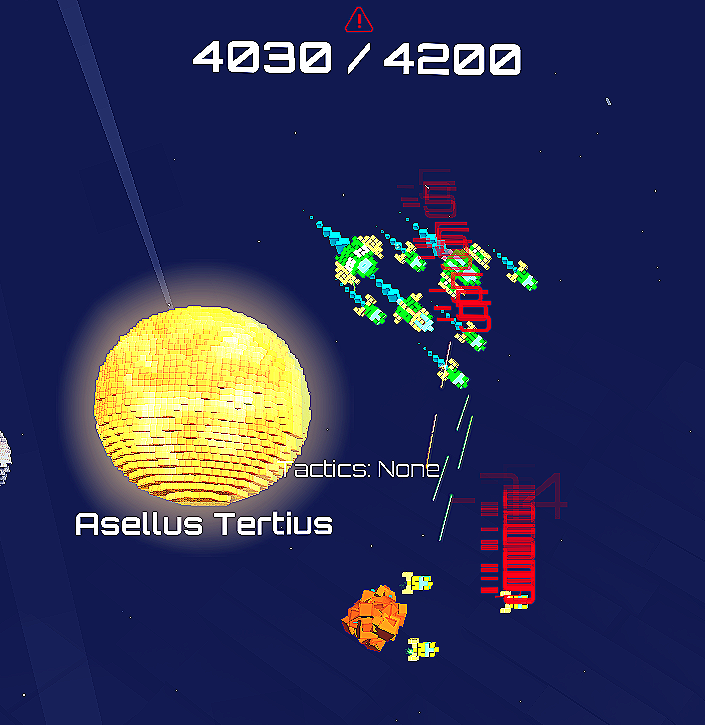
Yellow Fleet being decimated here. Scanner Verbosity set to Low to show the HP and Tactics overlay.
1.b Fleet Tactics
Fleets can be boosted with Tactics once the proper research is completed. These are commands that you can give individual Fleets in order to gain an advantage over the enemy. Alternatively, if you enable your AI Commander they will automatically try to find the best Tactic to use in their given situation.

Here your Fleet takes Attack Mark I, an attack stance that boosts your attack by 1 at a cost of defense.
1.c Star Fortresses
Star Fortresses are primary used as defensive structures for your Star system. They do not take Command points to build but are limited based on the research level you have unlocked.
They are slow moving, cost a lot, vulnerable to Bombers, and can only orbit the local Star where they were created. But they have very high Hit Points and strong ion Flame attack that can hold off many attacking Fleets.
However, the have a very important quality that makes them important and that is, enemies will not be able to Bombard or Invade the Star system if there are any Star Fortresses in orbit. So they effectively acts as a shield for your system.

1.d Planetary Bombardment
Bombers, as mentioned above, can perform Bombardment actions when they are docked to an enemy Star system and there are no orbiting Star Fortresses.
When bombing begins, you will see the Bombardment overlay appear:

If a Star system loses all its Population (Workers essentially) the system is lost. Bombing may also damage and Industry and kill Troops (represented with the tokens and marked as Defenders.
The more Bombers you stage to perform the Bombardment the more damage system damage you can inflict.
You may also enable the Auto-Bomb feature and the AI Commander will keep bombing the planets until all population is wiped out.
1.e Ground Invasion
Transport ships can start Ground Invasions on a Star system that has no Star Fortresses defending it.
When a Ground Invasion begins the overlay will appear to show the Defender and Attacker tokens along with the Hit Point of the unit currently in combat.
If the Attacker defeats all the defending Troops of the Defender then they will take over the Star system along with any Industry and Workers still in the Star system. This is a less destructive take over than a complete Bombardment mission. Of course, you may wish to reduce the number of defenders first by doing a bombing run and then sending in a ground invasion afterwards.
Like Ships, the Attack and Defense of ground units can be upgraded through research.

Research
Research is divided into four fields:
- Computers
- Construction
- Planetology
- Warfare

Computers focuses on unlocking the science of robotics and generally allows you to build Ships more effeciently, automated Mineral mining, and control more Factories per worker unit. Scanner technology can also be found in this field.
Construction focuses on stronger armor, faster ship engines, cheaper Ship and Factory construction cost, and unlocking Star Fortresses.
Planetology focuses on everything related to Food production, Food consumption, Population growth, and Terraformation which further increases Food production rates and max population limits.
Warfare focuses on Ship and Ground Attacks, Command point limits (allowing you to build for more Ships), and Fleet Tactics.
As mentioned in the previous entry, you can select a different Research topic per field and they can be researched simultaneously by allocating Scientists to the desired field.

Scientists are gained per Infrastructure point, and higher level Infrastructure is unlocked by completing more advanced research. Some Star system based research (e.g. better Factories) will first require you to upgrade the Infrastructure before you can take advantage of the technology within the Star system.
---
That's it for now! We hope to see you all in-game tomorrow! ːsteamhappyː
User Interface and Controls
User Experience has always been a challenging area and it's no different for Galactic Dominion.
There are so many things a player can do in the game we were afraid that it would be too overwhelming when it came to controls. Furthermore, the design goal is to make sure that players experienced a quick-paced action strategy so we wanted to try to keep the player in as few screens as possible.
---
With that said, a lot of information that had to be cramped into the game scene so we divided it into essentially 2 sections. We will go over them at a high level and revisit them in details in future entries.
1. Galaxy Map
- a. Overlays
- b. ToolTips
- c. Empire Control
- d. Star Control
- e. Fleet Control
2. Pause Menu
- a. Research Menu
- b. Stars Menu
- c. Fleets Menu
- d. Statistics Menu
[1] Galaxy Map
On the Galaxy Map, the player can zoom close into the each individual Star systems or far to see most, if not all, of the current galaxy.
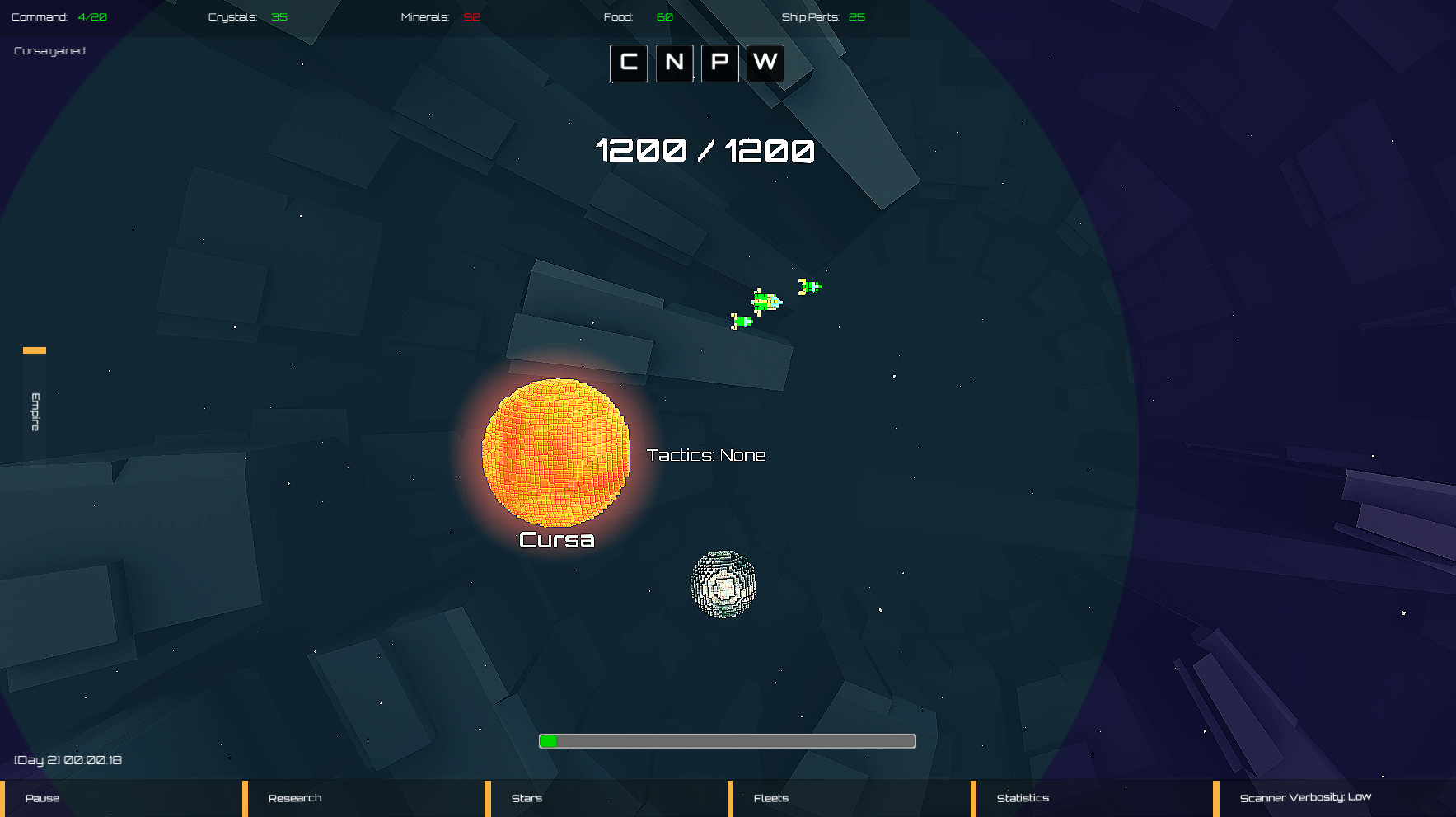

Information can generally be found in Overlays or Tooltips.
[1.a] Overlays
Overlays can clutter the game quickly so we provided players an option to toggle the verbosity. It is part of the Scanner system - Think of it as the part of the hyperspace detection system available to the Empires.


[1.b] Tooltips
Tooltips on the other hand contain a lot of information without cluttering up the scene as they are only shown when you hover over an element.
There are Tooltips everywhere and contains useful information such as amounts, progress, penalties, bonuses, etc.
Here are a few examples:
Command ToolTip shown when hovering over the Empire's Command resource:

FoodToolTip shown when hovering over a Star's Food resource:

[1.c] Empire Control
The Empire Control allows you to monitor and manage:
- Research
- Doomsday Meter
- Total War
- Empire AI Assistance
This Control is always available and can be shown or hidden by clicking the Empire button on the side of the Galaxy Map.
[1.d] Star Control
The Star Control allows you to monitor and manage individual Star systems:
- Star Info Panel
- Workers Panel
- Industry Queue Panel
- Drydock Queue Panel
- Governor Panel
This Control is available when you click on a Star system you own. If you click on an enemy Star system, you will not be able to control it obviously, but if you have the proper Scanner capabilities (from Research) then you will be able to see information about their Star system.

[1.e] Fleet Control
The Fleet Control allows you to monitor and manage individual Fleets:
- Fleet Info
- Ship Staging Panel
- Command Panel
- Tactics Panel
- Commander Panel
This Control is available when you click on a Fleet you own. Like the Star Control, if you click on an enemy Fleet you will not be able to see details until you have the proper Scanner technologies.

All the Controls have in-depth Tooltips so if you hover over an element there will be additional information.
There are a couple more minor Controls (Star Fortress Control and the Multi-Selection Control) we will not cover today as they are quite small in comparison.
---
[2] Pause Menu
The Pause Menu contains a number of sub-menus but we will focus on the 4 that may be used to manage your Empire.
Because of their important they can also be accessed immediately from the bottom HUD on the Galaxy Map:

[2.a] Research Menu
The Research Menu allows you to select the topics to research. You may research up to 4 topics simultaneously, one for each Field.
You will find the Research Tree here and clicking on them will show you the costs and description of the topic. (You can also hover over them for a Tooltip description)
[2.b] Stars Menu
The Stars Menu lists all the Star systems that you have discovered so far. From here you can manage all of your systems, giving you all the same access as the Star Control.
Furthermore, you can run filters and sorts to organize the list and then zoom to the Star with the Focus button.

[2.c] Fleets Menu
Likewise, the Fleets Menu lists all the Fleets that you own and you can track and manage them directly from this menu.

[2.d] Statistics Menu
The Statistics Menu contains a trove of information regarding the progression of your empire.
Once you unlock the appropriate Scanner technology you will also be able to see the statistics of your enemies.

---
Tutorial Menu
We also wanted to announce that after some preliminary playtests we thought that it was important to include a user manual as a well as a Tutorial section for our players.
We're happy to present to you here the Tutorials Menu we put together this weekend along with our user manual and short video clips on how to perform specific actions in game.

For those curious about the user manual. It will be available in PDF format and shipped with the game but you can also access it on our website here:
http://foreveryears.com/wp-content/uploads/2018/09/GalacticDominion_Manual.pdf
---
That's it for now. It was a high level overview of the User Interface and Controls but we'll go over them in more details in the future.
Next time we'll go over Research in more details and get ready for the launch of the game!
Quick Play Mode
- Galaxy Size
- Number of Stars
- Empire Race
- Opponents
- Difficulty
- Empire AI Assitance
- Total War
- Star Lanes
- Turn-Based Mode
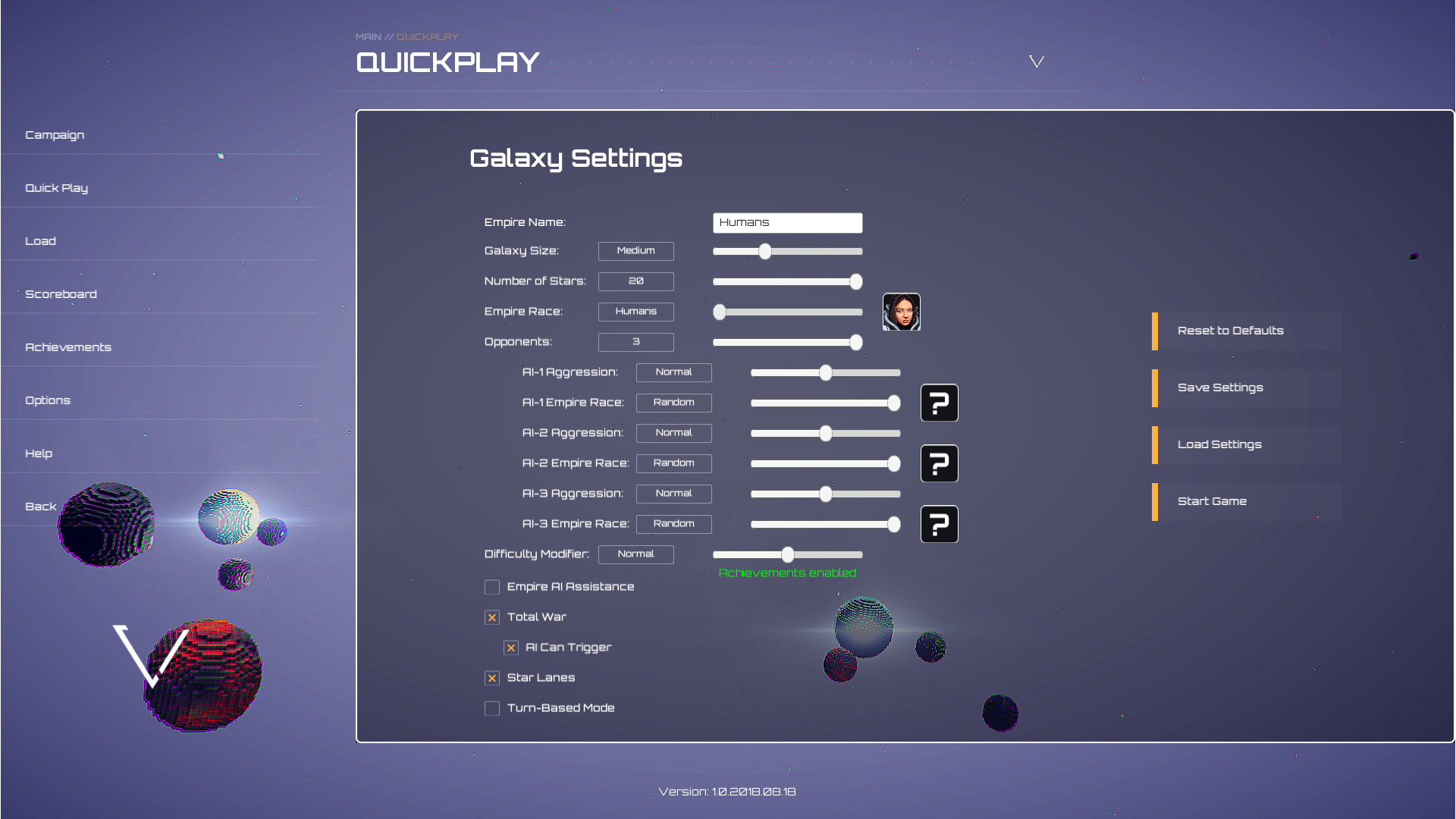
[1][2] The first couple is pretty straightforward. You can customize the size of the galaxy and the number of Star systems in it. Essentially on large galaxies, the travel time will be longer if the density of the Stars are reduced. So a Huge Galaxy with only 5 Stars will take much longer to travel between compared to a Small Galaxy with 5 Stars.
[3] The Empire Race allows you to choose between 4 different races in the game. Each one will have a different bonus and penalty to resource or technology growth. I won't spoil too much about the different races. Alternatively, you can select Random and have a race assigned to either yourself and/or the AI opponents.
[4] The Opponents can range from 1 to 3. Each can have its Aggression and Empire Race customized. Don't be mislead by a Low AI Aggression. They will still attack and will attack early but what changes is the kinds of Missions they send their Fleets on. For example a High Aggression opponent will have a higher rate of attack Missions.
[5] The Difficulty modifier affects the bonuses applied to either the Player or the AI. On easier difficulties this bonus is applied to the player and on higher ones they're applied to the AI. Normal difficulty is the minimum level needed to be able to unlock Steam Achievements.
The next few Settings are more unique to Galactic Dominion.
[6] If you're finding the game too hard, or you simplify want to sit back and watch the AI play out a space epic you can enable Empire AI Assistance. This will essentially enable the AI for your Empire. The AI will help you on everything ranging from Star management (building Industry, Ships, and managing Workers), Fleet missions and movements, to Research selection. Generally, it will perform quite well but if you want to min-max your builds it you will have to take direct control. If you wish to disable the assistance once the game has started you can go into the Empire Control and uncheck the Mobile Empire Governors & Commanders box. Alternatively, you can disable individual Star Governor in the Star Control. We'll go in controls more next time but please note that STeam Achievements are also disabled in this mode.
[7] Total War is something unique to Galactic Dominion. In the Empire Control there's a Doomsday meter that builds up as the different player perform aggressive on one another.

As it fills up, it will change the behaviour of the AI and once it reaches 100%, Total War becomes available. You can trigger it yourself, or if you have the option enabled the AI may also trigger it. It will essentially force the AI Assistance to be enabled but it does not disable Steam Achievements and it has bonuses and penalties applied to all players. You can think of it as the end game where the entire galaxy is so focused on the war effort that things like population growth and defense becomes secondary.

[8] You can enable and disable Star Lanes in Galactic Dominion. Star Lanes you easier to defend choke points but if you want to play without them it's an option. When this is disabled, any Free Space (that is, the area of space outside of any Star influence) will put your Fleets into warp speed. This is to prevent games without Star Lanes to be slow.
[9] Finally, you have the option to enable Turn-Based Mode. The game will start paused and you're turn will pass every time you unpause. This mode will lock in your commands only every game Day which is equivalent to 10 seconds of game time. When you unpause it will process 10 seconds of the game in fast forward speed. Please note, it is note a classical turn base where each player moves one another another. It is a simultaneous turn-based mode where upon starting it will move everyone at once. This mode will change the experience drastically.
---
I hope with these Quick Play settings you will be able to find lots of replayability to the game - whether it's for a quick fix or for a longer campaign like scenario.
Next time, I will go over the User Interface and Controls for the game. It's something that has caused confusion to some players so I want to cover it in details and what we're working on currently to improve the first time user experience.