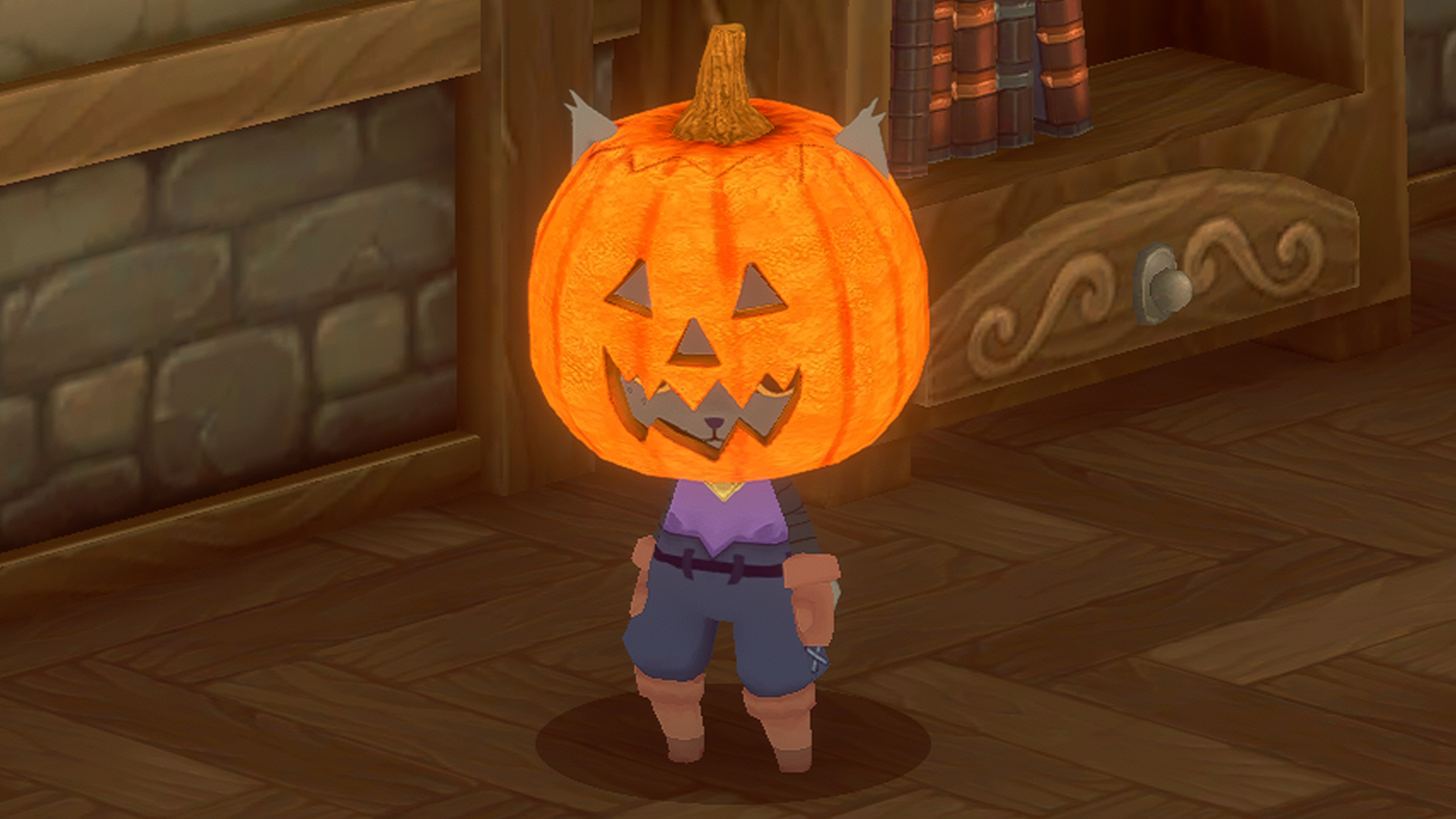
As the Summer Sun sets over the beautiful folding farmlands and meadows of Kitaria a cool autumnal breeze blows through and tickles the toe beans.
Pumpkin Head: Hello, gourd-geous – you’re the pick of the patch! Get ready to suit up and give them Pumpkin to talk about!
Spider Backpack: Time to creep it real with this eight-legged luggage! Why not post Nyan’s new look on socials – you’ll be the talk of the “web”.
Cheshire Cat Skin: Get ready to look pretty in purrple. This DLC will have you, looking good, feline good!
More Announcements: Kitaria Fables also went on to win big at the "Indonesia Game Awards 2022" winning, Best Gameplay, Best PC/Console Game, Game of the Year and was nominated for Best Art!
From everyone here in the land on Kitaria we wish you the happiest of Halloweens!
More adventures to come in the land of Kitaria! Stay tuned for fur-ther announcements!
Steam Cloud Save Update
Cloud Saves have been implemented!
Local and cloud files will sync automatically when opening the Save/Load menu or when saving.
Save files created before this update won't sync to the cloud automatically and require players to sync their save files by opening the Save/Load menu or playing the game as usual.
Thank you!
Controller Update Version 1.0.0.9
- Optimized and fixed some issues with the controller input system - The settings "Open Inventory Menu," "Open Pause Menu," "UI Select," and "UI Back/Close" will no longer be adjustable to prevent locking the player out of some functions accidentally - Fixed movement and selection that used analog input from being modified from controller mapping
Due to several reworks on the controller input system, this update will reset your previous controller mapping settings to default. This will also resolve an issue that players cannot open the menu or have missing inputs in their mappings.
We have purchased and tested the majority of reported joysticks in coop mode. Oddly enough, controller support works perfectly on a non-steam version of Kitaria Fables, and only the Steam version caused issues with some Bluetooth gamepads.
Steam creates a virtual gamepad for all connected gamepads based on their configuration, so this is the approach we took to solve the issue: 1. When you connect your Bluetooth gamepad, make sure to wait until it is displayed as a gamepad instead of a keyboard or any other device, then connect. (T3 Terios Bluetooth gamepad, for example) 2. Go to Steam -> Settings -> Controller -> General Controller Settings -> Check the Guide Button Focuses Steam and Generic Gamepad Configuration Support and uncheck the rest. 3. It should be detected as a generic gamepad on the detected controller at controller settings. Click it, then click Define Layout. 4. Wait until the Steam Overlay message "Gamepad Loaded" shows up, then the Bluetooth Gamepad should work. 5. Try to run the game!
List of joysticks we have tested: - Logitech F310 Wired and Wireless - Logitech F710 Wireless - DualShock 4 - DualSense - T3 Terios Gamepad - 8Bit do - Xbox One - Xbox Series S
Thank you!
Update Notes Version 1.0.0.9
Hello, Residents of Paw Village! 🐾
Thank you all for your feedback and support for Kitaria Fables, we want you to know we're listening and made the following changes, bug fixes, and updates!
Controller Update Version 1.0.0.9
Optimized and fixed some issues with the controller input system - The settings "Open Inventory Menu," "Open Pause Menu," "UI Select," and "UI Back/Close" will no longer be adjustable to prevent locking the player out of some functions accidentally - Fixed movement and selection that used analog input from being modified from controller mapping.
Due to several reworks on the controller input system, this update will reset your previous controller mapping settings to default. This will also resolve an issue that players cannot open the menu or have missing inputs in their mappings.
Steam creates a virtual gamepad for all connected gamepads based on their configuration, so this is the approach we took to solve the issue:
Step by Step guide
When you connect your Bluetooth gamepad, make sure to wait until it is displayed as a gamepad instead of a keyboard or any other device, then connect. (T3 Terios Bluetooth gamepad, for example)
Go to Steam -> Settings -> Controller -> General Controller Settings -> Check the Guide Button Focuses Steam and Generic Gamepad Configuration Support and uncheck the rest. 3. It should be detected as a generic gamepad on the detected controller at controller settings. Click it, then click Define Layout.
Wait until the Steam Overlay message "Gamepad Loaded" shows up, then the Bluetooth Gamepad should work.
Try to run the game!
We truly apologize for the issues/bugs you have encountered, we will do our best to fix them! Thank you!