■ How to cope with the issues regarding Xinput controllers
・LT/RT button doesn’t respond
・Menu is scrolling without operating the analogue stick, etc.
Disconnecting the Xinput controller once and connecting again will resolve the issue.
■ How to cope with the issues regarding Direct Input controllers
・LT/RT button doesn’t respond
・DPAD (direction key) doesn’t respond
・The button assign seems to be different, etc.
Following process will make it possible to play the title with Direct Input controllers.
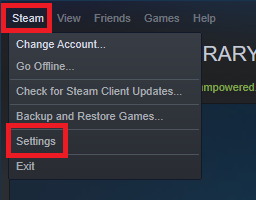
1) Select “Steam” from upper left Steam screen, and go to “Settings”
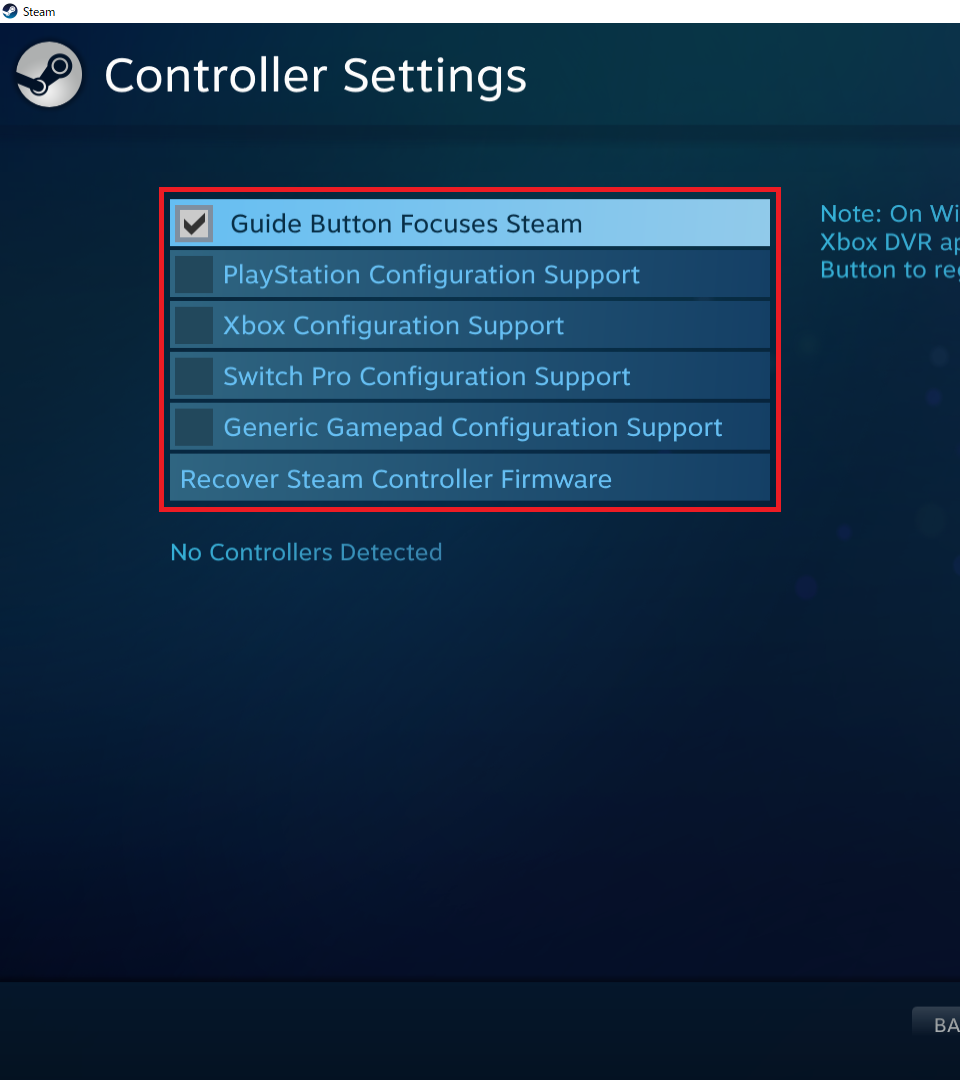
2) Select “GENERAL CONTROLLER SETTINGS” from Controller.

3) Check the items in accordance with the controller to use.
Please check the “Generic Gamepad Configuration Support” for the controllers for PC. Please note, however, that the controllers with 16 buttons for fighting games might not work appropriately.