Thanks again to the community for the feedback. This update adds a major new feature Continuous Turns.
Continuous Turns
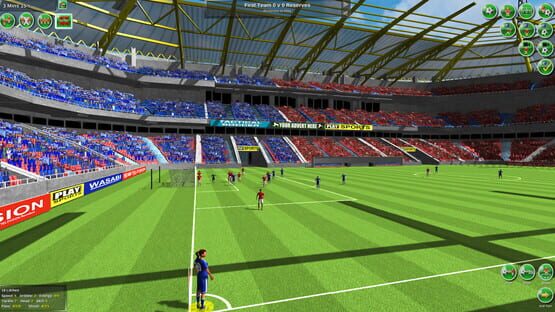
To reduce the time it takes to play a game we've introduced a major new feature - continuous turns. This allows you to watch the match play out in front of you and when you see play reach a certain point you can jump in, stop play and take over control.
To activate Continuous Turns either press the new continuous turns (CT) button (bottom right of the main screen) or press the comma on your keyboard. The turn will end as normal - however once the AI has moved, your team will carry out the orders set on their Player Orders screen (see update v1.02 for more information about the Player Orders screen). Turns will continue automatically until you stop them.
You can end continuous turns by pressing the comma key (or space bar) or clicking the Continuous Turns (CT) button.
By setting up your Player Orders and using this additional way of playing you can see the game play out in front of you knowing that you can stop continuous turns at any time to dive in and adjust your strategy or take over so that the team plays how you want it to.
Note: Continuous Turns mode will automatically stop when either your goalie gets the ball or play stops (e.g. throw-in, corners). This prompts you to assess your tactics at these key points in the match.
Starting continuous turns will now make any Players Orders active.
So playing with Continuous Turns the game flow now becomes...
start Continuous Turns – comma key or the CT button
when the play reaches the point that you want to jump in (say you want to take a shot) press the space bar or the CT button
set up the shot in the normal way
press the space bar to see the shot happen (this is important because if you restart continuous turns the AI will jump in and may decide to do something different!)
restart Continuous Turns – comma key or the CT button
Additional Player Orders
To supplement the Player Orders you already have we've added some new ones - AI Defender, AI Midfielder and AI Attacker. These will get your team to play using the AI that the computer uses. So if you select AI Defender for a player that player will use the same AI the computer team uses for it's defenders.
These new orders are extremely useful as when using continuous turns the match will play out in front of you waiting for you to step in when you see something not to your liking or you want to take over for that key pass or shot.
To save you time when you start a new match we automatically assign the new AI orders to your players - but have them inactive. Starting continuous turns will make them active.
We have also added two buttons to the Player Orders panel. All AI - will assign the new AI orders to your players based on their position/your formation. All None - will set all your orders to none.
Note: If your player has the ball and has been assigned AI orders the AI orders will only operate when continuous turns is in operation - this allows you to give your player with the ball direct orders without the AI jumping in and confusing things.
v1.02 11th February 2016
Thanks again to the community for the feedback. This update adds two things - Volley/Snapshots and Player Orders.
Volleys/Snapshots
These work just the same as headers. Using the heading button (now Heading / Volley button) select the player and then click where you want them to volley the ball to. Click Set Target to lock in the direction. Pass or shoot the ball to them at power and they will attempt to volley the ball in the direction you've set. If the ball's too high they will of course attempt to head it.
If the player attempts a volley their skill level will decide whether they are successful or not. Warning an uncontrolled volley can end up going anywhere!
Player Orders
To reduce the number of orders you have to give your players each turn you can now give a player specific orders which they will carry out every turn until you tell them otherwise or play stops.
The orders are divided into two groups:
Defending - orders for when you are defending (your team does not have the ball or the opposition are closest to the ball)
Attacking – orders for when your team has the ball or are closest to it.
For example you tell your player that when you are defending they should man mark the opposing player number 15.
At the start of each turn (orders phase) when you are defending that player will be automatically given movement instructions to move near to player number 15. As you are in orders phase you can change the order/cancel the order or just give a fresh movement command if you wish. However if you are happy with your player order just end the turn and away they will go hounding player 15.
The Player Orders Panel
Press the new Orders button on the Formation Panel or press the V key to display the Player Orders Panel.
Select whether you want to give orders for when the player is defending or attacking by pressing the Attack or Defence button.
To set an order just select your player and the order. For some orders (such as man mark) you'll then have to select the shirt number of the player you want them to interact with (the shirt numbers are at the bottom of the panel).
You can suspend or activate orders by clicking the player's Yes/No button in the Active column. Player orders will be suspended automatically if you override an existing player order or when play stops (e.g. for a goal kick).
Note: you can't give Player Orders to goalies as they are already automatically controlled by the computer.
Orders for When You Are Defending Here are the orders for when you are Defending...
None – clears any orders for that player
Man Mark – The player will follow them trying to stay between them and your goal. You'll have to select the shirt of the opposing team player that you want to mark.
Man Mark Close -The player will follow them closely trying to stay between them and your goal. You'll have to select the shirt of the opposing team player that you want to mark.
Keep in Line – Keep in line with the nominated player. You'll have to select the shirt of the team mate the player should keep in line with. Useful for defenders – keeping the defensive line.
Halfway Line – Move to the halfway line. Useful for getting the strikers to automatically fall back when they are defending.
Defend Deep - Move back beyond the halfway line. Useful for getting the strikers to automatically fall back and defend deep.
Follow Ball – If the ball is between you and YOUR GOAL fall back to just behind the ball. Useful to get midfielders to follow the play when the ball is behind them.
Orders for When You Are Defending Here are the orders for when you are Attacking...
None – clears any attacking orders for that player
Man Mark – The player will follow them trying to stay between them and your goal. You'll have to select the shirt of the opposing team player that you want to follow.
Man Mark Close -The player will follow them closely trying to stay between them and your goal. You'll have to select the shirt of the opposing team player that you want to follow.
Halfway Line – Move to the halfway line. Useful for getting the defenders to automatically move up the field to support your attack.
Defend Deep - Move back beyond the halfway line. Useful for getting the defenders to automatically move up the pitch but still defend deep.
Follow Ball – If the ball is between you and the OPPOSITION GOAL move forward to just behind the ball. Useful for midfielders.
Wing Attack – If the ball is in front of you move out to the wing and keep in line with the ball.
Support Player - The player will stay just behind a team mate. You'll have to select the shirt of the team mate you wish to support.
Left (Support Player) – you will support your team mate but stay to the left.
Right (Support Player) - you will support your team mate but stay to the right.
I'll be shortly uploading a couple of videos showing the new features in action.
Thanks again for the feedback.
v1.01 26th November 2015
First thanks to the community for the feedback. This update focuses on two things; the goalie (how they handle being crowded by the opposing team, added graphic representation of when the goalie has picked up the ball) and improving the rendering performance of the 3D match (now culling more objects).
Thanks again for the feedback.
Ed
Learning to Play Tactical Soccer The New Season
Here's some tips on how to learn to play the game...
In the game there's 20 screens giving an overview of the basics. You can access them when playing a match by selecting the system icon (cog - top left of the screen) and then pressing the Show How To Play button.
We've also created some short video tutorials on how to play the game. The first covers selecting and moving the player, the second passing and shooting. You can find them in the Videos section.
There's also a manual in pdf format which you can find on the front page of the Steam storefront for TSTNS on the right hand side, in the info panel about the game - select the view the manual option.
We recommend playing an exhibition match, in Easy mode, against yourself (or the computer) to get the hang of the controls before launching into playing a season.