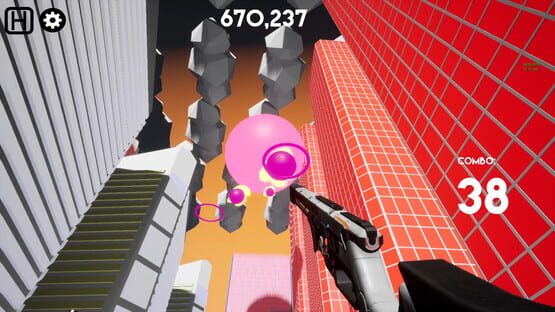
A little patch with some fixes + features to celebrate 2 months on Steam. Thanks to everyone who's tried the game!
Updated visuals on all three levels (especially Sky)
More settings and resolution options (1440p and 4k supported now!)
All settings now persist between restarts
Expanded settings.txt file created when using the splitter tool - use this to remember and share settings for particular songs! Also allows further fine-tuning for individual songs. Tutorial coming soon!
Various small bug fixes and improvements
Also, a lot has changed under the hood this patch to enable some fun updates that are in the pipeline. Stay tuned!
Tengin Music Engine Patch 2
Changes in this patch:
Tengin Music Engine
Added a volume slider to the settings page and in-game escape menu
Added option to disable motion blur in settings
Added tutorial text to all levels (disappears after 9th time playing a level)
Fixed bug where video and sensitivity settings would not persist between game restarts
Fixed bug where sensitivity would sometimes reset randomly during a session
Fixed bug where mouse invert controls were not working
Tengin Splitter
Added optional text box for artist name which will appear with the title of the song in-game
Added warning if user attempts to upload a song without naming it
Added warning if user attempts to use invalid characters in the song name
Fixed bug where output log would show erroneous error messages
TODO: Add .ogg support to the splitter tool
Customize Your Music - Level Settings Tutorial
A short guide on settings in Tengin Music Engine
Once you have your own songs uploaded through the Tengin Splitter Tool, you can adjust various settings to maximise the beauty and playability of that particular song. Here are some adjustments you can make at the moment:
Global settings:
Note Spawn Threshold: Defines how sensitive the note spawning is. The lower the number, the less it takes for a note to spawn when the game detects a drum beat, bass note, etc. The default numbers are .15 for drums, .05 for bass and .02 for instrumentals, but the ideal number might vary from song to song. Raise if too many notes are spawning or lower if not enough are.
Thresholds (in more settings): these three sliders indicate the frequencies at which different components of the level react to the music. For example, the left, right, and forward skyscrapers in the city level. Adjust these sliders to change the way the level reacts to various parts of the song (high, medium, and low frequencies of the various instruments).
Note size: This changes the size of the notes that spawn in each level.
Level specific settings:
Water level: Beat drop time - this number controls how many seconds pass before the level transitions from inside the building to outside in space.
Sky level: Use piano - if “split piano stems” was selected when a song was created using Tengin Splitter tool, you can select this box to use the unique piano visualizations on this level. This works by default for the Nimbus and Shotgun songs that are included in the base game. Check them out!
In the near future, you will be able to save your settings to a file for each song so you don't have to manually adjust every time you load it up. Stay tuned!
Tengin Music Engine Day 1 Patch
This patch fixes some of the bugs and addresses some of the feedback I've received since releasing on Steam yesterday:
Fixed bug where Instrumentalist character didn't work for some song/level combinations
Auto adjusted settings for Bass and Instrumentalist characters to make them work better without manual adjustments
Bass and Instrumentalist characters now have Beta tag on the character select screen to indicate their rougher algorithmic state
Fixed issue where clouds were missing on City level
Fixed issue where platforms weren't despawning on Sky level
Reorganized some aspects of the song select screen and added pointer to Steam announcements page for documentation and tutorials
Small improvements to splitter tool, including support for spaces (hopefully)
Please enjoy!
-Tom
Adding Custom Music to Tengin Music Engine Tutorial
Tengin Splitter Tool Instructions
To play custom songs in Tengin Music Engine, you must use the included Tengin Splitter tool. The Tengin Splitter tool should work out of the box for most users. In order to play your own songs, the instructions for using it are simply:
Select “Tengin Splitter” on app start-up
Type in a name for the song (must be unique)
Drag a .mp3 or .wav file into the indicated location on the tool OR click “select file”
Wait for the green bar at the bottom of the app to finish (could take 2-3 minutes)
Now, when selecting a song in Tengin Music Engine, the song (with the name you provided) should be on the list!
Troubleshooting:
The song I uploaded doesn’t appear in the list of selectable songs
To fix this issue, please click on the “install directory” button and navigate to:
Your steam folder (default is C:\Program Files\Steam\steamapps\) + \common\Tengin Music Engine\WindowsNoEditor\GunTests2\Content\Songs
For example, the full file path should look like: "C:\Program Files\Steam\steamapps\common\Tengin Music Engine\WindowsNoEditor\GunTests2\Content\Songs
Click OK
Then, you should be able to upload a song using the steps at the beginning of this article
The tool doesn't like spaces in the file path
To fix this issue, please set the "install directory" to a location without any spaces (for example, your desktop). Then:
Follow the steps listed at the top of the article
In the install directory you chose, you should now have a folder with the name of the song
Drag that folder into the Songs folder located at your steam folder (default is C:\Program Files\Steam\steamapps\) + \common\Tengin Music Engine\WindowsNoEditor\GunTests2\Content\Songs (for example, "C:\Program Files\Steam\steamapps\common\Tengin Music Engine\WindowsNoEditor\GunTests2\Content\Songs)
Then, the song should be available in the list in the song selection menu of Tengin Music Engine
The tool gets stuck on "starting" and the green bar doesn't complete
To fix this issue, please click on the Path option in the heading of the tool and push the "set SpleeterGui path" option. Then navigate to:
Your steam folder (default is C:\Program Files\Steam\steamapps\) + \common\Tengin Music Engine\TEngineSplitter\SpleeterGui-master\SpleeterGui\bin\SpleeterGui
For example, the ful file path should look like: "C:\Program Files\Steam\steamapps\Tengin Music Engine\TEngineSplitter\SpleeterGui-master\SpleeterGui\bin\SpleeterGui
Cick OK
Then, you should be able to upload a song using the steps at the beginning of this announcement
If you run into any other issues, pelase reach out to me at contactdistanceovertime@gmail.com!