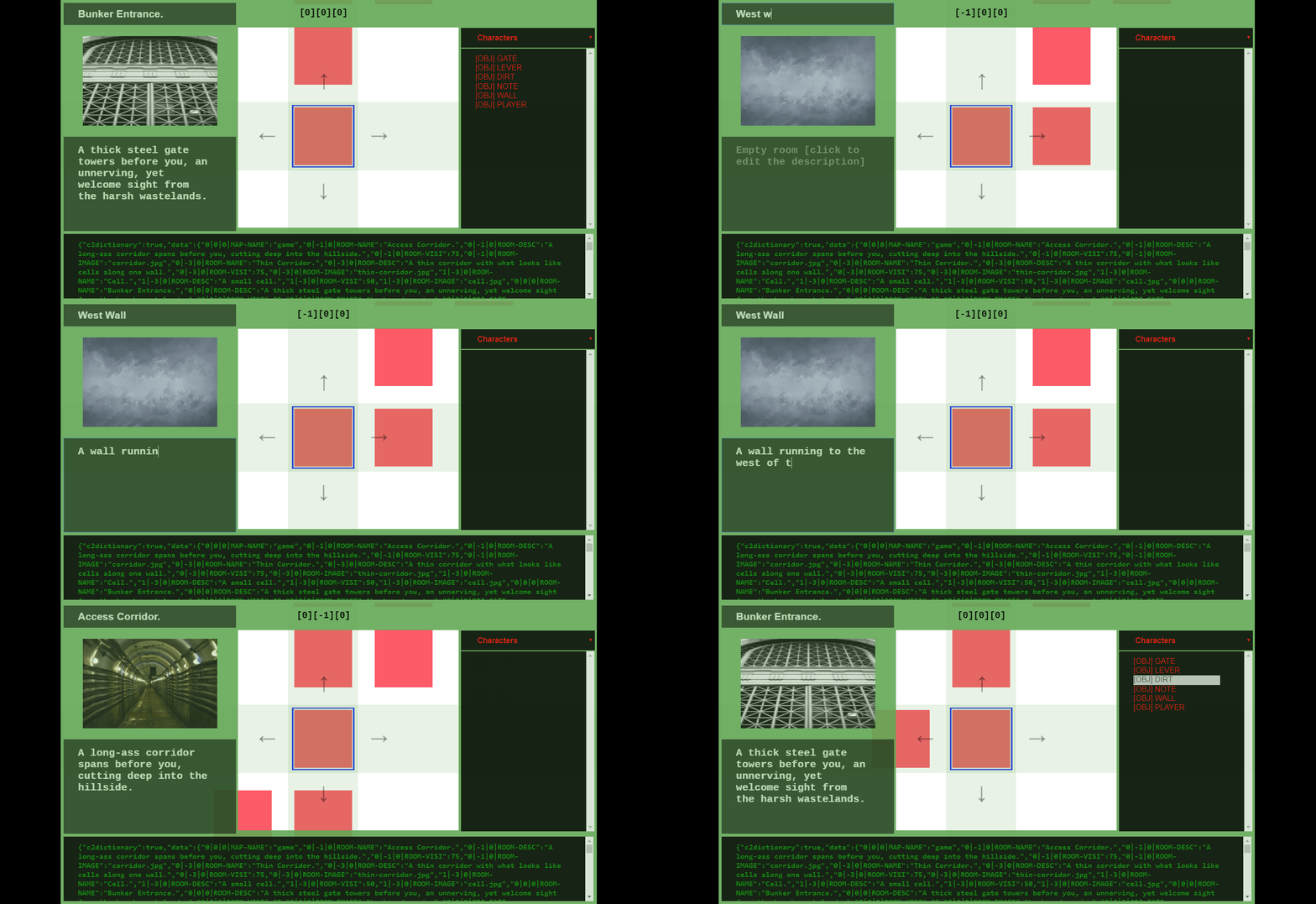
As part of the bid to get adlengine out of early access we're working on an official in-built suite of tools to aid development using #adlengine in-line with bringing it to a more learnable state.
Starting with a dedicated map editor which will allow you to quickly lay down the foundations of any scenario / game.
Below is a sneak peak.
From this editor you will be able to add / delete / edit rooms and any contents within them, such as exits, objects, characters and more.
Other tools we'll be developing as part of the suite:
Script editor that will make complex scripting easier.
UI editor to allow you to customise or totally alter the look and experience.
Future tools:
Timeline editor to handle events and dialogue manager.
ADLENGINE v1.1.61.5d
Major changes are afoot.
Rendering Text Changes
Rendering text is now handled using text areas instead of static text objects, which will soon be added to theme controls, these allow for greater control of text, neater rendering and the ability to scroll back through previous text that has been rendered.
Hoping these will also be more friendlier to screen readers (confirmed working with NVDA screen reader).
New friendlier commands in this version:
New IS command, a there and then or staggered comparison command. Alternative to the IF command which stores comparison commands which are called when you type specific phrases.
is something
equal to something
not equal to something
greater than something
less than something
or equal to something (may just become or equal to)
then do something
and do something
and2 do something
and3 do something
else do something
end is / endis / end
An example of this in use:
#haskey=0
is haskey
equal to 1
then unlockdoor()
else narrate need to find a key.
Changes to delete commands.
delete object objectname
delete script scriptname
delete var variablename
delete custom customname
More great stuff to come.
Editing Map Data Direct
map data | will be changed to / allowing you to write directly to the data i.e.
Existing data...
/entityname/health/100
or /x/y/z/objectname/open/y
Or writing new data.
Official Choose Your Path Mod
The options mod allows you to render buttons as major choices, usable to either handle choices in game or could be used for dialogue. See the manual for commands related to this.
In the meantime...
Whilst we're busy rewriting adlengine...
I will continue to work on the original Adliberum Engine and aim to get it out of Steam Early Access in 2019.
Notably: emphasis will be placed on locking down the core elements, providing a friendlier experience with menus etc, better documentation and in-built tutorials, more support for languages and some example games to download.
For now though, happy holidays. Catch you all in 2019!
Show and tell.
Created or creating something using adlengine? I'd love to see it!
Share your creations!
The future of Adliberum Engine
Apologies for the really long period of down time, life unfortunately has a real nasty habit of getting in the way at times. Looking forward to a kinder, more productive 2019.
Plus with the original software I used to create it no longer being updated and the knock on effect is that it's going to need a full rewrite.
I'm not able to just simply convert adlengine because of its complexity, so I have slowly been recreating the engine entirely in Construct 3. Which will become adlengine 2.
The engine will to the most part mirror across, and I will do my best to ensure the map files etc don't change (too much). Worse case I'll write an editor to convert the maps over to the new format.
I will be placing a lot more emphasis on the learning side of it, plus will be working hard to ensure it has some example games to play / edit.
Thank you for your support.
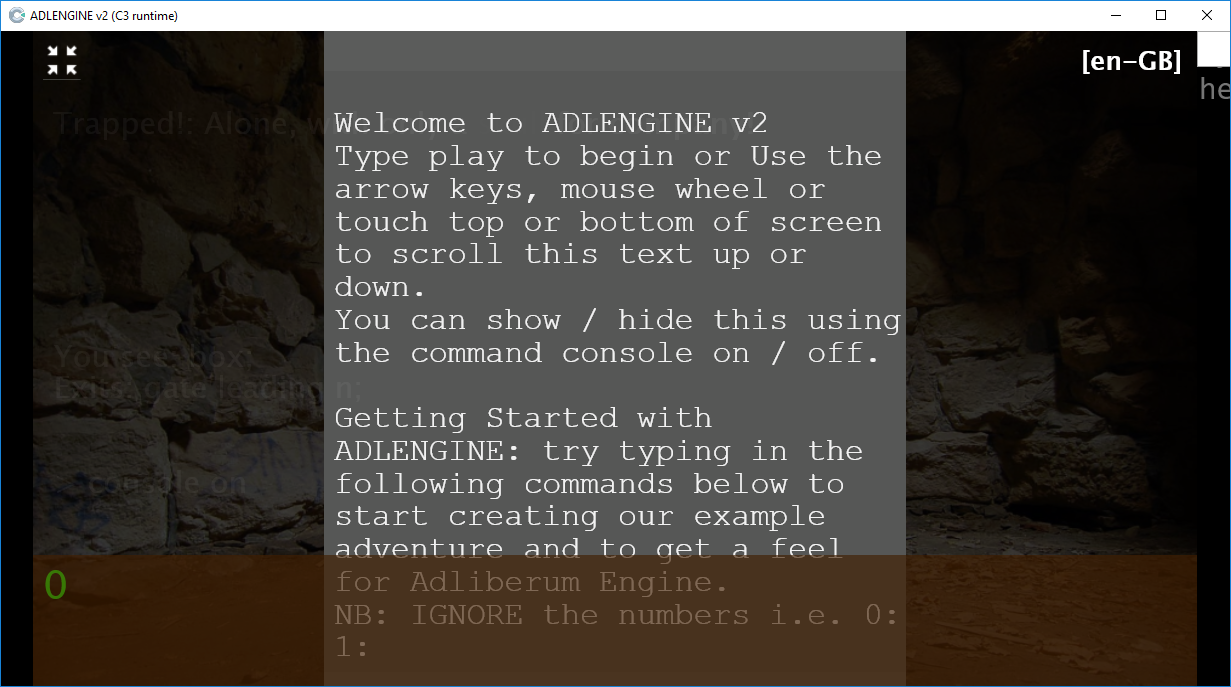
Here's a brief snapshot of the new engine so far..
ADLENGINE: Using The In Built Editor
The in-built editor in #adlengine grants greater control of your levels and makes scripting easier.
Check out the quick guide for using the editor at https://www.adliberum.com/engine/manual/ADLENGINE%20using%20the%20in-built%20editor.pdf
If you need any assistance, I will do my best to help.
Once you have the filtered data you can then use the strip command to keep what you want, please note the aim is to finish up with a single piece of data. You will get a warning if you have no results OR too results are too broad.
keep ____
e.g.
fetchlocal box

filterlocal box

keep -islocked
This will return the key ie. '0|0|0|obj-box-islocked' and the value ie 'y'
You can then access this data with the following %special%.
%SYS[FILTERKEY] for the kept key %SYS[FILTERVALUE] for the kept value
1.1.60.6 - NEW ACCESSIBILITY COMMANDS + SCREEN READER
In this version we have enabled a tonne of accessibility functions. Made minor improvements to the inbuilt editor.
NEW ACCESSIBILITY COMMANDS:
Activate accessibility input box.
input on/off
customise input box colors.
input b&w

input w&b

input red

input blue

input green

input white

input black
customise input box font size.
input small

input medium

input large
NEW SCREEN READER FUNCTIONALITY:
Activate screen reader mode (should work with NVDA as it triggers NVDA via alert boxes) - this also activates the accessible input box.
reader on/off enter will move to the next queued speech
OTHER ACCESSIBILITY COMMANDS:
speech on/off

voices = lists all available speech synthesis voices.

voice is [1-X] = sets the voice based on the number specified (use the voices command to get a list!)

pause / p = pauses speech synthesis

play = resumes speech synthesis
NEW VERSION: 1.1.60.1 | All New Power Commands Added (nb: steam overlay = broken)
IMPORTANT: steam overlay IS currently not working with the new update.
UPDATE NOTES: 1.1.60.1
-----------------------------------------------------------
AUTO ADD TO INTELLISENSE
-----------------------------------------------------------
1. certain commands will now automatically add items to intellisense now, e.g. obj is takeable would add take obj to intellisense.
-----------------------------------------------------------
ENTER / EXIT TRIGGERS SCRIPT
-----------------------------------------------------------
2. on-enter & on-exit triggers now in place, it will look for a script based on the direction they enter / leave and run it if present; i.e. on-exit-e OR on-enter-se.
-----------------------------------------------------------
GLOBAL ACCESS TO DATA
-----------------------------------------------------------
3. you can now get global access to anything to amend / update data etc by using;
> entity\param\value
> room\param\value
i.e. box\isvisible\n
i.e. dungeon\name\dingy dungeon
------------------------------------------------------------------
RUN COMMANDS FROM ANOTHER LOCATION
------------------------------------------------------------------
-------------------------------------------------------------------
WRITE DIRECT TO SCRIPT
-------------------------------------------------------------------
6. writescript commands that allow scripts to be constructed manually via scripting
> writescript scriptname
> writelocal towrite; (always terminate with ;) - writes data to local script
> writeglobal towrite
> writeprivate towrite
> clearlocal scriptname - clears a local script of any data (retains key)
> clearglobal scriptname
> clearprivate scriptname
> dellocal scriptname - deletes local script data
> delglobal scriptname
> delprivate scriptname