Remote Play Together allows you to play against other players in 'Touhou Kaeizuka - Phantasmagoria of Flower View.'.
This work is not supported by Remote Play Together on its own, so there are some limitations.
- Gamepad compatibility status in Remote Play Together is not supported.
- Due to the game window size of 640x480, part of the Steam menu is displayed off-screen. This makes it difficult to navigate the menu. This issue is not supported.
Based on the above, we describe how to run Remote Play Together.
In the description, the party launching the game is called the "host" and the party participating in the game is called the "guest.
- As a preliminary preparation, both the host and the guest should start up 'Kaeizuka' and note down the assignment number of their own pad in a memo or the like.
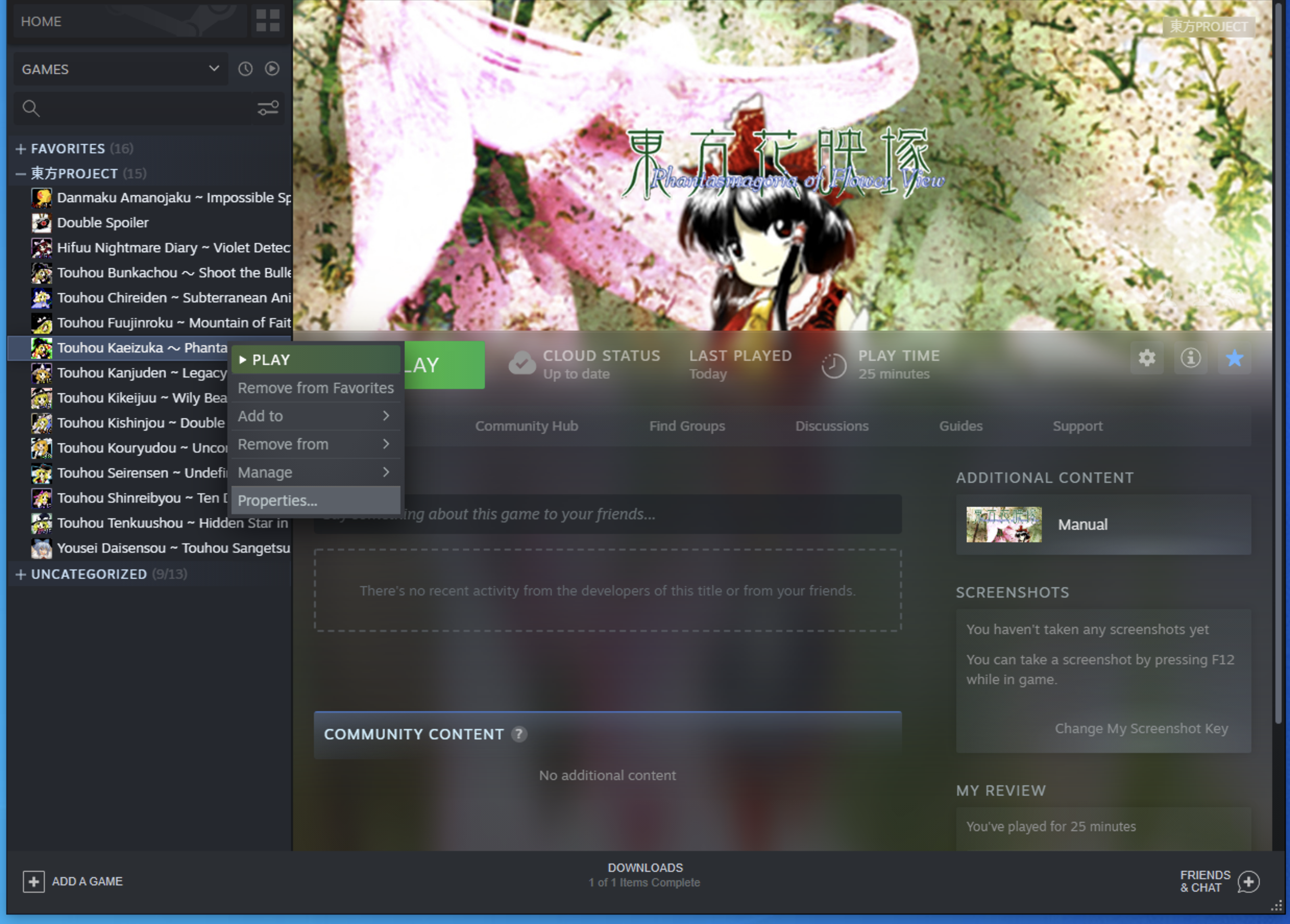
- The host starts the game from Steam (Remote Play Together cannot be used in Big Picture Mode, so please start the game from the Steam client).
- After the game has successfully launched, press Shift+Tab to display the Steam menu.
- Right-click on the friend you wish to invite as a guest and select "Remote Play Together".
(It is also possible to invite people by publishing the URL, but this is not explained here)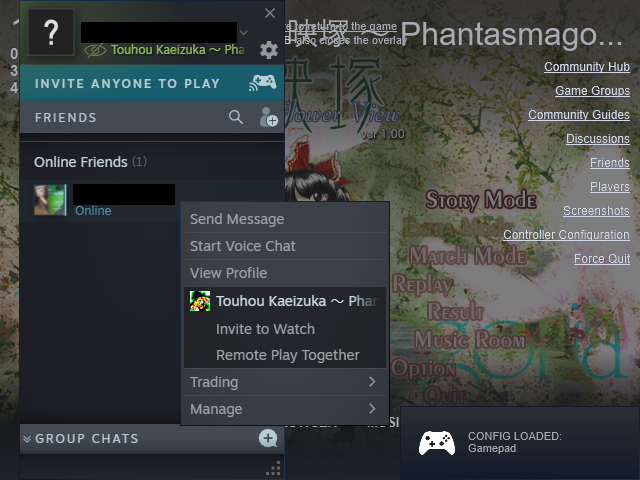
- The guest confirms the invitation notification and joins the host's connection.
- Once the connection is made, the menu will show the gamepad as number 1 and 2, respectively.
If the gamepad icon is not displayed, the user shown cannot use the gamepad and must use the keyboard.
To enable keyboard input from the guest, click the guest's keyboard icon on the host.
- Enter the player's key config from the game config settings and set the "Control Type" to PAD or keyboard. If the "Control Type" item is switched by mistake during pad operation, correct the value to the correct one at the keyboard.
- Since the key assignment on the 2P side cannot be input setting from the PAD, set the pad assignment number that you wrote down in advance on the host side. When using a keyboard, it is recommended that one of them play with PAD and one of them play with FULL.
- If set up correctly, each can operate in "Human vs. Human" in Match Mode.