

Troubleshooter: Abandoned Children
[Notice] Temporary server issue has been recovered
Update on Our Sequel Development #5
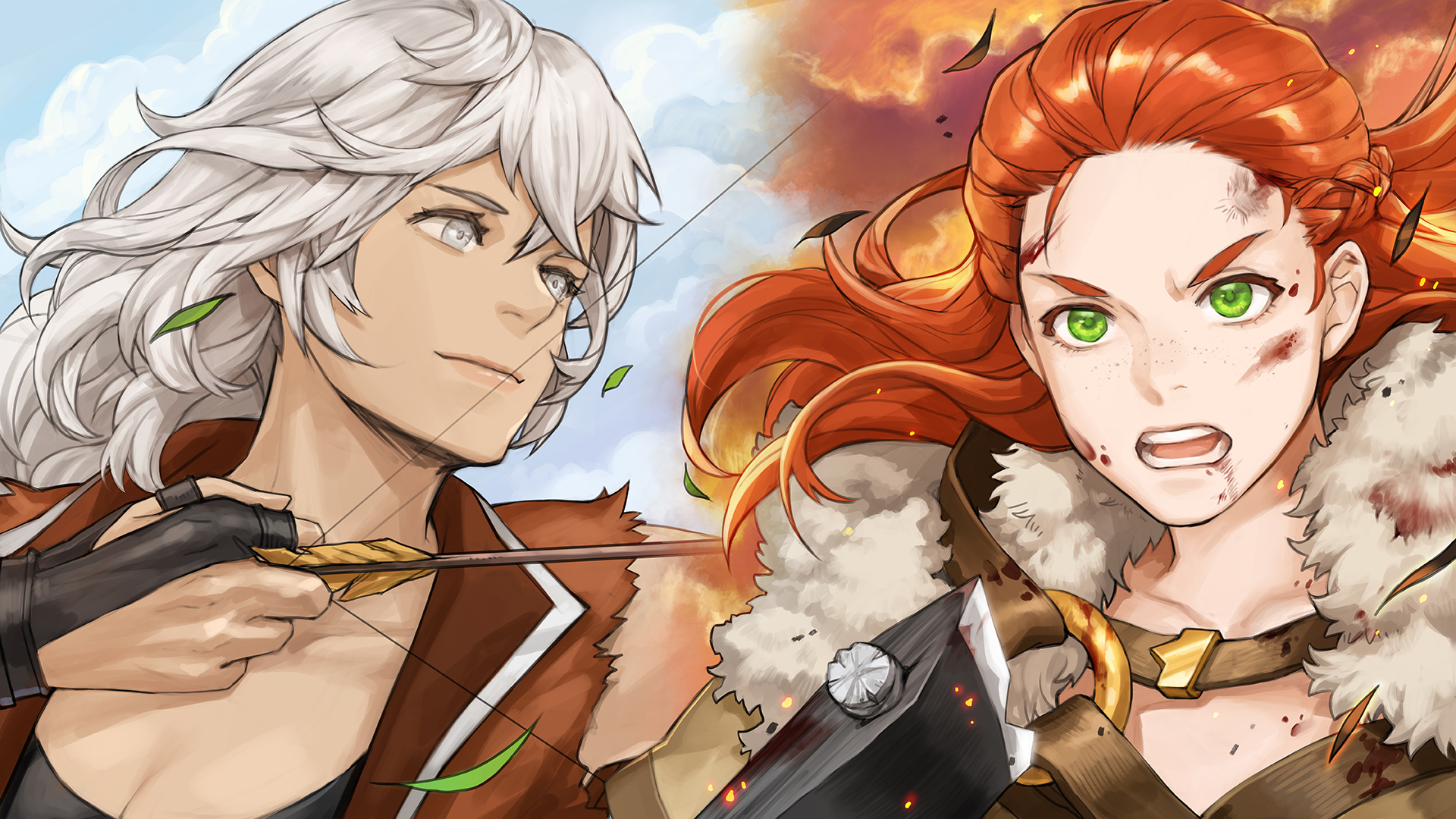
Hello, this is the Troubleshooter development team.
We hope you’ve all been doing well.
Thanks to your continued support, we’ve been able to focus fully on the development of our upcoming title, Troubleshooter: Banished Children, and we sincerely thank you for that.
That said, we apologize for not being able to respond to your valuable feedback on the current game as promptly as we’d like. Once Banished Children is released and development reaches a more stable point, we promise to apply the experience and knowledge we’ve gained to improve the original game as well.
Now, we’d like to share with you the progress we’ve made on Troubleshooter: Banished Children over the past three months.
1. Confirmation of the Main Character Concept
We’ve reworked the initial concept designs of several key characters to better align with the story and worldbuilding.
The designs introduced below will serve as the characters’ default costumes during gameplay.
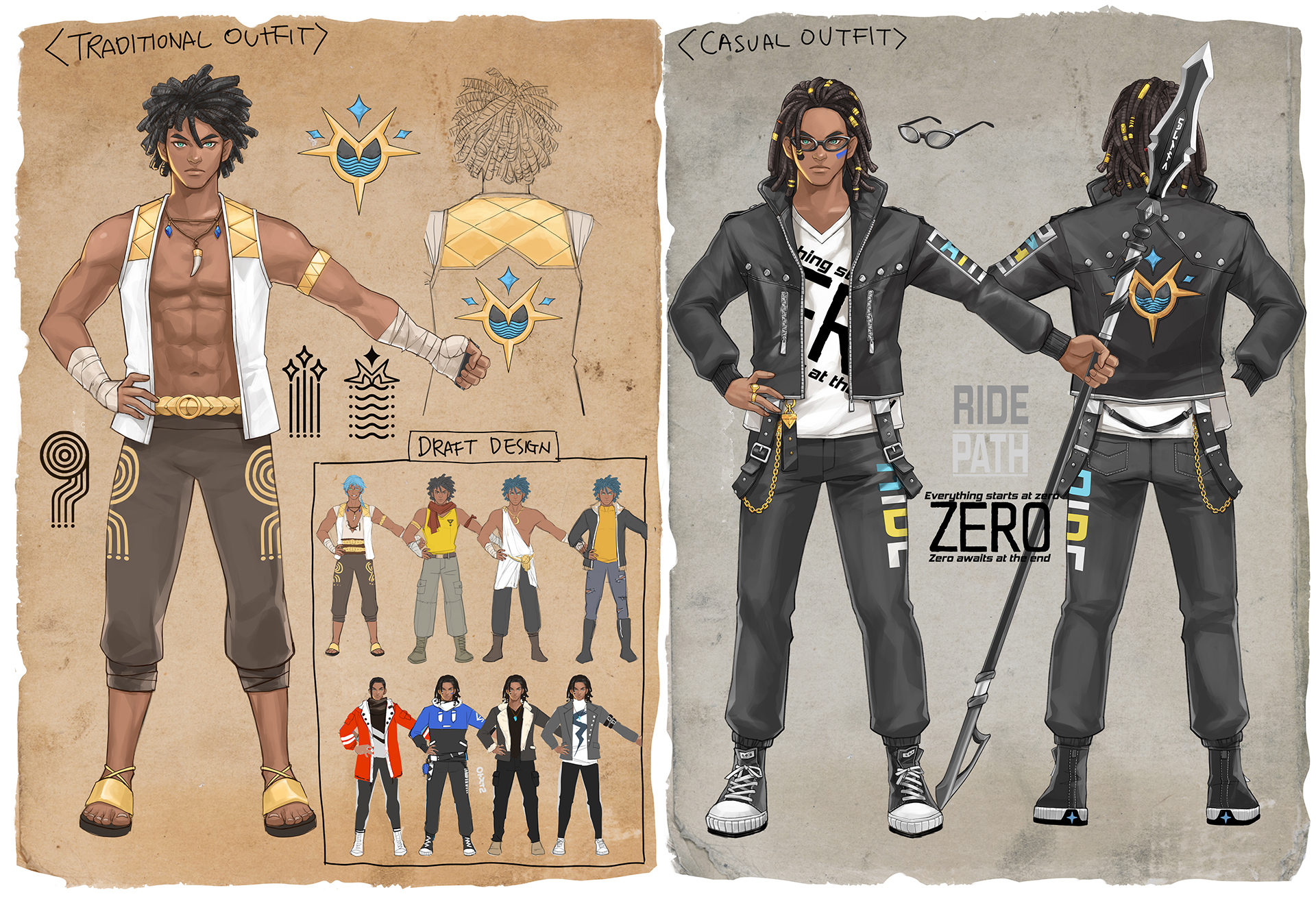
(1) Azul: Traditional / Casual Outfit
In his village, Azul prefers wearing traditional attire designed for the warm climate—lightweight, quick-drying, and well-ventilated clothing that allows him to enter the water at any time with ease.
However, when heading outside the village, he opts for casual outfits from Bonaparte, a luxury fashion brand from Valhalla known for blending style and practicality.
Among his favorites is a special outfit personally designed by Eunomia, Bonaparte’s lead designer. Tailored specifically for ESP users, this outfit offers exceptional flexibility and functionality—making it Azul’s most cherished choice for outings.
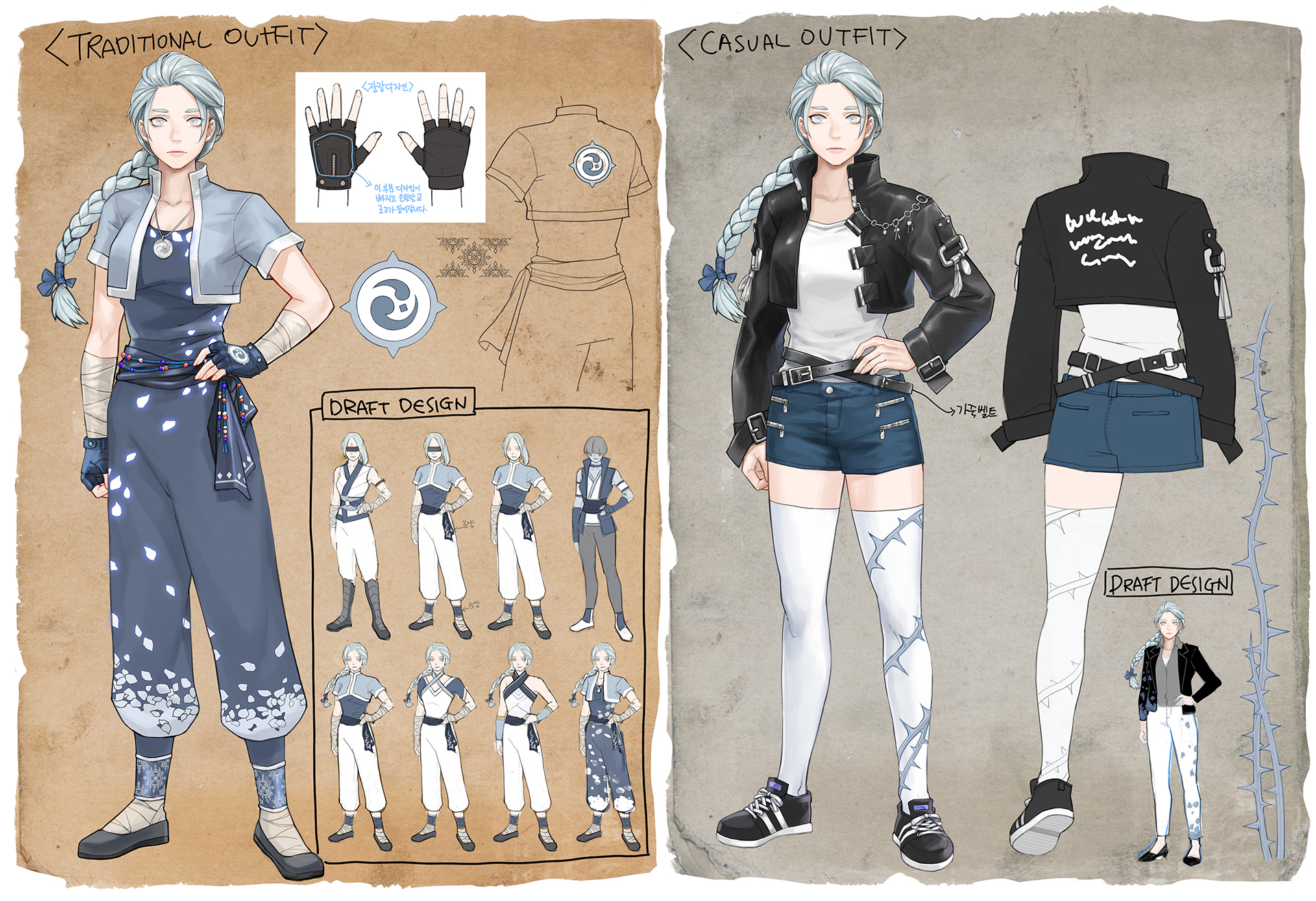
(2) Fey: Monastic / Casual Outfit
Faye was taken in by the Silvermoon Order at a young age and spent most of her early years in the monastery, wearing simple training robes. These robes were nearly identical in form and texture, with only their size changing as she grew.
However, during a pilgrimage, Faye met Aurora and began traveling with her group. Aurora, who had an infectious passion for fashion, constantly suggested new outfits for Faye to try. Though Faye was indifferent at first, she eventually gave in to Aurora’s persistent enthusiasm.
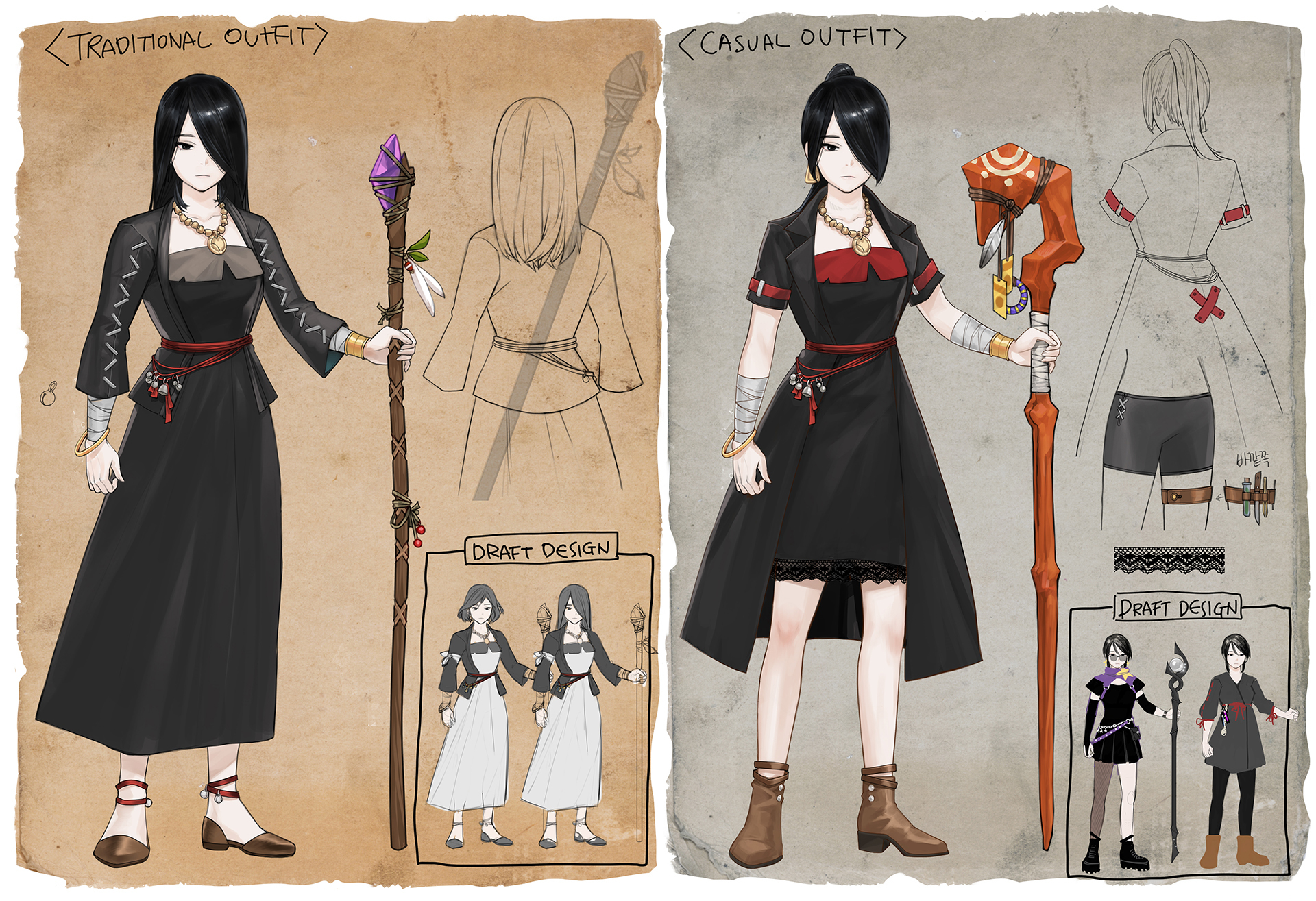
(3) Claudia: Casual / Outdoor Outfit
Claudia typically wears a loose, long dress skirt paired with a short blouse—an outfit that keeps her comfortable and mobile throughout all seasons. Although Aurora often suggests different clothing styles, Claudia consistently and firmly turns her down.
On the rare occasions when she goes out, Claudia puts on a long, flowing black fabric coat. Aurora often complains not only about Claudia’s stubborn taste in fashion, but also about her tendency to choose only dark-colored clothes. Still, Claudia remains unmoved.
2. New Animation Motion Added
In Troubleshooter: Abandoned Children, our limited development capabilities sometimes led to unintuitive and inconvenient character movement.
For example, characters often had to take unnecessarily long routes around low fences, or perform multiple jumps to get over low cover objects.
To address these issues, we’ve adopted several new movement actions from Firaxis’ XCOM series, which served as a major reference during the development of Abandoned Children.
(1) Jumping over an obstacle in a single move

(2) Jumping over a fence in a single move

(3) Climbing a ladder

These movement actions not only make navigation more intuitive, but also add depth to tactical decision-making during combat. We're designing the game with these elements in mind to enhance strategic enjoyment.
3. New BGMs
As with our previous development update, three new tracks have been added over the past three months.
We’ll continue doing our best to bring you more enjoyment through great music!
(1) Beyond the Ember
(2) Reed
(3) Azul
4. Regarding Future Development Plans
We are currently in the process of creating the key assets for Troubleshooter: Banished Children, including player characters, enemies, and NPCs. Once this phase is complete, we will begin filling in the core gameplay content in earnest.
When a playable portion of the game reaches a sufficient level of completion, we plan to launch Early Access. As with our previous title, we will continue to build out the game's content during Early Access while using the revenue to support ongoing development.
Although we are a small team with limited resources and a slower development pace, we'll do our best to deliver a more refined and enjoyable SRPG experience.
Thank you for your continued support.
[Notice] North American Server Status Restored
First and foremost, we sincerely apologize for the North American server not functioning properly over the past two days.
Due to our negligence, this issue persisted longer than it should have as it occurred over the weekend.
We have now identified the cause of the problem, resolved it, and are working on measures to ensure that it does not happen again.
We deeply regret the inconvenience this has caused to those who enjoy the online mode.
Once again, we offer our sincerest apologies for this situation.
[Notice] Modding Tool Update
* The functionality of the modding tool that is added and changed afterwards is described in the Workshop of the sub-forum, not in the notice.
Hello everyone, this is the Troubleshooter development team.
Modding tool has been updated. If you are working on it, please save your works and update the tool.
1. Modding tool now detects your own Lua script, stage files and UI(=CEGUI) files.
* The data in these files are hard to edit on the tool. But there were lots of modder's request about more data. Each data MUST be placed in a specified location in the mod folder before the data is reflected in the game client.
- Lua: Data/script/
- Stage: Data/stage/
- UI: Data/CEGUI/datafiles/
2. Added functions to the Modding tool.
- Monster Editor
- You can edit level, basic masteries of monsters. - Ability Editor
- You can edit Hit Chance, Critical Hit Chance, Critical Hit Damage, Ignoring Block, Ignoring Dodge, suppressiveness of abilities. - Buff Editor
- You can edit duration, conditions for removal, turn damage, amount of heal of buffs.
Details of the above functions will be added to the Modding Tool Guide as soon as possible.
https://steamcommunity.com/games/470310/announcements/detail/533216872394391605?snr=2
3. The CustomValue has been separated from the 天赋 below:
- Principle of Causality
- Luck Collector
- Acrobat
- Deception
- Enough Rest
- Moisture
- Forgotten Pain
- Beast Friend
- Resistance of Blood
- Conflagration
- Forestallment
- Lord of Hatred
- Frozen Scythe
- Necromancer Bangle
About 150 masteries are sharing common values for data management convenience.
If there is a request from the modders or the development team can afford it, we will continue to change the value to an independent value.
But, in case of the value cannot be changed for the reason of game system or it would be better to use common value for the data management, the value will be retained.
Thank you.
Update on Our Sequel Development #4
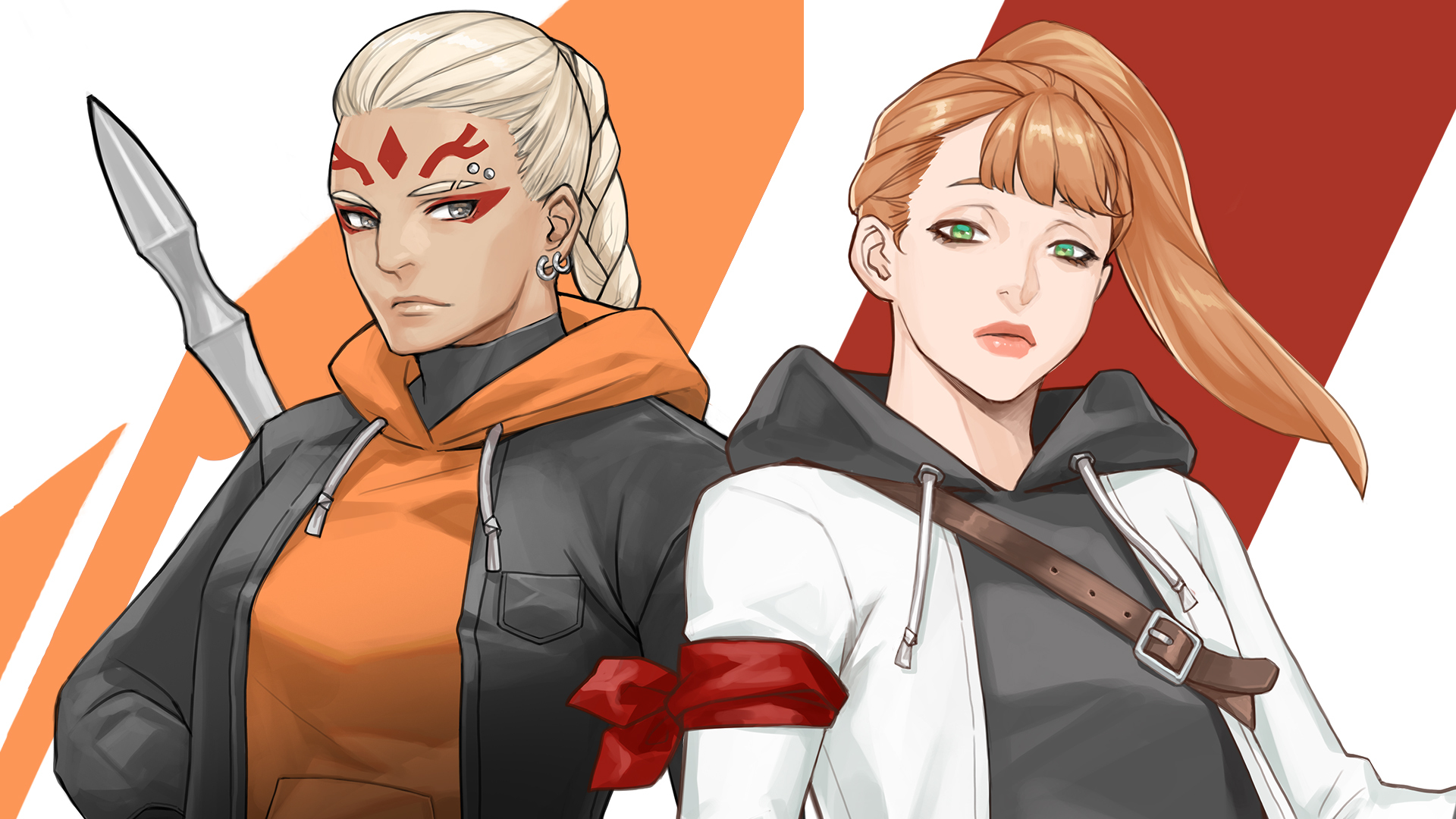
Hello everyone, this is the Troubleshooter development team.
We’re here to share another update on the development progress of 'Troubleshooter: Banished Children' over the past three months!
1. Confirmation of the Main Character Concept
We have reworked some of our character concept arts to better fit our current setting and storyline.
The following two costumes will be used as the default outfits for Aurora and Hannah.
We'll do our best to bring other costumes to life as well.
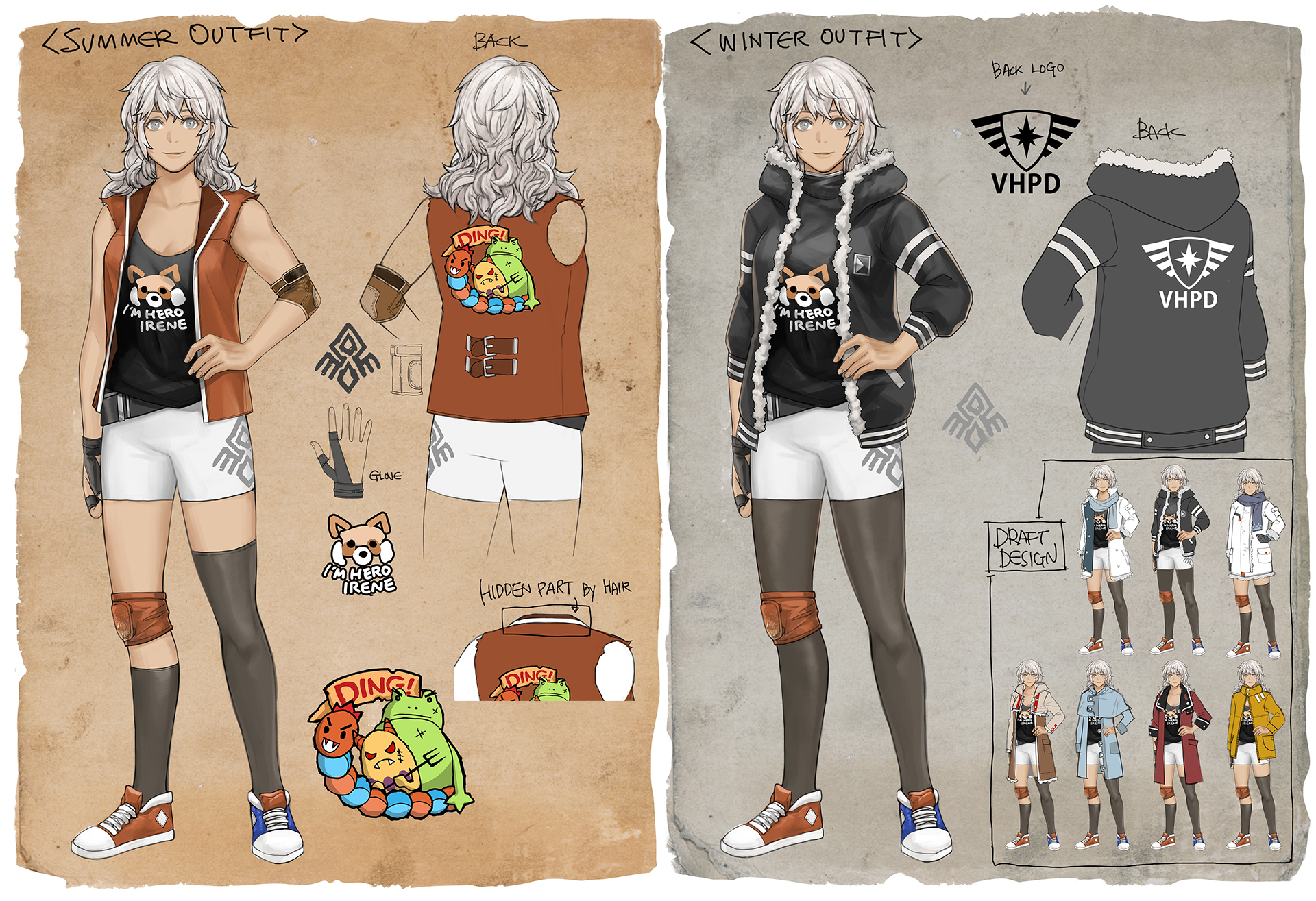
(1) Aurora's Summer/Winter Outfits
Aurora, who lives in the remote Kalter Mountains, occasionally gets second-hand clothes through Gravis, who visits Dragonscale Market. However, among them, the ones that come from Valhalla are rare treasures, hard to come by in Kalter. To Aurora, these clothes hold a special meaning.
She has three favorites. The first is a T-shirt from the ‘Hero Irene’ fan club, carrying the mark of the hero she admires. The second is a vest featuring DINGs, the trio of villains from an animated series—lightweight and easy to move in, perfect for active wear. Lastly, her warm and cozy VHPD winter jacket. For Aurora, it is an essential item to survive the harsh winter cold.
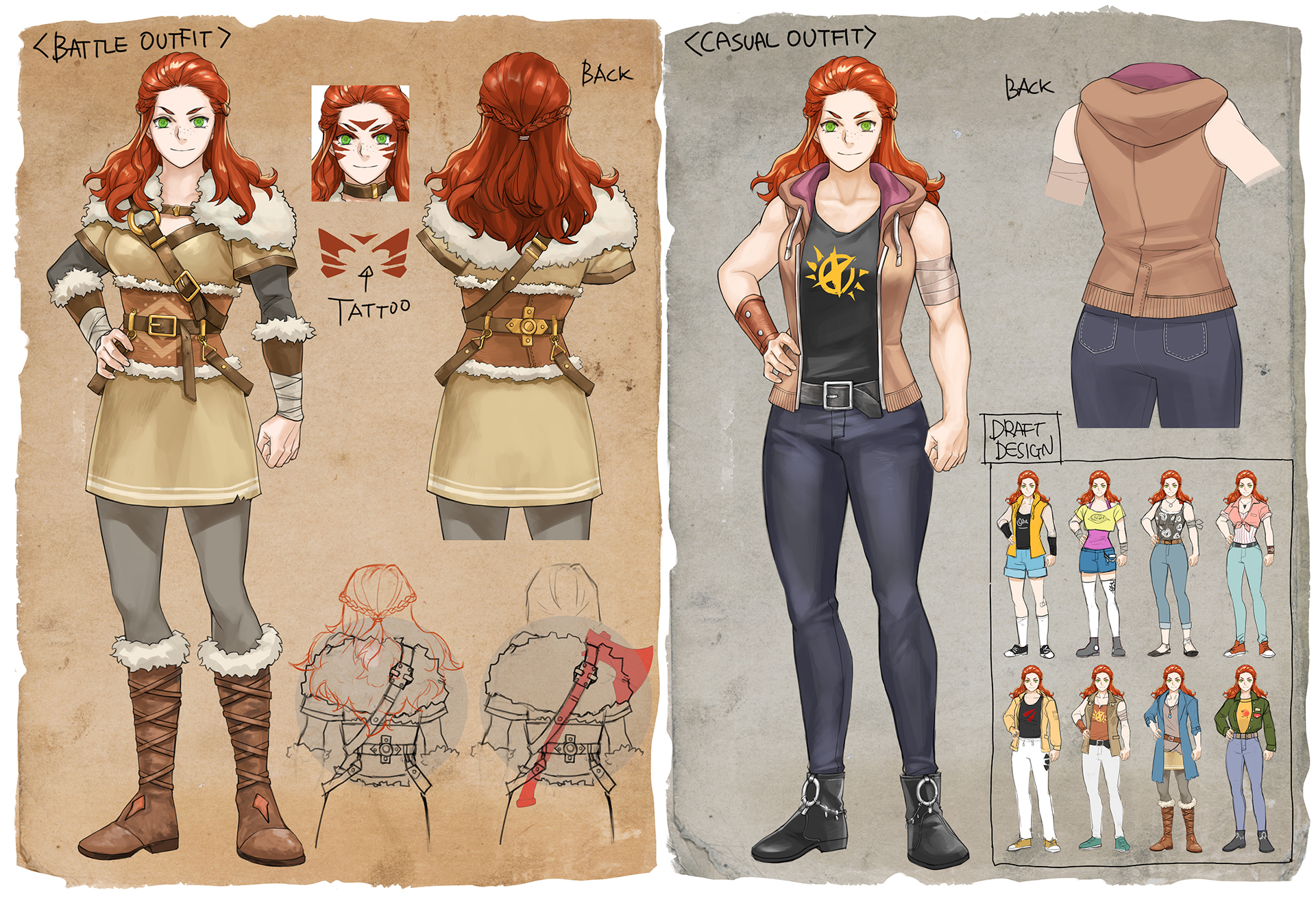
(2) Hannah' Battle/Casual Outfits
Hannah, born in the Frosthorn Tribe of northern Kalter Mountains, had worn garments made from Ummer hide since childhood. Ummer hide was an exceptional insulating material, perfectly suited for enduring the region’s harsh cold. For Hannah and her tribe, it was not just essential for survival but an inseparable part of daily life.
However, the second-hand clothes from Valhalla that Aurora handed her felt like relics from another world. Thin, lightweight fabric, vibrant colors, and unrestricted designs—everything about them was unfamiliar and strange.
Even so, Hannah chose to embrace change. No matter how awkward or embarrassing it felt, she believed this challenge was a small yet significant step toward the new life she had chosen beyond the tribe.
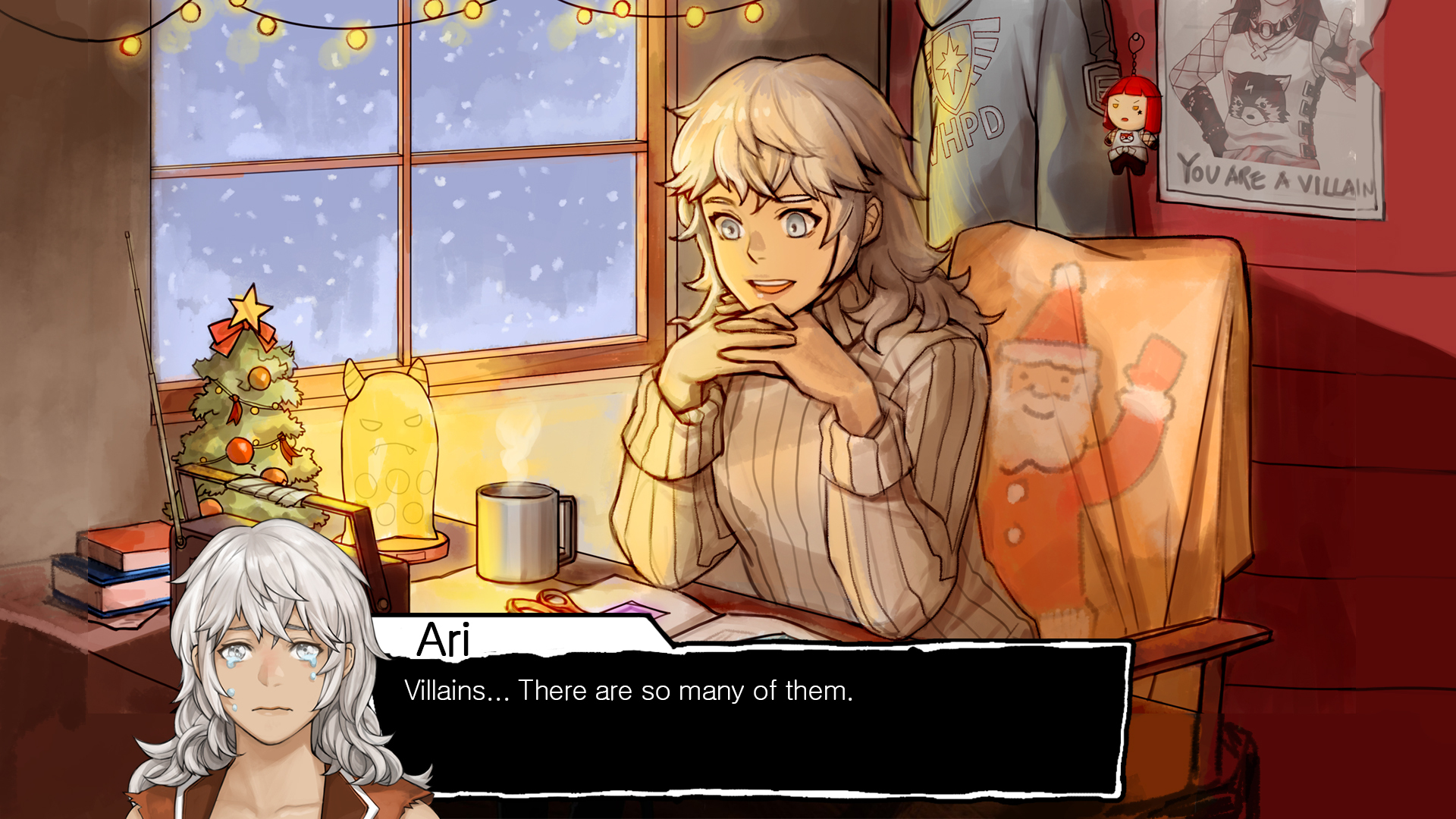
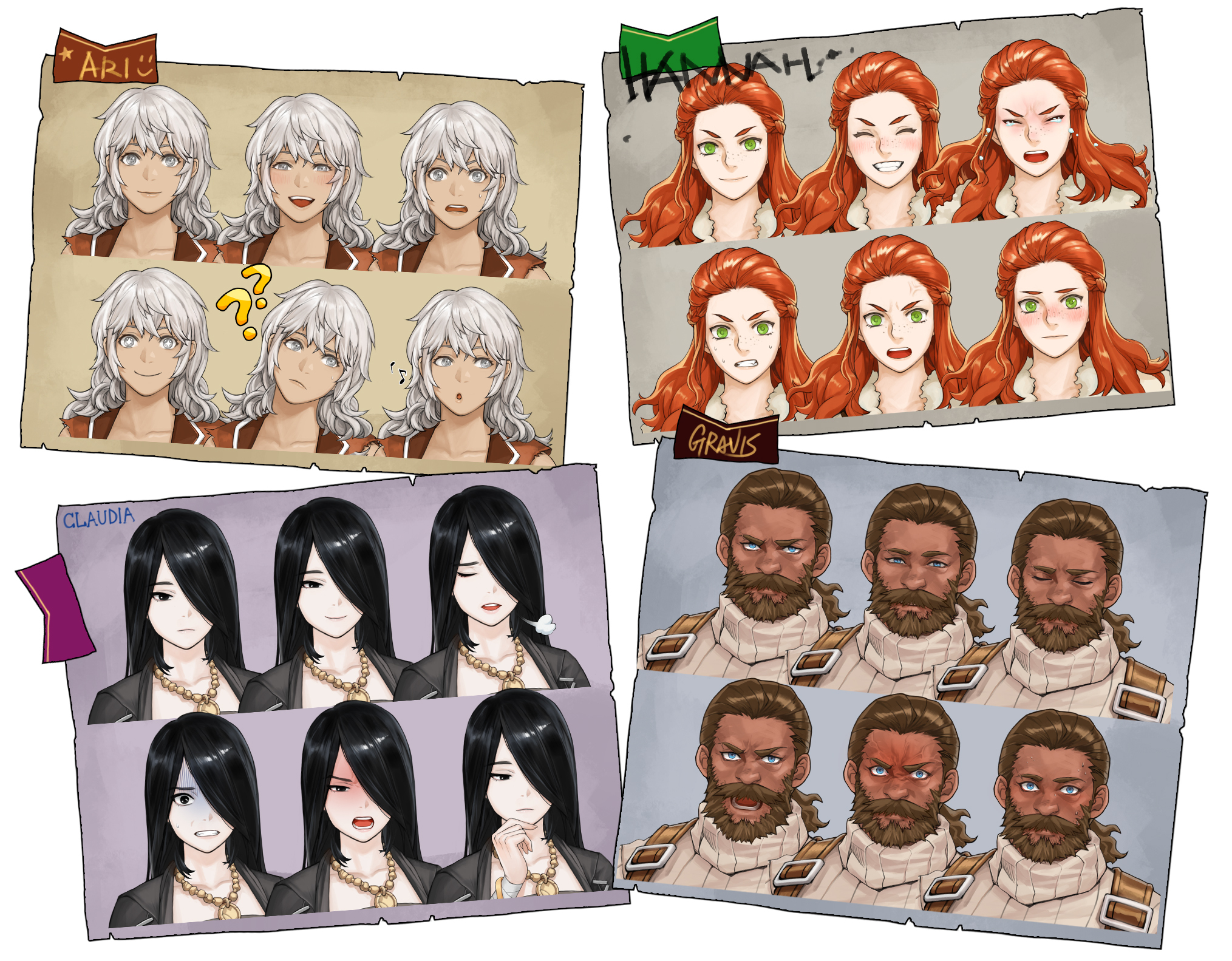
2. Works on Portraits
The character portraits, which were used to depict our character’s emotions and personality, are also going to be used in our sequel.
With these, we hope to present you with a better representation of each character’s personality, and deeper immersion to our stories.
3. Works on the New 3D Models
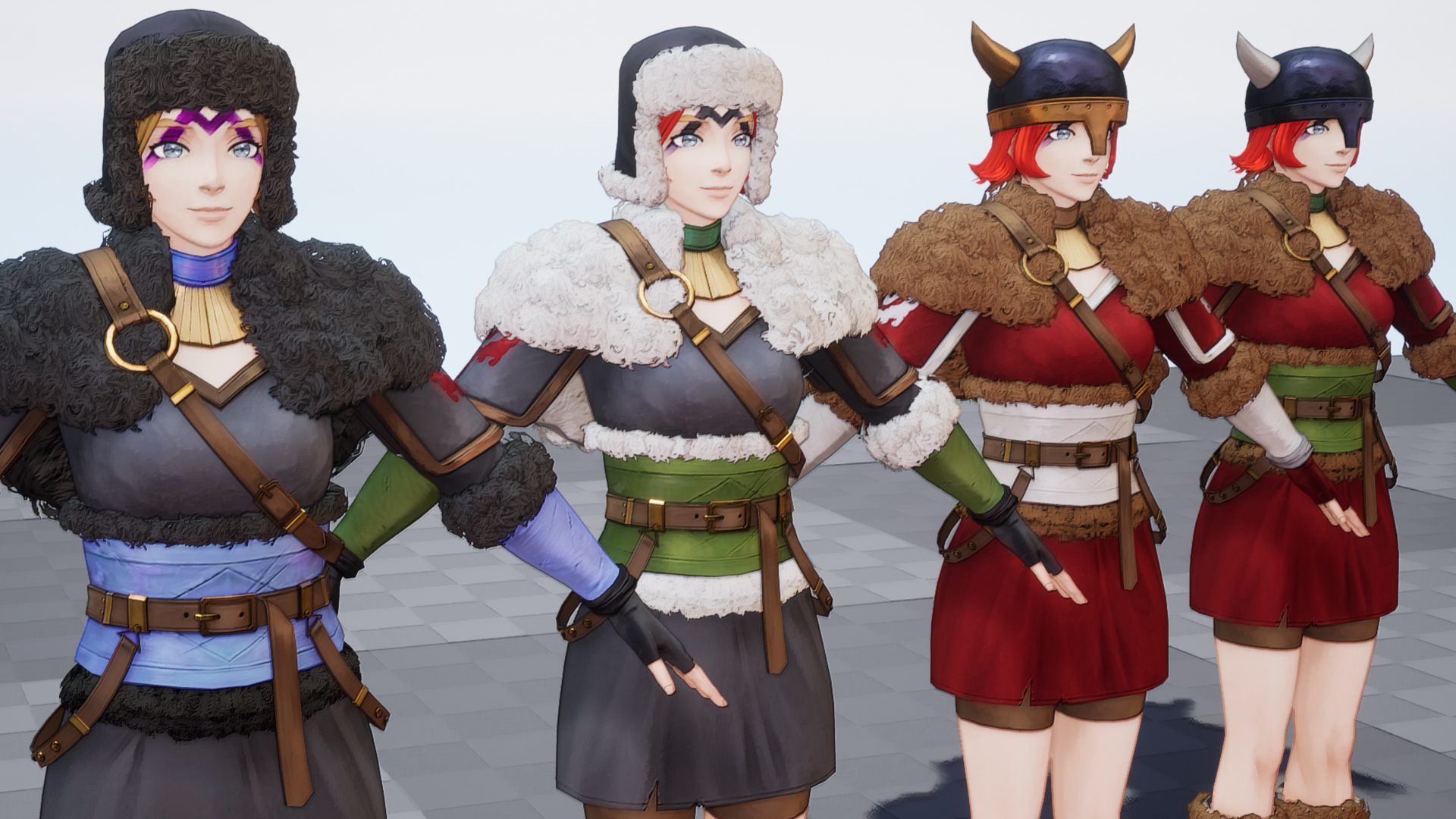
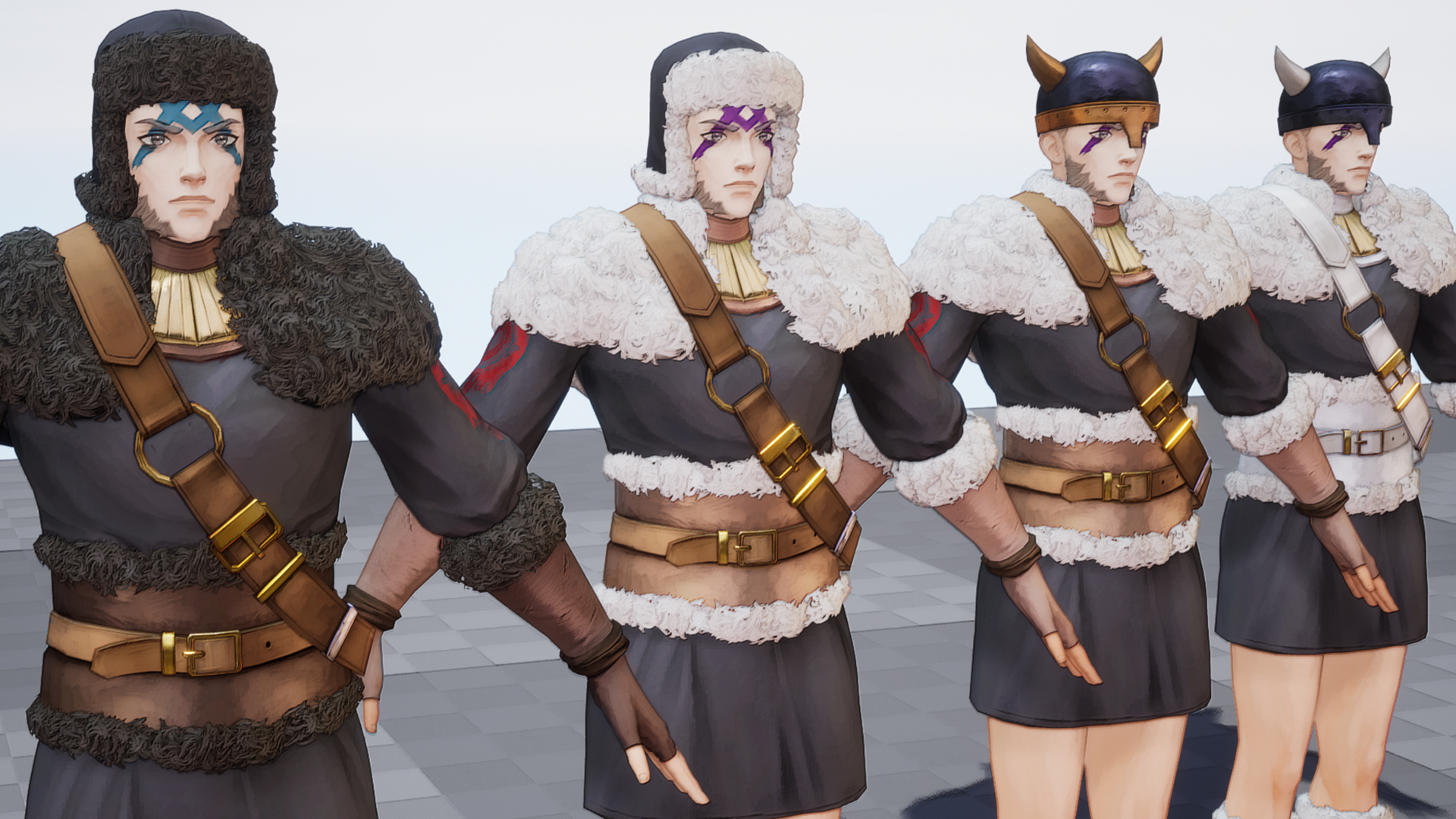
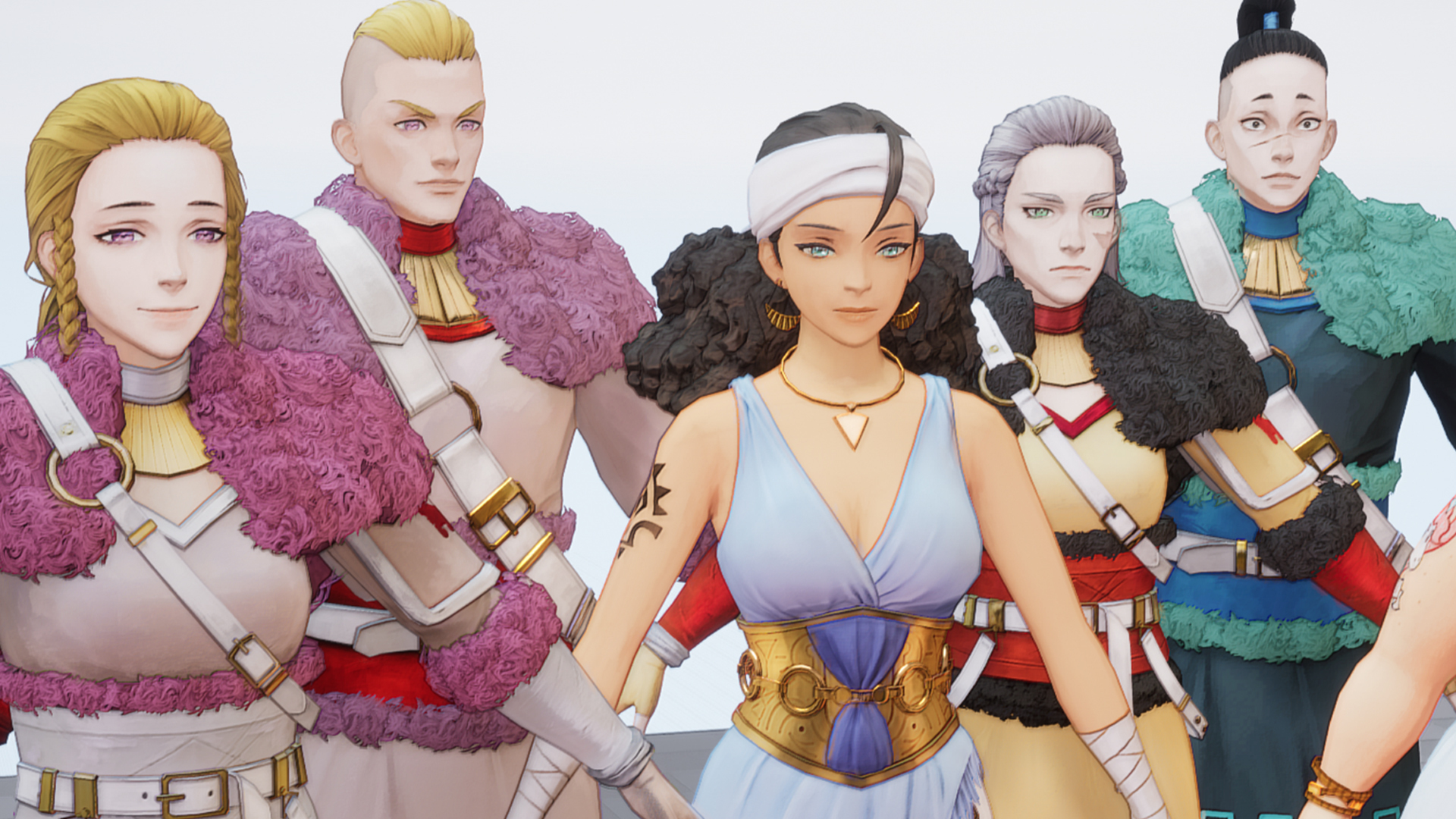
Since early this year, we’ve been creating 3D models for our new characters. As we adapt to a new rendering method, we’ve encountered many challenges and iterations. Because of this, we plan to work on our main characters later in the development schedule. For now, we are focusing on modeling NPCs and enemy characters, as they are relatively less demanding.
Additionally, some characters from our previous titles who will be returning in the sequel are being redesigned to align with the new visual style.
We fully understand that this new style may feel unfamiliar or different from what some fans expected. However, we are continuously refining it to ensure it resonates with as many players as possible. Thank you for your support!
Frosthorn Tribe Female Variation
Frosthorn Tribe Male Variation
Unique NPCs
4. New BGM
Just like the latest update, we got another 3 new tracks for the last 3 months!
We'll do our best to bring you even more joy with great music!
# Condemnation
https://www.youtube.com/watch?v=rDAoqyKsQXk
# Aurora
https://www.youtube.com/watch?v=nqgVOAkpcU4
# Witch of Dawn
https://www.youtube.com/watch?v=yqFE0gW9tZo
And that’s all for today’s update!
We’ll see you in our next update with more and better news.
Thank you.
[Notice] Announcement of Contents Update and System Maintenance
We beg to inform you that the game contents update and system maintenance.
- During the maintenance, players who use the Online mode can't play the game.
- Please end the game normally before the maintenance begins.
- During the maintenance, players who use the Offline mode can play the game.
Maintenance Schedule
- Daylight saving time is not applied.
- Date: February 20th, 2025
- Thursday 10:00 ~ 12:30 CET
- Thursday 17:00 ~ 19:30 JST
- Thursday 01:00 ~ 03:30 PST
- Thursday 08:00 ~ 10:30 UTC
Update Details:
- Steam Workshop opens.
- A portion of data of monsters, masteries, items, buffs, loots can be edited. ( * Offline mode only )
- A separate translation is allowed. ( * Both Offline and Online )
- Workshop thread is added to the community.
- For now, manuals written in Korean and English are available. Manual written in other languages will also be available as soon as possible.
- Manual Link:
https://store.steampowered.com/news/app/470310/view/533216872394391604
- A portion of data of monsters, masteries, items, buffs, loots can be edited. ( * Offline mode only )
- Official Russian translation is added.
- This translation was translated by the team and users below. These users have been working hard for a long time to translate Troubleshoots into Russian. I would like to take this opportunity to thank users all below.
- FoxyLittleThing
- Vool1984
- Albeoris
- Mefisto
- Team: 2bl - to better localization
- Team: Diviona
- FoxyLittleThing
- Dandylion also keeps update whenever it needs improvements.
- This translation was translated by the team and users below. These users have been working hard for a long time to translate Troubleshoots into Russian. I would like to take this opportunity to thank users all below.
- Changed the additional setup of 'A Parallel World' to be activated on the Online mode.
- In case of using it in the Online mode, you can't succeed items. - Changed the beasts and drones summoned by enemies to be affected by the game difficulty.
- Added an option that simplify dialogues when the motivation had changed. You can find it in GAMEPLAY tab.
- Fixed the bug that the Limit Break seemd to be turned off when you left from the Joint Drill.
- Fixed the bug that mastery slots was opened along the character level when the Limit Break is activated.
- Fixed the bug that changing some masteries didn't work when you tried change mastery sets.
- Fixed the bug that the mastery Giant Battery didn't work on summoned drones.
Thank you.
TS: AC Modding Tool Guide
TS: AC Modding Tool Guide
This tool allows the sharing of partially modified data through the Workshop.
Using this tool, you can change some values of the game data.
Caution
If values such as movement distance or sight range increase significantly, the game client's performance may be affected due to enemy AI pathfinding calculations and movement processing. This could result in abnormal termination or significantly slowed gameplay.
1. TS: AC Modding Tool Installation
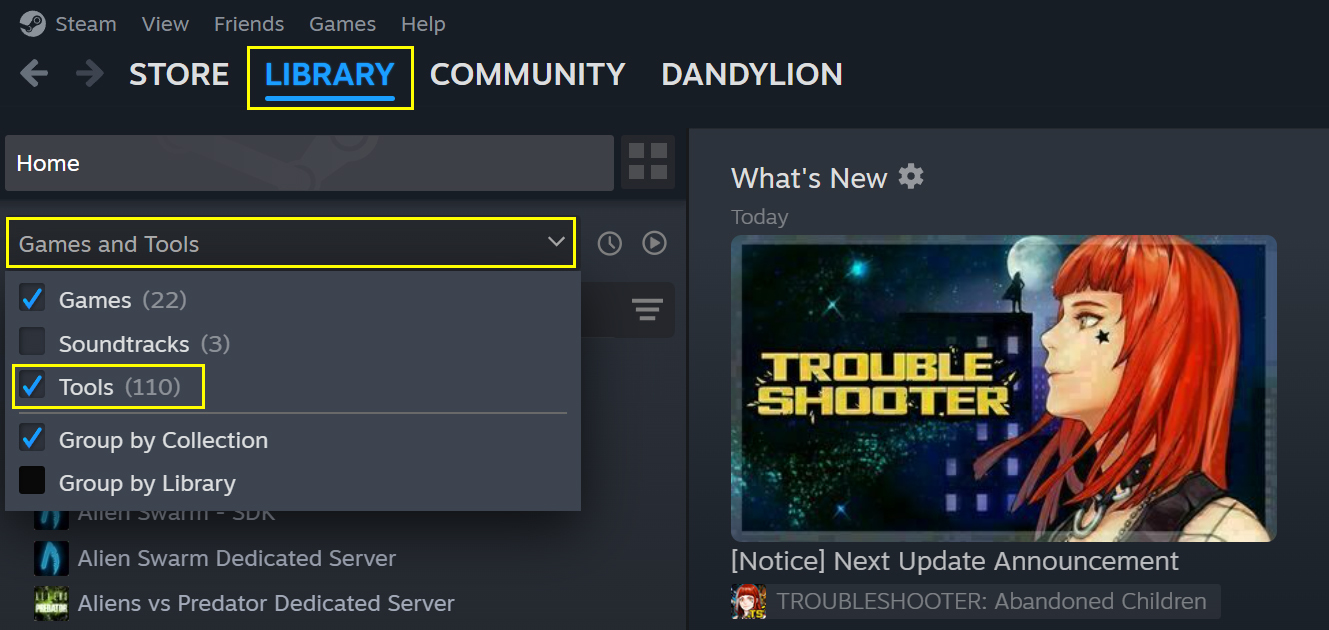
- Click the "Library" tab at the top of the Steam client.
- Click "Games and Tools" in the top left corner.
- Enable the checkbox for "Tools" in the drop-down list.
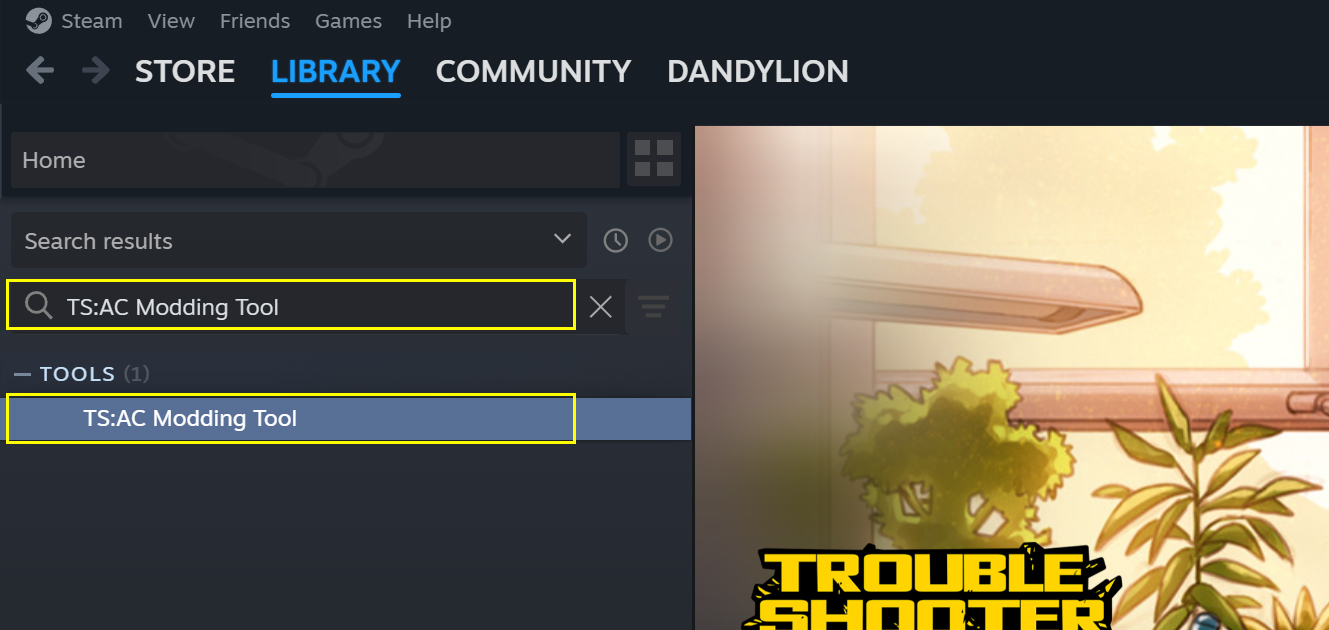
- Search for "TS: AC Modding Tool" in the search bar.
- Select "TS: AC Modding Tool" under the Tools section in the list below and install it.
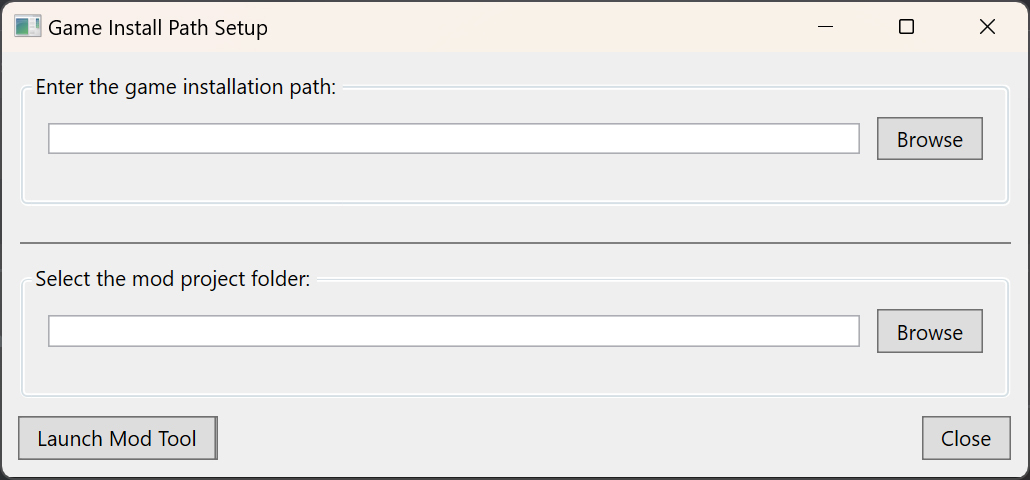
- When you click "Install" of "TS: AC Modding Tool", Game Install Path Setup window will appear.
- Specify the installation path of the game and the folder where the modding data will be stored.
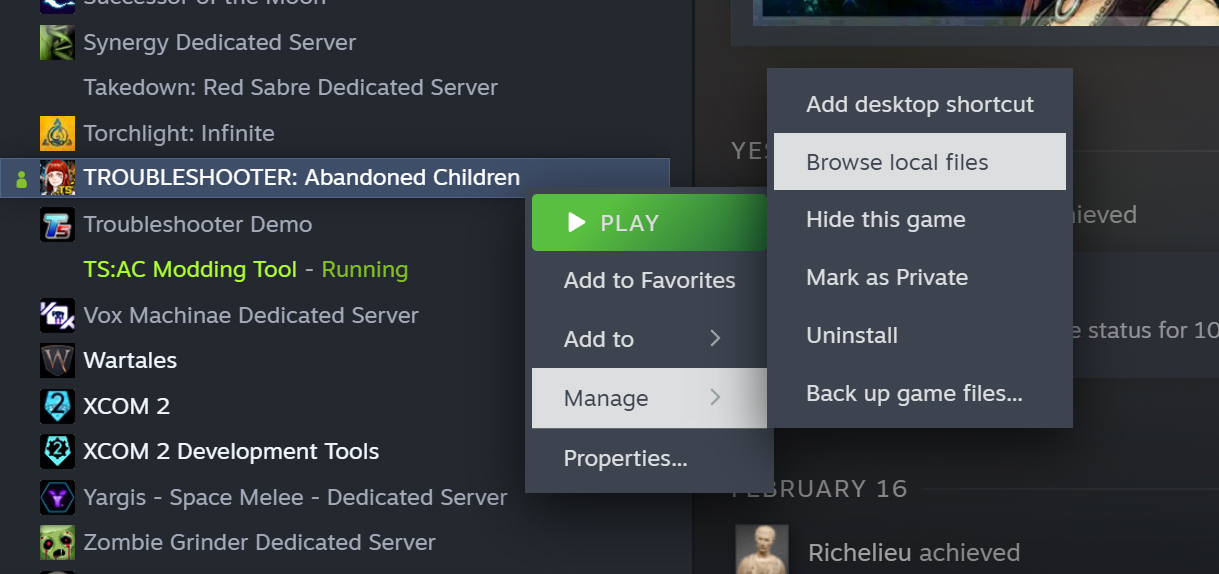
- You can check the game installation path by right-clicking on the game in your Library list and selecting "Manage" → "Browse Local Files."
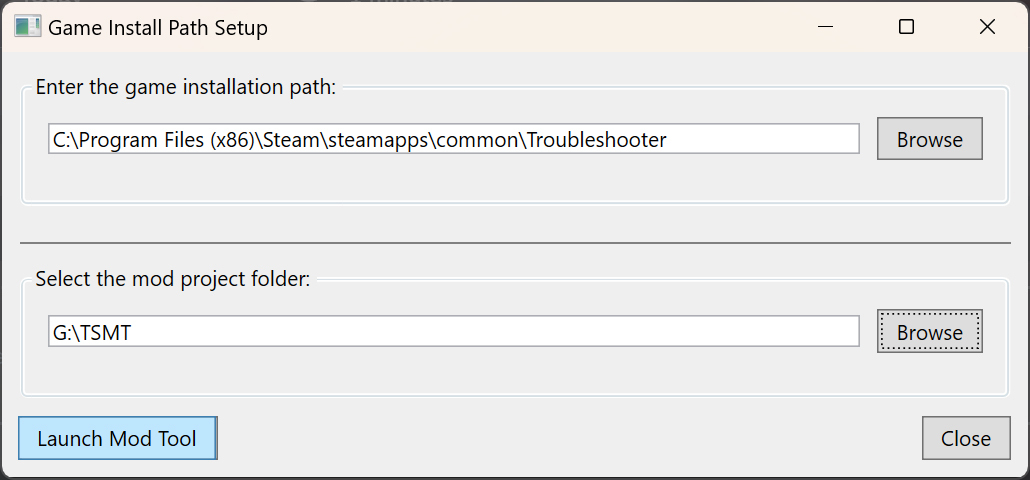
- In the Mod Project Path section at the bottom, specify the folder where the currently mod data will be managed.
- Once the installation is complete, play TS: AC Modding Tool.
2. TS: AC Modding Tool User Manual
1. Initial Screen
When you run TS: AC Modding Tool, you can see the following initial screen.

The data that can be modified using the "TS: AC Modding Tool" are as follows.
- Monster Editor
- You can modify the monster's mastery, equipment, and rewards.
- You can modify the monster's mastery, equipment, and rewards.
- Mastery Editor
- You can modify certain values of the mastery.
- You can modify certain values of the mastery.
- Equipment Editor
- You can modify the stats of equipment.
- You can modify the stats of equipment.
- Ability Editor
- You can modify ability values.
- You can modify ability values.
- Buff Editor
- You can modify buff values.
- You can modify buff values.
- Language & Dictionary Setting
- You can add your own unique language.
- You can add your own unique language.
- Open Mod Folder
- You can open the mod installation folder.
- You can open the mod installation folder.
2. Monster Editor
You can modify a monster's mastery board, equipment, and rewards using the "Monster Editor."
(1) Monster Editor Screen
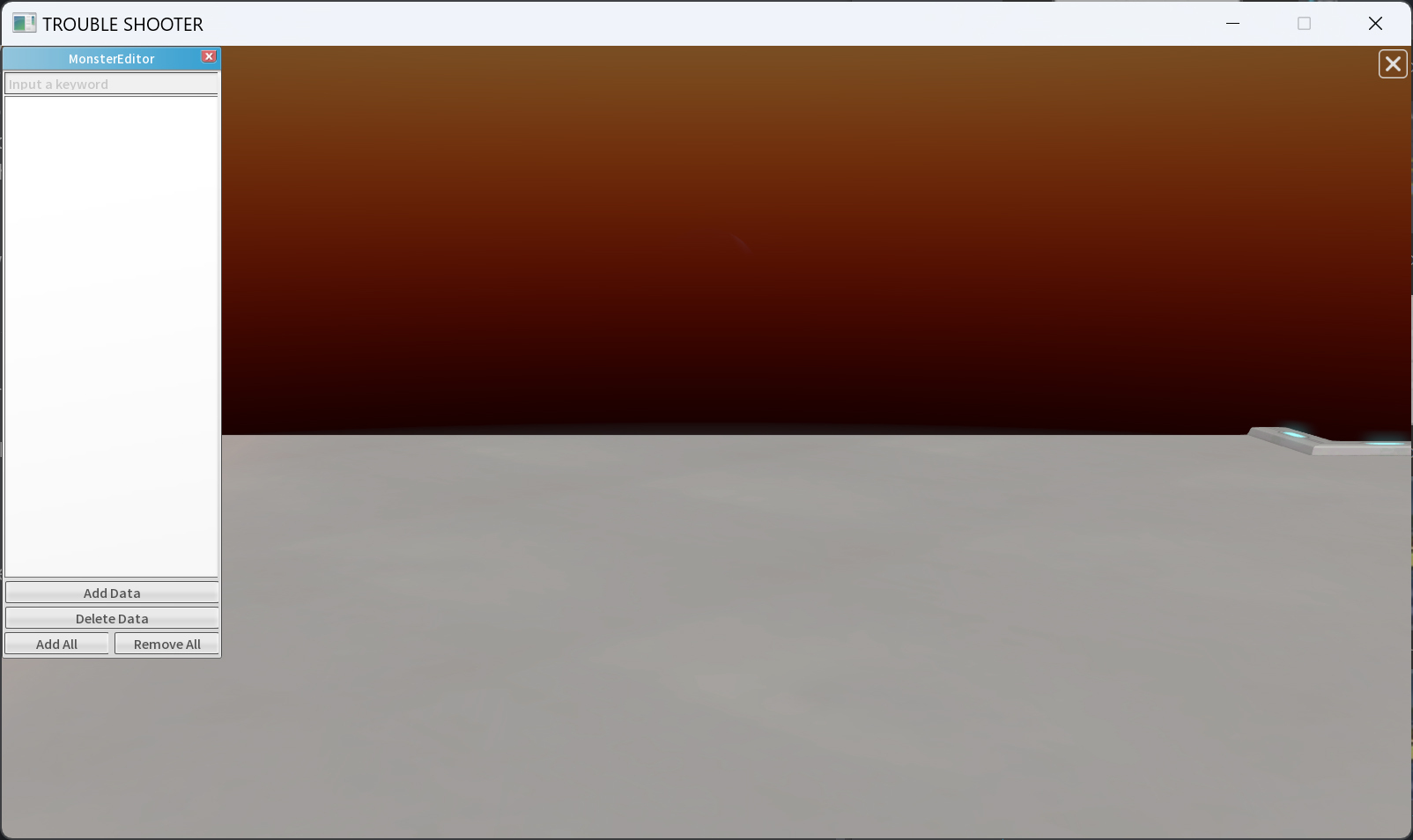
The window in the top left displays the list of monster data currently available for editing. To modify monster information, you need to click the "Add Data" button at the bottom of that window to add a monster for editing.
- Add Data
- You can add the monster data to be edited to the list.
- You can add the monster data to be edited to the list.
- Delete Data
- You can delete the monster data on the list.
- You can delete the monster data on the list.
- Add All
- You can add all monster data to the list.
- You can add all monster data to the list.
- Remove All
- You can delete all monster data on the list.
- You can delete all monster data on the list.
You register the monster data by clicking "Add Data."
(2) Monster List
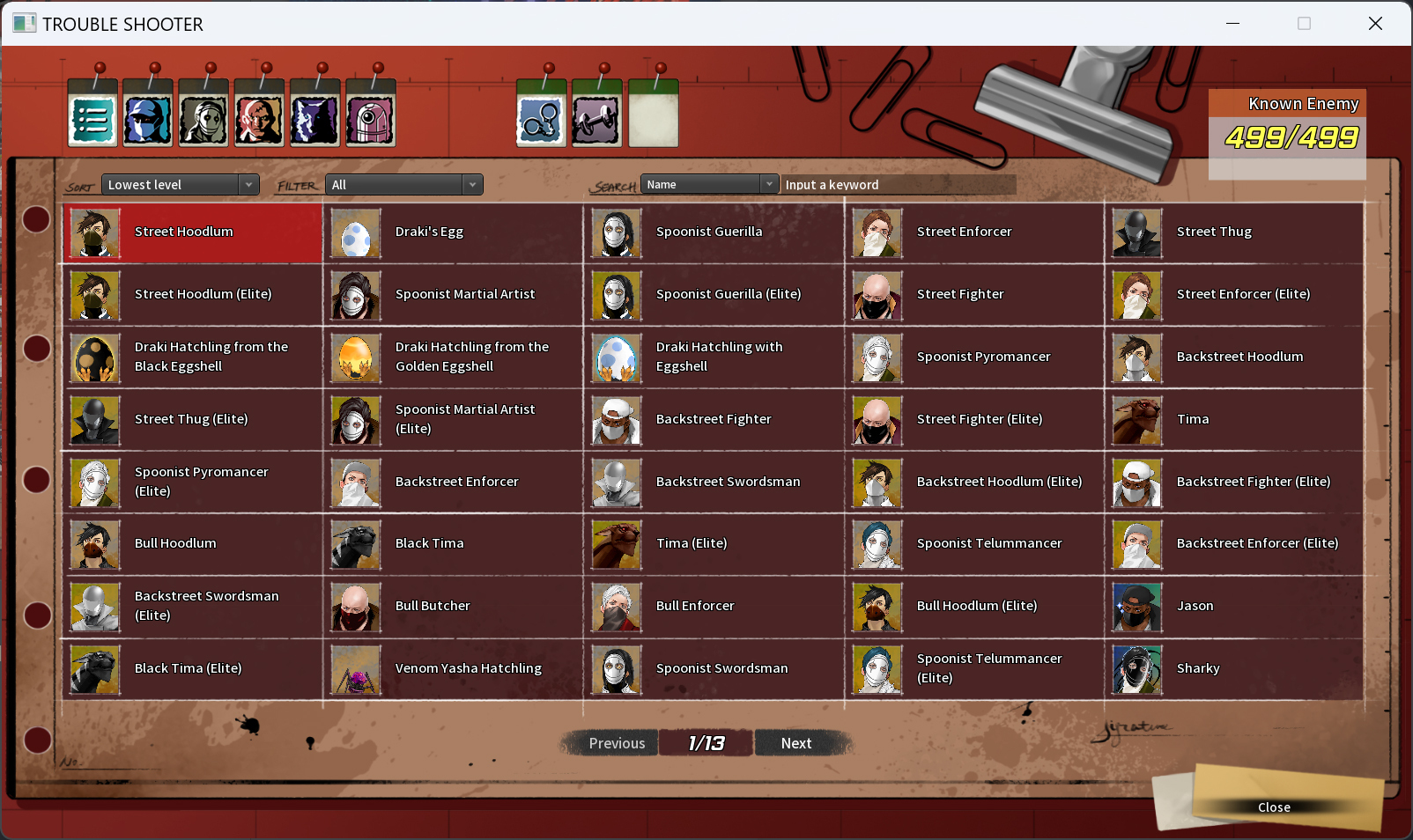
When you click the "Add Data" button, the familiar "Troublemaker List" screen will appear. From this list, select the monster you want to edit.
I select "Street Hoodlum" for editing.
(3) Monster Editor Screen - Selected Monster data
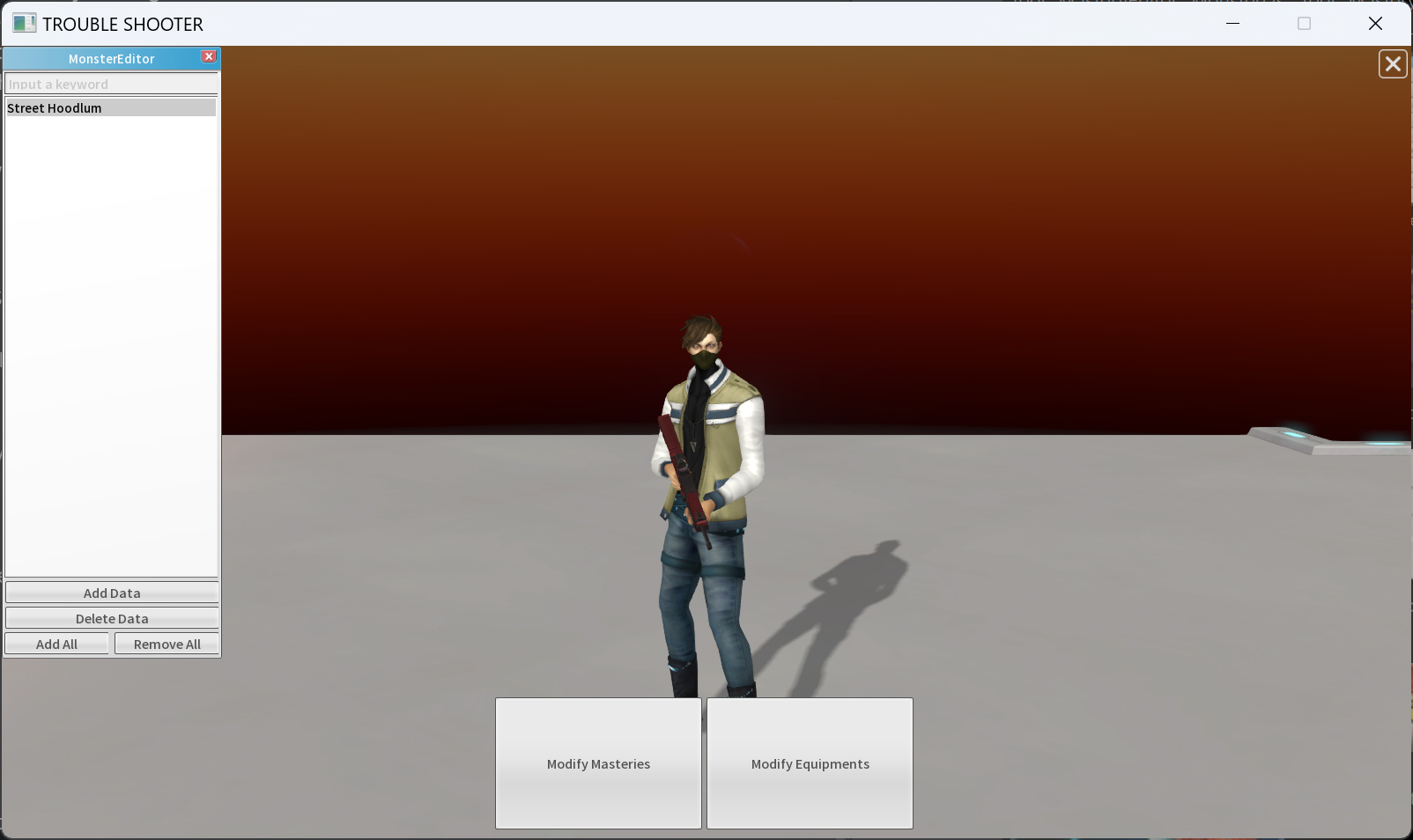
"Street Hoodlum" is registered in the "MonsterEditor" list window and automatically selected.
In the center of the screen, the character model of "Street Hoodlum" appears, and at the bottom center, the "Modify Masteries" and "Modify Equipments" buttons are activated.
- Modify Masteries
- You can modify the current monster's mastery.
- You can modify the current monster's mastery.
- Modify Equipments
- You can modify the current monster's Equipments and Loot list.
- You can modify the current monster's Equipments and Loot list.
I click "Modify Masteries" for editing masteries.
(4) Mastery Board Screen
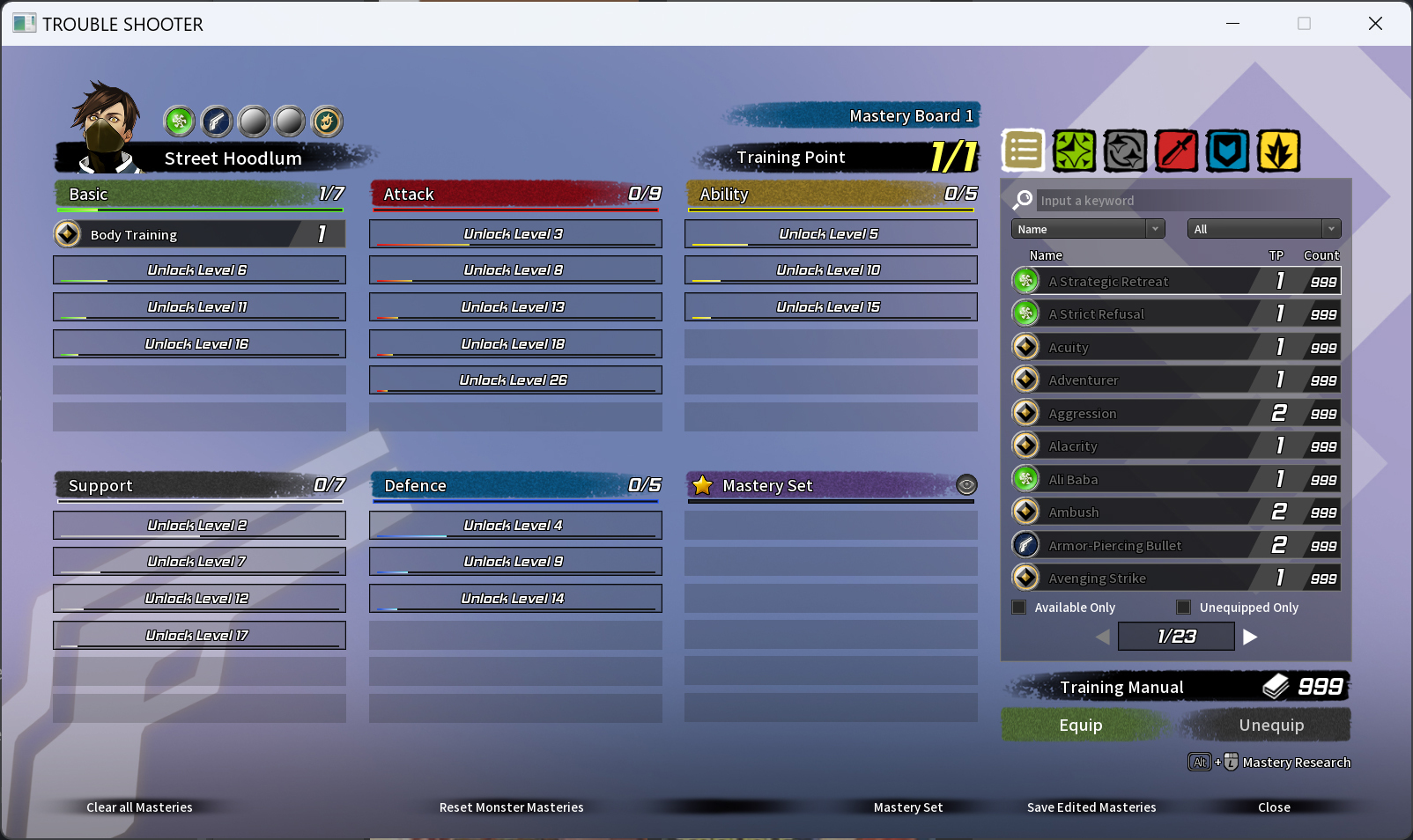
When you click the "Modify Masteries" button, the familiar "Mastery Board" screen appears.
After freely configuring the desired mastery board, press the "Save Mastery Board" button at the bottom right to save the data.
If you leave the Mastery Board screen without saving and select another monster from the list, the modified data will disappear. Please keep this in mind.
- Clear all Masteries
- You can remove all masteries from the current mastery board.
- You can remove all masteries from the current mastery board.
- Reset Masteries
- You can reset the modified data of the current mastery board.
- You can reset the modified data of the current mastery board.
- Mastery Set
- You can check the currently available Mastery Sets.
- You can check the currently available Mastery Sets.
- Save Mastery Board
- You can save the current Mastery Board.
- You can save the current Mastery Board.
Now that we have modified the Mastery Board, let's go back to the previous screen and press the "Modify Equipments" button.
(5) Equipments Screen
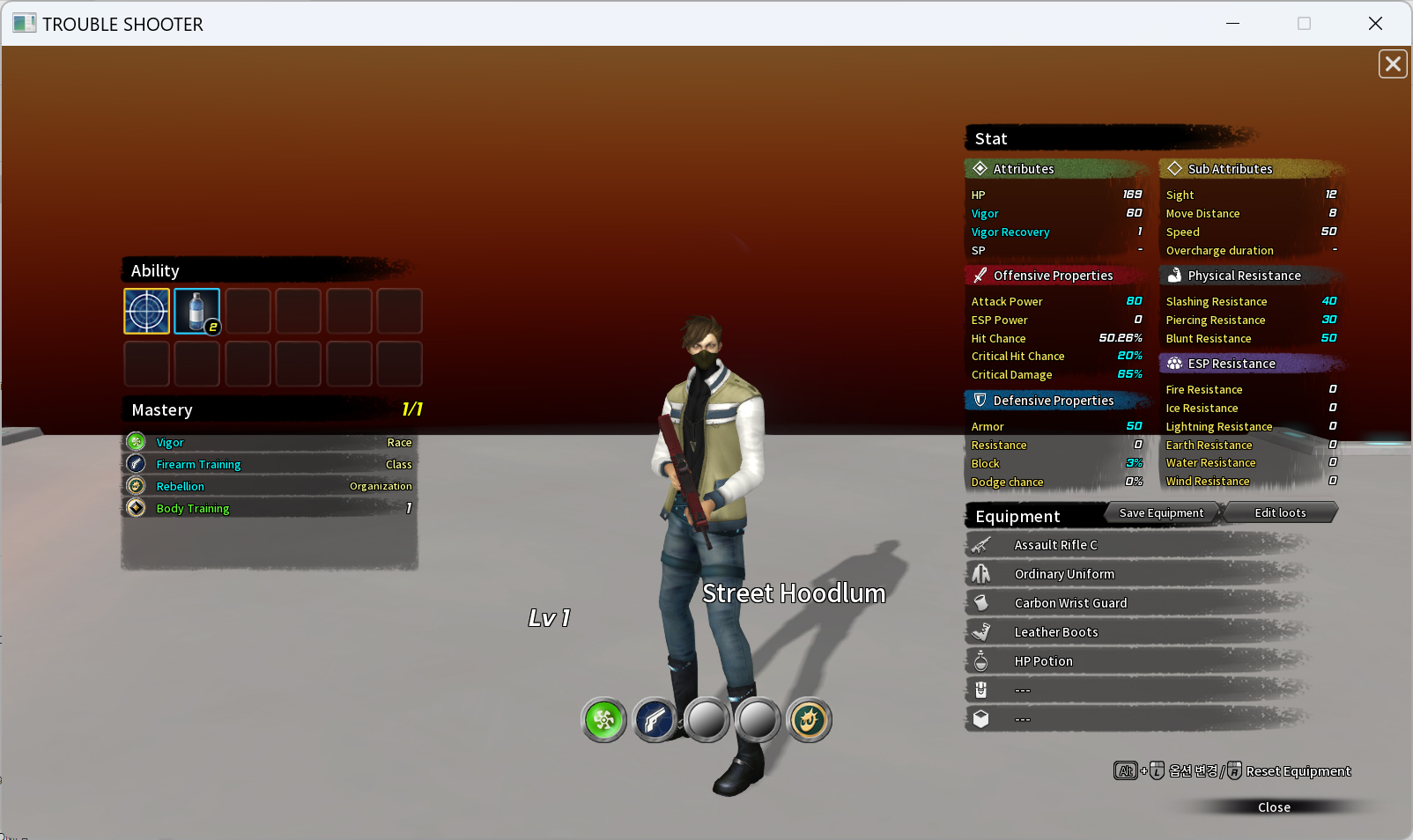
When you click the "Modify Equipments" button, the familiar "Equipment" screen appears.
After equipping the desired equipments freely, press the "Save Equipment" button at the top right of the "Equipment" window to save the data.
If you leave the Equipment screen without saving and select another monster from the list, the modified data will be discarded. Please keep this in mind.
- Save Equipment
- You can save the current Equipments.
- You can save the current Equipments.
- Modify Loot
- You can modify the loot list and quantity.
- You can modify the loot list and quantity.
Now that we have modified the Equipment, let's press the "Modify Loot" button for editing Loot.
(6) Loot list window
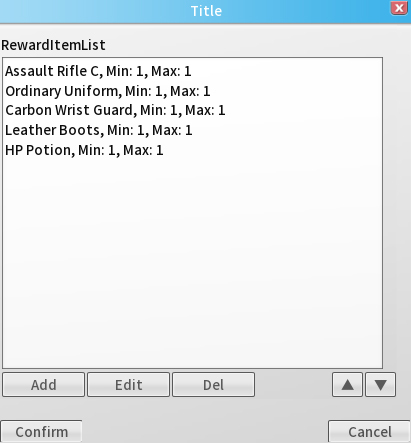
When you click the "Modify Loot" button, the "Loot list" window appears.
The five items listed on the current screen are Street Hoodlum's loot list. The Min value represents the minimum quantity obtained when acquiring the loot, while the Max value represents the maximum quantity.
You can add items to the list using the "Add" button and remove them using the "Del" button. Additionally, you can edit a selected item by clicking the "Edit" button or by double-clicking the item in the list.
I double-click the topmost item, Assult Rifle C.
(7) Loot details window

When you double-click the item on the Loot list, the "Loot details" window appears.
You can modify the loot item, minimum acquisition quantity, and maximum acquisition quantity. However, the loot acquisition probability is automatically adjusted based on the number, grade, and type of loot.
Loot data modifications are applied immediately without a save button, so please be careful.
- Item
- You can change the loot item.
- You can change the loot item.
- ItemMinCount
- You can modify the minimum loot quantity.
- You can modify the minimum loot quantity.
- ItemMaxCount
- You can modify the maximum loot quantity.
- You can modify the maximum loot quantity.
3. Mastery Editor
You can modify masteries using the "Mastery Editor."
(1) Mastery Editor Screen
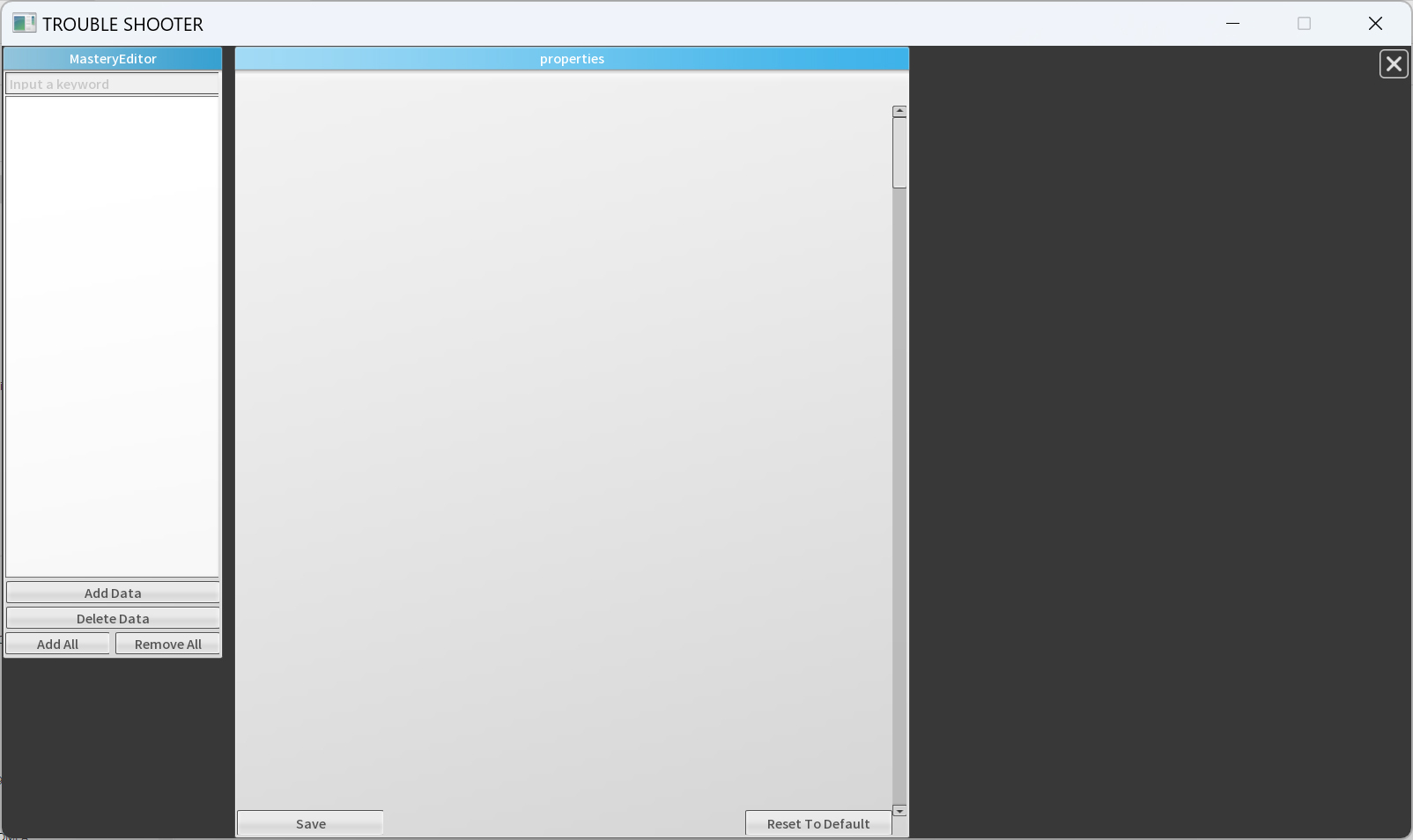
The window in the top left displays the list of mastery data currently available for editing. To modify mastery information, you need to click the "Add Data" button at the bottom of that window to add a mastery for editing.
- Add Data
- You can add the mastery data to be edited to the list.
- You can add the mastery data to be edited to the list.
- Delete Data
- You can delete the mastery data on the list.
- You can delete the mastery data on the list.
- Add All
- You can add all mastery data to the list.
- You can add all mastery data to the list.
- Remove All
- You can delete all mastery data on the list.
- You can delete all mastery data on the list.
You register the mastery data by clicking "Add Data"
(2) Mastery List
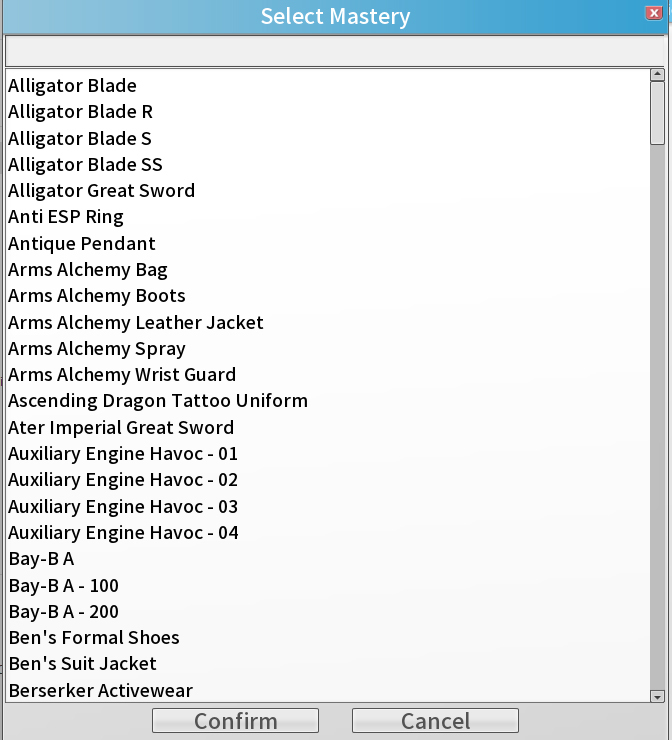
If you search for a mastery name at the top, you can easily find the desired mastery. Masteries that are already registered in the list will be excluded from the list.
I select "Extreme Speed" for editing.
(3) Mastery Editor - Exteme Speed
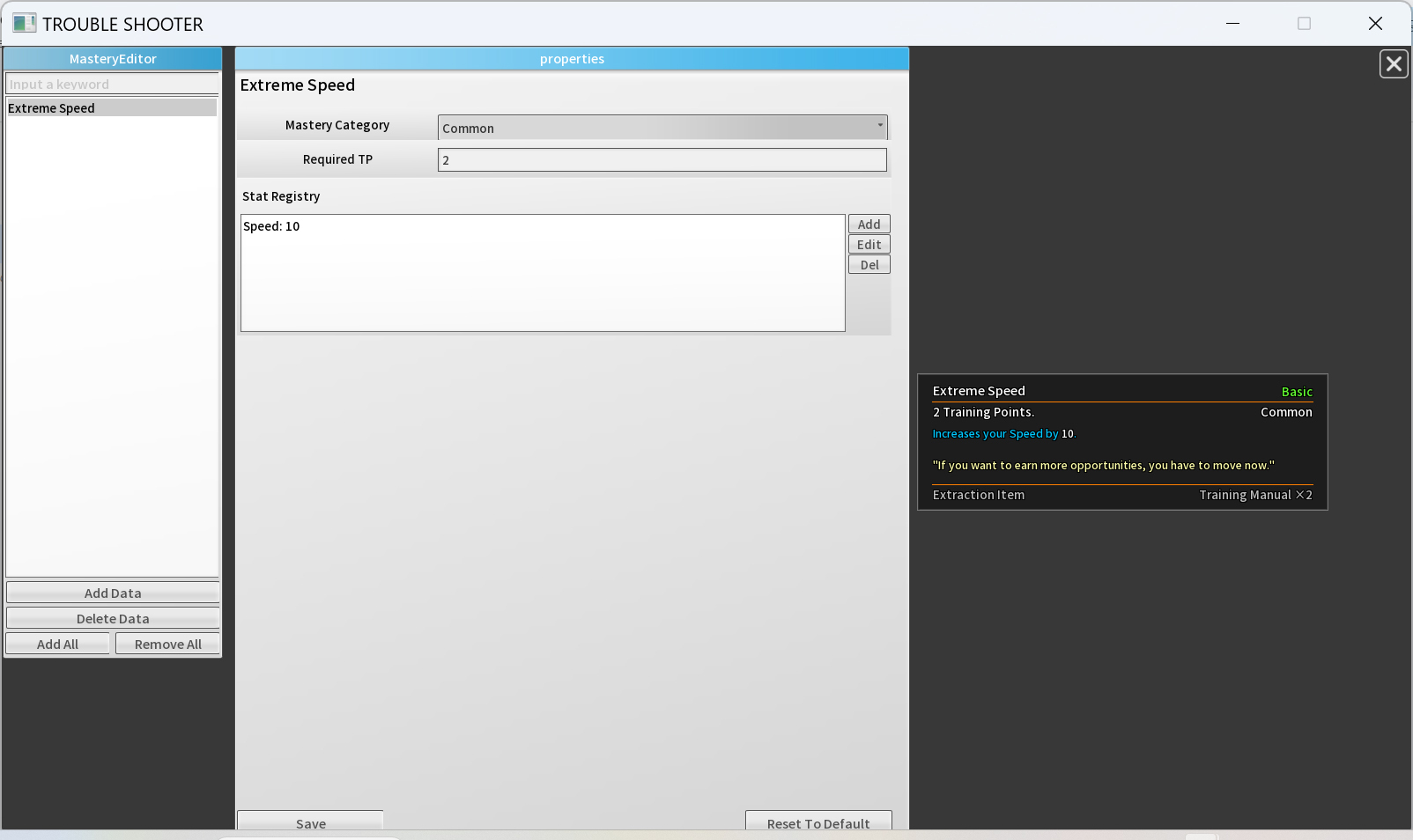
The central panel displays the editable information for the currently selected "Extreme Speed" mastery, while the right side shows the tooltip reflecting the applied modifications.
- Mastery Category
- You can set the mastery category
- You can set the mastery category
- Required TP
- You can set the training points required to equip the mastery.
- You can set the training points required to equip the mastery.
- Stat Registry
- You can add additional stat on the mastery.
- You can add additional stat on the mastery.
I select the "Concealment" mastery, which has a slightly different type of data.
(4) Mastery Editor - Concealment
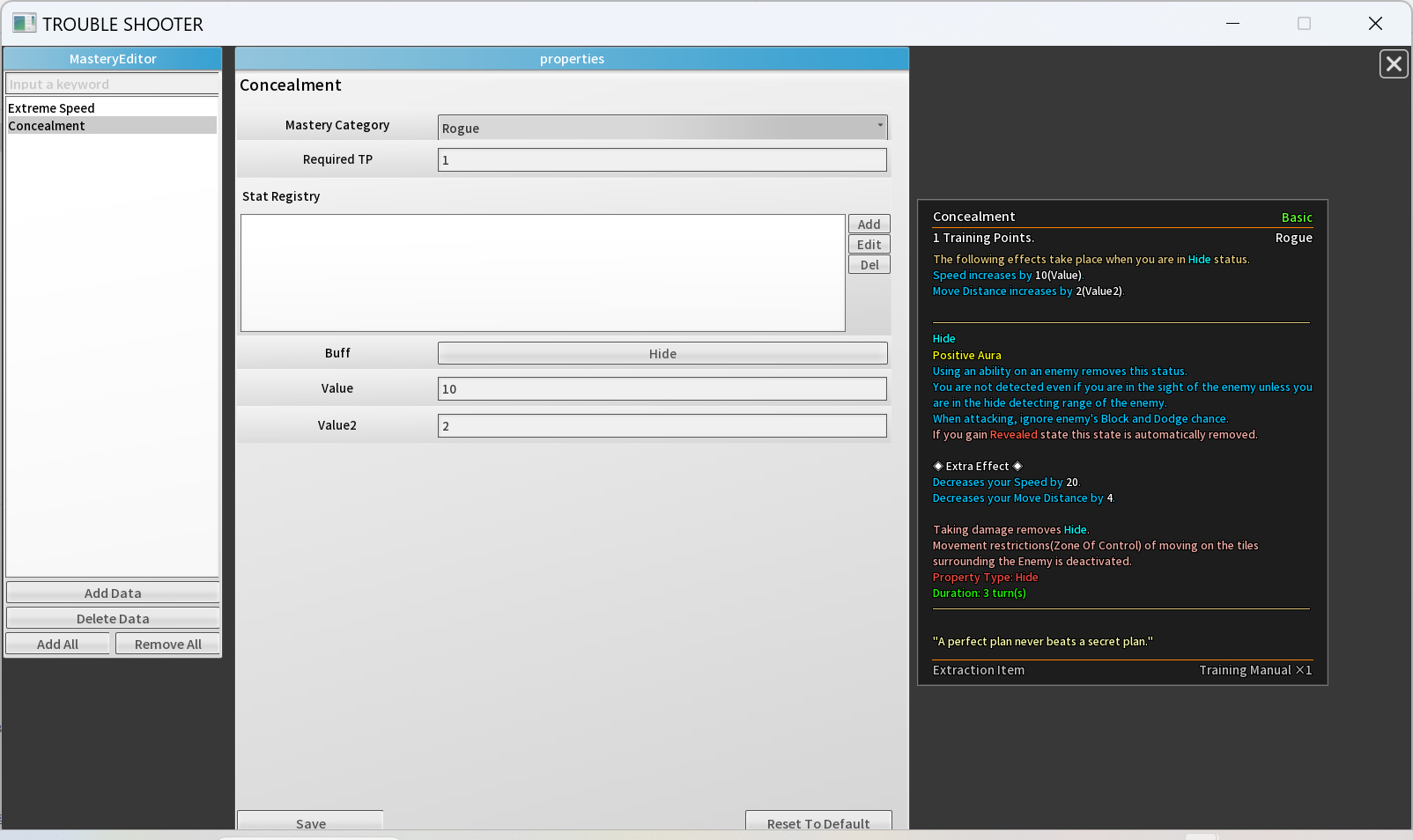
Looking at the information in the central panel, you can see that "Concealment" has three additional fields—Buff, Value, and Value2—unlike "Extreme Speed".
Additionally, in the tooltip on the right, you can see numerical values labeled as (Value) and (Value2). The values in the central panel are directly linked to these tooltip values.
- Mastery Category
- You can set the mastery category
- You can set the mastery category
- Required TP
- You can set the training points required to equip the mastery.
- You can set the training points required to equip the mastery.
- Stat Registry
- You can add additional stat on the mastery.
- You can add additional stat on the mastery.
- Buff
- You can set the buff for requiring specific conditions.
- You can set the buff for requiring specific conditions.
- Value, Value2,
- You can set custom value for requiring specific conditions.
- You can set custom value for requiring specific conditions.
In addition, each mastery has its own unique modifiable values, such as BuffGroup, Subbuff, and Ability. You can find where these values are linked by checking the changes in the tooltip on the right.
4. Equipment Editor
Since the initial screen is the same as "Mastery Editor", we will skip its explanation and move on to describing the values of the "Black Peral Team Sneakers".
(1) Equipment Editor - Black Peral Team Sneakers
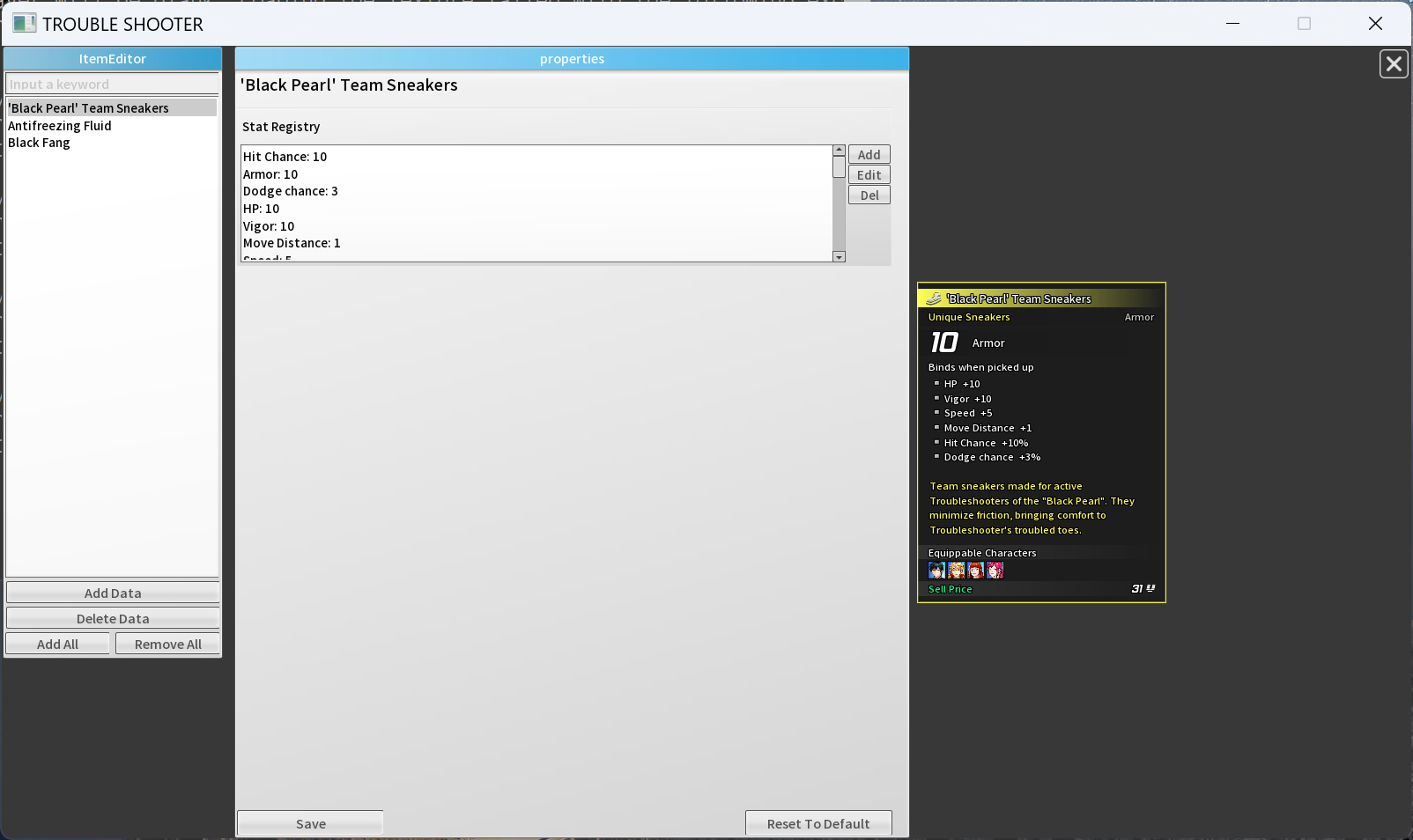
You can add, delete, or edit the stats in the Stat Registry to customize items with your desired values.
5. Ability Editor
Since the initial screen is the same as "Mastery Editor", we will skip its explanation and move on to describing the values of the "Wind Slash" ability.
(1) Ability Editor - Wind Slash
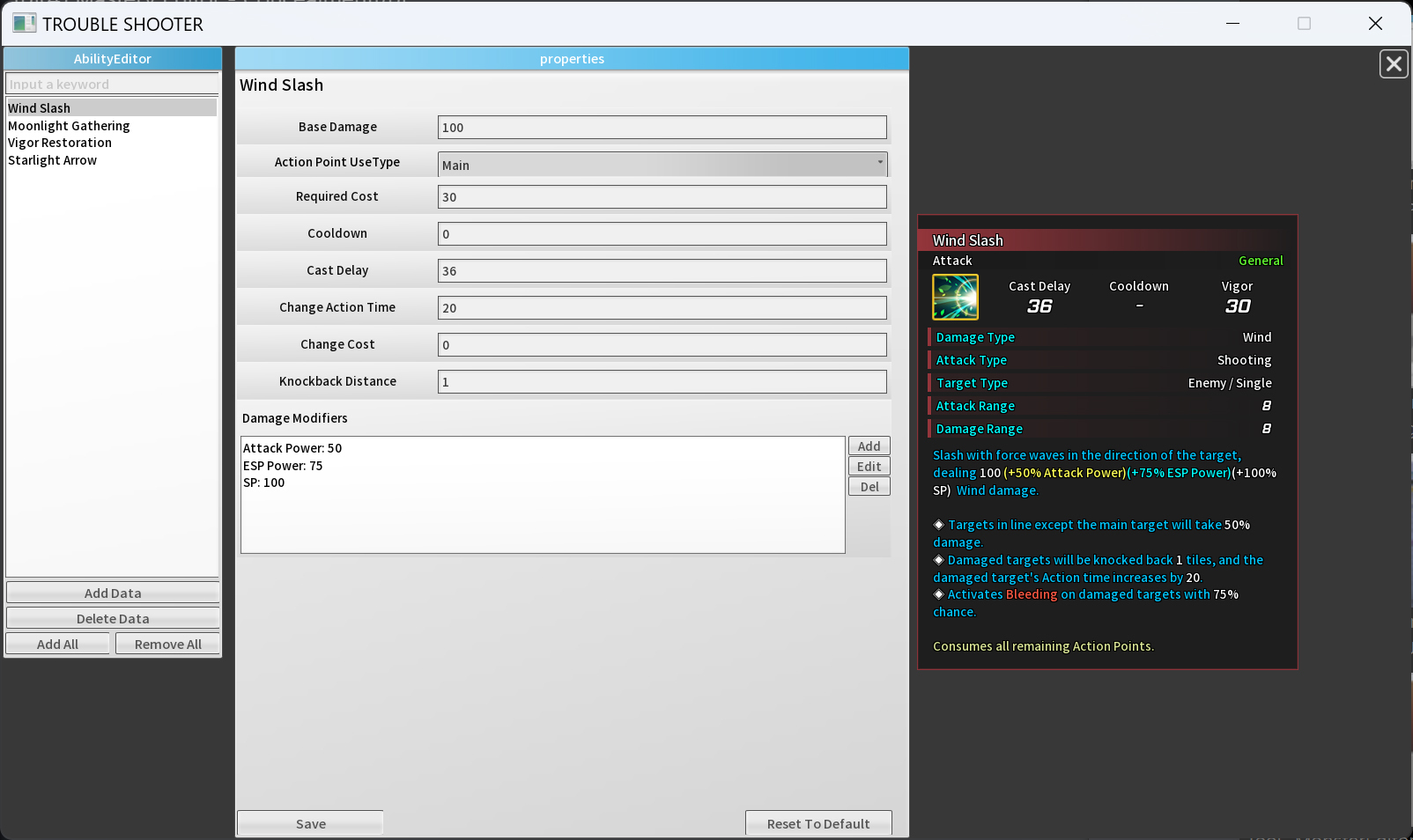
Just like in the Mastery Editor Screen, the selected ability's attribute values are displayed in the center, while the tooltip appears on the right.
Below is an explanation of the values in the central information panel.
- Base Damage
- You can set the base damage of the ability.
- You can set the base damage of the ability.
- Action Point Use Type
- Main: The ability consumes all remaining action points when used.
- Half: The ability consumes only 1 action point when used.
- Free: The ability does not consume action points when used.
- Main: The ability consumes all remaining action points when used.
- Required Cost
- You can determine the amount of resources required to use an ability.
- You can determine the amount of resources required to use an ability.
- Cooldown
- You can determine the cooldown time of the ability.
- You can determine the cooldown time of the ability.
- Cast Delay
- You can determine the action time delay caused by using the ability.
- You can determine the action time delay caused by using the ability.
- Change Action Time
- You can determine the change in the action time of the target affected by the ability.
- For example, if the "Change Action Time" value of an attack ability is set to 10, the action time of the hit target increases by 10.
- You can determine the change in the action time of the target affected by the ability.
- Change Cost
- You can determine the change in the amount of resources required to use an ability of the target affected by the specific ability.
- For example, this value is applied to the "Starlight Arrow" ability.
- You can determine the change in the amount of resources required to use an ability of the target affected by the specific ability.
- Knockback Distance
- You can determine the distance the affected target is knocked back by the ability.
- You can determine the distance the affected target is knocked back by the ability.
- Damage Modifier
- You can set the stat and coefficient for the additional damage added to the base damage.
- You can set the stat and coefficient for the additional damage added to the base damage.
6. Buff Editor
The explanation for data registration is the same as in other editors, so let's skip it and go straight to the buff values that can be set.
(1) Buff Editor - Hero
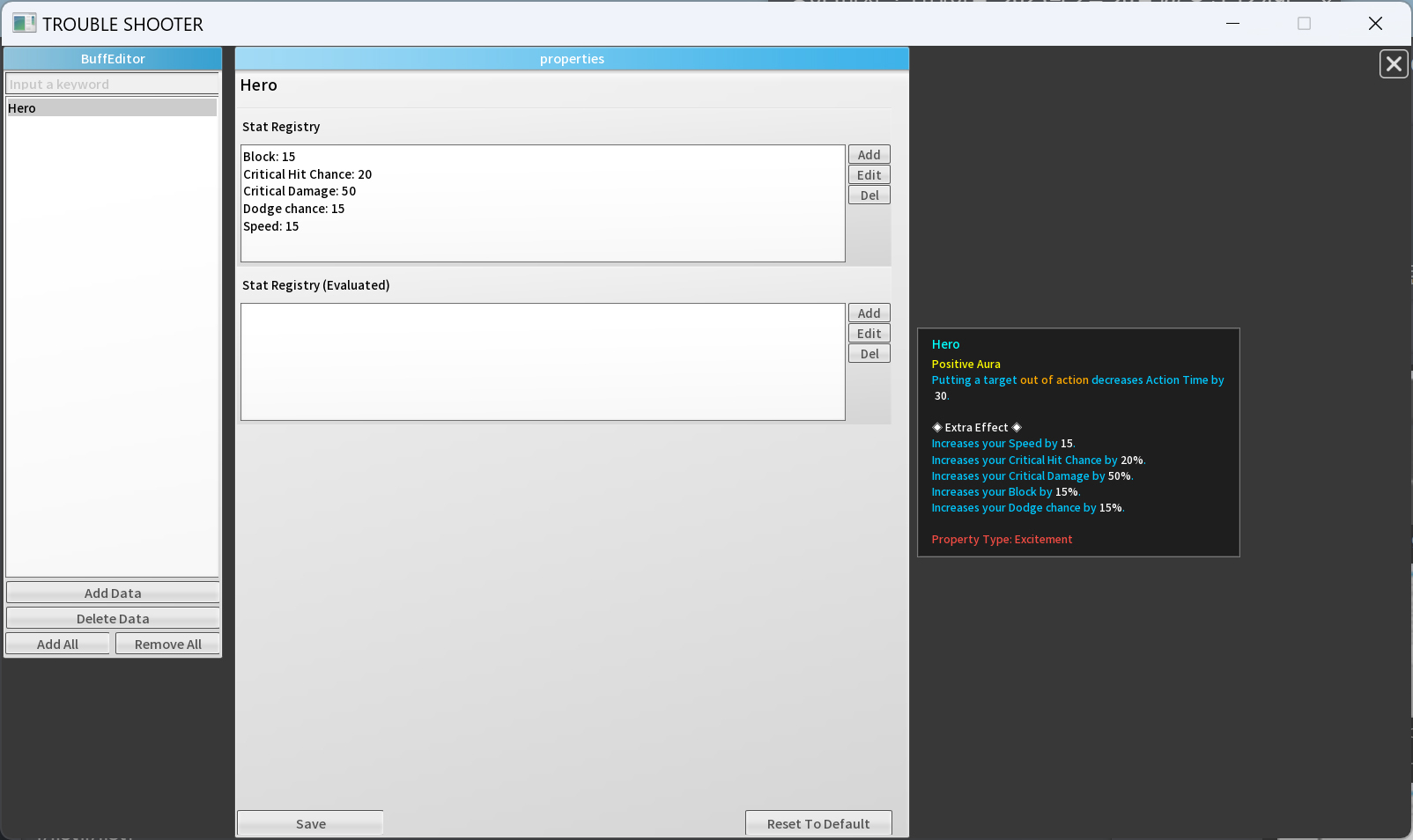
Since buffs are mostly stat-related information, you can register the desired stat values in the Stat Registry.
(2) Buff Editor - Concentrated Magic Power
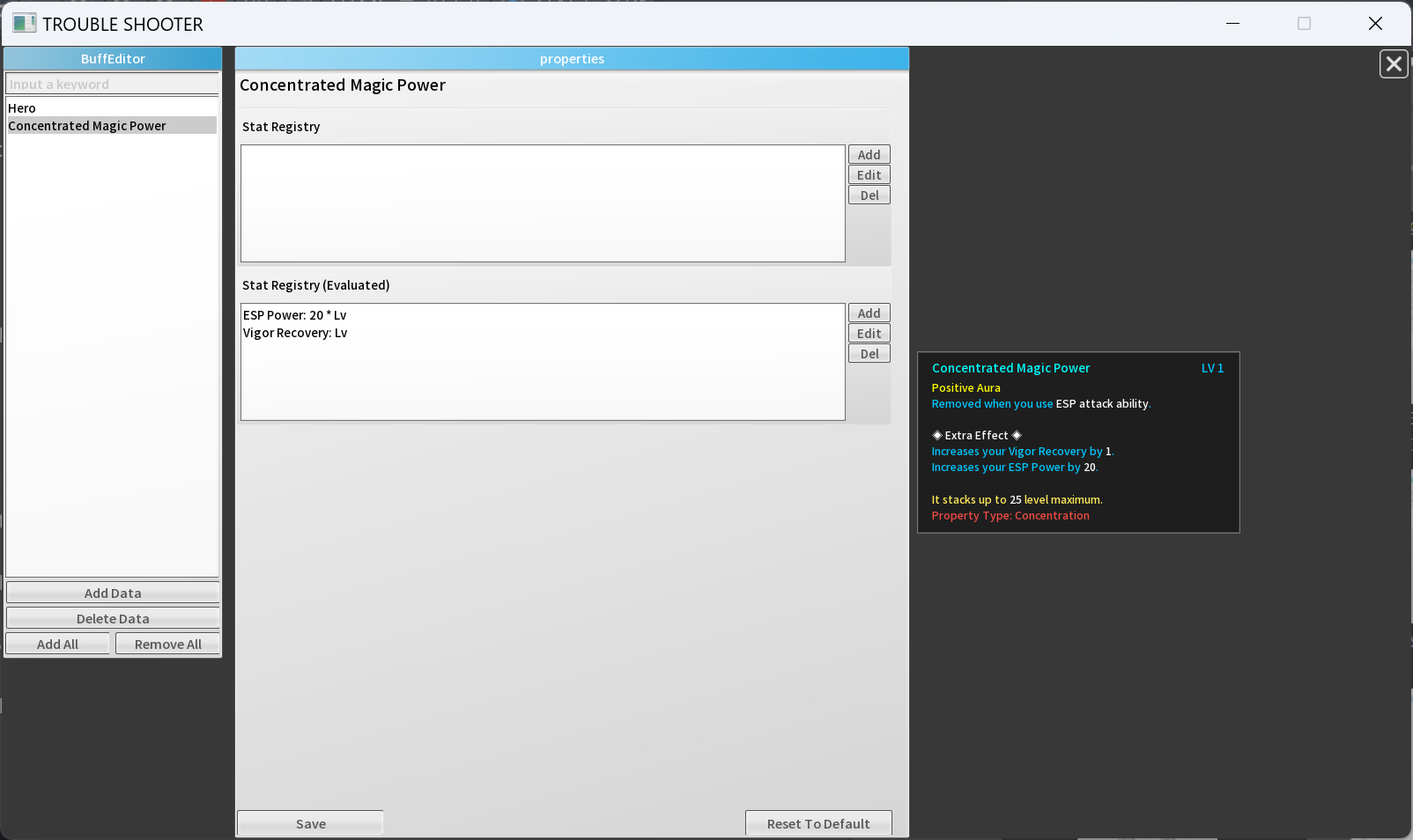
"Stat Registry (Evaluated)" is where you register the calculated values of a buff's stat that change based on level.
7. Language & Dictionary Setting
If you want to add a translation in a different style or include a new language, you can use "Language & Dictionary Setting" to create your own custom translation.

- Language Key
- You can set the key value for the newly added custom language.
- You can set the key value for the newly added custom language.
- Language Name
- You can specify the name of the custom language to be displayed in the UI.
- You can specify the name of the custom language to be displayed in the UI.
- Typing Speed
- you can determines the speed at which the language is displayed in the dialogue window.
- you can determines the speed at which the language is displayed in the dialogue window.
- Long Language
- For languages with longer words than English, such as Cyrillic languages, a relatively smaller font is used to display more characters.
- For languages with longer words than English, such as Cyrillic languages, a relatively smaller font is used to display more characters.
- Hemi-Head Font Support
- Specific visual effects such as damage numbers or menu titles are displayed using the Hemi-Head font.
- Specific visual effects such as damage numbers or menu titles are displayed using the Hemi-Head font.
- Base Language
- When creating the initial language file, you determine which language to use as the base for copying the original content.
- To change the base language after it has been set, you need to delete the existing language file and configure it again.
- When creating the initial language file, you determine which language to use as the base for copying the original content.
- Use Month Name
- You can display month names as words instead of numbers.
- This is mainly set for English and European languages.
- You can display month names as words instead of numbers.
After specifying the appropriate settings for the translation you want to add, click "Save Setting" below to apply your custom language. And you can check the generated translation file by clicking the "Open Dictionary Folder" button.
8. Upload Mod
Now, let's upload the modded data to the Workshop.
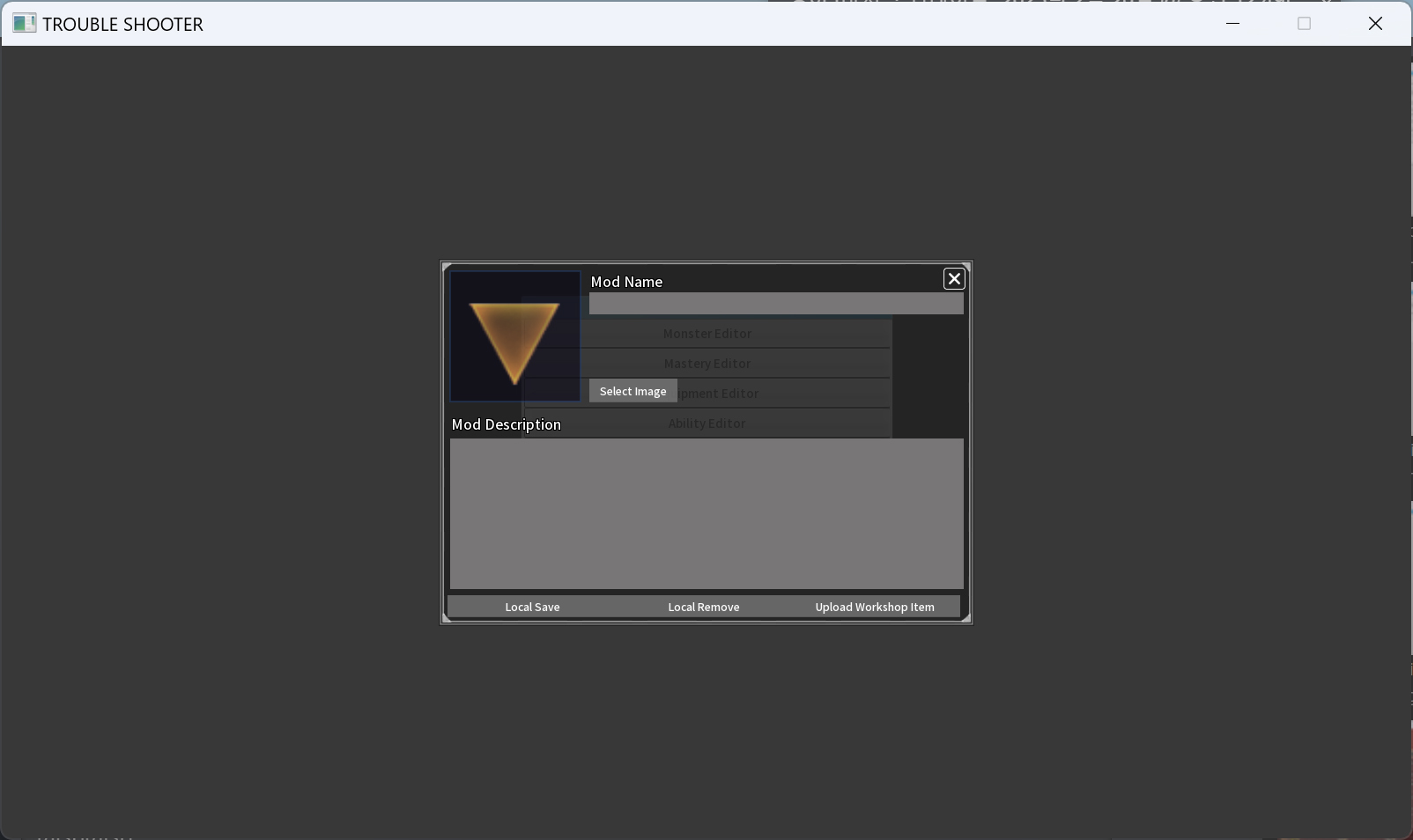
Enter the name of your mod in "Mod Name," and add a representative image by clicking the "Select Image" button. Then, write a description of your mod in "Mod Description.
Once you have completed all the information about your mod, click "Local Save" to apply the mod to your client and check it before uploading it to the Workshop. If the mod is currently applied, you can disable the modded data by clicking the "Local Remove" button.
Once everything is complete, click the "Upload Workshop Item" button to upload your mod data to the Workshop.
3. Wrapping Up the Guide...
If you ever run into issues with the features covered in this guide or have any usability concerns, we’ll do our best to improve them in future updates whenever possible.
For any related issues, feel free to post in the "Workshop" thread under the discussions section—we're always happy to help however we can!
Happy modding, and have fun!
[Notice] Next Update Announcement
We are going to have an update to stabilize the system.
The maintenance time is as follows:
- Daylight saving time is not applied.
- Date: February 20th, 2025
- Thursday 09:00 ~ 11:00 CET
- Thursday 17:00 ~ 19:00 JST
- Thursday 00:00 ~ 02:00 PST
- Thursday 08:00 ~ 10:00 UTC
We will continue to do our best to ensure that you can use Troubleshooter more stably and enjoyably.
Thank you.
[Notice] Operation of the dev team during the 2025 Lunar New Year holiday
Hello everyone, this is Troubleshooter development team.
Happy New Year!
In Korea, the Korean New Year's holiday begins next week.
The development team members returned to their hometowns and spent time with their families, and had a break until February 2.
Scheduled work will be done during the holiday period, but work processing may be more limited than usual.
We apologize in advance for this.
As soon as the holiday ends, we will see you again with news.
Thank you for always showing interest in our development team.
Thank you.
[Notice] Announcement of Contents Update and System Maintenance
Hello everyone, this is the Troubleshooter development team.
We would like to express our sincere gratitude to all of you for your unwavering support.
It has been an incredible six years since we first launched our game in Early Access back in 2018.
We have always deeply cherished the fact that your warm encouragement and steadfast love have made it possible for us to continue developing this game.
Thanks to your support, we are now hard at work crafting the story of "Troubleshooter: Banished Children."
We will strive to provide you with more enjoyable experiences at the end of this challenging journey.
We wish you all a joyous and warm Christmas, and a happy and healthy New Year.
We beg to inform you that the game contents update and system maintenance.
- During the maintenance, players who use the Online mode can't play the game.
- Please end the game normally before the maintenance begins.
- During the maintenance, players who use the Offline mode can play the game.
Maintenance Schedule
- Daylight saving time is not applied.
- Date: December 19th, 2024
- Thursday 10:00 ~ 12:00 CET
- Thursday 17:00 ~ 19:00 JST
- Thursday 01:00 ~ 03:00 PST
- Thursday 08:00 ~ 10:00 UTC
Update Details:
- Changed the Limit Break to be applied to the Online mode.
- Additional slot for each mastery type and 10 max training points will be given to both allies and enemies.
- Limit Break can be applied to a company that is already exists.
- Player can activate / deactivate the Limit Break while playing the game.
- Additional slot for each mastery type and 10 max training points will be given to both allies and enemies.
Thank you.