Update 0.2.2 is Live! | Relationship, Quests and Experience Update
Update 0.2.2 is live.
Intro: The 0.2.2. Updated introduced some new Early-Phase Systems that were planned from the beginning for Urban Tale but we're not finished. Same as the Crafting and Cooking Updated which was released about a month ago. In this update we added the First Version of the Relationship system which allows the player to keep track of the People he/she meets in the game and form meaningful Relationships. This System is currently here to be tested and will be mostly likely altered in the future. Worth mentioning is also the First Version of the Quest System. The Player can now accept certain Quests from random Strangers in the Game in order to receive Money or to start forming a Relationship with. Nevertheless, we have also changed the Experience System, which is now much deeper and give the player some detailed insight about this action in the game. The Entire Experience System is Accessible Via the Key X or the ESC. Note*Individual Bookmarks need to be clicked in order to open the desired information in the Book itself.
Reminder: We will be adding in the coming days another Guide to Steam that will explain the new Features in detail. So please make sure to check the Steam Guide Section for Urban Tale Regulary. Also, any kind of content sharing via Twitter, Discord, Instagram and Facebook would help us also so feel free to help us. Thank you.
Changelog:
Added a first Version of the Apartment Upgrade System.
Store Interface in Zone 3 Grocery Shop Updaded.
Crafting and Cooking Experience.
First Version of the Quest System Added.
New UI for Player Information.
Added Player Stats.
Added a first Version of the Relationship System.
Added a Crafting Info Log.
Added a Cooking Info Log.
Added a Job Skills Log.
New Settings Menu.
Added the option to Quit Job.
Added the option to Quit Job through newspaper.
Added the option to Quit Job when talking to the Manager.
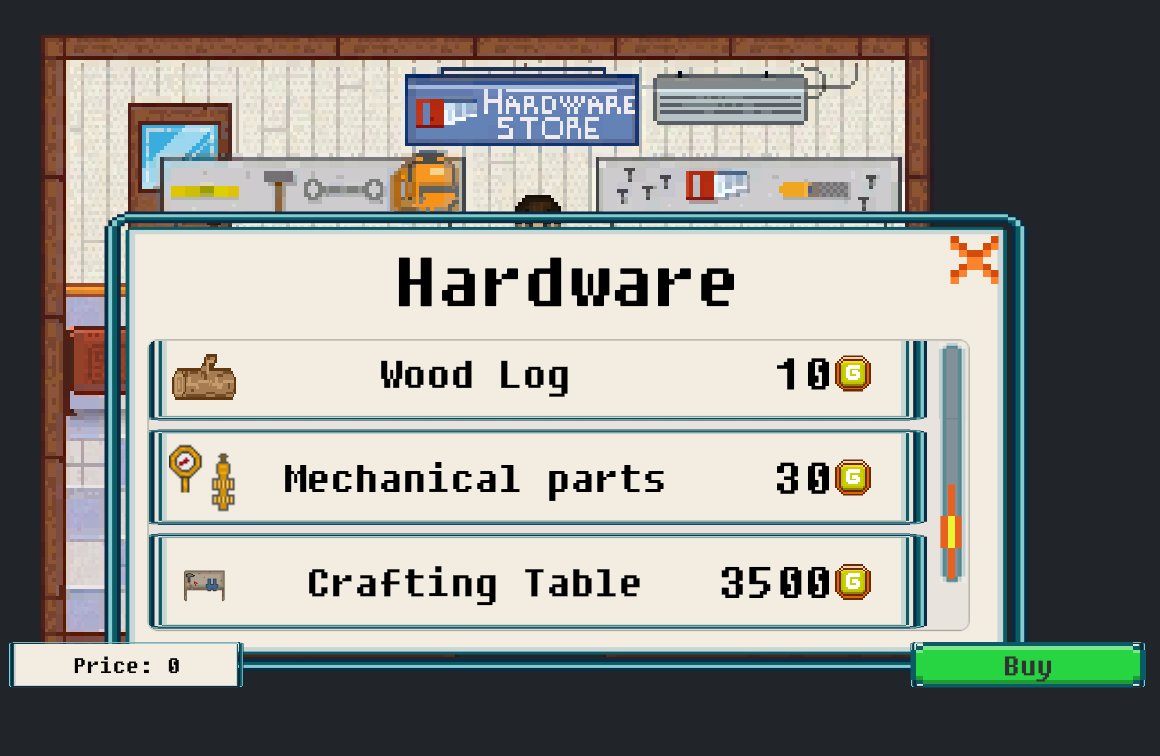
Fix in Hardware Store UI opening after buying.
Fixed the UN-rent Button when un-renting the Shop.
Many small fixes.
Update 0.2.1 is Live!
Update 0.2.1 is live.
Changelog:
Weather optimisation.
Rain animation update.
Snow animation update
Item images update.
Small UI update.
Crafting table optimisation update.
Hardware Store bugfix.
Some additional Sprite updates.
Crafting and Cooking Update. Version 0.2.0 is Live!
Crafting, Cooking and much more - Update Version 0.2.0
Intro: Urban Tale is moving to 0.2.0 Version, named Crafting and Cooking. This update brings along a lot of new core-features, bug fixes and content features. First, we will introduce all of the new features, followed by a somewhat lengthy Explanation of each new Feature and a Changelog section of Bug Fixes below. The Crafting and Cooking core feature is right now the base for future developent. Much more craftable and items and recipes to cock will be added to the game in the next few weeks. Hope you like it.
Features Added (with explanation):
1. Cooking
Brief Explanation: The player can now cook items, sell them or eat them (by eating items like marmalade, the player get's leftovers like an empty jar). All of the cooking process and selecting what to cook happens with the Over or Microwave, depends which apartment the Player is renting.
1.1. Opening the oven If the player didn’t start cooking an item yet he can open the oven. If the player is standing next to the oven, side text will tell him “Press E to start Cooking”. The player selects what he would like to cook. Side text will also be changed to “Press E to close oven”. There the player can see the ingredients list, which he will need for the cooking process, the amount of the ingredients needed and the cooking time needed. He can then close the window, simply by pressing E or clicking on the “Cancel” or “X” button if he chooses not to cook, or he doesn’t have the required ingredients for cooking. If the player already has ingredients and he wants to proceed with cooking, all he has to do is to click the “Prepare” button to open the next window.
1.2. Adding ingredients If the player clicks the “Prepare” button, now he can Add required ingredients for the cooking process. The player adds ingredients simply by using the drag and drop system. If the player closes this window before starting to cook, he gets back all of his previously added ingredients.
1.3. Start Cooking If the player has added all of the ingredients, it’s time for the cooking to take place. NOTE: Empty Jars and empty Cups are always needed so cooking can’t start without them. If the player has placed the ingredients in the wrong order (example: sugar in the strawberry slot), a notification appears saying to recheck the placed ingredients order. If all ingredients are in the right slots, it’s time the cooking is started. NOTE: An insufficient amount of ingredients can be placed in the slots, but this will resolve in poor quality of the end Products and its value on the Market, when selling will be also affected. While the player is cooking, there will be a progress bar showing on top of the Oven in each apartment and on the island as well.
1.4. Finished Cooking When the Cooking process is finished side text, while standing next to the Oven, will change into “Press E to take items out of oven” and players will be able to take the items and placed them in his inventory. NOTE: If the player leaves items longer at the recommended cooking time, their quality will drop, depending on how long the player leaves it the Oven. Once the item is checked and the player opens the Oven he will see the quantity and the quality of the produced items. The player can right-click on the item in the Oven or Drag them to his inventory. NOTE: The Player needs to have at least 1 free slot in his inventory or already the same item type in his inventory in order to take the cooked items out of the Oven.
2. The Market (Selling your items)
Brief Explanation: In the City Center (left-upper corner), the player can find 5 stands. They are meant for the Market. The first stand is reserved for the player (if he wants to rent it) and the other ones are selling various items, that can be found in the City. Quantity of items, sold by other vendors on the market has always been different. When the player comes to the market, he can either buy from other stands or rent the first stand for himself. NOTE: The Market is open only on Sunday between the hours 7:00 and 17:00. Between this time the player can buy items or sell his own products. After 17:00 the Market closes and the player can now collect the money he earned, if he placed any of his produced up for sale of course. The player always has a side text (right-bottom) indicating, what to do next.
2.1. Player Selling Items on Market
Brief Explanation: If the player has rented a stand, he can now sell items, that he crafts at his apartment. The price will be calculated with quality and quantity so he will get a fair amount of money for his work. The player can place his items on the market by simply clicking on an item in inventory. The player can add more items to his stand anytime during the operating times of the Market. The player can sell a max. amount of 6 different items, but an unlimited number of each one of them
2.2. Buying items on the Market Brief Explanation: The player can not only sell, but he can also buy items on the market. When the market is open, the player can come to any stand and buy items off of Local Vendors. To start a conversation with a local seller, he needs to get close up to a stand and press “E” to open the buying panel. The player then chooses the preferred amount and clicks on the Button “Buy” to buy the items he picked.
2.3. Player Withdrawing his earning from sold Products Brief Explanation: The player has time to withdraw his money, from the Products the he sold, until the next Sunday until 6:00. If the player doesn’t withdraw the money until then, the money gets automatically transferred to him and a notification comes up, saying, that money has been forwarded to his transaction account. NOTE: If the market is closed, the player can still withdraw money until next week, by pressing “E” while standing next to his stand at the Marketplace.
3. Crafting (Crafting Table)
Brief Explanation: The player can now buy a crafting table with which he can craft various items with. The player needs to go to the Hardware Store which is now located right next to Apartment number 1 (right-bottom in the Map). Once the crafting table is bought the Player needs to place the crafting table somewhere in his apartment by Dragging the Crafting Table out of his inventory and then he can start Crafting. If the player owns more crafting tables, he can build different items on each of them. NOTE: if the player moves into another apartment and does not pick up the Crafting table or tables should he have more, it will be left behind. In order to retrieve them, the player will need to rent his old apartment again.
3.1. Opening the crafting table Brief Explanation: Once the player stands next to the placed Crafting Table in his Apartment, a side text will appear, telling him to press “E” to start Crafting. Once the player opens the Crafting Table he can choose which item he wants to build. He can still decide to close the Crafting Table by pressing E. Once the player decides what he wants to build, he can start Crafting by Pressing the Button “Build”.
3.2. Crafting Brief Explanation: When the player clicks the button “Build” he will be asked to place the required materials of the choose item in the correct Slots. The player needs to add the material, the same way as with the Oven – by Drag and Drop. NOTE: Each crafting table builds its own item so the player can build several items at once. For example: • The player started building a Birdhouse on crafting table 1 in his apartment. • After 2-3 hours he decides to build a Pendulum Clock, so he comes to the second crafting table (if he owns it) and starts Crafting there. Each table will also have it’s own progress bar displayed over it, so the player knows how much time it will take for the Glue to harden and the Crafted item deemed as finished.
3.3. Taking finished Items Brief Explanation: When the crafting process is completed and the player stands next to the Crafting table, the side text will change into “Press E to collect items” and the player will be able to open the crafting table and take the finished items. If the player leaves the crafted items lying there longer as it is their building time, their quality will decrease.
4. Selling your Crafted items (Players own Shop)
The layer can now rent his own Shop. He can employ someone, sell his crafted items, adjust the price of each item by the amount he thinks he right and buy ads to promote his Shop. NOTE: At the same time the player needs to pay Tax for each item he sells and also the Shop Rent which is due on a monthly basis.
4.1. Renting a Shop
Brief Explanation: The player can rent the shop for himself in the newspaper by clicking on the “Store” section (above the apartment section in the newspaper). Once in the “Store” section the player can rent here the available Store. When he rents it, he has to name his new Store, if he doesn’t provide a name the default shop name will be “Shop”. Also the added shop name appears outside of the shop as well as inside.
4.3. Shop management Brief Explanation: When the player rents his own shop and gives it a name, he has to employ a cashier in order to sell his items. To do so the player needs to go to the back office of his new shop and locate the computer, once in striking distance to it, he can access it by pressing “E” and via the OS, find the Folder on the desktop named “Job Applications”, from there the Player can employ someone.
4.2. Shop Computer Brief Explanation: Same as in Boss and Manager level, the player has his own management computer, where he manages the Shop. Here he can see his profit, loss and manage other aspects of his shop with it. NOTE: The player can find different folders on the Computer, providing him different information about the Shop. The player will also find the a folder named “ Job Applications” which is crucial to selling anything in the shop.
4.2.1 Employing and hiring a cashier Brief Explanation: When the player opens the “Job Applications” folder, he can hire applicants. He has to select one and click hire. NOTE: The player can hire a max. amount of 1 applies. In the “Employees” folder, the player can manage his employee. He can fire him, give him a raise, lower his salary and see his progress and morale.
4.2.2 Spectating Economy Brief Explanation: If the player opens the “Profit” folder, he can switch between 2 profit windows with the button in the lower-right corner of this panel. One window is called “Weekly Economy” and gives the player info about the current profit. Once the player collects the money from the sold items the profit goes back to 0. The player can collect his profits with the click on the button titled “Collect Profit”. NOTE: Tax on all sold items in the shop is 22% and tax evasion cannot be avoided currently. The “Shop Economy” window tells the player how much he earned since he rented his store. Here he can see if he’s doing something wrong, if his prices of items are too low, or if he doesn’t sell enough items.
4.2.3. Advertisement Brief Explanation: With advertising his shop, the player gets more customers to the shop and that means more items will be sold. The player can Order ad's by clicking on “Order Ad” if he has enough money. When the player orders any ad, the ad will be activated for a set amount of time. Text will be shown to tell him when the ad will expire and when he can order another ad. While one ad is active, the player can’t order another ad.
4.2.4. Placing crafted items up for SALE Brief Explanation: The player can place crafted items in his store the same as in his apartment by drag and drop. When the player places an item on an empty crate, he’ll have to set its price. If he doesn’t the price will be automatically set as the default price for an item. NOTE: The price needs to be set for eached placed item individually. If the item is placed, the player can check it’s amount, the price of an item or even take action with it. If he wants to change prices of an already displayed item or pick items up, he has to press “E” while in reach distance. The player can choose to pick up the already displayed item or to change its price. If he wants to change prices of an item, he has to click on “Change price” button and he can enter the new desired amount.
5. The Refrigerator Brief Explanation: When a player comes in front of the fridge, a side text will say, “Press E to open refrigerator”. If the player presses “E” and the refrigerator inventory opens, the text at the bottom-left corner changes to “Press E to close refrigerator”. While the refrigerator is open, the player can either put items in it by right clicking on his inventory and selecting amount of items, or take items from it and place them in inventory by right-clicking the mouse button the desired item in the refrigerator and selecting the amount of items he wants to put in his inventory. When the player presses “E” again, the refrigerator inventory closes itself and items placed inside stay there.
6. The Backpack Brief Explanation: We now have a fridge, an oven and a crafting table, but we seem to have something missing there… Right! It’s a backpack. The player can now buy a backpack in the Hardware Store and carry around 9 extra items.
6.1. Buying the Backpack Brief Explanation: The player can buy a backpack in the Hardware Store. The amount of backpacks is limited to 1 for each player... because hey, how would you carry around 2 at the same time right?
6.2. Using the backpack and storing items in it Brief Explanation: The backpack is very simple to use. All a player has to do is left click on a backpack in his inventory after he had purchased it of course, to open it and later also close it also using the left-mouse click. When the backpack its opened, player can store or move items by using the drag and drop system. Since items then we buy in real life are not jumping in our backpack by themselves, this goes also for the player. The player first needs to place items in his personal inventory in order to move them then to his backpack.
6.3. Removing the backpack from your inventory Brief Explanation: As any other Item, the player can remove the backpack from inventory, but if the player removes the backpack, he also removes all items stored inside. If the player buys other backpack there won't be any items in it anymore, at least not the ones he throws away together with his old backpack...
7. Drag and Drop function
Brief Explanation: With this update we have also added a new drag and drop system to the game. The player can now place items or move in-or-out of the inventory. How does it work? If the player opens his refrigerator, for example, he can click on an item in his inventory to take the item in his hand and click on an empty refrigerator slot to place it there. If the item is marriageable (that means that a player can have more items in his hand – for example 3 Apples), the player can click on it until the amount in hands is the same as the amount in the slot.
8. Finding Recipes Brief Explanation: The player can now find new recipes in the City by locating a “Recipe sign” or by finding an NPC, whom will ask the player to bring him something. By doing so the player will receive a receipt in return.
8.1. Recipe Sign Brief Explanation: When the player finds a “Recipe sign”, he needs to get close to it and press “E” to collect it. When the player collects it, he’ll learn a new recipe and he will be able to cook it in the Oven.
8.2. Getting Recipe from NPC Brief Explanation: If an NPC has a pointer above his head it means, that he has a quest for the player. When the player finishes that quest, he gets the recipe.
8.2.1 Accepting quests Brief Explanation: When the player talks to an NPC with a quest for the first time he can either accept the quest or decline it in the chat window. The player will also see what the NPC is asking from the player to bring him.
8.2.2. Finishing quest Brief Explanation: When the player has an item that NPC wants, he can go back to the NPC and talk to him. The guest panel will open itself and the player put the desired items in the quest slot by using the drag and drop system.
9. Taking Items in hand Brief Explanation: The player can now take items, that are placable (example: Crafting table) in hand and place them somewhere in the room or store. Locations the player can place items in apartments and in the Store are marked. The player takes items in hand, simply by left or right clicking on an item in the inventory. If the player clicks somewhere where he can’t place them, the item will be placed back to his inventory.
10. Objects placing system
Brief Explanation: We added this feature as it has potential and will be used later on for placing various items in your apartment and upgrading it, item-by-item and making your apartment very personalised and unique to each player. Placing an object somewhere into map can be quite an interesting thing to do in game. The player can decorate his own apartment, but for now he can just place his crafting table in the apartment. The player has to take item in hand in order to place it somewhere. When a player has an item in inventory, placeholders for areas where he can place item will be shown to him. If he decides to place an item on a placeholder, item will stay there and will be removed from hand because he has placed it. The player can now use these placed objects on various kinds, like crafting on table for example. NOTE: If the player currently moves the mouse cursor to an item in hand over a placeholder, the Item will be previewed for him and all he has to do now is to left- click the mouse button and the item will be placed in the desired location.
10.1. Removal of an object Brief Explanation: The player can remove a placed object by pressing on them with the left mouse click. The Item will go back to the inventory, but watch out, if an item is in the middle of action, for example, crafting-process and the player deletes it while the item hasn't been finished or collected he will lose everything in that process, material included.
Additional Changelog:
Fixed several overflow bugs on Airport. Fixed a bug for Load and Save. Adjusted the save option during the Tutorial. NPC Merging Error fixed. MAC compatibility issues fixed. Fixed the Character sex selection bug. Character walking animation fix. NPC adjustments in the Marketplace during Sunday Sales. Cancelling Rent for Aprtment, Store and Job fixed. Economy optimisation to most of the items. Several asset fixes.
Hotfix 0.1.13a is Live!
Hotfix 0.1.13a is Live!
Fix:
Due to a Gameplay Bug that prevented the player from moving that was in the 0.1.13 Version of the game, which was released earlier today we are now eliminating the bug with this Hotfix 0.1.13a.
Update 0.1.13 is Live!
Update 0.1.13 is live.
Changelog:
Fixed a Quit issue on some Mac devices.
NPC walking path adjustments.
Added and repositioned some NPC's
Fixed the Manager and Boss Levels 5 and 6.
Adjustet the Profit table in Level 6.
Changed the Loading screen.
Update 0.1.12 is Live! Now also for Mac OS
Update 0.1.12 is live. Now also for Mac OS
Changelog:
Urban Tale can now be played on Mac OS.
Added an intro video when starting a new game.
Updated the Island Repairement.
Adjusted the time balance on the island when fixing the house.
Divided the Island upgrades into rooms. So now the island is fixable per room.
Manager panel fixes.
Airport layering bug fixed.
Load issue resolved for some older Version of the game.
Update 0.1.11 is Live!
Update 0.1.11 is live.
Changelog:
Added a stink-line animation to the player once his hygiene drop to 20% or below.
Adjusted some dialogs accordingly.
Fix a bug in the Manager section (Hiring and Firing).
Added an animation to the Island.
Fix Colliders on the Island.
Update 0.1.10 is Live!
Update 0.1.10 is live.
Changelog:
Changed the start of the shift the next day from the interview.
Fixed some text issues.
Fixed several overlapping screens.
Adjusted the Controller settings.
Fixed the Island bug when renovating.
Update 0.1.9 is Live!
Update 0.1.9 is live.
Changelog:
Removed door triggers that stopped the payer for a brief moment when entering the bathroom in apartments.
Added text to sleep panel.
Removed horizontal movement from scroll areas in dialogs.
Reset scroll text to original position when the dialog is closed.
Fixed a bug where you could buy multiple items from a bartender with a single click.
Fixed a bug where you could click through a panel in a grocery store.
Fixed bugs with camera position when being teleported to jail.
Fixed bugs with camera position when exiting police station.
Fixed a bug where a policeman would not stop you even if you were a criminal.
Minor fixes regarding character creation.
Added the option to sit down in cinema and opera.
Change the position of the camera in cinema and opera when you sit.
Fixed a bug where the selected screen resolution wasn't saved.
Update 0.1.8 is Live! With content update.
Update 0.1.8 is live.
Feature:
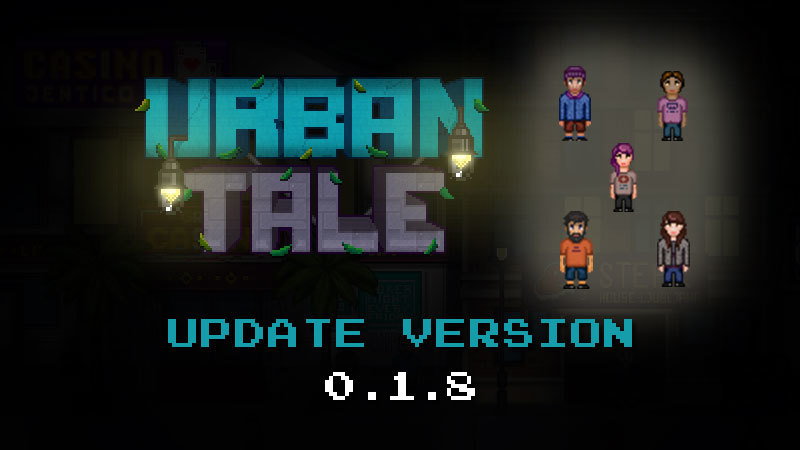
- Added 5 new characters.
Brief Explanation: The player can now choose a total of 6 different characters to play with in the Main Menu section, before starting the game. 3 Female and 3 Male characters. 3 totally new female characters and 2 new male characters were added to the game. Due to a fualty sprite animation we needed to temoraraly disable the blond character.
Changelog:
Added a new text for buying casino coins in the casino.
Added a new text for using casino coins on the slot machines with a counter.
Fixed a bug that displayed wrong price in the casino.
Fixed a mask problem in apartment 1.
Resized and adjusted the experience panel a little.
Fixed a wrong resized item in the bakery buy panel.
Due to a faulty sprite animation, we needed to temporarily disable the blond character.