0.167a - Easily Add Custom 3D Models As Hull Pieces
This update brings the ability for players to easily mod in their own hull pieces. The quick reference documentation has been updated.
The video below shows a brief explanation of how this works.
[previewyoutube="ZMHf0Ihqkjc;leftthumb"]
The folder can be named whatever you want. The image file to use in game to select the piece and the 3d model file must have the same name as the folder.
Space Time Shipyard 0.166a And Moving Forward
Version 0.166a was uploaded to STEAM today. Mirroring ship pieces is now fully implemented in the hull designer. A quick reference guide is included on the STEAM store page. This guide goes over everything currently available to players. If you are thinking about buying Space Time Shipyard in its current alpha state read that free guide/manual first. There is no space sim gameplay... yet :)
Curently just two tools are included, the Cartographer and the Hull Designer.
Cartographer - used to create star systems/levels for the space sim. Hull Designer - used to create 3d models that will be used as ship hulls in the game.
For the past two weeks I've been working on laying the foundation for the AI and other game mechanics. Still much to do. Letting the community know I'm moving forward even though you may not hear from me for some weeks.
0.166a Mirror Hull Pieces in Hull Designer
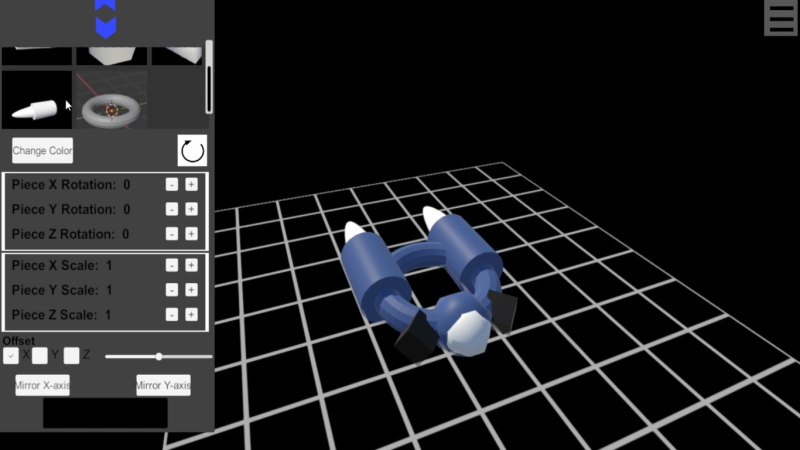
Mirror functionality is fully implemented as planned for the hull designer. Once a piece is positioned/rotated/scaled the way you want press the mirror x or mirror y button to mirror the piece along the x or y axis of the grid.
Tiny Update To Hull Designer
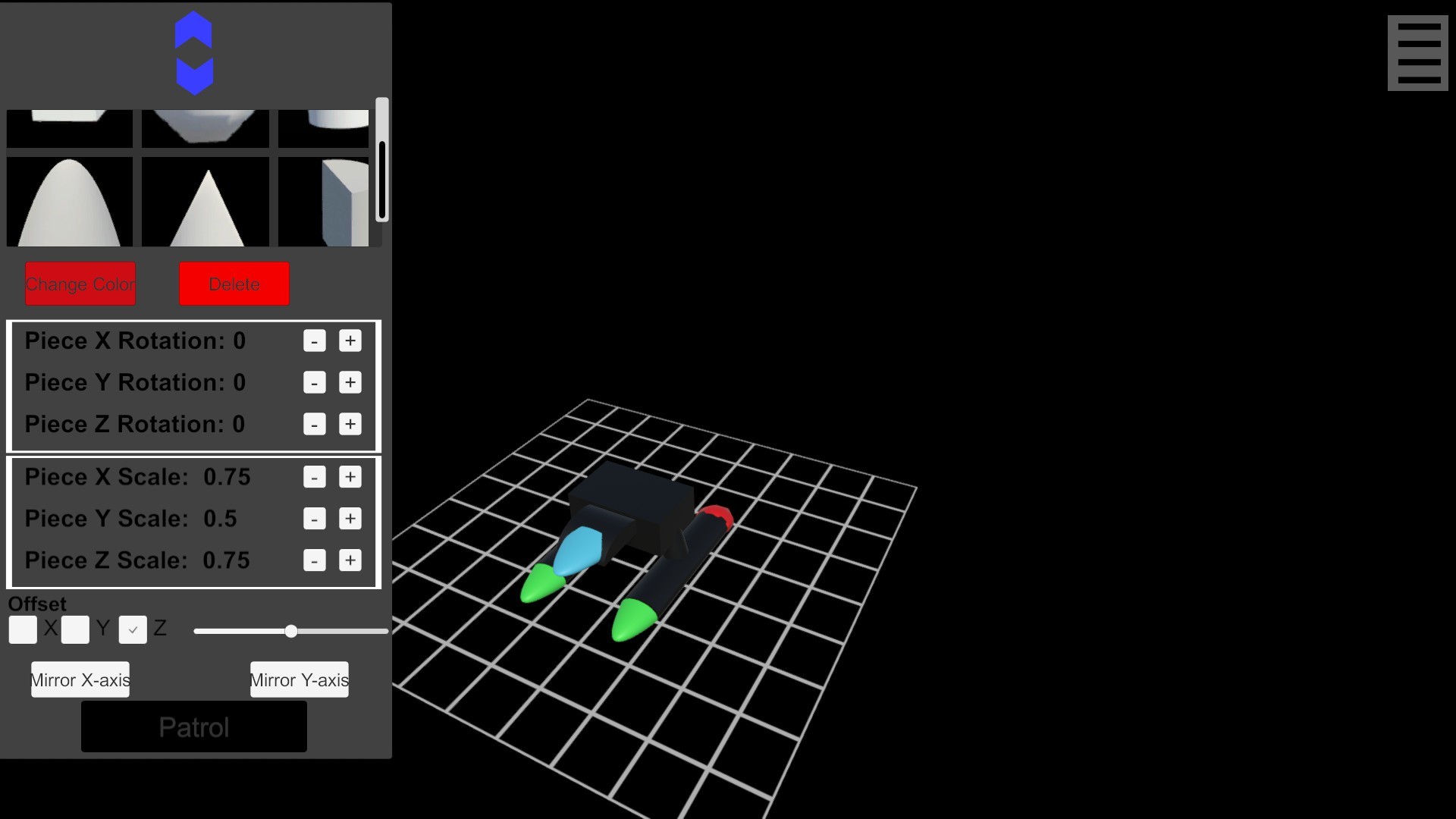
Previously when selecting a piece to edit in the Hull Designer that piece's rotation and scale would change to the rotation and scale set in the UI. Now that piece's rotation and scale stay the way it was before being selected and the UI changes to reflect the rotation and scale of the selected piece. Making changes to the UI rotation and scale settings will add or subtract from the current rotation and scale of the selected piece.
0.165a - A Tiny Update
Pressing the + or - Rotation buttons in the Hull Designer screen will rotate the piece 15 degrees instead of 45 degrees.
Exiting the Cartographer or Hull Designer will go back to the menu. Pressing the escape key on the menu screen will exit to desktop.
Bug fixes and Added Quick Reference Manual
Fixed some syntax errors at the end of html files generated by the Cartographer tool.
In the Hull Designer fixed how the offset slider behaves. It's now more precise.
Added a quick reference manual with instructions on the Cartographer tool and the Hull Designer. It's available through the STEAM client and on Space Time Shipyard's STEAM store page.
0.16a More detailed ship hulls can be created now
Added scale and offset controls for 3d pieces. This allows for more freedom and detail when creating ship hulls.
0.15a - Added basic elements of hull designer
Hull designer included. There will be at least one more update to the hull designer.
Bug Fixes
The Delete functionality implemented in the last update is now functional in all uses. Users can load in star systems delete what they want and save it with no issues. Users can also delete an object they placed earlier in a star system they have not saved yet and are still creating. To delete an object that is currently being edited or that has been selected press the "Delete" key on the keyboard. To select an object hold down the left shift key while right clicking on the object.
A bug was found and fixed that prevented planets from being overwritten when the user loaded in a star system and made some changes before saving. This bug occurred even after the overwrite menu was presented to the user and the user chose to overwrite the file. This bug has been fixed.
A bug was fixed that occurred after placing an asteroid field. After placing an asteroid field if the user tried to place another asteroid field instead a star would be placed on the grid. This has been fixed. Now after placing an asteroid field if the user clicks on the grid again it starts the process of setting up another asteroid field; if the user has not selected to place a different object.
Version 0.101a
No space sim gameplay yet. This update introduces the Cartographer app. A tool CWDI GAMES will be using to create the space sim galaxy/sector map. Players will have access to the same tools CWDI GAMES will create to build this game.
Cartographer app controls:
Mouse Controls Holding the right mouse button and moving the mouse will rotate the camera Holding the middle mouse button/mouse wheel down and moving the mouse will pan the camera Scrolling the mouse wheel will zoom in and out
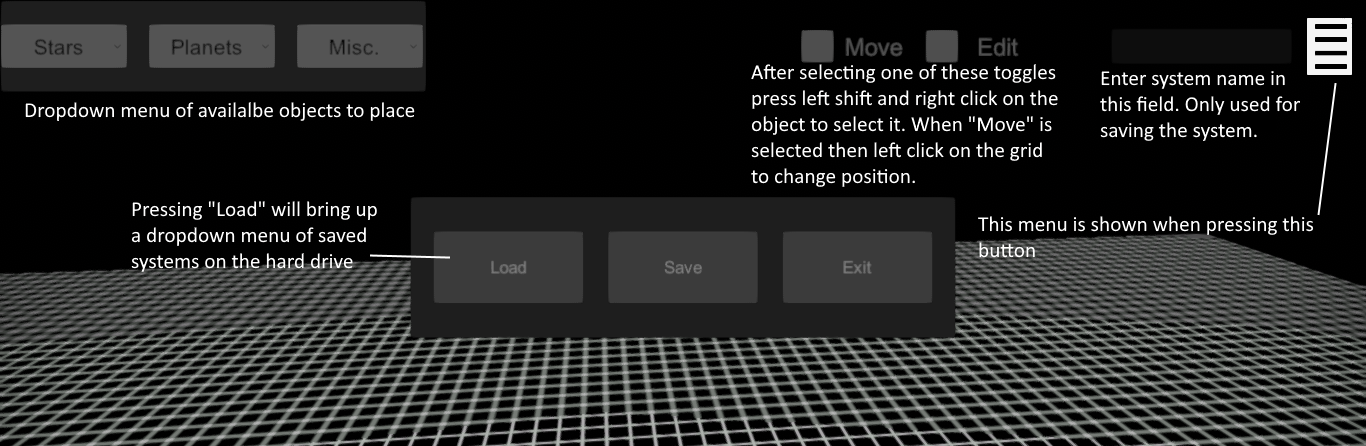
The image below provides some quick instructions
You can also press the delete key on the keyboard to remove any objects. However, it's not fully implemented and currently will only work correctly when deleting asteroid fields and planets when those objects are first being edited.
When first starting the Cartographer app in the User's Documents/My Games/ folder a new folder will be created called "Shipyard/Cartographer" In the Cartographer folder two other folders will be created. "Images" and "StarCharts". In the StarCharts folder a "StarSystems" folder will be created. This is where the html files will be generated by the Cartographer app when the system is saved. Each star system will be saved in it's own folder with associated files.
Also in the Cartographer folder Images/Planets will be created. Put any png images you would like to assign to planets as textures in the Cartographer app. This is the folder where images created by the app will be stored as well.
The Cartographer app can also load html files in and generate the content. The Cartographer app does not show the Star Systems/planets/asteroid fields as they will appear in the space sim game play. Everything in the Cartographer app is a representation of the data. The planets will use the textures as seen in the Cartographer app in the space sim gameplay but other effects, atmosphere for example, will be added.
html files can also be created manually, following the same template for system objects generated by the Cartographer app, and loaded in the Cartographer app at runtime. The html file and images will need to be in their own folder in the StarSystems folder for the Cartographer app to find them.
Star Types 1 = Blue Giant 2 = White 3 = Yellow 4 = Orange 5 = Red 6 = Red Giant 7 = Black Hole 8 = Magnetar 9 = Pulsar
An example of creating a star system with a text editor to be loaded in: Please follow this example template exactly changing the values only. Don't add or take away empty space. All tags must be used. Do not remove br tags.
NewSol Star System
Star Type: 3
Position: -3,2
Planet Mars2
Type: 0 Size: 2 Position: 9,0 Resources:
Metal: 25
Crystal: 35
Fuel: 10
Asteroid Field: AF 1
Area: 2x2 Position: 1,1 Recources: Crystal: 34
Only use h1 tags for the star system name.
[name of the system] Star System
You must include the text " Star System".
h2 tags are used to tell the Cartographer app it is supposed to load a Star, Planet, or asteroid field. Nebulas will be added in a future update. You don't name the stars. Only declare a star type in the h2 tag and provide a position. br tags must be present.
The planet h2 tag must follow the pattern provided.
Planet [name of the planet]
Then the type then the size and then the png image to be used as the main texture file for the planet. Then the position. The resources on the planet available for mining must be in ul tags as shown by the template provided.
With asteroid fields you change the number provided within the h2 tag after the letters "AF". The first asteroid field in the system should be "1" the second "2" and so on. The area the asteroid field covers should be single digit numbers separated by an "x". The position values come after. Then the resource name must be "Crystal", "Metal", or "Fuel" and then the value.
Planets can have a max resource value of 250 for each resource and asteroid fields can have a max resource value of 50. Do not include decimals.
There will be some other minor updates before a planned major update. The planned major update will include a new hull designer. The major update after the hull designer will include the first space sim gameplay.