Fixed a Tilt Five bug where shared panels would only ever appear on Player 1's canvas.
Fixed a Tilt Five bug where the main menu tool manager was not initialized correctly, resulting in all tool selections affecting just Player 1.
Fixed a Tilt Five bug where only Player 1 had a landing window.
Fixed several network serialization issues with editing character actions and spells.
Fixed a bug where changing saving throws or death saves would not display the intended value change properly.
Fixed effect and hit dice parsing bug for spells and actions.
Fixed a visual issue where a sprite was missing, resulting in some panels not rendering.
Fixed a visual issue where some input fields were too small for font size, resulting in text not rendering.
Fixed a DDB serialization issue where certain null values were not properly verified.
Fixed a DDB serialization issue where certain value types were not set correctly.
Fixed several layout issues with the character panel.
February-March Update
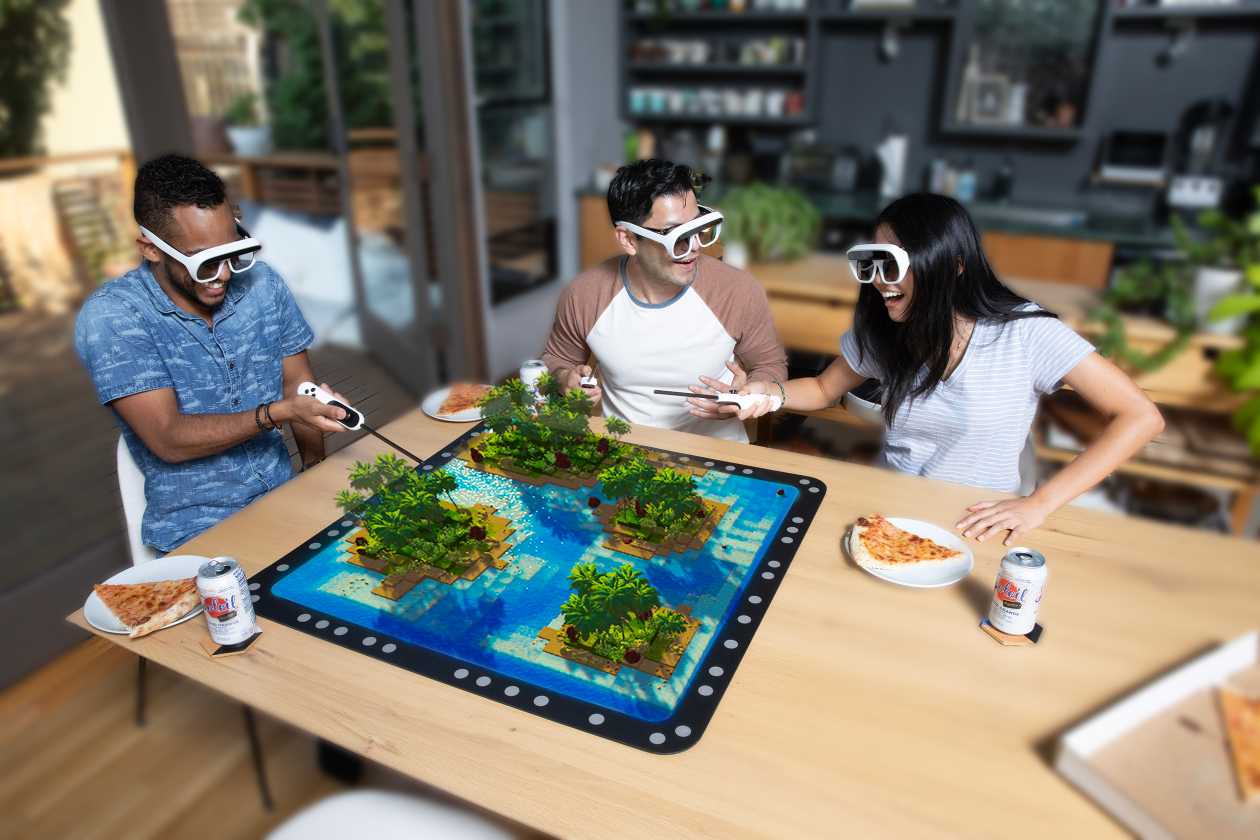
Hey, happy Spring Equinox! So in the middle of preparing an update for February I had to switch focus onto adding support for Tilt Five® multi-headset support because Battle Map Studio is being demoed at the Tilt Five GDC booth (Booth #P1770) this week!
For the last month or so, I’ve been incredibly busy reworking the Battle Map Studio codebase to allow for multiple local players. I also created a new demo version of Battle Map Studio.
Tilt Five Multi-Headset Support
While Battle Map Studio was designed for multiplayer online play, I hadn’t spent much time designing for local multiplayer play. Reworking years of code that was developed for a single local player to work for multiple local players was a major task. Codewise, this might be the biggest update I’ve made to Battle Map Studio.
I won’t bore you with all of the specifics of what I needed to change (mostly because just about the entire codebase was affected in one way or another), but here’s a list to get an idea of some of the things I had to do:
Reworked Input system for selecting blocks, moving/attacking with units, and interacting with objects.
Separateed painting tools – like brush, blaster, and dragger – for each player.
Created GUI’s for each player.
Reworked most panels to be hooked with an associated player.
Implemented panel sharing for environment-specific panels.
Split up each client into multiple players for online play.
Updated camera controls and hotkeys to work for each player.
Reworked chat, dice rolling, and character ownership.
Created settings for each player.
Updated device management so that headsets and wands were connected with correct players.
Reconfigured static objects, like clipboard, gizmos, and file collections, to be player-specific.
Now when you plug in two or more Tilt Five headsets, Battle Map Studio automatically recognizes the additional headsets and sets up everything that each player needs to create and edit environments.
The cool thing about integrating multi-headset support was that it forced me to completely restructure everything in Battle Map Studio to work with multiple local players, which opens up possibilities of using other input devices for local multiplayer world-building instead of or in addition to Tilt Five wands and glasses.
New Demo
I worked with Tilt Five to create a simple demo of Battle Map Studio for players to test out at GDC, which is now available to download for free on the Steam page.
In this simple demo you can play around with several fun tools, like the growth brush, rock blaster, and river brush. Build island maps with a curated desert palette of palm trees, sandstone rocks, cactuses, and arid grasses.
Polish
Here are the list of changes, fixes, and upgrades:
Radial Menu
Reworked the radial menu interface and updated the buttons available.
Tilt Five radial menu and desktop radial menu have been merged.
Radial menu now changes button groups based on context. For example, if a character is hovered, movement, attack, death, and switch state appear on the first level of buttons.
Added a back button to return to the previous group.
Tilt Five®
Updated Tilt Five to 1.3.0
Disabled janky drag selection.
Holding trigger and left click over a character now starts attack.
Control scheme can now be accessed in the info section of the main menu.
Changed B key to be Ctrl.
Other
Many wall materials can now be painted on blocks.
Tile materials can now be painted on blocks and set as the terrain material.
Fixed bug where radial menu could not be activated.
Fixed a bug where rotating around a pivot position would not work correctly.
Fixed visual bug where cameras were not rendering correct layers.
Fixed a visual issue where in world effects would not render on the correct camera layer.
Fixed a bug where water and other liquids would flicker.
Updated to MixCast SDK 2.5.1
Updated Unity to latest 2022.2 Tech Stream version.
Centering the view now accounts for center Y position.
Increased speed of loading block components, like plants rocks.
Fixed a visual issue where selecting the None option in the Quick Wall window would not display the selector as selected.
Fixed a visual issue where elevation labels on the map capture panel were not positioned correctly.
Elevation labels now scale when zooming in and out in the map capture panel.
Fixed a visual issue where blocks were brighter than the terrain
Fixed a bug where inputting a transform value from the selected object input would not log the change.
Fixed a bug where single-clicking a layer would shift the camera (should only be double-click).
Fixed a bug where light range and intensity would not scale with object scale.
Fixed an asset id bug that caused Wooden Shelf assets to not appear.
Fixed a system bug where a component was set on entities without the component.
Fixed a bug where water and other liquids would not be removed when a terrain material was painted on liquid blocks.
Fixed a visual issue with the map capture panel where the zoom slider was backwards.
Fixed a bug where upon starting the application in offline mode, things wouldn't initialize correctly, resulting in hotkeys being disabled until the home panel was opened.
Fixed a bug where some selectors would be ignored and not created in the palette view.
Enjoy!
-Bradley
January Update
Happy New Year! Since the last update, I added drag & drop movement, updated the interface designs, upgraded the backend grid system, and made a ton of fixes and refinements.
Drag & Drop Movement
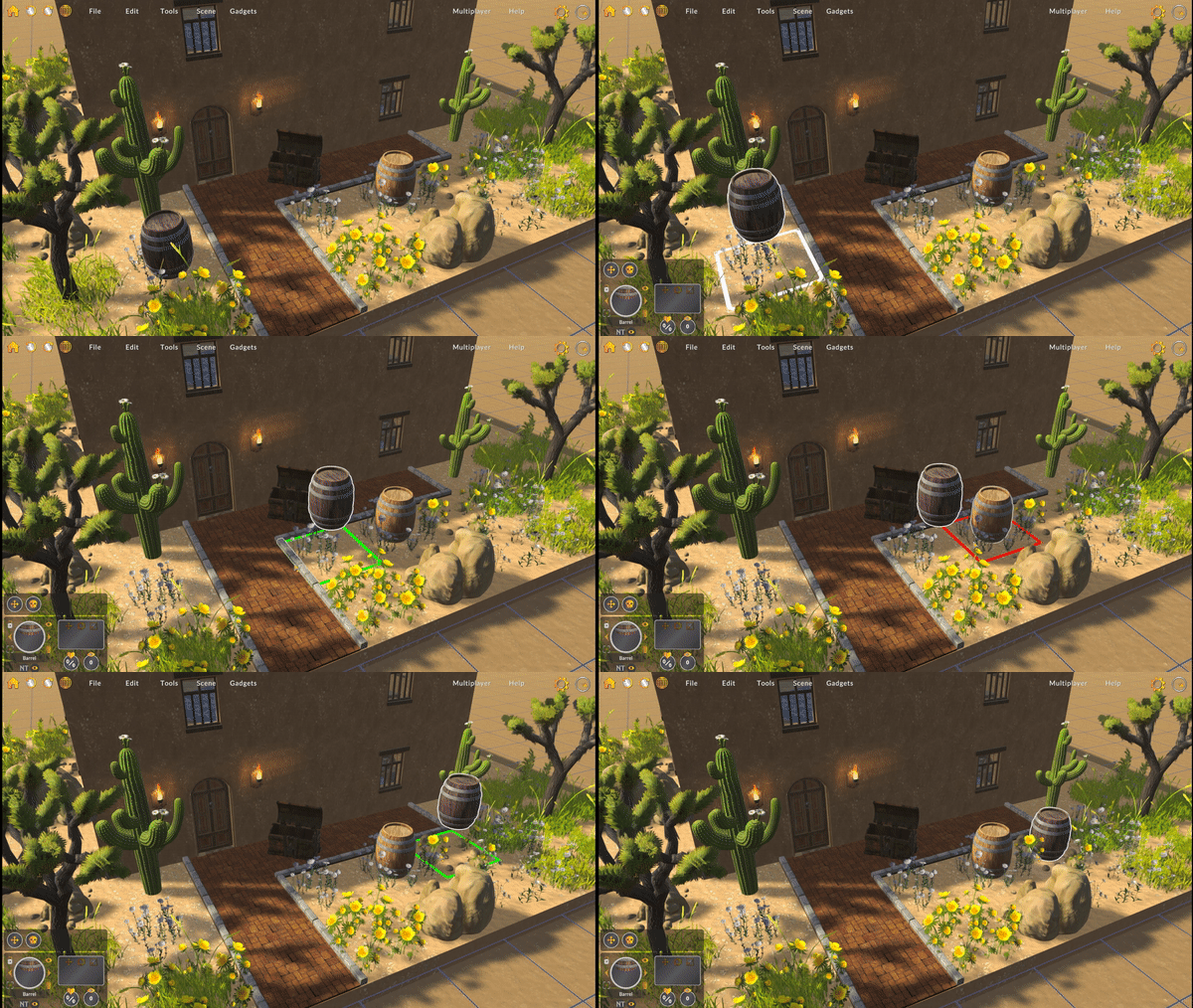
After I integrated Hero Forge compatibility, I wanted to be able to drag and drop minis, so I added in drag & drop movement. It’s simple, hold left-click on a character or prop, and then drag the object to a new position. Boom, dragged and dropped.
When dragging an object over a position already occupied, a red outline will appear. Attempting to drop an object over an invalid position will reset the object back to its original position.
When selecting multiple units (shift + click), you can drag while holding shift to move all selected objects! Remember that dropping any object over an invalid position will reset it back to its original position.
UI Design Updates
I spent some time updating some color schemes, layouts, and other design-related parts of Battle Map Studio to increase readability. You’ll probably notice some colors are a little darker, some panels are a little transparent, and the text might be easier to read.
Polish
Most of my focus since the last update was on testing, fixing, and refining. I had a few big breakthroughs with rendering performance updates, and did a lot of good work on Battle Map Studio’s backend grid system.
Here are the list of changes, fixes, and upgrades:
Significantly improved the health bar system code by translating to burstable jobs.
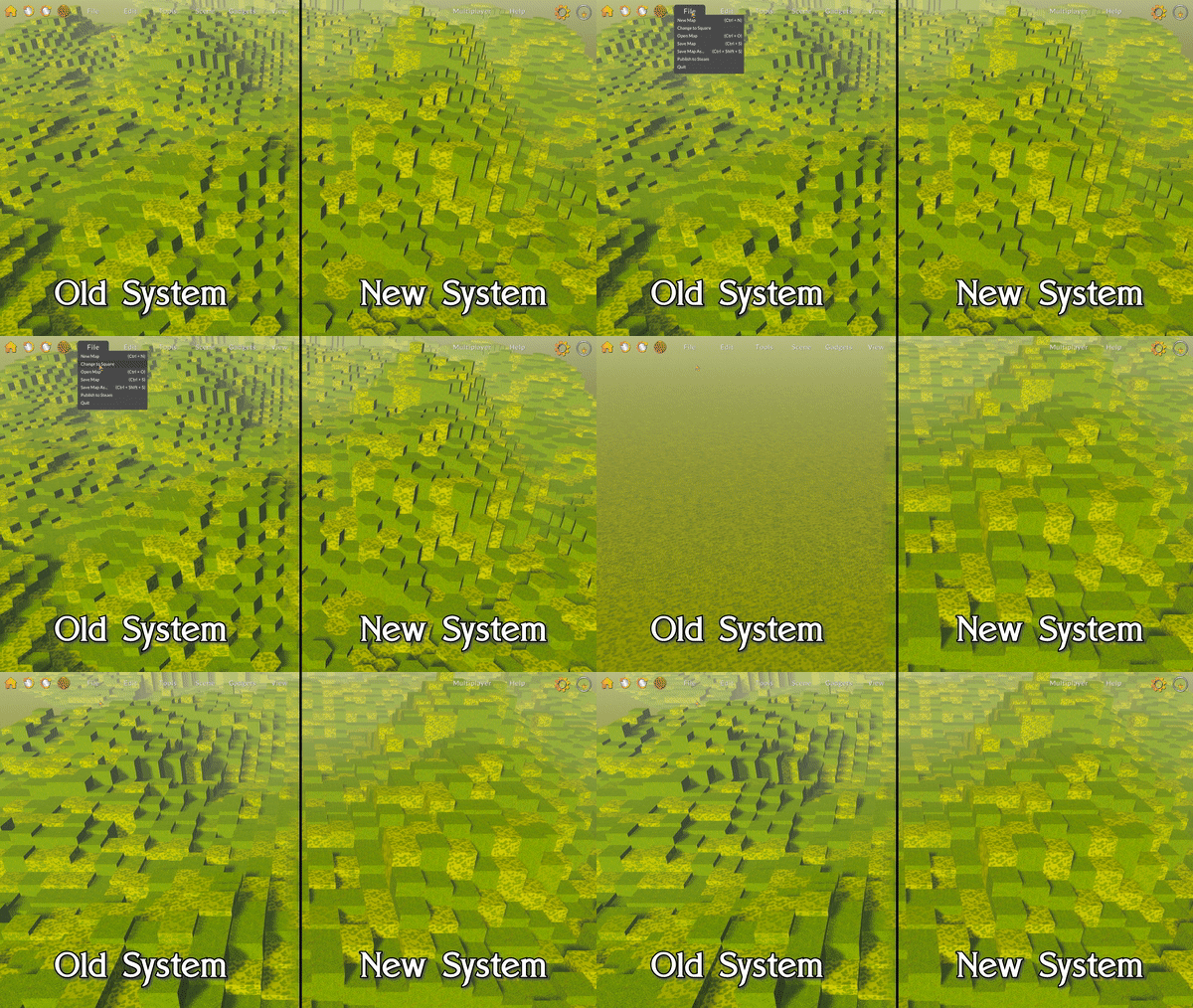
Reworked how blocks are rendered to improve render performance.
Changed Deisolate hotkey from G to U.
Changed Layer transform gizmo toggle hotkey from Y to G.
Changed the Raycast Targets hotkey from Z to Y and enabled the toggle during selection.
Removed the hotkey for ignoring raycasting targets during selection (was previously hold shift, but was problematic since it interfered with append hotkey).
Improved the loader bar status when assets are being deserialized during map load.
Added a few missing thumbnails.
Slightly darkened many parts of the UI so text and icons show up better.
Removed the Report a Bug button from the landing window.
Added a Report a Bug button to the Help dropdowns.
Added a Report a Bug button to the Settings window.
Fixed a bug where assets were not always loaded properly after loading a map with multiple models.
Fixed a visual bug where custom assets could initialize with incorrect positions, and adjust their positions a little after being placed.
Fixed a file bug where map file saved date was not saved properly, causing ordering by date not to function properly.
Fixed a bug where the underlay grid would not update when the grid changed from hex to square, unless the gameplay settings panel was visible.
Fixed a visual bug where when painting invisible tiles, the target outlines would not appear.
Fixed a few scaling issues with the Stone Baluster.
Fixed an indexing issue with the Stone Altars.
Fixed a visual bug where tiles would not be positioned correctly vertically.
Fixed a bug with some noise maker materials, where they displayed as solid pink.
Fixed a visual bug with a snowy stone entrance where the wire door did not animate correctly.
Fixed a visual bug where some tile materials would not highlight when blocks were selected.
Fixed a few mismatched button icons.
Fixed a bug with the minimal nav dropdowns where a variable was not set properly, causing an error.
Fixed a bug where selecting a unit would not always stick.
Fixed a bug where invisible blocks were visible when in fog of war.
Fixed a block where invisible blocks would change tile type when setting them visible in fog of war.
Fixed a unit visibility bug where placing a unit if it wasn't on the user's team would initialize it as invisible.
Fixed a bug where units were initialized as invisible when not on a user's team.
Fixed a visual bug where the displayed team name would not correspond to the unit's team when the unit was on team 1.
Fixed a bug where colors set as overrides on entity components were not converted to linear space.
Fixed a visual bug where tiles would not be visible on brush targets while randomized styles was enabled.
Enjoy!
-Bradley
December Update
Merry Christmas and happy holidays! I hope you are enjoying the season as much as I am. I have some awesome additions to share with you in this update, so let’s get started.
Official Hero Forge® Support
A little while ago I met with the folks at Sky Castle Studios about bringing Hero Forge® support to Battle Map Studio. They introduced me to their API and gave me the OK to integrate it to Battle Map Studio. Since then, I have been working on adding Hero Forge® support and improving Battle Map Studios' asset management tools.
Importing a Hero Forge® Mini
To get started with importing your Hero Forge® minis to Battle Map Studio, navigate to the Asset Manager and then select the Hero Forge® tab.
Before importing minis, you’ll need to connect your Hero Forge® account by inputting your Hero Forge® Access Key (find it here). If you don’t have a Hero Forge® account, create one here!
Scroll down to view all of your cool Hero Forge® minis!
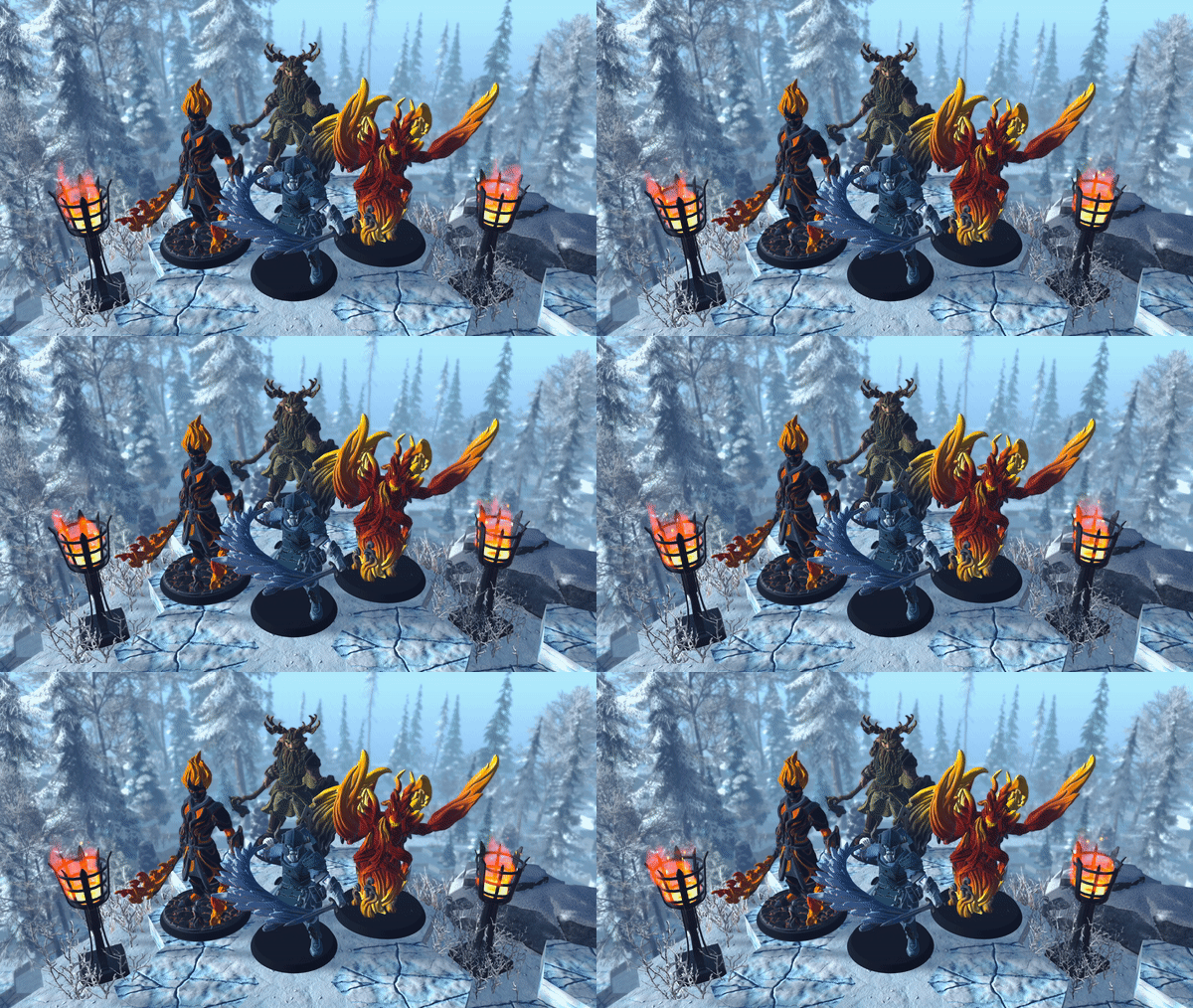
Once your Hero Forge® account is connected, just select a Hero Forge® mini and click Import. Now you can use your Hero Forge® mini in Battle Map Studio!
Hero Forge® minis are imported as characters, so they can move, attack, die, and use the built-in character sheet!
Wall Updates
Since I added layers to Battle Map Studio, I’ve been thinking of updating walls so that they can be layered seamlessly and connect with other styles smoothly. So, in this update, I normalized the base wall model so that each typical wall style is consistent with one another.
Quick Walls
If you didn’t already know, Battle Map Studio has a nice tool to quickly create rooms. When using the Dragger tool (hotkey is M), select the House icon button to open the Quick Wall options.
Here you can select a built-in room set, or customize your own. Once you have your wall, entrance, and tile configured, just drag on an area to create a perfect room filled with tiles!
A convenient feature of Quick Walls is that you drag areas to overlap with other rooms to quickly merge and connect rooms.
Colonnade Mode
A player kindly suggested that there was an easier way to make colonnade rooms. I was able to add a new corner archway to most wall styles, so now you can make rooms with archways all the way around.
If you want to quickly create colonnade rooms, there’s a new feature for that! To activate Colonnade Mode, simply hit Customize in the Quick Wall options window and then check the Colonnade Mode toggle.
Winter Asset Pack
In the spirit of the season, I put together a big pack of new winter-themed assets!
New Assets:
6 Snowy Spruce trees
6 Snowy Fir trees
6 Snowy Birch trees
7 Snowy Bushes
9 Snowy Debris
7 Snowy Logs
1 Frozen Road Tile
6 Snowy Stone Tiles
9 Snowy Grasses
3 Snowy Rocks
9 Undead Warriors
3 Iron Sconces
3 Snowy Stone Walls
4 Snowy Stone Entrances
5 Iron Braziers
1 Stone Stool
1 Stone Table
5 Dungeon Chests
6 Small Dungeon Chests
1 Wooden Ladder
2 Stone Baluster
3 Stone Tombs
1 Trap Door
1 Metal Bars Tile
7 Iron Chains
3 Dungeon Candles
3 Snow Walls
4 Snow Entrances
8 Dungeon Pillars
2 Dungeon Altars
2 Golems
1 Hide Tent
Polish
Refined the Quick Wall window to reflect current UI styles.
Holding Shift exclusively (instead of Z) will now ignore ray-casting units during selection.
Hitting Z (instead of holding Z) will now toggle raycasting targets during painting.
Replaced Oriental Spruce trees with Fraser Fir trees.
Created two new built-in palettes named Sazi Pueblo and Frozen Fortress.
Reactivated 8 grass styles and renamed each of them to Patchy Grass.
Updated Tilt Five SDK to 1.2.2
Fixed a bug where water was unavailable in the terrain options and new map window.
Fixed a bug where you could drag-move a character when using the brush.
Fixed a bug that caused Tilt Five to not render anything to the glasses.
Fixed a bug where creating a water tile would throw an error while using some tools (e.g. rain).
Fixed an input bug where hitting the key to toggle the layer gizmo would trigger when editing an input field.
Enjoy!
-Bradley
November Update
Hey! I thought I’d have this update ready a couple weeks ago, but there was a bad performance regression in a recent Unity update, so I had to wait until a new version of the Unity game engine was available. Very frustrating! Oh well, in the meantime I was able to work on a few extras for this update.
I was feeling adventurous these past couple weeks so I upgraded my project to use ECS 1.0. I also added an option to export your environment as a model file!
ECS 1.0
(Note: the following section might be boring for players not interested in backend framework development)
For a while now I’ve been stuck on an old version of Unity DOTS packages (the framework I use for high performance grid systems). Unity kind of left DOTS alone for a long time and only recently restarted development on it. The updates came in two phases, version 0.5 and 1.0, but I decided to skip the 0.5 version because it seemed like there were things Unity still needed to work through.
Anyway, since the last update I’ve been researching ECS 1.0 and upgrading the Battle Map Studio codebase to be compatible with ECS 1.0 and other associated packages. Many of the changes I needed to make were simple, but others required major restructures. Of all the updates I made, there were two that I found most noteworthy: runtime material and mesh updating and entity conversion.
Materials and Meshes
My favorite change in 1.0 is that I can now easily update meshes and materials of entities within a job! Previously, materials and meshes could only be updated on the main thread, so I had to queue entities that needed mesh/material updates inside a job and then update meshes and materials on the main thread. This was really, really, annoying and impacted performance.
Now, changing a block’s material, switching grid types, generating meshes for liquids, and placing block tiles is so much smoother!
Entity Conversion
The biggest change in 1.0 is how entities are converted (i.e. translated from GameObject to entity + components). Runtime conversion, a method I used previously to load the GameObject and then convert it when a player placed an object, like a tree, for example, is no longer supported. Instead, Unity introduced entity Baking, which I’m using to preconvert all GameObject prefabs to entity prefabs. I’m not sure why runtime conversion was removed, because it was really useful, but it is what it is.
Environment Geometry Export
A player (shoutout to Jason!) recently suggested adding a feature to export the terrain as a mesh (by the way, did you know you can suggest features at feedback.battlemapstudio.com?). In this update I added the model export functionality along with a new export environment window.
Exporting your environment as a model is easy. Just navigate to the File>Export as Model option to open the export window, type in a name, select a coloring option, and press Create!
Once your environment is exported, navigate to the BMS_Data/Exports directory to view your environment model.
Asset Manager
Previously, the only way to import and access custom assets was from the palette view (where all the plants and props are). For this update, I created a new window specifically for viewing, editing, and importing custom assets! You can access the asset manager under the Scene dropdown.
Clicking an asset opens it in the asset editor, which controls various import settings for the asset. You can also right-click and select delete to remove an asset from the scene. Be careful because deleting an asset removes all instances of the asset on the map, and you cannot undo asset deletion.
Director Window
For a while now, I’ve felt that options controlling how you view the map were separated into too many different windows, which was probably confusing. Now, the fog of war options, view options, and GM options, are conveniently located in a new window, called the Director window.
I will be adding more GM controls, options, and features over time, so this is just the first update to kind of organize current options to prepare for the path forward.
Polish
Refined many parts of the UI to be more visually cohesive.
Units and objects can now be dragged and dropped by left-clicking and moving to a target position.
Now when a block is fully invisible in the fog of war, its material’s normal, specular, metallic, and ambient occlusion are more obscured.
Added popup options when right-clicking texture selectors in the palette to set the terrain texture and default block texture.
Added a button to the terrain options window to reset the default block texture to the terrain texture.
Fixed several network serialization bugs where objects like characters and props could not be sent properly, disrupting placement.
Fixed a network bug where rejoining a room after intentionally leaving the room was not possible for a set period of time.
Fixed a jobs bug where block colliders were disposed incorrectly, causing crashes.
Fixed a bug where the GM options panel was always accessible, even for players.
Fixed a jobs bug where creating a water block would indefinitely trigger block updates.
Fixed an input bug where one Redo button functioned as an undo button.
Fixed a bug where randomized blaster projectile shape creation would not generate the correct collider for projectile entities.
Fixed a visual bug where changing the fog of war value on a block would not update its elevation immediately.
Fixed a visual bug where block textures were not rotated to be aligned with the terrain texture.
Fixed a bug where block tiles could not be rotated.
Fixed a fog of war bug where changing to a different team perspective would not update the visibility of characters and props.
Fixed various bugs with character movement and fog of war.
Enjoy!
-Bradley
Blaster & Palette Reworks
Hey everyone, In continuing my experiments with hand-tracking, I realized that the blaster tool and palette management needed improvements and fixes. I'm currently traveling, so I'm writing this from my laptop! Fortunately, I already recorded the video I wanted to include in this update. :)
Blasting and Hand-Tracking
I recently made a hand-tracking tool that shoots projectiles from my fingers!
While I extend my fingers toward the board, the tool begins blasting shapes from the tips, and the blast intensity increases when I squeeze my thumb closer to my palm. It was a lot of fun to work on this experimental tool, and by making it, I became aware of several problems with the blaster tool and palettes.
Blaster Improvements
When I started playing with using the blaster with hand tracking, I scaled up the shapes so they were more visible when recording with MixCast. What I noticed was that the shapes got bigger, but the way they collided with the environment didn’t look correct. What I realized was that I was incorrectly scaling the projectiles’ colliders.
One of the challenges with working with Unity DOTS is that working with components is not as straightforward compared to Unity's traditional game object approach.
When an object resource is converted into an entity, the collider is added as a component and does not change even if the entity’s Scale component is changed. This is different from game objects, where scaling a game object’s transform will also scale its collider!
To scale a collider, instead of changing a “scale” parameter on the component, the entire collider needs to be rebuilt. Depending on the shape (e.g. sphere) of the projectile, a different generation method is used. For non-generic shapes, like the twenty-sided polyhedron, a convex hull needs to be used to generate the collider shape.
In short, I spent a lot of time optimizing and fixing blaster projectile shapes so their colliders scaled correctly.
Palette Reworks
Another issue I noticed when experimenting with hand-tracking was that my palettes were not saving. I realized that the palettes were not being properly serialized and thus not being saved. Big yikes.
In addition to fixing the serialization problem, I decided to save custom palettes to file so that sharing palettes with your friends is simple and easy. You can also still copy palettes and import them from the clipboard if that’s easier for you though.
Enjoy!
-Bradley
Patch Notes 2022.09.22
I’ve continued to test and refine the various job systems, and have a few nice updates to share!
Updates
Improved grid updates for when a single layer is updated, so that only blocks and block components on that layer are marked as changed.
Restructured the codebase so that the base grid systems are not entwined with map editor tools. So much cleaner! This likely won't affect gameplay.
Polish
Fixed a bug that prevented image wizard generations to complete.
Fixed a visual bug where overlay grid tiles would not always be positioned correctly on top of blocks.
Fixed a job issue where the grid system would not always allow blocks to finish updating before marking them as unchanged.
Fixed a visual issue where shallow water would not be level with other liquid meshes.
Fixed a visual bug where the system would not generate liquid meshes with the proper elevation if a block had negative elevation.
Enjoy!
-Bradley
Improving the Grid
Hey everyone, I hope you’re all doing well and enjoying your week! For this update, I improved the grid system performance, added many new soil materials, and played around with MixCast and hand tracking.
Grid Improvements
I have been incrementally improving the efficiency of how the grid updates when changes are made to the map. Now, when you add or change a block or block “component” (like a plant), the system is much smarter in determining what to change.
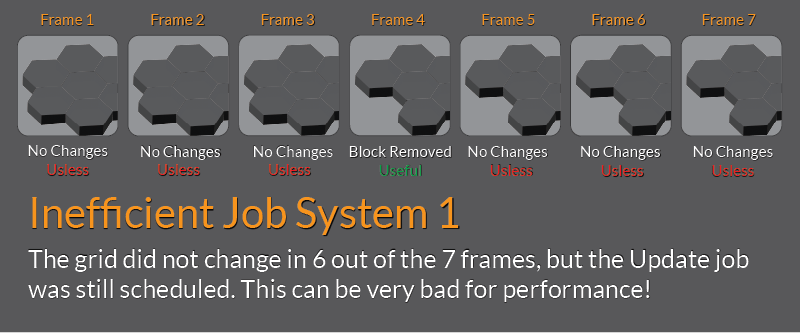
The Battle Map Studio grid framework is built on Unity DOTS (Data Oriented Technology Stack). The framework takes advantage of Unity’s burstable job system, which makes iterating over many entities very fast. Even though the jobs run much faster than an Update method on a Monobehaviour, scheduling an update job more often than necessary can certainly decrease performance. In the last update, I improved job performance by making the job scheduler more selective about how when update jobs should run.
Additionally, since an update job iterates over all blocks, changing one block would previously trigger an update job that checks every block entity for changes. Not good, however it can be difficult to filter out what to change when some updates do affect other blocks or block components. For example, raising elevation on a block would update the block and all of the block components sitting on top of the block. In this update I made big changes to how the update system filters out blocks that do not have pending visual changes.
New Soil Materials
For some reason I had an urge to find new soil materials that’d look great in Battle Map Studio. I added over two dozen new terrain materials, and updated several materials that were old and kind of ugly.
The new materials include nine sand materials, four mud materials, four lush grass materials, four forestland materials, three snow materials, two rooty materials, and a mossy material.
Recently I've been experimenting with MixCast, software for compositing and recording Tilt Five gameplay, and hand tracking cameras and software built by Ultraleap.
Hand tracking and other experiments I’m doing aren’t a big focus for me, but they are fun to work on nonetheless. I’m still experimenting with, developing, and refining hand tracking tools, so they won’t be available yet, but I thought it’d be fun to see how things are progressing!
Polish
Alt-scrolling using the eyedropper now includes units and props behind units and props on the hovered block.
Now while painting, holding Z will disable hovering over props and characters that are blocking target blocks.
Alt + Z and Alt + X no longer move the camera vertically up and down since there are other hotkeys that do the same thing.
Some soil selectors are now organized into style groups for easier categorization.
Increased the max number of audio emitters to prevent distorted audio when many audio sources are playing.
Significantly improved performance of many bulk block update actions.
Fixed a visual bug where highlighting a block (e.g. selecting a block) would not work.
Fixed a bug where clicking on a panel would make a sound even if the panel was not visible.
Fixed a bug where light intensity wasn't sent to other clients when updated.
Fixed a few network bugs where updating certain settings would continuously send network events to change the setting.
Fixed a visual bug where activating a selector from a hotkey would not update the display in the palette.
Fixed a shader bug that caused discoloration in some materials.
Enjoy!
-Bradley
Make some noise!
For a while now I’ve been wanting to rework the terrain magic tool, and I’ve finally found time to improve the tool’s usability, functionality, and performance.
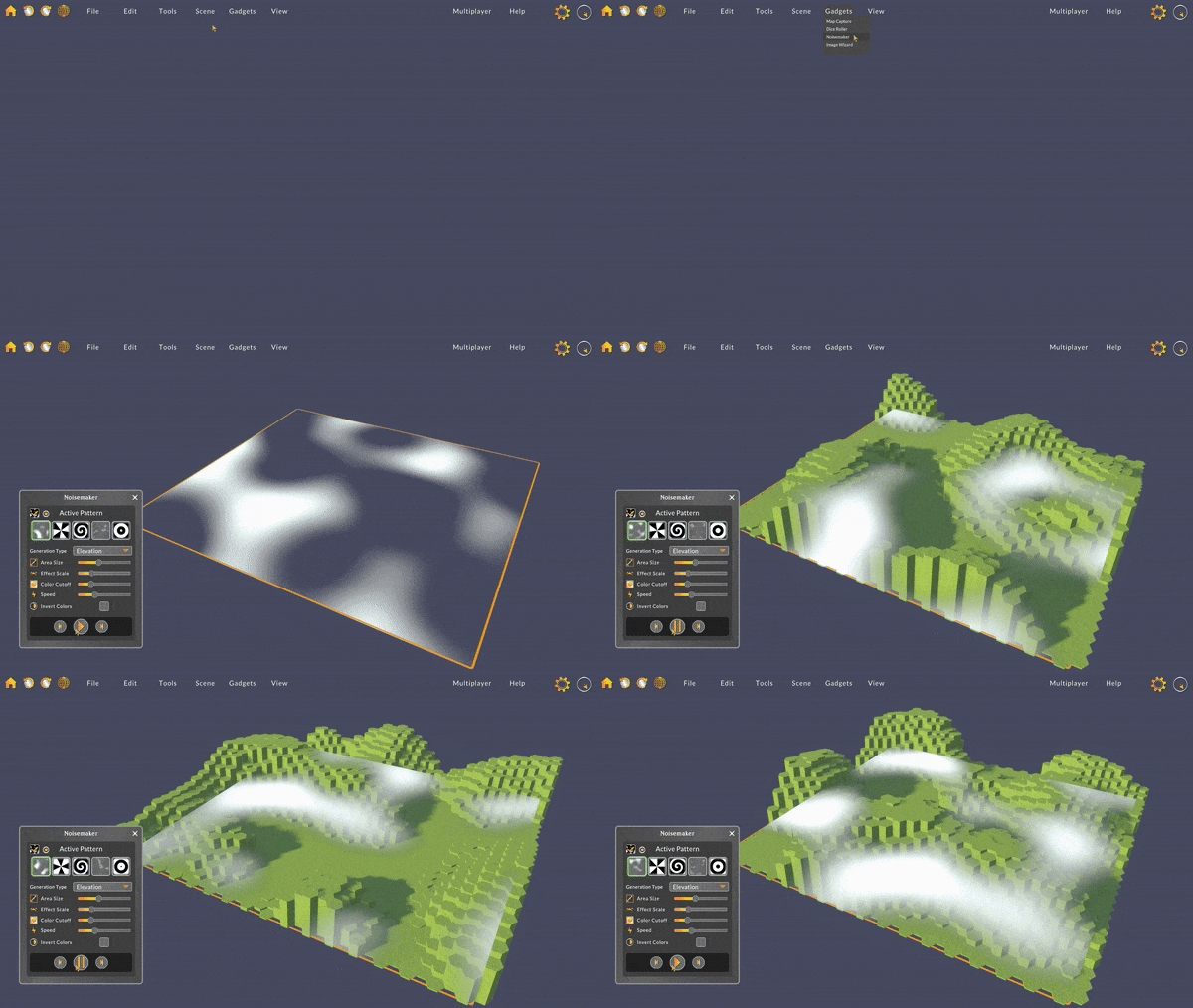
Noisemaker
I’ve changed the name from Terrain (or Map) Magic to Noisemaker – more straightforward and should be less confusing to differentiate from the Terrain Wizard.
Now, each noise pattern selector animates to preview how the pattern looks. And, I added an optional overlay on the map that displays the active pattern.
The parameters are largely the same as before, but with additional text context instead of just icons. I also added a toggle to invert the active pattern’s colors.
And, like the image wizard, the noisemaker provides two resizable draggable areas, one for the active area and another for the full generation area. The full area determines how big the texture is and the system generates elevation/plants only within the bounds of the active area.
Backend Improvements
My primary focus for this update was to rework and optimize the backend system for reading texture data and using it to create elevation or spawn plants. I had previously disabled the functionality that enabled plant spawning since it wasn’t very performant.
I spent a lot of time figuring out the best way to distribute plants based on their size and on the color value of the texture at any given location/time. Parameterizing the system to control plant density and color cutoff was a bit of a headache, but I’m very happy with the result!
One thing to note about the Canopy Cover option, is that the system works one of two ways: 1) If you have a palette selected, the system uses all plants from that palette. 2) If you do not have a palette selected, the system chooses randomly from all plant assts
State Logging
Previously, one of the downfalls of the Noisemaker was that you could not undo anything you made, which was problematic. It’s not so fun to experiment with a tool that could dramatically change your map if you can’t undo the changes!
In this update I added map state logging so that the blocks and plants are cached when you press play, and the changes are logged when you hit pause. This way you can make as much noise as you want and then revert changes if you need to.
Polish
Fixed a bug that prevented certain model file types from importing.
Fixed a bug where a blank settings file would not allow the application to start.
Enjoy!
-Bradley
Tilt Five Bug Fix
I fixed a really strange bug that only appeared in built versions of Battle Map Studio that was caused by the Tilt Five 1.2.0 SDK update. Thanks to gadget on Discord for letting me know about it!