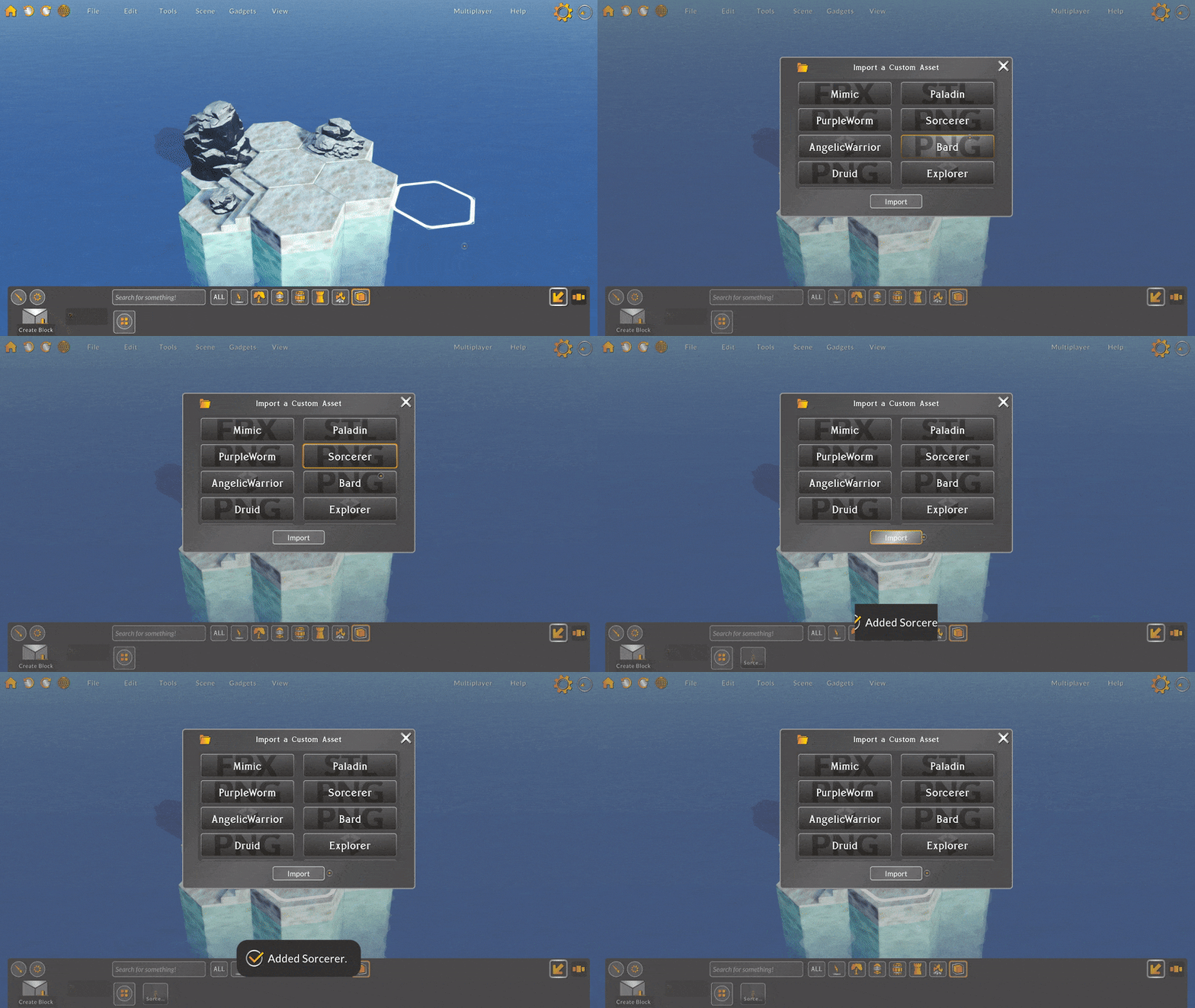
I hope you’re all doing well! Since the last update I have upgraded the sky editor, expanded the object state system, and added a bunch of new assets!
Skymaker
I recently was playing with the light settings while working on one of my maps and was getting a little annoyed that I couldn’t easily change the color of the sky and some other more granular settings. So, I decided to extend the sky editor to allow you to modify the color gradients of the horizon, sky, ground, and fog.
These gradients are used to determine the color of the skybox and how it changes throughout the day. You can drag the color keys to move their position and add a color key by clicking below the gradient. Delete a color key by hitting Delete with a key selected.
To change the color of a gradient key, select a key followed by the colored button below the gradient. Then, just choose a color and the key is updated.
If you want to just use a built-in gradient, select a gradient button to load that gradient into the selected sky component.
Object State System
Previously, a character or prop could have just one “alternate state”. For example, a door could be opened or closed. For this update I developed a new system for handling object states, which includes the ability to switch between any number of states.
Now, if a character or prop has multiple states, the state button will appear. Clicking the state button will open up a menu listing each state. Only a few objects have multiple states, like doors and the newly added horse, but this more extensible system has opened the doors to more efficient possibilities for changing the style of an asset.
One good example of using a state change would be switching the armor on a character. Instead of replacing a character at a position with basically the same character but with armor, I can instead just add a new state to the character that includes armor. Easy!
New Assets
Inspired by your suggestions, I have curated and optimized new assets themed around a tribal outpost.
Here’s a list of the new assets:
5 horses, each with 3 different variations: no saddle, saddled, and armored.
3 orcs
3 tribal towers
3 tribal huts
Wooden paling walls
4 wooden spikes
3 tribal banners
1 well
2 standing torches
6 tribal tusks
7 dark gray rock piles
Polish
Updated to the latest Tilt Five SDK (1.2.0)
Updated the look of many old models, like the chair and beds.
Updated the loading screen screenshots.
Fixed several asset paths that were out of sync with the asset's name, resulting in the asset not being able to be loaded correctly at runtime.
-Bradley
We're Going Down!
Hey everyone, This past week I returned from my trip to Europe! I went on a scenic tour of Germany, Switzerland, and Italy and it was a really inspiring and refreshing experience. Good to get a couple weeks outdoors after working on a computer all day long. Anway, I’m back to work on Battle Map Studio now and I’ve got an update for you. 🙂
In this update I added in-game chat, negative elevation, and fixed lots of bugs!
New Website!
Before I get into the game updates, I wanted to draw your attention to Battle Map Studio’s new website! I recently came across ManaKeep, a website builder for games, and I was really impressed with how simple it was to use. I played around with the editor for a few minutes and already had made a site that was way better than my existing landing page, so I switched!
I also removed the in-game bug reporter because we now have a public bug reporting space! If you run into a bug, all you have to do is head over to battlemapstudio.com/bugreports and submit a new bug report. You can also vote on other bug reports!
Discord is great to discuss bugs and solutions, but I thought it’d be good to provide a space for you to be able to formally submit bugs and check in on their completion progress.
Finally, I’ve been putting together a roadmap for Battle Map Studio so you can check in on how this project is progressing! Check out what I have planned and what I’m currently working on here.
Chat
Hey look, I added in-game chat! Until I added the ticker notifications, I kind of avoided thinking about adding chat. I kind of figured you’d all use Discord, or some other voice chat application to talk with your friends while making maps or running campaigns.
When I added the ticker and overhauled the character sheet, I thought “why not, let’s add chat to the ticker.” So I did. Chat is super basic right now, just type and press enter and send a message to everyone in the multiplayer session. I’m considering adding private messages or notes-to-self at some point so that you can control who sees the message.
You can hide the chat (and other game messages) by clicking the arrow button. Clear all visible messages by clicking the X button.
Negative Elevation
When creating caves, I was finding it a bit tedious to create the cover of the cave without adding a bunch of layers. So, I thought I would make it easier by allowing blocks to have negative elevation!
Sounds simple, but since I was modifying the most general part of the framework, it took a little while for me to make sure everything was working correctly.
Invert Elevation
Elevation can be quickly turned upside down by clicking the new Invert Elevation button in the block context menu.
Beziers
A small touch, but I reworked the bezier splines to be more visible and not stretch the texture weirdly when moving or attacking.
New Hotkeys
Page up and Page down now translate the camera vertically up and down.
Backspace now deletes only the selected context on a block.
Polish
Fixed an issue where layers could not be moved under zero, disabling underwater layers.
Fixed a bug where tiles would not move fast enough when initialized, causing them to float before making another edit to the map.
Fixed a bug where undoing and redoing a layer name would not cache the correct layer name, causing the layer name to be changed to an incorrect value.
Fixed a bug where overlay grid tiles would persist after changing layers.
Fixed a bug where the dragger tool would frequently stop displaying tile markers during dragging.
Fixed a bug where when moving an object, other objects would incorrectly block raycasting, making it hard to select a block to move to.
Fixed a bug where custom assets would not be recognized as objects to target.
Fixed a few mathematical bugs where rounding became an issue at very high elevations.
Fixed a bug where when placing an object, carpets and other ground-covering objects would intercept raycasts, making it difficult to place objects precisely.
-Bradley
Roll for Initiative!
Hey everyone, Hope you’re all doing well! I’m heading on a vacation today, so I’ll keep this update brief. Thought I’d have more time to create a full post, but things took a little longer than expected.
I've continued to improve the character sheet, connected dice rolls to skill checks and other types of rolls, expanded the D&D Beyond importer, and further simplified the dice roller design.
Character Sheet
In the previous update I overhauled the character sheet, but that was just the first iteration. I still had a number of updates I left out, including the dice button functionality for contextualized dice rolling for mechanics like rolling for initiative.
Now, clicking dice buttons next to initiative, abilities, skills, actions, and spells instantly rolls the correct number of a given type of dice, and then sup the dice values.
Dice Roller
In the previous update I redesigned the dice roller view, simplifying the inputs and reducing the window size. I continued to refine the dice roller in this update, replacing the panel with a few side buttons that open even smaller bars for adding dice, modifying a few dice settings, removing dice, and automatically rolling dice.
Ticker
Since I replaced the panel altogether I had to figure out a new design for displaying the dice roll values and sum after rolling. So, I created a small ticker notification panel that when, after rolling dice, pops up the type of dice roll, dice values, and their sum.
The ticker is a neat little panel that I think could eventually expand to include other things, like chat or battle events. Sort of like a game log instead of exclusively a dice log.
You can hide or clear the ticker by clicking the buttons to the left side of the popups. Character Importer In order to add in the dice rolling functionality, I needed to expand the D&D Beyond character importer to include more information on spells, actions, and items. Damage, hit dice, activation, duration, and several other components are now translated when importing a D&D Beyond character.
My goal for RPG in-game interfaces is to allow a player to interact with the map while the character panel and dice roller are open. With the addition of the ticker, and simplified dice layout, we’ve cleaned up a lot of screen space. More to come!
-Bradley
RPG Improvements
Hey everyone, Since the last update I have been overhauling the character sheet, developing a D&D Beyond character importer, redesigning the dice roller, and improving the image wizard tool. Lots of fun stuff in this update!
Character Sheet
A while back – like a couple years probably – I created a really basic character sheet for Battle Map Studio that wasn't all that useful. In preparing for this update I actually considered removing the character sheet and offering just the ability to edit attributes like health points and line of sight, which actually had some function in Battle Map Studio.
Instead, I decided I’d endeavor to make a really cool, really useful character sheet that would initially work with D&D and later be extended to other RPGs. I suppose time will tell if I made the correct decision!
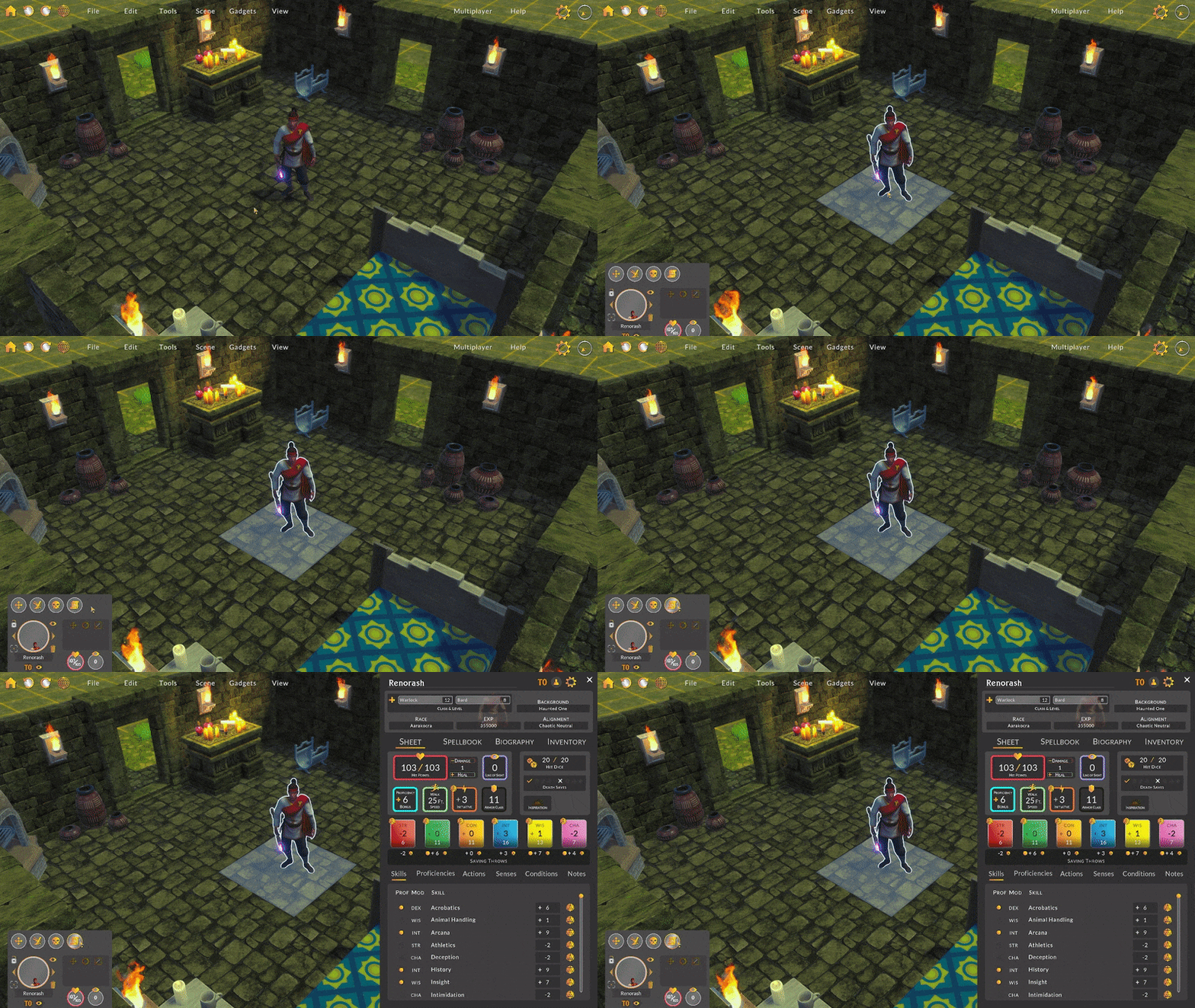
My design puts the character sheet off to the right side of the screen with just enough room left in the middle of the screen so that a player can move and attack with a character with the character sheet open.
Keeping the design’s screen real estate relatively small compared to other full screen character sheets made the task much more complicated. I ended up splitting the sheet into several tabs: the main sheet, spells, biography, and inventory. I also put a section above the tabs that includes important character information.
The character sheet is still a work in progress, but I wanted to give you something to play around with while it’s in development. You’ll notice that none of the dice buttons do anything right now, but in future updates I intend to add functionality for rolling the dice for calculating damage, hits, etc.. I also want to add more information to the spells and inventory sections. At the very least, the new character sheet should be much more useful compared to the previous version!
Character Importer
While I overhauled the character sheet design, I developed a D&D Beyond character importer so that I could pull in real character sheet data without needing to populate it myself. Doing this was super useful in not only determining if my sheet included the necessary character sheet components but also helped me understand what information was required for making certain calculations for hits, saves, and damage. While the importer was created for testing purposes, I think it will be really useful for anyone who already has characters on D&D Beyond.
The importer works by looking up a character on D&D Beyond’s website and converting the JSON into a Battle Map Studio character sheet. There is a lot in a character’s profile to digest and understand. I won’t get into the details but I was really amazed with how complicated a character sheet could be. I can see why many VTT’s stay away from including a character sheet.
This is the first of (likely) many iterations, so I hope you’ll get a chance to test it out and let me know if there’s anything missing!
Dice Roller Redesign
The dice roller was another semi-useful tool that I felt could be improved. I felt the dice roller window was too intrusive and blocked too much of the screen, so I decided just to have the dice roll on top of all of the other interfaces and include a small panel to manage the displayed dice. I even added a slider for scaling the dice!
I really like how the dice roller looks now. It’s simpler and also less constrained by a window.
Image Wizard Improvements
I created the image wizard as an experimental tool a long time ago. While it had some useful functionality, using it wasn’t all that intuitive. In this update I developed various improvements to help you more easily use this tool!
First I simplified the wizard panel to emphasize the important sliders and reduce the window’s screen footprint.
Then, I reworked the gizmo so that the loaded image is displayed on the grid. With the image projected on the grid, the full and active areas become much more obvious.
Finally, I added a few new interactables to toggle the display of the loaded image, recenter the gizmo, and invert the image colors. Inverting the colors I found to be really useful for generating elevation using donjon dungeon images!
Polish
Holding Alt + Z and X now move the camera straight up and down.
Fixed minor visual issues with font files.
Fixed a bug where moving a character would always end on the closest layer grid position, rather than the layer of the target position.
Fixed a bug where upon loading a new map, the existing selected layer would not be reset. Now, upon loading a new map, the first layer is automatically selected.
Fixed a bug where the grid would occasionally not refresh its view after waiting for assets to load.
Fixed a bug where generating elevation via the image wizard could not be redone after being undone.
Fixed a bug where loading a map would not use the override light intensity.
Fixed a bug where updating the light intensity would exponentially increase the intensity.
Fixed a bug where loading the same map would duplicate units.
I hope you'll enjoy this update! I love to hear your feedback, so come hang out in Discord or join the Reddit community!
-Bradley
Patch Notes 220528
Happy Memorial Day weekend everyone (also happy birthday to me!). Since the Layers update went live, I have been testing layer features and fixing bugs. 🐜
Updates
Added a key combo where scrolling while holding Ctrl and Alt will cycle through each component on a selected block.
Toned down the layer highlight and increased the delay between hovering over a layer and the highlight appearing.
A block's tile is now highlighted when the block is selected.
Fixes
Fixed a bug where hitting enter while editing a text input field would not trigger any event associated with the enter key for that input field.
Fixed a color issue on the Sazi Desks.
Fixed a positional issue on the Sazi Baskets.
Fixed a visual issue with the sconce flame effect.
Fixed a visual bug where objects would override visibility on initialization, making the animation of certain sub-objects not control object visibility.
Fixed a bug with liquid mesh generation where the sides of a liquid block would be generated if a neighbor existed at the same elevation.
Fixed a bug with calculating the center of liquid mesh render bounds.
Fixed a performance bug where units would constantly be checking if their renderers should be visible.
Fixed a visual bug where the camera would not render objects on certain render layers.
Fixed a bug with the yaw light rotation slider where the rotation angle was constrained to only 180 degrees.
Fixed a bug with quick-wall generation where dragging from inside of an existing room to the edge of the wall and at the same depth would sometimes place a corner at an incorrect position on the wall.
Fixed a visual bug where the camera would not render blaster shapes.
Fixed a bug with the Key and Potion props where its position scaled as well when it scaled.
Fixed an input bug where holding shift while attempting to replace an object (e.g. holding shift + ctrl + alt and scrolling to rotate) would not display the painted element on the brush position.
Fixed an input bug where objects would interfere with layer plane selection.
Fixed an input bug where rotating about the center of the screen would always attempt to center on a block, even if the center was fractionally offset.
Fixed a bug with a rune prop missing from the library.
Fixed a bug with the quick wall window where selecting a tile override would not update the procedurally generate room's floor tile.
Fixed a bug where the quick wall customized options would not display style selection arrows.
Enjoy! -Bradley
Layers!
Hey everyone! Hope you are doing well. I’ve been recovering from a COVID booster, but it’s my birthday this week, so things are good all things considered. Plus, I added multilayer support to Battle Map Studio! Also, I fixed so many issues that have come largely as a result of adding in layers. Seems like every time I’m about to press publish on this post another bug pops up!
Layer Updates
Woohoo, you can now make multistory buildings, caves, and layers of props!
After laying the groundwork for vertical position calculation in the previous updates, I was happy to finally be able to start working with multiple layers.
In this update, I created a couple of new windows: one for managing layers and another for editing a selected layer.
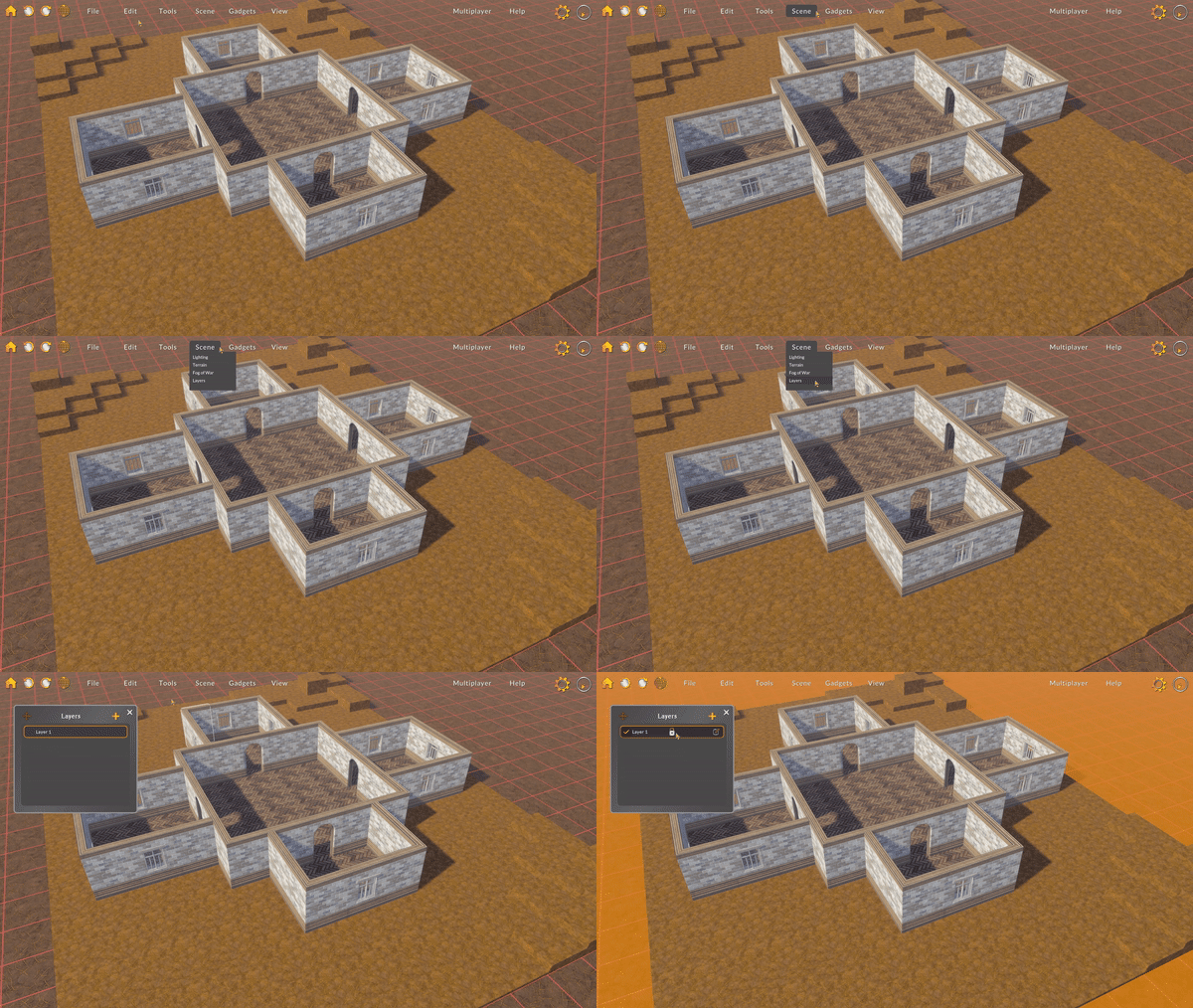
The Layers window displays an environment’s layers. To add a new layer, select the plus button.
Click on a layer to set it as the active layer. Map editing is constrained to the active layer, so no need to worry about accidentally painting on any layer that isn’t active.
Hit the edit button on any layer to open the Layer Properties window. Here you can set the layer name as well as the elevation options. These elevation options were previously in the Terrain Options window, but since the base layer is a layer too, it made sense to move them to the layer properties window.
Click on the transform gizmo toggle to enable the draggable positioner gizmo, and drag the gizmo to move the active layer up and down. You can also duplicate a layer by holding Alt while dragging the layer transform gizmo.
When you right-click a layer, options for editing, deleting, and duplicating the layer now appear in the pop-up window. Note that the base layer cannot be deleted!
While hovering on a layer, select the checkbox to change the layer visibility. When the layer is invisible, all blocks, plants, props, characters, and other components on that layer become invisible. Note that an invisible layer can still be edited, but you won’t be able to see the changes without setting the layer visible!
Future Work on Layers
As you can imagine, being able to add additional layers on the same or different vertical plane unlocks various map possibilities. Not only can you now create multistory maps, but you can also use layers to partition maps to improve performance, augment storytelling, or layer props on surfaces.
I plan to continue refining layer management and adding convenient functions to improve layer editing efficiency and simplicity. I’d love to hear what you think about layers, so come join the Discord, and let’s chat! I want to make layers simple and easy to work with.
Here are some other updates:
Increased maximum range of the zoom speed setting.
Added camera option to increase camera pitch angle.
Added tooltips to non-obvious attributes on the character panel.
Fixes
Fixed an input bug where some buttons would stay highlighted after selecting and moving away from them.
Fixed a visual bug where the selector circle would not respect the active layer vertical position.
Fixed a Tilt Five input bug where dragging a slider would offset the slider handle incorrectly.
Fixed a few Tilt Five input issues related to the calculation of pointer position and cursor size.
Fixed an input bug where the dragger tool would not respect the active layer position.
Fixed a bug with liquid mesh generation where the height of the liquid was not calculated correctly, making the water start from zero, even if the layer was non-zero.
Fixed a bug where copying and pasting a selection of units and blocks, the units would be spawned before blocks, causing the system to spawn a new block without the attributes of the pasted block.
Fixed a bug where deleting a component using the block context panel would not refresh the panel UI, resulting in the deleted component being displayed.
Fixed a bug where the selector object would not update with layer position changes.
Fixed an input bug where hitting Tab would not change the brush selector's style group.
Fixed a bug where the category buttons were not interactable.
Fixed a bug with the movement and attack arrows where the vertical position was not calculated correctly.
Fixed a bug where creating a new map or switching grid coordinates between hex and square would disrupt liquid mesh generation.
Fixed a visual bug where slider inputs would not refresh their displayed input field value correctly until changed.
Fixed a bug where undoing an action to update a unit would not always remove the unit from view.
Fixed a bug with quick-walls where calculating the intersection of a room could cause an infinite loop.
Fixed a bug where changing the style of the auto-wall set would not update the selected variation group correctly, causing the displayed wall style to be inconsistent with the chosen wall style.
Fixed a bug where undoing and redoing actions would not maintain the order of actions, resulting in adding and removing units at a target position being occasionally out of sync when undoing/redoing.
Fixed a bug with position data deserialization where a component of the grid position would fall back to an incorrect value if not initialized.
Fixed a collider scale issue with a square block.
Fixed a bug where selecting a character or prop would not always set the selected block context to that character or prop.
Fixed an input bug where selectable objects were not always ordered based on distance.
Fixed an input bug where the raycast layers on colliders were not always initialized correctly, resulting in colliders being unable to be selected.
Fixed a bug where brush selectors would be duplicated if the asset had not been initialized.
I hope you find layers useful, and please let me know if you have any feedback!
-Bradley
Patch Notes 221405
Hey all, I’ve been continuing my work on layers and wanted to get an update out that includes backend updates to grid positioning as well as fixes to various problems I discovered while testing.
Layers Update
Most of the work I’ve done since the last update has revolved around reworking backend systems to support multiple layers. Since the grid is such a fundamental part of Battle Map Studio, making it support multiple layers required quite a lot of restructuring. The best-case scenario with this update is that you don’t notice any changes related to general grid interaction.
It was really good to have to go through each of the backend systems and make sure they would, in theory, support the new grid layers because it exposed some hidden bugs and opportunities to increase performance. I eventually found myself redoing the liquid mesh generation system, so painting lava, water, and other liquids shouldn’t slow down the application as much.
Now that the backend systems are up to date, I’m ready to start working with multiple layers and adding layer management tools. Yay!
Here are some other updates:
The block scale, rotate, and position offset gizmo hotkeys now toggle the gizmos active.
Improved UI performance for masked UI elements.
Moved the tile palette elements ahead of plants in the palette.
Fixes
Fixed a visual issue where isolating or locking a block would not immediately update a block's highlight.
Fixed a bug where the targeting system would disregard character colliders and rely only on block colliders.
Fixed a visual issue with the ability selectors in the abilities panel where they would not fill the width of the container.
Fixed an interaction bug where the export and import character sheet buttons were not interactable.
Fixed a visual bug where the ability name selector would not automatically update the displayed ability name after the ability's name had changed externally.
Fixed a texture tiling scale issue with the square block.
Alrighty, back to work on layers!
-Bradley
Base Layer, and other Elevation Updates
Hey everyone,
I hope you’re all doing well!
Since the last update, I’ve been reworking the framework that controls block height and elevation.
Block Elevation
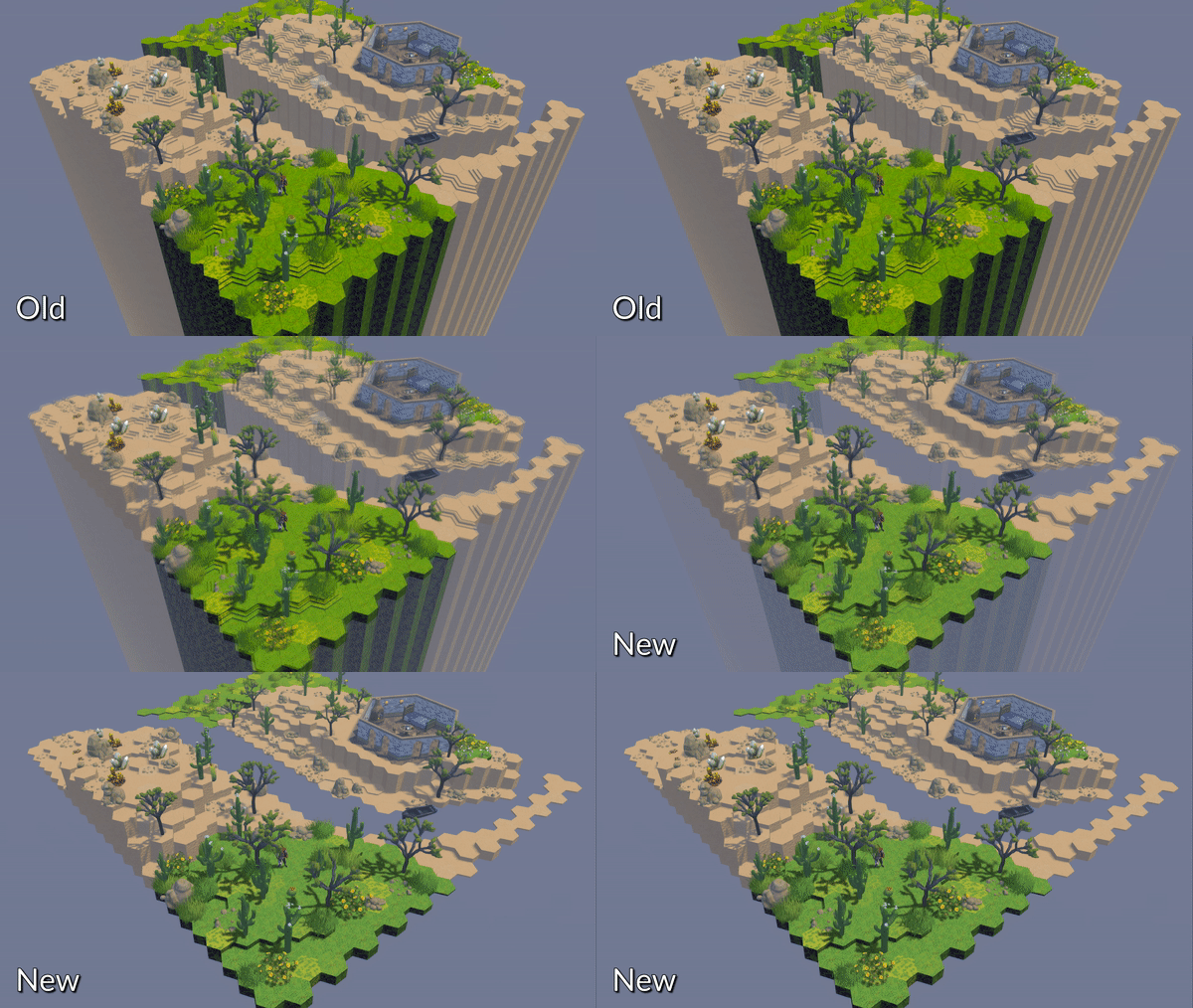
Until this update, each block was actually a tall model regardless of its elevation. If you selected the invisible terrain, you could see how tall the blocks were. You may be wondering why the blocks were tall in the first place. The short answer is that the tall blocks helped make the system more performant. If all I do is translate the blocks up and down, I don’t need to rescale a block or procedurally regenerate a mesh.
When I first started working on Battle Map Studio, the Unity DOTS framework was still in its infancy (after 3+ years, DOTS is still experimental…), so scaling a physics object like a block wasn’t exactly straightforward. When using the typical game object Unity setup, scaling a cube and its collider would be trivial, but when working with entities, it’s a little more complicated. Essentially, the block mesh and collider are two components that need to be managed separately. Throughout development, there hasn’t been a reason to change the block height/elevation system so I kept it as is. Until now.
After I added custom asset importing, I thought about what big feature I’d like to tackle next. Going down the list, I came to one feature that I knew would be exciting but also probably cause a lot of headaches: map layers.
Like custom assets, it was necessary to add map layers iteratively, with this being the first of several updates on the path toward full integration. What I needed to address first was how elevation was controlled and displayed.
To get the base layer functioning, I needed a basic framework for map layers so that blocks, plants, and characters would be correctly positioned vertically. In this update, I added support for the base layer, which controls the Ground Level, Base Block Height, and Elevation Step.
I redesigned the terrain options window to include three tabs, one of which includes the three new base layer options.
The Ground Level setting changes the base vertical position that each block and its components. Changing the ground level moves the entire map (except the terrain plane) up and down. What’s cool about this setting is that enables you to build floating maps and underwater maps!
The Base Block Height setting changes the height of each block at zero-elevation. This setting makes it easier to slightly raise or lower the environment off of or under the ground level.
Finally, the Elevation Step setting changes the vertical height difference between each block elevation. Now that the elevation step is customizable, it’s so much easier to create smoother hills or sharp cliffs.
As I mentioned previously, this update marks the starting point of map layers. In future updates, I plan to add support for multiple layers, layer visibility, and additional layer controls. I am very excited about map layers because they will unlock so many more new possibilities: caves, multistory buildings, world maps, layered props, and so many more!
Here are some other updates:
Lava, quicksand, and murky water can now be set as the terrain type.
With the addition of elevation step controls, the elevation step models have become harder to work with. Varying elevation step heights would mean I'd need to either procedurally generate steps (performance intensive) or scale the step model (looks strange and distorted). For now, I've disabled the generation of the block step model, which actually improves performance quite a bit. In the future, I plan to reintroduce block steps, but in a way, that's more customizable.
Changed the Isolate action hotkey to I instead of F.
Removed the De-isolate and Unlock hotkeys. Instead, pressing I now toggles block isolation, and L now toggles block edit lock.
Pressing F now centers the camera on the selected blocks.
Fixes
Fixed a bug where brush target objects would be duplicated in some cases.
Fixed a bug where the water tile could be selected as the default block tile type.
Fixed an organizational issue where the runes were not correctly split into three different sub-groups (blank, symbols, images).
Fixed a bug where generating large mountains would not trigger an update of the view for long enough to display all blocks created or changed.
Fixed a visual issue with the brush target render queue where it would not render underwater.
Fixed an input bug where the pivot position would not by default be set to the top of a block in the center of the screen.
Fixed an input issue where pressing down on a slider handle would typically change the value slightly, even if the mouse had not moved.
Fixed a bug where using the image wizard would not immediately update the environment.
Fixed some minor visual issues with the brush and brush component movement.
Fixed a bug where choosing the camera pivot position when multiple blocks are selected would use the first selected block instead of the center of the blocks as the pivot point.
Fixed a bug where adding or removing a local file in the landing panel would not refresh the file view.
That’s it for now – hope you all enjoy this update. Stay tuned for more updates on map layers!
-Bradley
PNG/JPG Custom Assets & Steam Workshop
I’ve been working more on custom asset import, and have now added support for importing 2D image files in addition to 3D models! Plus, I opened up the Steam Workshop so you can share your maps and download others’!
2D Assets
Importing an image file as a custom asset is very similar to importing a model. Simply activate a paint tool (e.g. the brush), click the import button on the far right side of the palette, and select a file to import.
An imported image is applied as a texture to a simple quad mesh and can be rotated, scaled, and repositioned like any other custom asset. Import settings work the same too!
Image assets can also move, attack, and react. When building this scene I was getting lots of Paper Mario vibes (has anyone else played Paper Mario 64?).
There are a bunch of great online resources that provide free 2D battle map assets. I found these characters on 2-Minute Tabletop.
Steam Workshop
The Battle Map Studio Steam Workshop is live! Now you can publish and subscribe to maps from the Steam Workshop.
Navigate to Battle Map Studio’s Steam Workshop, subscribe to a map, and the map will magically find its way into your local Maps folder!
You can publish a map to the Steam Workshop by navigating to the Publish to Steam button in the File menu.
Read more about how to use the Steam Workshop on the wiki (first wiki article btw!).
Here are some other updates:
Added a menu button to leave the current multiplayer session.
Reworked the file browser panel so that scroll view navigation is much smoother. Also applied similar changes to the landing panel.
Fixed a bug where terrain magic would not update blocks frequently.
Fixed various minor UI issues related to tooltips, animations, and layouts.
Fixed a bug where the active terrain magic area positions (orange) would not correctly be constrained to the full (blue) area on all axes.
Fixed a bug where pressing enter would save the current map.
Fixed a bug where scrolling would change the current page on the file browser even when not open.
Fixed a bug where maps authored in previous versions of Battle Map Studio that had fog disabled, would not be able to activate fog in the latest version.
I'm looking forward to seeing the maps you make! If you have any feedback on this update, want to ask a question, or just chat about mapmaking and/or tabletop stuff, come join the Discord!
-Bradley
Custom Asset Importing for FBX, OBJ, STL, and others!
Hi everyone, Hope you are all doing well. Happy Easter to those who celebrate! Since the last update, I’ve been focusing on support for custom model import for common model file types and refinements to the sky and light settings.
Importing a Model
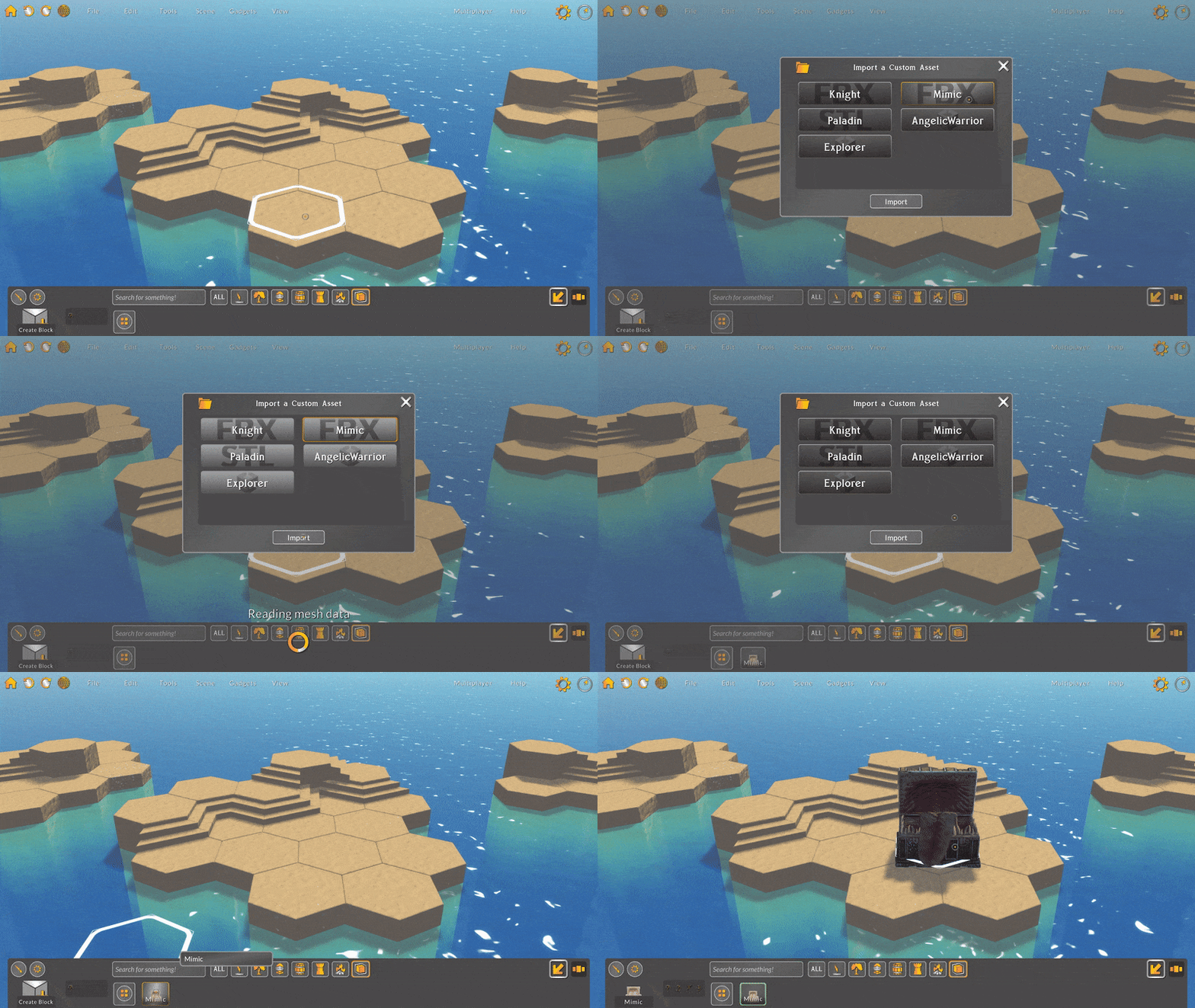
I’m happy to share with you that you can now import models, including FBX, STL, and OBJ files, as custom assets into your Battle Map Studio environments!
Just like with Unity asset bundles, you can select the import button in the palette view to open the Asset Import window, which displays local model files (make sure to put any models you wish to import in the BMS_Data/Assets folder first). Select any supported file and press the import button to make the asset available in the palette.
Once an asset is imported into the palette, you can place it onto your environment just like any other prop or character.
Import Settings
Custom assets now have additional properties that you can edit, like import name, rotation, and scale. Custom assets can also now be deleted.
Now when right-clicking a custom asset selector in the palette, there are two new options: Edit Import Settings, and Delete.
Selecting the Edit Import Settings option opens the asset in the new Asset Import Settings window. Here you can change the asset’s name, its import rotation, and its import scale. Since an asset’s rotation and scale are base values, rotating or scaling an asset in the import settings window will change all placed props/characters using that asset.
Keep in mind too that assets are scaled to fit on import and are currently meant to be used as individual placeable props. For example, right now a treasure chest model would work great, but a full-scale city model wouldn’t.
Selecting the Delete option removes all placed props using that asset and then removes the asset from the palette. Be careful deleting assets because you can’t undo asset deletion!
Light Settings
As I evolve Battle Map Studio’s graphical user interfaces, part of the process includes identifying and updating outdated designs. I was recently interested in refining the sky and light functionality and noticed that the light settings panel was actually kind of complicated to work with.
The light settings have changed over time, but the associated settings window hasn’t really been brought up to speed with other UI elements. For this update, I wanted to simplify the settings so that changing a color or rotating a light is simple and easy to do.
Between consolidating the advanced settings, removing redundant sliders, and updating various layouts and input designs to be consistent with the newer UI elements, I think the light settings panel is much easier to work with.
I hope you find the light settings easier to understand and work with while you build your environments! Let me know what you think: is there a light setting that you think should be added?
Here are some other updates:
Many of the tutorials have been moved to YouTube. This makes it much easier to add new tutorials without updating a build and should make viewing tutorials while playing more manageable. Some tutorials are now outdated and I’ll need to remake them. If there are other tutorials you think would be helpful, let me know!
Now when selecting the Tutorials button, the tutorials playlist will open in an internet browser. There are two playlists, one for Tilt Five and one for PC/Mac. The Tutorials button opens the YouTube playlist associated with the configured platform.
The network region name text is now a button that, when clicked, toggles the visibility of the network status window, which allows you to switch regions.
Fixed a bug with custom asset import where, if there was an error importing, the window would not become interactable until after application restart.
Fixed a multiplayer bug where the host client was not initialized properly, causing players joining a host room not to be set up with the correct permissions.
Fixed various layout issues with the asset import window.
Fixed a camera control bug where rotating around a pivot would slowly move the pivot position over time.
Let me know how you're liking this update! Join the Discord to leave a message, or send annonymous feedback here. 🙂