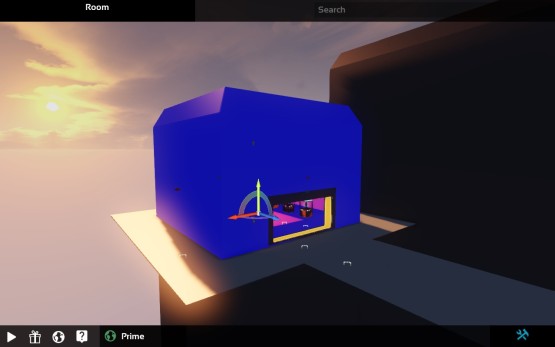
Future Perfect Update 16 is now live on Steam! As usual, we update the Steam “beta” branch daily with the latest, and then once a week we push that out to the main branch along with a post summarizing the most interesting bits.
Over the last couple weeks we’ve been focusing on the things we need to get done to bring Future Perfect to a wider audience. The main goal is to allow new players to jump in and start building and playing their creations within a few minutes. Here are some of the things we’ve been working on.
Package Reorganization
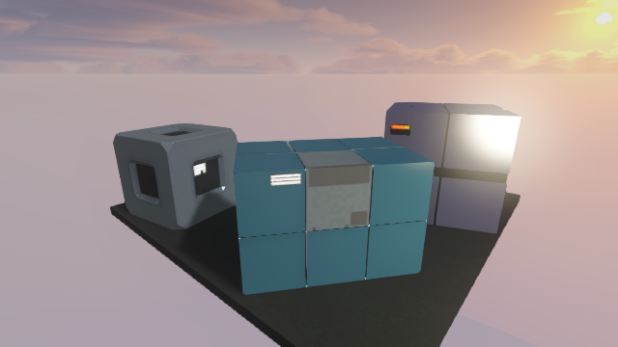
As we’ve been experimenting and building things in Future Perfect, we’ve been creating a library of different types of objects that can be reused in your own games. We did some reorganizing to pull these objects out of the specific game packages and make them easier for you to access.
Bug Fixes
We spent a lot of time reproducing and fixing bugs related to networking. These were mostly assert (i.e. error) messages that would be displayed on connection or while you were playing a game with multiple people. We also fixed some movement in the camera in some of the weapon animations and addressed some editor user interface bugs.
Last week we added a right click panel for editing entity properties, and this week we’ve been setting up a lot of our blueprints to use this mechanism.
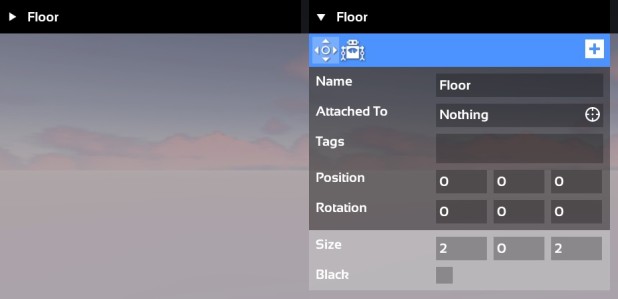
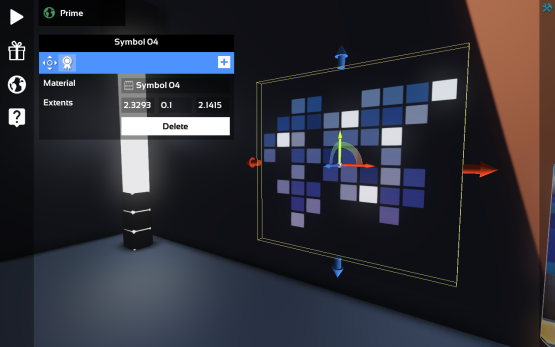
On the left you can see the complete set of parameters for the player spawner script, and in the context popup on the right you can see the simplified configuration UI:
We added some new features to the annotation of fields in a Lua file. Script fields can now be marked as “hidden” to prevent them from showing up in the user interface. A list of values can also be included in the annotation and those will be shown in the interface as a dropdown selection list. Documentation on the markup can be found here.
Debug Drawing
Future Perfect has included a facility for drawing debug lines and text for some time, but it was never accessible to script code. Now we’ve added in API functions for creating these primitives from Lua. The debug system is enabled by typing “debug true” at the console (we’ll make UI for this in the future). Once it’s enabled, calling Debug_DrawLine and Debug_DrawText from script code will draw these primitives in the world. You can see it in action here:
https://www.youtube.com/watch?v=oBqtqgrItEQ
The debug system keeps a record of of the last 200 frames and you can scrub though the history by hitting the stop button and then using the slider. This comes in really handy when you want to see something that only happens for a single frame, like the ray trace for the bullet in the video.
The Trello board has the complete list of items that went into this update. If you’d like to try out Future Perfect, you can purchase it from our website.
Update 15 Released!
The weekly update for Future Perfect is now live on Steam! Here are some of the changes in this update.
Improved Thumbnails
In the last update we added support the thumbnail images in the asset browser. This week we’ve improved them by adding images for collision, material, and particles assets. We also fixed a few issues with thumbnails; thumbnails will now always use high quality textures, emissive transparent parts are displayed properly, decals in blueprints will be rendered, and the skin selection is taken into account for models.
Player Movement
This update includes a few improvements related to player movement. First, we addressed some bugs in the Controller component that made it move erratically near small obstacles like rocks. This also fixed an issue where the Controller could fall through the ground on very steep slopes.
Second, we updated our default movement script to have a better “feel”. We tweaked some values, improved slope jumping and added jump queuing. Let us know what you think!
Entity Configuration
We’ve written about how Automators are used for procedural tasks in previous updates, but they also have another important role in Future Perfect; Automators can be used to provide simplified interfaces for configuring entities. These simplified interfaces are useful for allowing new players to set the properties for entities without having to dig into the more advanced component view.
With that in mind, we moved the interface for the Automators to be accessed by right clicking on the entity:
https://www.youtube.com/watch?v=elpE8FG5j_Y
Most of our blueprints aren’t setup with a simplified Automator interface yet, but over the next few weeks we’re going to be focusing on adding this functionality to them.
This is just a small taste of the changes in this week’s update. If you’re like to see the complete list, check out our Trello board and look for the “Update 15″ list.
If you’d like to try out Future Perfect, you can purchase it from our website.
Update 14 Released
The weekly update for Future Perfect is now live on Steam! Here are some of the changes in this update.
Asset Thumbnails
This week we implemented a long planned feature: asset thumbnails. Now when you open the asset browser in the editor you’ll see preview icons:
https://www.youtube.com/watch?v=XQW1sF6StEw
Right now we only have thumbnails for models and blueprints (that use models), but we’ll be adding support for texture, material and collision assets as well.
This is part of our continuing effort to improve the usability of the editor interface.
Bow and Arrow
The bow and arrow is a new item in Future Perfect. It’s using programmer artwork, but the bow and arrow was a good chance to implement something a bit different than other hand-held objects we’ve implemented so far. Holding the left mouse button will gradually draw back the arrow and releasing the button fires the arrow. Drawing the bow string farther back will fire the arrow with a greater force.
https://www.youtube.com/watch?v=jpTvhXho8OU
Unlike the other weapons, this one requires some special animation blending to handle the dynamic drawing action and responds to the button being pressed as well as released. This gave us an opportunity to expand the underlying system for handling items.
Tree Generator
Automators are special types of scripts that run in the editor to make it easier to build worlds. In the past we’ve used them to implement procedural building blocks. This week we implemented a new Automator script for automatically placing trees on a landscape:
https://www.youtube.com/watch?v=uGE0SHebpHA
To allow this Automator script to randomly place place trees on the ground we gave Automators access to the collision information for the world. Now the same ray tracing and other collision queries available to regular scripts can be used in the editor to automate these types of tasks.
These are just some of the most visual changes in this update. You can see the whole list — which includes a lot of bug fixes and smaller changes — on our Trello board under “Update 14″.
If you’d like to try out Future Perfect, you can purchase it from our website.
Update 13 Released
Weekly Update 13 is now live on Steam. Here’s a summary of the biggest changes.
Black Screen Fix
We received a number of reports from users that were experiencing an issue where the game would start up with a black screen. This was caused by the game not being able to load any of the files it needs to execute. The common elements between the reports was Windows 8 and having the game installed to a drive other than C: After a lot of back and forth, we tracked down the issue to Windows reporting the wrong case for the directory the game was installed to.
Based on the exact circumstances, it appears that this issue could have affected users with other versions of Windows or with the game installed on the C: drive, although we didn’t actually see any cases like that. Either way, it should be fixed now! If you’re still experiencing any problems please let us know.
Script Component Optimisation
One of the unique things about the Future Perfect scripting architecture is that each script runs in it’s own “sandbox” environment which keeps it isolated from all of the other running scripts. We designed the system this way for a few reasons. First, it helps create strong abstraction between scripts since they can’t depend on the internal implementation details. Similarly a run-time error in one script can’t bring down any other scripts. And finally, it allows us to run multiple scripts in parallel by creating a Lua virtual machine per-CPU thread. Since the scripts can’t directly access each other, it doesn’t mater that they’re not all in the same Lua virtual machine.
In order to implement this sandboxing, each script component did a fair bit of work when it was created, including making its own copies of many of the engine’s API functions. These extra copies meant when the script component was destroyed a fair bit of garbage was created. Due to the way the client handles network prediction, script components are created and destroyed a lot as the client state is restored back in time. The garbage created by each one would eventually would lead to a big hitch in the garbage collector every few frames.
We optimized the sandboxing process so that almost all of the extra API copies are unnecessary. This means script components are more lightweight and the pressure on the garbage collector is significantly reduced.
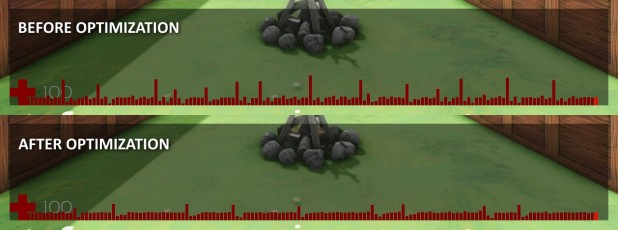
This image shows the time taken per frame for the last 150 frames. As you can see, the hitches (i.e. the larger bars) are less frequent and smaller. There are still a few things we need to do to eliminate them completely. The first is changing the client prediction code to not have to recreate the script components so frequently. The second is to run the garbage collector for a small amount of time each frame so that the spikes are amortized over all of the frames. Both of these changes would have made the original problem much less visible, so we wanted to tackle it first when it was easy to measure.
User Interface Refinement
Now that the editor UI layout is in a state we’re happy with, we’re starting to work on some of the rough edges that hamper usability. One small example is the Entity Panel which is used to access the individual components of an object. Mucking with the components is an “advanced” feature of the editor; players who want to do level design without creating new types of objects shouldn’t need to know about that (once we have everything implemented). With this in mind, the panel starts out in a hidden/collapsed state and you access it by clicking on the menu bar.
However, in the collapsed state there was no indicator that the panel could be expanded, so players who were looking to go deeper with the editor wouldn’t even know to try that. Adding a simple triangle icon to indicate the panel is collapsed should clue new players into the hidden functionality.
If you have suggestions for ways we can improve the user interface, please head on over the forums.
Particle Systems
Our particle system uses a stack of modifiers to apply various effects to the particles. We had two existing modifiers — modification of the size and opacity of the particle over it’s lifetime — and in this update we’ve added a third which affects the acceleration applied to the particle.
All of the values specified for these modifiers can take on four different forms: a constant value, a random blend between two constant values, a curve, or a random blend between two curves. This means that the modifier that affects opacity actually comes in 4 different forms, and the acceleration modifier (which operates on X, Y and Z) comes in 16 different forms. To make the modifiers as efficient as possible each of these different forms needs to be explicitly written out so that we are not branching on the form per particle.
https://www.youtube.com/watch?v=i7T_VxxvKjs
Coding the modifiers like that isn’t really practical, so when adding this new modifier we decided to improve the underlying system. We took inspiration from Bitsquid’s “Scripting Particles” presentation to implement a data-wide interpreter. Unlike the method in the presentation, we aren’t exposing the a scripting language for the modifiers, but instead implemented our fixed modifiers in an assembly language which runs on a simple virtual machine.
We may expose a scripting system like Bitsquid in the future, but even with a fixed modifiers we get some nice advantages from this approach. The first is that we can handle the various forms of the different modifiers easily without adding a ton of code. We can also implement optimizations like SIMD easily since they only need to be implemented in the virtual machine rather than for all of the modifiers. Finally, we apply a number of different optimization passes over the generated opcodes to produce an optimized set of instructions. A simple example is if the particle system includes two acceleration modifiers. After optimization these two modifiers can be collapsed through constant folding.
Texture Pre-loading
Future Perfect uses a texture streaming system to load and unload textures from video memory as needed. Since this happens in the background, it’s possible for a texture to be needed that’s not available yet. To ensure we have something to use in that case, we always keep a very low resolution version of the texture in memory that can be used in a pinch.
These low resolution textures were only created once the texture was accessed for the first time which meant that when starting a new level you might see a frame or two of black textures. We’ve fixed this so that the low resolution textures are now loaded during the loading screen.
If you’d like to see the details of everything that changed in this update, check out the “Update 13” list on our Trello Board.
If you’d like to help support the project and get access to all this progress, you can do so by purchasing Future Perfect Architect Edition from our website.
Update 12 Released!
Weekly Update 12 is now live on Steam. Here’s a summary of the biggest changes.
Stones
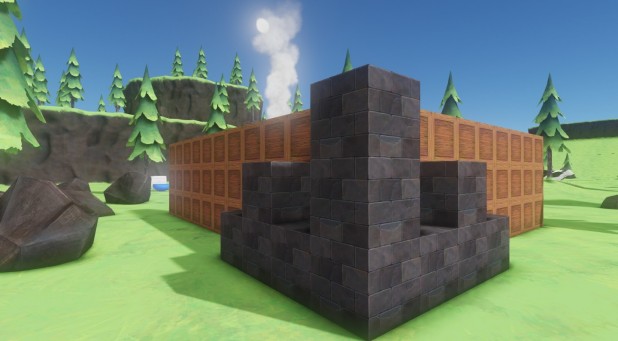
In Lumberjack Simulator, there are now two resources the player can build with. Chopping at a tree provides wood. Punching giant boulders provides stones. The stones take longer to harvest but are much stronger and will keep you reasonably* safe from bears. This also required about a day of work to recombobulate the way resources were tracked in the inventory.
https://www.youtube.com/watch?v=7hb2S5zJQz0
*not nearly as safe as you would want though
Honey
One of the goals this past week was to build out the game loop for the Lumberjack Simulator. We are still working on the details but it was clear that honey was going to be important. The player can now break open a hive and access the honey inside.
Campfire
No outdoor video game is complete without fire. The campfire will allow the player to roast edible items, warm up at night, and perhaps not catch their entire base on fire.
As usual, if you’d like to see some more detail on all of the changes that went into this update, check out our Trello Board. In addition to the things highlighted here, a bunch of bug fixes went into this build. The board shows all of the tasks we have planned, we’re working on and have completed for the next update.
Weekly Update 11 is now live on Steam! Here’s a summary of the biggest changes...
Revised UI
This week we overhauled the layout of the editor UI. As we’ve developed Future Perfect, we’ve been adding new editor features and concepts as we discovered the need. As a result there wasn’t too much rhyme or reason to the layout. Although we still have more to implement, it feels like we’ve got a pretty good handle on all of the major functional pieces, so it was time to step back and think how they could be better integrated into a single UI.
https://www.youtube.com/watch?v=6TehCCCACdM
We’ll be iterating more on the UI, so please let us know what you think.
Although the new UI is primarily just a new organization of the existing one, it did give us the opportunity to add in an entity search feature. This should be helpful when you’re trying to locate a player spawner, sun light, or some other entity which might otherwise be easy to lose in a big environment.
Contact Message
We added a new message which is sent to a script when two collision objects come in contact. This is especially useful for implementing projectiles which are supposed to react when they hit something. Previously to accomplish this you had to add a slightly larger trigger around the object. The new contact message is an easier, more efficient and robust way to handle this.
https://www.youtube.com/watch?v=3T8ZufnGPAM
The crate in this video has a single script on it which plays a particle effect when a contact occurs:
function OnContact(message)

    World_PlayParticles("explosions/explosion_small.particles", message.position)

end
You can find more information about how the message works in the documentation (see docs/messages.html in the game install directory).
Automator Selection
Selecting an entity with an Automator component on it will now also highlight any entities it generated.
This should make it a lot easier to tell what’s going on when you’re editing a level with a lot of Automators in it.
Lumberjacked
On the game development side work continues on a lumberjack game.
https://www.youtube.com/watch?v=3I0ibO1C93o
With the lumberjack game we’re experimenting with a slightly different art style, which has more of a hand-drawn or painted quality. Here you can see a new tree model in this style (along with it’s “being chopped” animation), and some wooden blocks that the play can use to build defenses against bears.
Most of the artwork in the game right now is still placeholder, but you can see some of the progress that we’ve made. There’s a new hammer tool for building out your defenses, and a beehive where the player can collect honey (just watch out for the bees!).
https://www.youtube.com/watch?v=Jmu17WZ8_sI
As usual, if you’d like to see some more detail on all of the changes that went into this update, check out our Trello Board. In addition to the things highlighted here, a bunch of bug fixes went into this build. The board shows all of the tasks we have planned, we’re working on and have completed for the next update.
Future Perfect Update 10 is now live on Steam. New features, bug fixes and other improvements go out to Steam every day in the “beta” branch, and once a week we wrap this progress into a stable update in the “main” branch. Here’s what’s included.
Shadow Improvements
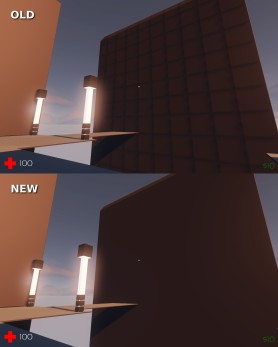
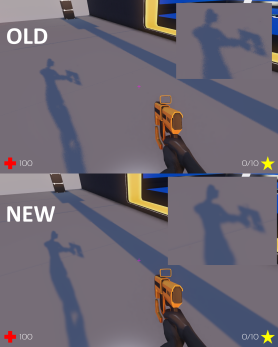
In the last update we made some improvements to the shadow filtering quality, but there were still some artifacts left. These artifacts are what is known as shadow “acne” because they show up as spots along the surface. The artwork in Future Perfect is very susceptible to these types of artifacts because of the “clean” art style we’ve chosen and the way that everything is built out of modular pieces. As a result, the techniques we used in Natural Selection 2 didn’t carry over very well.
This week we took the time to hammer out these artifacts. We still have some more improvements to make to the shadow quality, but this should be a good step forward.
Inventory HUD
We added a small HUD indicator to the default player to show the items you’re carrying in your inventory.
https://www.youtube.com/watch?v=Ihc2yY9b_po
Decal Size Gizmo
We added a 3D gizmo for resizing decals in the world. When a decal component is selected, you can grab the arrows and move them around to resize the decal.
Crates
Few games are made without a crate or two. We’ve got three! You can find these three crates in the appropriately named “Crates” package.
Footsteps
Using the animation event system we added last week, we put events in the player movement animations that are now hooked up to footstep sounds:
https://www.youtube.com/watch?v=0DZ_5w0UoVk
Natural Selection 2 players will probably recognize the sound effects we’re using right; these will be replaced with something new in the future.
Lumberjack Game
We hit a patch of “writers’ block” with our heist game, so we decided to switch gears for a moment and experiment with a lumberjack game. Based on the popularity of games on Steam where you chop down trees, we expect this will be an instant hit:
https://www.youtube.com/watch?v=GjBPgpnwnFQ
In addition to these new features, we also made a handful of bug fixes. If you’d like to see the details, check out the “Update 10 – Done” list on our Trello Board.
If you’d like to help support the project and get access to all this progress, you can do so by purchasing Future Perfect Architect Edition from our website.
Update 9 Released!
Weekly Update 9 is now live on Steam. Here’s a summary of the biggest changes.
Player Movement
One long standing issue we tackled in this update is player movement bugs. In earlier versions, trying to walk over a pile of physics objects would cause the player to be shot directly upwards with a huge velocity.
https://www.youtube.com/watch?v=BlucIZFTjf8
While this was a pretty fun, it completely broke the game. The bug was caused by the “stair stepping” code that allows a character to step over small obstacles; that stepping motion would translate into a large vertical velocity causing the player to be propelled upwards.
We also fixed another bug that prevented characters from being knocked around by trigger forces until they are pressing movement keys or are in the air.
Improved Shadows
Another long standing issue we’ve made some progress on is shadow quality. Because of the clean art style we’re using, the method Natural Selection 2 used for shadows doesn’t work very well in Future Perfect.
We’re very fortunate that Ignacio Castaño already tackled the same issue for The Witness and wrote up a detailed explanation of their solution (Ignacio also enhanced the HLSLParser code we open sourced with the features necessary to implement this — double win!).
We’re still working on some other improvements to the shadows that we hope to release shortly.
Entity Size
When scripting an AI unit it’s often necessary to target another entity. This requires choosing a point on the target entity to serve as the “bullseye”. The easiest thing to do is to choose the position of the entity, but for characters the position is often located at the feet.
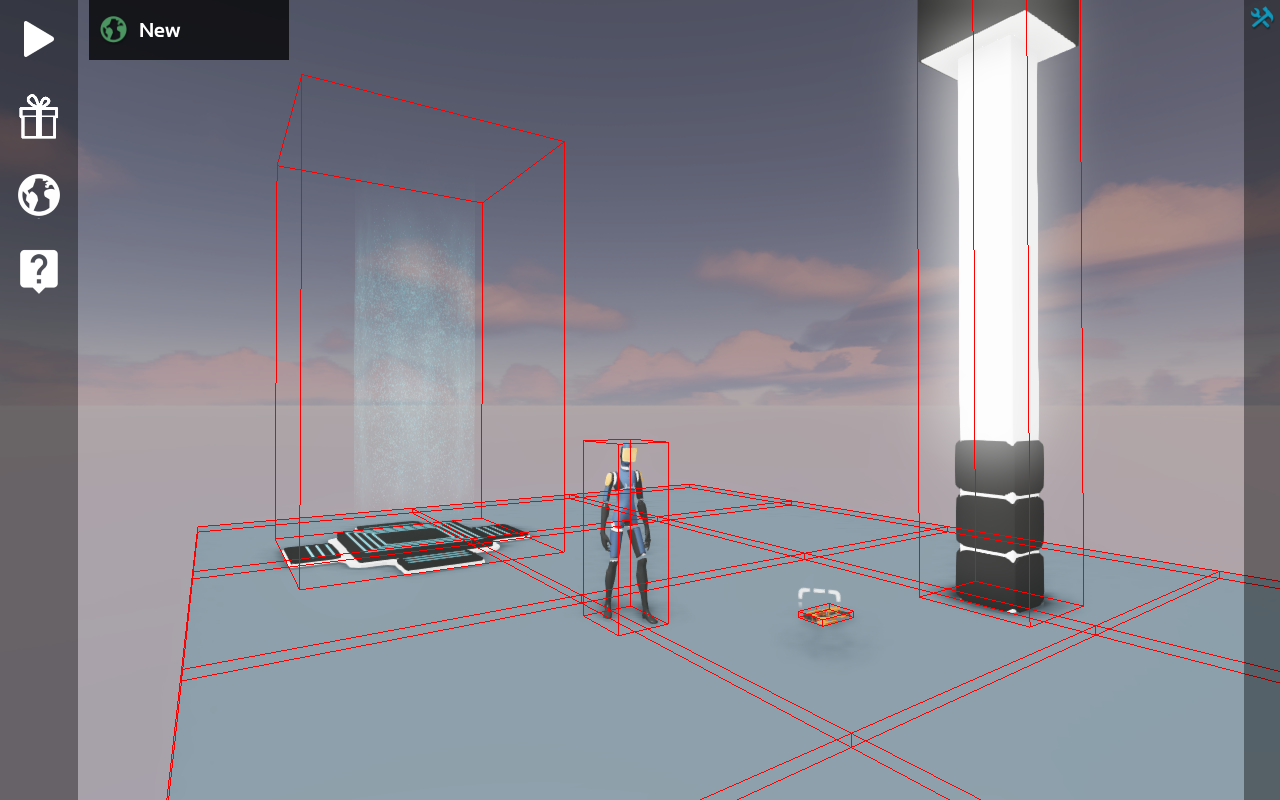
Instead, we’d like to choose some point which is more in the center of the object. To allow this, we added a new function called Entity_GetLocalBoundingBox that gives you the size and location of the box that fits around the entity.
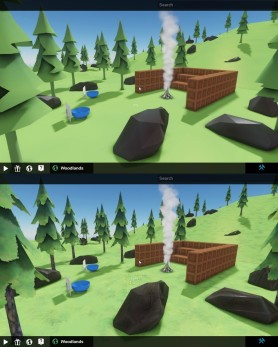
In this screenshot, you can see the bounding boxes for a few entities drawn in red:
AI code can use the center of the bounding box to get a reasonable idea of where to target. We’ll probably also add in some mechanisms to query an entity for a specific bone position to allow a target bone to be specified for certain models where the box method doesn’t work well.
Renaming Skins
It’s now possible to rename skins on a model directly inside the model editing GUI. All you have to do is double click to start the renaming process:
https://www.youtube.com/watch?v=e16oynnVmLg
Animation Events
The animation system now includes events, which are simply frames that are tagged in an animation with a name. When playback of the animation hits one of those frames, an event is generated that’s sent to the script as a message. In code it looks like this:
function OnAnimationEvent(message)

    if message.name == "step" then

      -- Play a foot step sound

    end

end
This type of system can be used to synchronize all sorts of things with an animation, such as sound effects, particle effects, and even game play effects like dealing the damage from an attack.
User Interface
We’re continuing to work on smoothing over some of the stumbling blocks people have encountered with the user interface. The behavior of the rotation gizmo was a bit non-intuitive when rotation snapping was enabled. To address this we’ve changed the gizmo to show the snapped rotation and added tick marks to show the snapping increments.
https://www.youtube.com/watch?v=Sd32zQu5JgQ
Another usability issue we received feedback on was that there was no button to switch from “inspect” mode to “play” mode. This can be accomplished with the F5 hotkey, but if you didn’t know that you might be stuck. To address this we added a new button to the tool bar:
Platforms
We enhanced the procedural platform automators to support ramps as well as the existing flat pieces:
https://www.youtube.com/watch?v=4Dx-qwF_b1s
Robots
The robots now take damage when shot or exploded. They were already being physically simulated so it was easy enough to add a bit of force when they sustain damage which makes them a lot more dynamic.
https://www.youtube.com/watch?v=civ7Ncy7nBM
Timed Callbacks
A lot of gameplay code involves timing. The below is an example of some common code:
function OnThink(message)

    if World_GetTime() - lastSoundTime > 0.5 then

      World_PlaySound(sound, Self_GetPosition(), SoundType.Effect, 1, 1)

      lastSoundTime = World_GetTime()

    end

end
Unfortunately, this code needs to run every frame just to check if it is time to play the sound. Last week we added the timedcallback mechanism which allows us to write it like this:
function PlaySound(message)

    World_PlaySound(sound, Self_GetPosition(), SoundType.Effect, 1, 1)

    timedcallback(0.5, PlaySound)

end


timedcallback(0.5, PlaySound)
This is more efficient and easier to read. This week we updated much of our existing gameplay code to take advantage of timed callbacks.
Health and Ammo Packs
Finally a way to replenish health and ammo! Well, there wasn’t a concept of ammo until now but don’t worry about that.
https://www.youtube.com/watch?v=m2u-Cjm208s
As usual, if you’d like to see some more detail on all of the changes that went into this update, check out our Trello Board. The board show all of the tasks we have planned, we’re working on and have completed for the next update.
If you’d like to help support the project and get access to all this progress on Steam, you can do so by purchasing Future Perfect Architect Edition from our website.
Dev Update 8
Weekly Update 8 is now live on Steam! Here’s a summary of the biggest changes.
If you’d like to see some more detail on all of the changes that went into this update, check out our Trello Board. The board shows all of the tasks we have planned, we’re working on and have completed for the next update.
You can help support the project and get access to all this progress by purchasing Future Perfect Architect Edition from our website.
Automator Optimization
This week we finished a two-week-long task to optimize the execution of Automators. Automators are a special type of script component that runs inside the editor to help with tasks like placing modular pieces for procedural objects. The way the Automators work is by destroying any entities it previously placed and creating new ones each time the user adjusts any of the properties of the Automator. For example, if you resize a room, all of the existing wall, floor and ceiling pieces are destroyed and new ones are created in their places. Starting fresh each runs makes the Automator scripts a lot easier to write than if we tried to selective update only the parts that needed it.
When we started building levels with lots of Automators in it, optimizing this became really important. When one Automator runs it can trigger others to run; for example a door will trigger the room to regenerate since it needs to cut out a hole for the door to fill. In our big level, adjusting a single door would trigger a cascade of Automators that could cause most of the world to regenerate. We made some small adjustments to limit the cascading effect (we’ll be making more in the future), but we really wanted to make the whole process faster even in the worst case.
https://www.youtube.com/watch?v=Z_K9qwEtyfg
To do this we made the engine a bit smarter when executing Automators. For the Automator script’s perspective it still looks like entities are being destroyed and created fresh, but under the hood the engine will try to find existing entities that match the new ones being created. If one is found, it will be reused. This avoids a lot of the work involved in creating new entities.
We also changed the engine to use a binary representation of blueprints. If you’ve taken a peek at any of the blueprint files on disk, you’ll see that there 6are written in a JSON-like text format. We’re still using that on disk, but once they’re loaded into memory they’re “compiled” into a binary format that game uses when spawning a blueprint. This was important for making the Automators faster, since in previous versions those text files were parsed every time a blueprint was spawned. This also makes spawning of blueprints in general faster, and ultimately we’ll use those binary formats on disk to make loading faster as well. It’s easier to keep them as text for the time being so we don’t have to make the binary format backwards compatible whenever we make a change.
Physics
If played around with the physics objects at all you might have noticed they tended to behave like Weeble wobbles. This was due to the physics engine using the origin of the object as the center of mass, which is often located at the base. We’ve fixed this so that the center of mass and moment of inertia will be properly calculated based on the collision shapes.
https://www.youtube.com/watch?v=D_7bhYsduu8
It turned out we wanted the Weeble wobble effect for some objects so they’d tend to stand up vertically. The collision objects can be made up of multiple shapes, so to enable that effect we enhanced the system to allow each of those shapes to specify their own mass (to keep the objects upright they have a heavy mass at the base).
Sentry Robot
We’re working on making the sentries in the Heist game present more of a challenge for the player. One new idea is for sentries to turn into a turret when they spot the player. Everything is still placeholder as we develop this idea further:
https://www.youtube.com/watch?v=BJ9H-AnzgAg
Timed Callbacks
Lately we’ve found a few places where we’ve wanted to have some code run at some interval or after a certain amount of time has elapsed. While this can be implemented by checking every frame if the desired amount of time has elapsed, it’s neither the most efficient or the most convenient.
To address that we’ve added a new API function called timedcallback that will execute a Lua function after a certain delay. To make it recur, you just have to call timedcallback from inside the callback. For example:
local function Think()

    ...

    timedcallback(1, Think)

end


function OnCreate()

    timedcallback(1, Think)

end
Laser Walls
We’ve been experimenting with different ways to combine the elements we’ve built to get new types of interactions for the Heist game. The laser wall now responds to damage by temporarily flickering and disabling. Now the rocket launcher, bomb and other weapons can be used to affect the electronics:
https://www.youtube.com/watch?v=HTQRnxqfMG4
Art
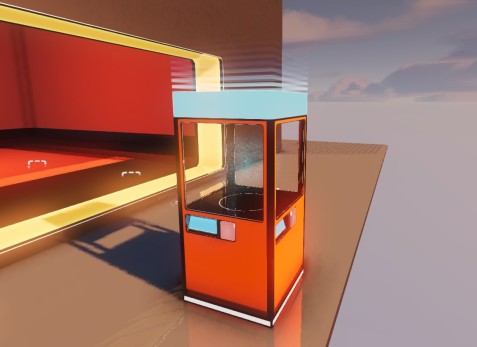
We added in a new model for the “buying station” which is a futuristic vending machine the player can use to purchase equipment in the Heist game.
We also fixed up some artifacts on the “server” model and took a pass on a variety of other art bugs, like missing texture error messages and other materials. We’ve also adjusted the alignment of the floor so that newly placed objects sit on top of it rather than sunken inside it.
Dev Update 7
For Update 7 we’ve continued working on the Heist game mode.
Bomb
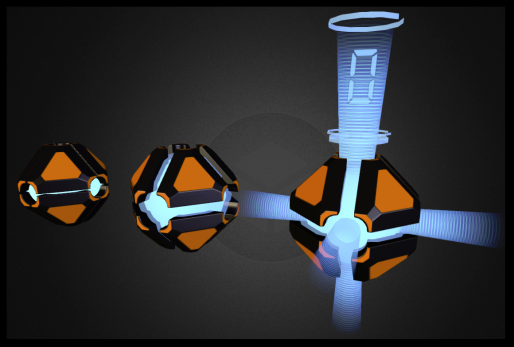
One of the new elements for the Heist game is a bomb. The bomb is a throwable item that counts down before it explodes.
Like everything we’re making, we designed the artwork for the bomb to be “universal”. The goal is to have a distinctive look, but allow the model to be re-used for other purposes; our bomb has an explosive payload, but you can re-use it in your own game modes in new ways.
https://www.youtube.com/watch?v=Q6G3-PKm-GQ
Damage Types:
To support some things we have planned for the robot on the Heist mode, we’ve upgraded our damage code to include multiple types. Now when a player takes damage, you’ll hear a different sound depending the source of the damage. We’ve added melee, projectile (like bullets), fire, explosion and poison types, and no doubt we’ll add a few more in the future.
https://www.youtube.com/watch?v=0-qdzKZebtA
One of the elements this will support in a gas cloud that will be released by an alerted robot.
Robot
Speaking of the robot, we’ve given it a few updates to its AI. Now the robot can sense the player and will go into “seek and destroy” mode.
https://www.youtube.com/watch?v=n8nzodijUEw
The art we’re using right now is a placeholder, but we’re working on a new design that you’ll be seeing soon.
If you’d like to see all of the changes that went into this update, check out our Trello Board.