This has been the last day we are all in office this year. It’s been an amazing year for us and we have been absolutely blown away by everything you have created. We have enjoyed it so much, we want you to keep sending us all of your amazing creations over the winter holidays. Share them with us on Workshop, Steam Discussions, Reddit, Twitter, Facebook and our Discord! We want to see your fun games, wacky creations and funny builds!
Seb’s Competition Let’s Play
We’ve finished uploading our daily Let’s Play for the ‘Create a Game for Seb’ competition. It was great fun to record and you can watch all the episodes in the playlist here: https://www.youtube.com/playlist?list=PLkrUoIf8Lbr8DapRqOqj1lFL2kH3LN2xR
Gamecraft Holiday Competition
We’ve announced the winners for our Gamecraft Holiday Competition. You can see those winners here: https://steamcommunity.com/gid/103582791464559041/announcements/detail/2992010505947947642 We’ll be uploading the Let’s Play videos of that in the new year and handing out prizes early in the new year.
What to Expect in the New Year?
In the new year we will be working on some really exciting things. We’ll be continuing our on multiplayer, to fix and improve based on the feedback you give. We’re also working on Tyres to improve their handling by splitting out forwards and sideways friction and setting those independently, this should make them feel more realistic. Alongside this, we’re also working on new tyre variants, such as a bicycle tyre, monster truck tyre and F1 tyre. Some of these will be visual differences while others will functional differences on different surfaces.
Another feature we are working hard on is the wiring system. Akin to other games, you will be able to drag a wire from one part - through an in-world UI - to another. We’re making this change from the signal channel system as a wiring system is infinitely more powerful, easy to use and also allows us to have a better design over alt-stats and makes it easier for future features we want to add, like logic, as the channel system would have made features like this problematic.
Alt-stats was briefly mentioned above, this is another feature we will be working on. Alt-stats will allow you to tweak the stats on a part through the same in-world UI as the wiring system. You’ll be able to tweak the min and max angle of a servo hinge, or set a motor to turn counter-clockwise on a positive signal instead of clockwise. This is an easier way to control parts instead of using the averaging mechanic we currently have in place to get the desired effect.
You can look forward to all this and so much more from Gamecraft in 2020. We hope you stick with us as we continue to adapt, evolve and grow Gamecraft.
That’s it for this week - and year - we’ll give you another update when we’re back up and running in the new year. Until then, Happy holidays, we hope you have an enjoyable time playing games and spending it with loved ones. Please follow us on our social spaces and share your creations with us: Twitter- https://twitter.com/Gamecraft_FJ Youtube - https://www.youtube.com/c/GamecraftGame Facebook- https://www.facebook.com/GamecraftGame/ Reddit - https://www.reddit.com/r/GamecraftGame/ Discord - https://discord.gg/gamecraft
Thanks for reading! The Gamecraft Team
Holiday Competition Results
Hello Gamecrafters,
Competition Winners
After playing through your entries, Ric has decided his favourite maps for the Holiday Competition. The winners have been judged on how good they look, how well they fit the theme of the challenge and how enjoyable it was to play. The top 3 winners are:
These winners will need to accept a friend request from a Freejam Member of staff who will send you the £25 steam gift card. Friend requests will be sent in the New Year. If the winner doesn't respond to the friend request within a week of sending the friend request, the prize will be passed over to the next runner up.
Thanks again to all the contestants and all the entries. We really enjoy running these competitions and playing through your entries. We hope to run more competitions in the new year.
The Gamecraft Team
QoL Update - Controls, Bug Fixes and Improvements - Now Live
Hello Gamecrafters, Our latest update is now live. This update focuses a little more on general optimisations, bug fixes and a couple of nice tweaks and features, such as the Controls Screen! This update also includes the multiplayer preview. Read the full patch notes below.
Controls Screen
Yes, as we teased in last weeks blog post, the Control Screen is here! Accessible in both the Main Menu and in-game, you’ll finally be able to tweak your mouse sensitivity, flip the y-axis and rebind all of the basic controls. This is all fairly straight forward but we’ll give you a quick rundown on how it works. Simply Click on the Controls button in the menu to open up the Controls Screen.
From here, you can tweak the mouse sensitivity slider to adjust the speed Leo looks around (N.B:This will not affect the cursor in menus). You can also toggle the mouse invert to make Leo look down when you move the mouse forwards.
Hook up a new keybind for any action in the list by clicking on the currently assigned keys, which will bring up an “Assign Control” dialogue. While this dialogue is open, any keyboard or mouse button input will be recorded and saved as soon as you let go. If you want to assign a combination of keys, you can do that too! By holding CTRL, Shift or Alt you can create a combination of keypresses to assign to an action. For example, if you want “Start/Stop Time” to be “CTRL + Shift + E” instead then you can hold both of these keys before pressing E.
You’ll see a couple of controls highlighted orange. These show that the key is also being used by another control, like CTRL being used for scaling as well as sprinting by default. While we recommend keeping your keys unique, there isn’t usually much harm in overlapping them (unless you decide to put “Place Block” and “Move Forwards” on W, or something like that...) so we just highlight them as a potential conflict for you to act on.
Each key has an individual reset button, just in case you want to revert a single change, as well as a “Reset Defaults” button at the bottom which will revert everything other than the mouse sensitivity and invert Y to their default key/button.
These controls will be saved per account, per machine. This means that multiple people playing on the same machine can have their own preferred setup. It also means that you can have a different setup for your PC and laptop if you choose.
Multiplayer Preview
The preview branch will be shutting down again shortly as we’ve cleaned up most of the major errors and issues with the multiplayer preview and put all of that into the standard branch. Multiplayer is still far from “release ready” but we think it should be in a stable enough state going forwards that crafters can still play around together if they wish.
A huge thanks to everyone who jumped into the preview and helped us out by reporting issues. We’ll cover the bug fixes and changes a bit later on. We’ve got a lot of work ahead of us next year but we’ll continue to work on getting multiplayer up to scratch with your support.
Other Changes and Optimisations
Changes to Foliage Collisions
We’ve done two things to address some of the concerns and complaints regarding flowers in particular.
The first is to simply have Leo ignore collisions with flowers that are not directly attached to the floor. Any flower connected to a block can still be deleted/coloured, but should no longer prevent Leo from walking. Any flowers that are placed in the air will still collide with Leo when they land. This should make moving around lush gardens a lot less painful!
The second change is to slightly tweak the colliders while in build mode, making it easier to paint or remove plants and bushes that you’ve placed, while not stopping you from interacting with blocks close by or behind them.
Foliage LOD’s
One of the more resource heavy parts have always been the trees. We’ve done a couple of things over the last few updates to try and reduce their impact a bit, removing the wind animations (as much as we really wanted them) and reducing the density of leaves are a couple of examples. This time around we’ve implemented basic LOD’s (Level of detail) on all foliage. As you walk further away from them, you’ll see them blend into a less detailed version. We still need to tweak these a bit more so they don’t look fantastic at the moment but they should perform better now.
Renaming of some parts/terms
A couple of parts have been renamed in this update as we’ve been using a lot of overlapping names internally and we’ve seen a bit of confusion in discussions. These, coupled with the addition of Controls and an increase in “command” usage for multiplayer, the following changes have been made:
Most of the work we’ve done since the preview went live is error fixing and cutting back on bandwidth where possible. A lot of the work that needs to be done in this area takes time, so there isn’t a drastic improvement this time around. We have some small improvements but things aren’t quite smooth yet.
One of the changes here is that players connecting during simulation are now rejected and returned to the menu rather than triggering an error. We’ll have better systems in place to handle these connections in the long run but for now the safest and simplest option is to simply stop the connection happening. We’ve also made the timeout period a bit more lenient, but it will still kick you if you fall too far behind for too long. This process should be a bit cleaner as well now, with clearer messaging and no errors.
Another change is to the console commands. Console commands are now synced for all players where possible. This does not include player related commands like teleport, camera distance etc. so those have been disabled while multiplayer is running for now. Commands like setGravity, sky colour etc. can all be called by any player, and will correctly update for everyone.
We’ve also added a couple of extra commands to tweak the performance in multiplayer:
SetNetSyncBanwidthLimit - This command specifies how much of the world should be sent each frame. A higher number is going to have a larger impact on the host’s performance (which could then cause issues for everyone else down the line) while lower numbers mean less objects are being updated for other players. The default is 20% and can be set by the host
SetNetworkJitterFrames - This command controls how often input messages are processed. There probably isn’t going to be much need for this command but we’ve included it just in case. A higher number means there is less chance for messages to be missed, but it will hurt performance. The defaults are 1 1 and can be tweaked by the clients.
We’re still hard at work optimising various areas of Gamecraft. A lot of it is very ‘under the hood’ so there isn’t much to show or talk about here but there should be some noticeable improvements all around in this update and we’ll be keeping on top of further optimisations as we continue to develop.
Bug Fixes
Fixed a bug that caused parts to become offset from the grid in certain scenarios
Fixed a couple of preview-specific bugs where painting or changing signal channels repeatedly could cause an error
Fixed a preview-specific bug that caused an error when replacing a hotbar item that you currently have selected
Fixed a bug with the new wheel colliders that caused them to lock up when things are placed directly behind them
Fixed a bug that caused vehicles to act strange when objects are placed directly behind a pilot seat
Fixed a rare error when saved player data (hotbar/filters) could become corrupt or empty
If a Host disconnects with an error, it should always kick other players after a short delay now
We’ll post one final Dev Blog for 2019 later this week before we sign off. We’ve got a lot of interesting things planned already for next year and things are definitely going to continue to get bigger and better as Gamecraft continues to expand and evolve. We’d like to give a massive thanks to all of our early adopters, from way back in Experiment 01 all the way up to today’s update. You’ve all been extremely helpful and understanding as we’ve been through some major save-breaking changes and worked through a number of hiccups along the way.
The Gamecraft Team
Gamecraft Blog 13/12/2019
Hello Gamecrafters!
Next week we’ll be aiming to release one more update before the year ends, which will put live a more refined version of the latest preview, along with some general bug fixes and improvements as well as the release of one of the features more frequently requested by the community!
Preview going Live
Overall we're happy with the results of the preview. We've fixed some critical bugs, managed to clean things up quite a bit and learned a lot from it, so we’re going to push that live. This isn’t an official multiplayer launch as we still have a long way to go before we are happy with multiplayer being “release ready” but we don’t want to put it on a shelf and take it away from the dedicated crafters who helped us test it out. Multiplayer will still be accessed through console commands and massive saves are not quite ready to use in multiplayer yet but the option is still there if you choose.
Controls Screen
Yes, we’re finally adding the ability to allow users to customise their control layouts! Gone are the days of high mouse sensitivity, or uncomfortable control layouts, for you can now properly set-up your keybindings. We’ll give you the full details when this goes live but here is a little teaser.
Ongoing optimisations and QoL changes
Over the last couple of updates we’ve been working on optimising some of the slower areas of Gamecraft. For this update we’ve been focusing mostly on textures and foliage but we’ll share more on those next week. We’ve also been tackling a few of the issues that came out of the last update, along with a couple more tweaks and fixes, such as removing the collision of flowers when placed.
The Gamecraft Holiday competition is still on-going but is ending soon! Competition closes on the 15th of December at 11:59pm(GMT). You can read more about the competition here: https://steamcommunity.com/gid/103582791464559041/announcements/detail/1690468757544680493
Thursday 12th December - Vanguard Project by Mr.Rotor
Friday 13th December- Panther Tank by Bug
[previewyoutube="ZD2xi01zYkI;full"]https://youtu.be/ZD2xi01zYkI[/previewyoutube] If you would like a Community Highlight, be sure to share your creations in-game by publishing them to workshop, or by sharing a picture or video with us to one of our social spaces.
That’s it for this week, we’ll give you another update next week! Be sure to follow us on our social spaces: Twitter- https://twitter.com/Gamecraft_FJ Youtube - https://www.youtube.com/channel/UCkcRFCr9aQxszaYeXcWZjwA Facebook- https://www.facebook.com/GamecraftGame/ Reddit - https://www.reddit.com/r/GamecraftGame/ Discord - https://discord.gg/gamecraft
Thanks for reading! The Gamecraft Team
Multiplayer Closed Beta - Now Available
Hello Gamecrafters,
We’re ready to share an extremely early preview of the work we’ve done so far on multiplayer with you dedicated crafters. We want to keep things small for now so we’re opening the preview branch back up for anyone interested in helping us test out the core multiplayer functionality.
Everything is currently being handled through console commands and slightly ‘out of the way’ things so this isn’t intended as something everyone can just pick up and play. There’s still a lot of work left before things are stable enough for a wider release and we’re already aware of a whole host of issues that need to be resolved but we wanted to get what we have out there to get some insight and feedback from the community.
The Details
So, let’s start with some of the key information regarding the state of the preview, then we’ll cover getting access and what we actually want to accomplish.
We really can’t stress this enough; this is an extremely early preview with the bare essentials. That means:
No public servers
You will only be able to build and simulate together (not “play” games)
No fancy UI, you connect via console commands
You will likely encounter bugs
You will need to keep things you build relatively simple at this stage, the more complicated you make the builds the more issues you will likely see
There is no limit to how many players you can add, but the more you add, the more stress you’ll put on the system and will likely see more issues
To go into a bit more detail on these points; all hosting and connecting will be done directly through Steam P2P (Peer-to-peer). This means that one player acts as the “server” (while also playing) and other players, who will connect directly to that player via the console, which we’ll cover shortly. This is far from the end goal of having a nice intuitive UI, party system and server browsers, but once you get the hang of it you’ll be able to play together with relative ease.
With the recent changes to “play games” starting the simulation automatically, we won’t be able to allow players to host servers in those games. We still have a lot of work before we can cleanly handle clients trying to connect to a server while there is an active simulation (as things could get wildly out of sync) so for now, we’re avoiding Community Games in multiplayer.
We don’t have any “host” or “connect” buttons hooked up yet, so everything is currently being handled with trusty console commands. As these are only available outside of the menu the host will need to load up a “Create Games” save file before they can start the server. Other players that want to join will also need to load up a save (any save at all) before they can connect to the host. All of this will be a lot smoother in future but the focus for now is to get the core nice and solid first.
The last few points all tie together. Certain features like text blocks, commands blocks (and commands themselves) still need some work before they can be synced between multiple players correctly. The host will be able to use most of these with no issues but other connected players will not. Colours and even joints and channels may also have issues still, although we’ve done a lot of work to avoid this. We’re already aware of some issues with lag and are working hard on reducing that as much as possible, but a lot of these improvements are massive tasks in their own right, so expect a bit of input delay, things getting out of sync slightly, parts visually jittering around etc. at this stage.
As the save gets larger, performance is typically expected to take a hit, as the host needs to send more data about the world and the clients need to process this data more frequently. We’d definitely recommend starting out with empty saves and getting a feel for things before trying to get your friends to help build a gigantic spaceship replica for now. If you do decide to host, make sure you have a strong connection otherwise you’ll run into these issues a lot sooner.
The Goal
The most important thing for us is to get as much information about your experiences as possible. From the big things like connection problems, performance issues, multiplayer specific bugs and big UX (user-experience) concerns to the smaller things like “I don’t like seeing other players ghost cubes”.
If you run into any bugs, please gather as much information as you can before reporting them. Whether the issue is multiplayer specific, only happens to the host or other players, only happens on poor connections etc. as this kind of information will really help us narrow down the cause.
General information on your network upload/download speed, traffic in-game and ping (accessible via the F3 menu), location of players you’re playing with any other information like that is crucial as well. So please take a moment to gather as much of this as you can with any reports.
Theoretically, we can support an unlimited number of players at the moment but the performance is not going to smooth. While it is still helpful to get information on those kinds of tests, building with a couple of close friends and spotting fundamental issues is the bigger focus here.
When you’ve had a good play around in multiplayer, gather up all of your issues, concerns and thoughts and post them as clearly and concisely as possible over on our Reddit https://www.reddit.com/r/GamecraftGame/ If you have any player logs, crash logs or images then let us know as well and we’ll contact you to grab them.
From there, we can see how well the test went, if it matches the kind of experience we’ve seen internally so far and make an action plan to get multiplayer form where it is now to a more refined state
Accessing the Preview
With all that out of the way, let’s move on to the fun stuff!
For those of you that took part in our first preview, you’ll be a bit more familiar with these steps. For anyone who didn’t take part, we’ve got a simple step by step guide on getting into the preview below.
N.B:Please, do only join this preview if you’re willing to help us test out multiplayer in its current, barebones state and feedback any issues and concerns as concisely as possible. This is far from “ready”. Things aren’t going to be smooth and things will almost definitely go wrong.
Please avoid sharing the code around as well, as we want everyone to really have a good read through and know what they’re signing up for before jumping in.
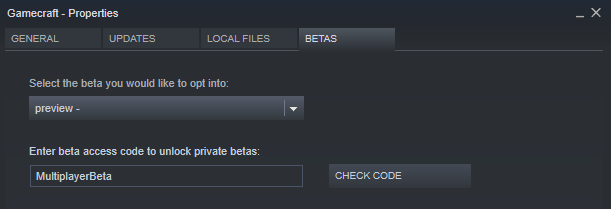
To access the Preview Build, follow these steps:
Open the Library tab on Steam
Right-Click on Gamecraft
Click on “Properties”
Click on the “Betas” tab
Enter the code “MultiplayerBeta” and click on the “Check Code” button
Click on the dropdown and select the “Preview” branch
Give this a minute to download
Make sure the game appears as “Gamecraft [preview]” in the Library
Click Play and get started
N.B:Preview versions of Gamecraft grab local save files from a slightly different location. If you want to use your existing save files in the Preview branch, you'll need to copy them from "C:\\Users\\[USERNAME]\\AppData\\LocalLow\\Freejam\\Gamecraft" to "...\\GamecraftPreview".
Hosting and Connecting to Servers
From there, things get a little less straightforward. We’ll split this section in two, one for hosts and the other for players that want to connect.
To Host If you want to be the host player:
Load up a save file from the “Create Games” screen, or create a fresh one
Press F3 to bring up the “Advanced Info” panel
Open the console with ‘/’
Enter the “ShowDebugDisplayExtraInfo true” command and hit Enter
Enter the “StartDefaultServer” command and hit Enter
Confirm that you are now “Running As Server” in the info panel
Once everything is set up there, you’ll need to grab your public SteamID. You’ll need to share this with other crafters in order for them to connect to you. The SteamID can be found in a couple of different ways so we’ll go over some of them.
The “official” route is:
Open your Steam client
Click “Steam” in the top left corner, then “Settings”
Open the “Interface tab
Tick the “Display Steam URL address bar when available” option, then click OK
Click on your profile name at the top (next to “Community”)
You should then see a 17 digit number in the URL just below
If you see your profile name instead of a number (like me), then you’ll need to try a different method
The quickest and simplest alternative is:
Open your prefered browser and go to https://steamidfinder.com/
Type your profile name in and click the “GetSteamID” button
Grab the 17 digit “SteamID64” number
Once you have this, send it out to the people you want to join you and they’ll be able to connect using the steps below.
To Connect
If you know someone who is willing to host a server and you just want to connect to them and play, you’ll need to ask them for their SteamID (covered in the above section). Once you have that, follow these steps:
Load up a save file from the “Create Games” screen, or create a fresh one
Open the console with ‘/’
Enter the “ConnectToCreativeServer” command with their SteamID as the value (e.g. ConnectToCreativeServer “12345678901234567”)
After a moment, you’ll spawn in to their save
Key notes
Make sure you’re in Stasis, rather than simulation when anyone is trying to connect, otherwise they’ll likely fail and cause issues.
While you’re playing together, only the host will be able to save, so make sure you regularly save anything you want to keep.
Only the host will be able to start/stop the simulation in this version. So make sure everyone is ready before you do this.
Known Issues/Outstanding Features
This list isn’t going to be extensive but we just wanted to reiterate and highlight some of the more obvious concerns and issues before everyone starts reporting them.
The host being the only one to control simulation is a temporary thing. We want to have either a “ready check” system for starting simulation, or individual simulations if possible, to avoid conflict. All players will need to ready up, then the simulation will start/stop.
When players join during a simulation, we want to put them in a “standby” state until everyone returns to Stasis again (with messaging to show someone is waiting)
Multiple players can currently interact with the same buttons/levers. In future we’ll restrict this to whoever grabbed it first
Console commands will only trigger for the host. We’ll be making as may of these available to all players as possible in the future.
Certain commands won’t sync for all players. For example, sky colour changes will only visible to the host for now.
Colour, text blocks and a few other things may not sync correctly for all players at the moment
Please do let us know of anything else that you come across, along with general feedback regarding multiplayer so that we can continue to improve on it and clean up as many issues as we can.
The Gamecraft Team
Gamecraft Holiday Competition: Prizes to be Won
Hey there Gamecrafters,
The holiday season is upon us, and we can sense the Thanksgiving turkey and potatoes have provided the Gamecraft community with new creative energy and so we’re going to start a new crafting competition in Gamecraft with three £25 Steam Digital Gift Card prizes to be won that will be in your Steam Wallet prior to the Winter sale on Steam should you win one.
This competition will run from today, 3rd December 2019 until 15th December 2019 23:59(UTC+0). The Judging will take place the next day. But before you rush to upload your entire games library, make sure they fit within the rules below, otherwise your entry won’t be valid.
Rules
It’s Holiday Season, so your game must have a strong holiday season theme
Your game must have an objective, and can be won and lost
Entries must have “Holiday” In the title - This is so we can easily search for them in the Play Games screen
You must publish your game to the ‘Play Games’ Screen for everyone to see
There must be a spawn point in the level for it to count as a game
Entries must be uploaded by 15th December 2019 23:59(UTC+0)
Judging
What will we judge the games on? Well there are a few factors we will take into account when judging a game:
Does your game follow the rules?
Was it fun?
Did it have a strong Holiday theme?
Can it be completed?
Pro-Tip: The Judge this time is Ric aka @FatDigester, and he’s Freejams’ Art Director so he likes to see you’ve put effort into the way things look, the environment, decoration, holiday themed colouring, etc.
Prizes
We have 3 Steam digital gift cards worth £25 GBP (~$30 USD) up for grabs. We’ll announce the winners once the judging process is done.
Prizes will be limited to 1 per user, and upon winning you will have to accept a Steam friend request from an official Freejam Source who will gift you the prize. It may take up to 3 days from accepting the friend request for the account to be able to receive the gift (this is a Steam restriction). If you fail to respond within 1 week of the friend request, your prize will be passed onto the next best winner. For multiple people working on 1 entry, the digital gift card can only be awarded to one person, so the person who uploads it to the workshop will be awarded the gift card.
We look forward to seeing all your submissions The Gamecraft Team
Gamecraft Blog 29/11/2019
Hello Gamecrafters!
We're continuing work on multiplayer, so we can release a preview build so crafters can get their hands on an early version and start building games together. We're fixing a couple of show stoppers but once we have fixed those, we'll aim to get that in a preview build asap.
We've also been pumping out a bunch of videos of Josh and Seb Playing through the community Submissions for the contest. https://www.youtube.com/watch?v=CuKfiFgRRY0 https://www.youtube.com/watch?v=ig3AWDopBy4 https://www.youtube.com/watch?v=9xqAQIO-b2U https://www.youtube.com/watch?v=zrO96-ZVwXc https://www.youtube.com/watch?v=HHThBj8OYYA https://www.youtube.com/watch?v=frpdUoQ7c6A https://www.youtube.com/watch?v=_DW46ySYPWk https://www.youtube.com/watch?v=Fs-Pua-ZiCI
Alongside that we've also given a shoutout to SteveMakerSpace For his coverage of the latest update, which you can see here: [previewyoutube="EWbd1WlbUos;full"]
And Mr.Rotor with the Help of JoYourBro made a create re-creation of the Classic Delorean with accurate colors too. https://twitter.com/rotor_mr/status/1199438655296851969?s=20
If you would like a Community Highlight, be sure to share your creations in-game by publishing them to workshop, or by sharing a picture or video with us to one of our social spaces.
That’s it for this week, unfortunately, there won't be a dev blog next week, but you can follow us on our social spaces to get Gamecraft Content: Twitter- https://twitter.com/Gamecraft_FJ Youtube - https://www.youtube.com/channel/UCkcRFCr9aQxszaYeXcWZjwA Facebook- https://www.facebook.com/GamecraftGame/ Reddit - https://www.reddit.com/r/GamecraftGame/ Discord - https://discord.gg/gamecraft
Thanks for reading! Gamecraft Team
Color, Havok and more Hotfix - Now Live
Hello Gamecrafters, We’ve just released a small hotfix for the latest update. Below is a list of the changes and fixes.
Bug Fixes
Fixed some issues with shadows disappearing too soon - We’ll be able to make further tweaks to this as we continue to optimise areas of Gamecraft
Fixed a bug with the page navigation buttons not appearing correctly in the Prefab Workshop
Fixed a bug with the Empty Hand in colour mode preventing interactions with Levers/Text blocks etc.
A few more issues have been raised and we’re keeping an eye on any feedback, so we’ll continue working on another potential hotfix.
The Gamecraft Team
Major Update - Colour, Havok, and much more - LIVE NOW!
Hello Gamecrafters,
Our latest major update is live and available to all Gamecraft owners NOW! The headlining features are the switch to the Havok physics engine, a new Colour painting system, and the Prefab Workshop, but we’ve got plenty more to talk about as well! We’ll get into the details in the full patch notes below.
Colouring and Hotbar Pages
Now you can bring your games to life with the new colouring tool, one of the more highly requested features! Crafters now have access to 100 colour variants to spruce up their worlds.
The hotbar is divided into two separate versions; The “Parts Hotbar”, which holds blocks, joints and all of the other parts that are available, and the “Colour Hotbar”, which holds all 100 colour variants in a fixed order. These two hotbars can be toggled by pressing ‘C’.
With the Colour Hotbar selected, you’ll have access to 10 pages of colours. These pages can be navigated by holding Ctrl and pressing 1-0 on your keyboard. The first page is the default colour palette with your vibrant shades of the common colours. Pages 2-9 are pastel-esque to darker variants and page 10 is an extra “desaturated” variant.
To get painting, just toggle the Colour Hotbar, select a page, select a colour and click away! You’ll even be able to paint multiple parts in a row by keeping the left mouse button held down.
Any parts that are selected from the Parts Hotbar or Inventory will be placed with a default colour. These defaults closely match the colours seen in experiment 10 and earlier, although some will be slightly different. You’ll be able to place these parts with their default colour, then paint over them as you please. If you want a part be placed in a particular colour then you’ll be able to “select” a part that’s already placed with the middle mouse button. This will select the part, size and colour.
With 100 colours being available and needing somewhere to store them all, it felt like the perfect opportunity to carry this page functionality over to the Parts Hotbar. You’ll also notice that there are now 10 pages in this hotbar too! That means you can have almost every item stored no more than two buttons away.
Just like before, you can drag and drop parts from the Inventory for quick access. As an added bonus, these hotbars will also be saved across multiple sessions and even machines (if you play on the same account)! We’ll cover the details on that a bit later.
The default page 1 has been shuffled around a bit as well, while the rest will start out empty. You’ll also notice the “Empty Hand” has also been moved from 0 to ‘H’. This is consistent across both hotbars and was necessary to make space for the colours.
Prefab Workshop
The Prefab Workshop is a place for crafters to share their non-game creations in a slightly more collaborative environment. The aim of this workshop is to provide a space for users to share builds that are not full games in themselves but that could be used to form parts of games. Say you’ve made an amazing vehicle or a beautiful environment and you want others to use it in a game, you can share it in the Prefab Workshop.
When publishing your save files, you’ll now have a few extra options. If you’re publishing a game, just select “Game” from the list and it will work exactly the same as before, putting that game in the Community Games section for others to play. Selecting one of the other options in the list will publish the save to the Prefab Workshop instead.
On the Prefab Workshop screen, you’ll be able to filter through various prefabs in the same way you can filter through games. There’s an added filter for category as well, in case you’re looking for something specific. The categories for this launch are:
Vehicle: As you’d expect, this option is recommended for any kind of car, bike, helicopter or walker you can think of
Environment: Environments can be breathtaking landscapes with lush forests, ready for other crafters to build their game in
Building: If you’ve built a nice little house for Leo, this is the place to share it
Prop: Props can be things like doors, postboxes, nice flower arrangements to larger bits of scenery
Gizmo: Gizmos can be cool contraptions like logic gates or even a steering system
Other: If you don’t feel like your Prefab fits in any of the above categories, let us know and we can consider adding some more over time.
The details page for Prefabs is a little different from Community Games. Instead of “Play”, you’ll be able to “View” the prefab. While viewing, you’ll still be able to edit, add or remove parts of the scene, as if it were one of your own games, but you won’t be able to save directly over it. If you like what you see, or you’ve made some tweaks that you’d like to save for later, you’ll be able to “Copy” the prefab to your own local saves!
Copying a prefab will add it to your list in the My Games screen, under the name of the original creator initially (if done via the details screen). If you build something with the prefab and save over it, you’ll become the “owner” and if decide to publish it, be sure to credit the original creator.
In the near future we plan to add a copy/paste feature when you can select things that are prefabs, copy them, then paste them into your games as many times as you like. This way we hope that the incredible Gamecraft community can collaborate to make great games if they wish.
Havok Physics
Gamecraft is one of the very first Unity games to publicly release with the world famous AAA Havok Physics engine incorporated in it. Up until now Unity developers have not been able to incorporate Havok into their games and a recent partnership between Unity and Havok has allowed those developers that have adopted Unity’s new DOTS technology to also use Havok. Havok is in beta form and Freejam has been an early adopter of the technology.
We’ve spent a lot of time trying to tweak and improve the physics of Gamecraft and Havok is the next big step. Havok Physics offers a lot of improvements, both in performance and stability, as well as a few fixes to issues that have been plaguing us for a while now.
Thanks to DOTS, the switch is practically seamless. So seamless in fact, that you can do it while running a simulation, but we’ll get to that shortly! There are some massive changes that come with this, but, from internal testing it looks like the majority of games that have already been published are performing better in Havok. There are definitely a few areas where Havok Physics slightly break existing saves or generally cause them to behave slightly differently due to Havok being more precise when it comes to collision detection and joint solving. For this reason we’ve implemented a sort of “legacy support” system to ease the transition and give crafters a chance to test their game out with the new physics before publishing them again.
Some of the main changes and fixes are:
Performance: Havok physics is faster than Unity Physics in most general cases that apply in Gamecraft.
Welding: Havok has a welding system that joins the seams of connected blocks. This allows for vehicles, sliding blocks and character to move more smoothly over connected block seams.
Joint Solving: This is improved in Havok. Joints are more rigid and stable when being ‘solved’ in physics simulations. This allows for better build reliability and less glitches.
Stacking: Stacked blocks are much more stable now and settle nicely without ‘jiggering’ apart.
Collider Penetration: When this occurs it is resolved more gently, so things do not ‘explode apart’ so much when objects penetrate each other.
Tyres: We’ve made use of some of Unity Physics and Havok Physics special low level features to treat the circumference of Tyres as perfect spheres. This allows for very smooth collision when they are spinning at speed which improves the contact with the ground and reduces bumping etc.
Legacy Support With the sheer number of changes, some existing games are not going to perform exactly the same. In most cases, they’ll be much better, but there are a few parts that relied on the quirkiness of Unity Physics. These games are simply never going to work the same way in Havok without some minor tweaks. With this in mind, any existing saves will remain on Unity Physics for now, with most of the old settings and values, while newly created game will default to Havok. We have supplied a way to convert old saves over to Havok also.
When you load up an existing save (local or published), you can press F3 to show the “extra info panel”. This panel will show you which physics engine the save is running. With the new console command, “switchToHavokPhysics”, you’ll be able to switch to Havok physics.
IMPORTANT: If you save your game after switching to Havok the game will permanently save in Havok mode and you will not be able to switch it back. If you switch to Havok using the command but do not save it, you can reload your save and it will still remain in Unity Physics mode.
Published games will work with whichever physics engine they are published in (according to the save file), so if you’re happy with the way it behaves in Havok physics you can re-publish your game to the portal for others to play with the new physics option.
New Materials and Parts
New Materials We have three new materials in this update:
Wood - A non-conductive, fairly lightweight material
Brick - A non-conductive, fairly heavy material
Concrete - A non-conductive, heavy material
Wood is available in all existing shapes and works wonderfully with our triplanar shader so you’ll be able to create seamless wooden objects
Brick and Concrete are currently only available in four basic shapes; Cube, Cube Sliced, Slope and Corner. These felt like the shapes required for “buildings” but we may add more over time.
Doors While crafters have been making absolutely outstanding doors with the parts available, we realised that it was quite restrictive, particularly when it comes to creating smaller, Leo-sized doors. These new parts offer a clean, compact alternative to building your own. They come in four variants; Solid and Glass, Unpowered and Powered.
Unpowered doors are spring loaded and will open when Leo walks into them, before swinging back closed. Powered doors can be opened only with a controller, so they must have a channel assigned and a power source.
Tubes Aluminium and Iron Corner Tubes have been added. These offer a nice transition between cylinders.
Updated Player Spawn Point The Player Spawn Point has received a bit of an overhaul. We’ll cover the “why” below, but this spawn point is now actually player-sized and doesn’t confine Leo in the same way the other box spawns do.
Auto-Simulation in Community Games
We’ve made some fairly large changes to the way players “play” games in this update. Previously, players would spawn into a white box, where they would then need to Press ‘E’ before being able to actually play that game. We felt that this was a little unintuitive and annoying, so we’ve made Community Games auto-start in simulation when there is a Player Spawn Point in use. Games that require building will still work the sam way, just make sure you include a small-large building spawn point instead of a player spawn point.
Any commands scheduled to run when simulation starts will still run as expected, so this has the added bonus of letting you set your ambient lighting, colour and time of day without having a jarring switch when a player presses ‘E’.
While the simulation is running, pressing ‘E’ will also now bring up a pause menu instead of automatically restarting the level. We’ve all accidentally hit ‘E’ and had to start over, I’m sure. This new pause menu will have Resume, Restart and Quit. Restart will do exactly that, sending you back to the spawn point and restarting the simulation.
Persistent Player Hotbar and Filters
We’ve been working on syncing some data to the Steam Cloud and the first stage of this is a couple of specific things. For this update, your hotbar (all 10 pages of it!) will be saved to the cloud. This means any parts you drag from the inventory will stay saved for the next time you run Gamecraft. You’ll also have access to this setup if you log in on another machine. The filters in the Play Games and Prefab Workshop screens will also be saved in the same way, so you can load the most recent games by default, rather than the tutorials every time.
We’ll be working on saving more data in future as well, from game saves to other player settings.
Other Changes
Ongoing optimisations We know things have been getting a little more sluggish over the last few experiments so we’ve spent a lot of time going back through old shaders, parts and code to make sure we’re reducing our overheads as much as possible. We’re hoping everyone sees some noticeable improvements across the board already but we’ve still got plenty of things to work through over the next few updates as well
Character size and movement changes Leo’s shrunk a little bit in this experiment! With the introduction of doors, we felt that now would be a good time to tweak Leo’s size a little bit. He should now be able to fit through a 2x5 gap with ease. This does make a few games slightly harder now as Leo will also fall through smaller gaps between platforms.
We’ve also made some tweaks to the way Leo moves. His acceleration and deceleration have been bumped up so that he slides around a lot less. The brief pause when Leo lands has also been reduced a little bit.
Capped cube scaling We’ve capped the maximum size of a stretched cube to 1080 units in each axis for the foreseeable future. Parts above this scale had multiple issues that were tough to solve cleanly and this cap still offers a lot of building flexibility.
Steam Now Required With the Workshop requiring players to be logged in to Steam and the added data saves, we’re now running checks on launch that ensure players are logged in to Steam and actually own Gamecraft. Previously, we’d only run these checks when you try to interact with Workshop content.
My Games order change We’ve made a slight tweak to this screen. Games are now displayed by date created in descending order rather than ascending. We felt this would make more sense, as you’d prefer easier access to the latest games you’ve been working on.
Bug Fixes
Fixed a couple more cases where the client could crash when exiting from the main menu
Fixed a bug that could prevent Triggers activating on low framerate
Fixed a bug when calculating the inertia tensor of joints - This should make builds with lots of joints perform a little better, but may affect some existing games
Fixed some bugs with cubes overlapping at larger scales, preventing placement or connections - Existing parts that were placed may not connect still but deleting and placing them again should resolve the issue
Fixed some collision issues where the colliders didn’t quite match the visual shape - This shouldn’t have a noticeable impact in most cases, but helped fix the issue of placement/connections
Pressing Enter to search in the Community Game search filter will now correctly use the input
Fixed a couple of bugs with save descriptions that could lead to errors when using Rich Text Tags. These have now been disabled in the My Games and Play Games screens
Publishing changes to a save that is marked “Hidden” or “Friends Only” will no longer set it to Public
Fixed a visual issue with the Cone Segment parts
Fixed some visual issues with Leos positioning in Pilot Seats and Control Consoles
Fixed some audio timing issues with Servos
These new features and changes open up so many more possibilities, we’re all looking forward to seeing the amazing creations you can make and share with the new Havok Physics now, as well as the beautiful worlds you can create with the new materials and colours. If you haven’t left a review yet, please do as it really helps us all grow the community.
The next step for Gamecraft is a preview of multiplayer! We’re hoping to get an extremely early version in your hands very, very soon. It will be very barebones and we’re expecting a lot of issues so the sooner we can get some feedback and hands on testing, the sooner we can work on stabilising it and getting it ready for a public release. We’ll share more information on this as we get closer.
The Gamecraft Team
Gamecraft Blog 22/11/2019
Hello Gamecrafters!
Unfortunately we had to delay our update this week, we're aiming to get that live early next week so you can enjoy it as soon as possible. We've also announced the winners of our 'Create a Game for Seb' competition. You can read about both these in more detail here: https://steamcommunity.com/gid/35037633/announcements/detail/1609403415804321464
We didn't do many Community highlights this week, but we will be pumping out daily videos of Josh and Seb playing through the competition entries to the competition. If you would like to watch, the first one was released today. [previewyoutube="CuKfiFgRRY0;full"] If you would like a Community Highlight, be sure to share your creations in-game by publishing them to workshop, or by sharing a picture or video with us to one of our social spaces.
That’s it for this week, we’ll give you another update next week! Be sure to follow us on our social spaces: Twitter- https://twitter.com/Gamecraft_FJ Youtube - https://www.youtube.com/channel/UCkcRFCr9aQxszaYeXcWZjwA Facebook- https://www.facebook.com/GamecraftGame/ Reddit - https://www.reddit.com/r/GamecraftGame/ Discord - https://discord.gg/gamecraft