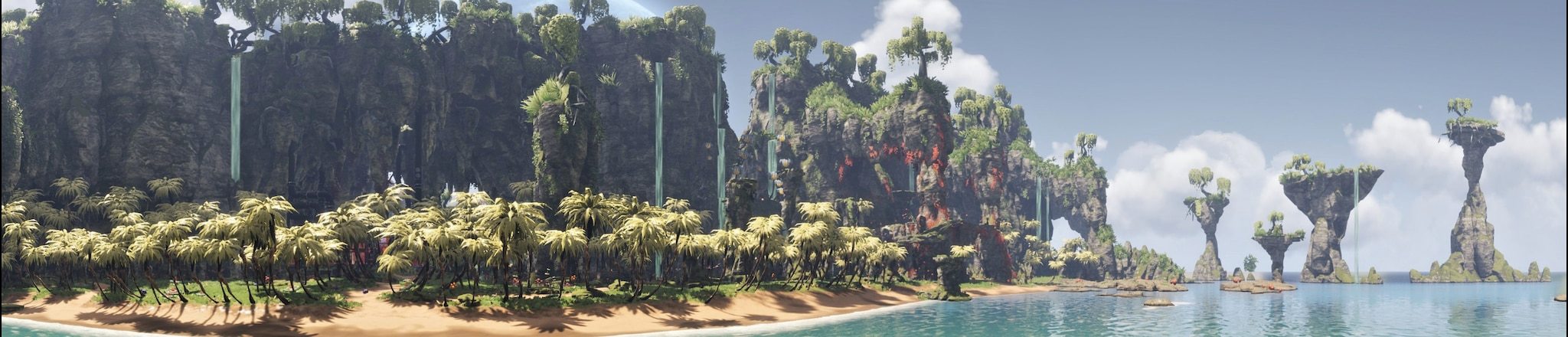
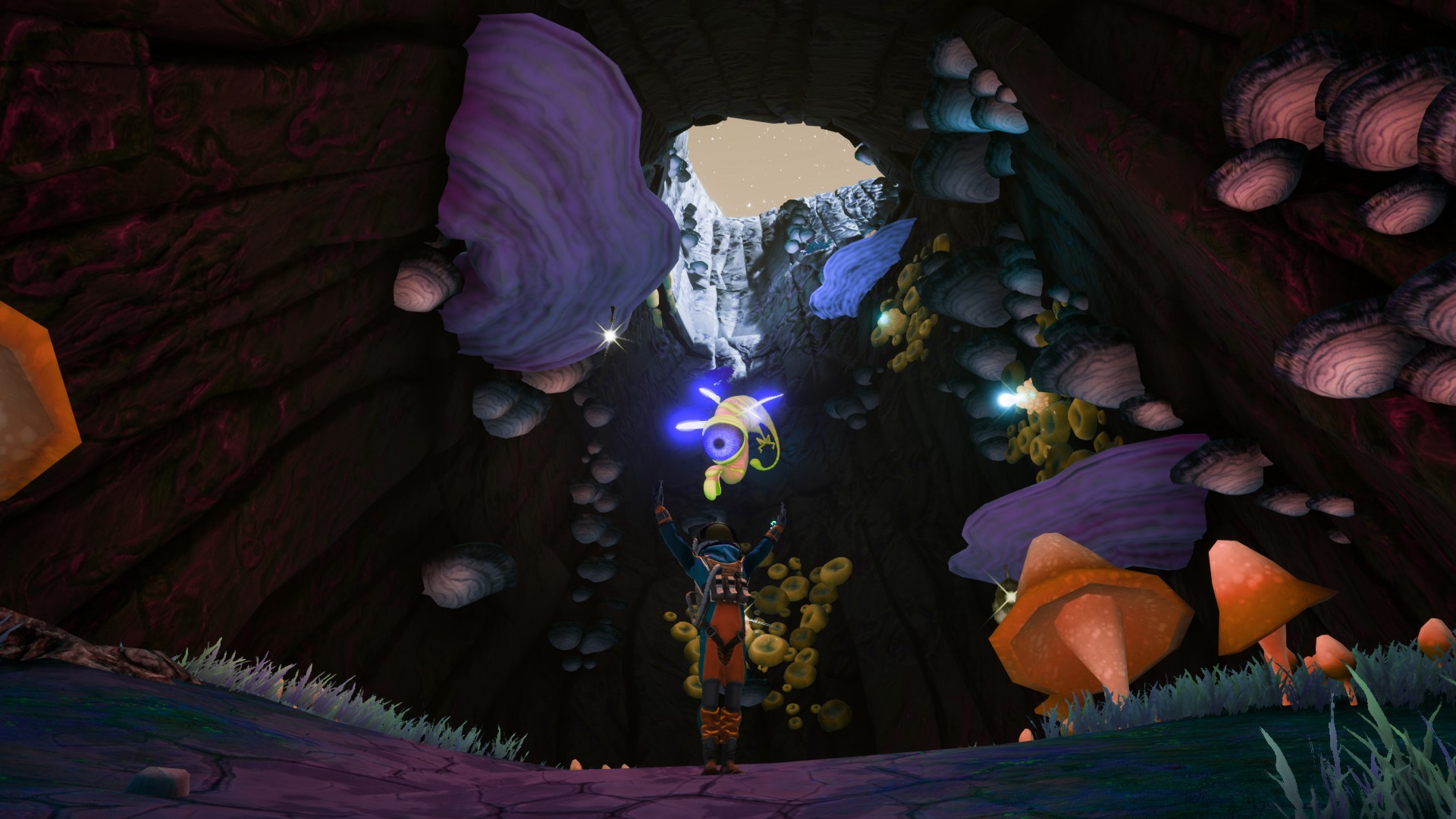
To share your screenshots to the community make sure to use F12 when taking your shot. This will add it to your Steam Screenshot Uploader.
To see your screenshots (or share to the community hub): In the upper left corner of steam click VIEW > SCREENSHOTS. From here you can upload, or click VIEW ON DISK to open the local folder.
To share your screenshots to the community make sure to use F12 when taking your shot. This will add it to your Steam Screenshot Uploader.
To see your screenshots (or share to the community hub): In the upper left corner of steam click VIEW > SCREENSHOTS. From here you can upload, or click VIEW ON DISK to open the local folder.
To share your screenshots to the community make sure to use F12 when taking your shot. This will add it to your Steam Screenshot Uploader.
To see your screenshots (or share to the community hub): In the upper left corner of steam click VIEW > SCREENSHOTS. From here you can upload, or click VIEW ON DISK to open the local folder.
To share your screenshots to the community make sure to use F12 when taking your shot. This will add it to your Steam Screenshot Uploader.
To see your screenshots (or share to the community hub): In the upper left corner of steam click VIEW > SCREENSHOTS. From here you can upload, or click VIEW ON DISK to open the local folder.
To share your screenshots to the community make sure to use F12 when taking your shot. This will add it to your Steam Screenshot Uploader.
To see your screenshots (or share to the community hub): In the upper left corner of steam click VIEW > SCREENSHOTS. From here you can upload, or click VIEW ON DISK to open the local folder.
To share your screenshots to the community make sure to use F12 when taking your shot. This will add it to your Steam Screenshot Uploader.
To see your screenshots (or share to the community hub): In the upper left corner of steam click VIEW > SCREENSHOTS. From here you can upload, or click VIEW ON DISK to open the local folder.
To share your screenshots to the community make sure to use F12 when taking your shot. This will add it to your Steam Screenshot Uploader.
To see your screenshots (or share to the community hub): In the upper left corner of steam click VIEW > SCREENSHOTS. From here you can upload, or click VIEW ON DISK to open the local folder.
To share your screenshots to the community make sure to use F12 when taking your shot. This will add it to your Steam Screenshot Uploader.
To see your screenshots (or share to the community hub): In the upper left corner of steam click VIEW > SCREENSHOTS. From here you can upload, or click VIEW ON DISK to open the local folder.
To share your screenshots to the community make sure to use F12 when taking your shot. This will add it to your Steam Screenshot Uploader.
To see your screenshots (or share to the community hub): In the upper left corner of steam click VIEW > SCREENSHOTS. From here you can upload, or click VIEW ON DISK to open the local folder.