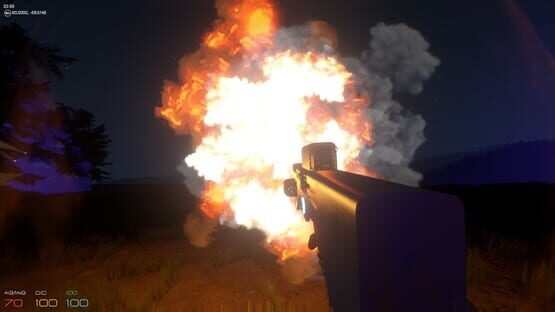
We've got a few bug fixes for you, but the highlight of this release is Stamps in the Simulation Station. In addition to selecting materials for your blocks, you can now stamp your blocks with a whole lot of different styles. You'll find the new Stamps section in the menu that comes up when you hit the Tab key in the Simulation Station. Enjoy! And as always, we look forward to seeing your feedback on the discussion forums!
Features
Stamps in Simulation Station
Added an option in video settings to toggle fullscreen/windowed mode
Bug Fixes
Fixed crashing when changing resolutions!
Fixed only showing a black screen on some Macs using external monitors (by allowing windowed mode)
v0.7.0.1 - Bug fixes
0.7.0.1 brings a few bug fixes:
Fixed Input settings not showing up.
Fixed crashing on 32-bit Windows versions of the game.
Fixed being unable to place Simulation station creations in the world.
v0.7.0.0 - New tutorial, plus tons of features
Welcome to Metaverse version 0.7.0.0!
We're so excited to release this to you. This is our biggest update ever. In addition to the new tutorial and start of story mode, we've added tons of new features and polish. Thanks for all your support and feedback along the way!
A note for users with existing game saves:
The updated Metaverse planet looks quite a bit different from the one you've got now. But we worked hard to make sure not to break your current planet or B.I.T.s. If you want to, you can remain on your current planet as is and keep building your base. The main difference for you will be that you will need to deploy your new Quantum Core when you load the game. But if you really want the full experience, we recommend starting fresh by clicking the New Simulation button in the main menu. This will erase your current game save and let you start fresh with the new tutorial and planet. If you have B.I.T. schematics in the Simulation Deck, you should publish them to Workshop before you erase your game save, so that you can download them again after you click New Simulation.
Also, be sure to check out the new free Construction Kit, which has support for VR. You can find out more about it here: http://store.steampowered.com/app/422630
And without further ado, here's what's new:
Brand new tutorial and start of story mode.
New GFR-AR7 Assault Rifle.
New gear select menu.
Updated all B.I.T. materials.
Added new Structural B.I.T. models.
The LAIR has been removed from the game, in favor of a new Quantum Core.
Added compass and lat/lon to the HUD.
Added ability to melee.
Added Take All button to backpack.
Added oxygen and stamina.
Health, stamina, oxygen, and energy automatically fill up when in range of a Bio Generator or the Quantum Core.
Max player energy is now 3x what it was before.
Added Situation station basics. More to come soon.
Added Bio Generator to Technical B.I.T. category. Build these to re-generate barren terrain and to replenish your vitals.
Weapons now use ammunition instead of energy.
Added Lethal and Non-Lethal ammunition to Essential B.I.T. category.
New music for tutorial.
Added ability to double-click to install gear.
Added ability to hold Shift to queue up 10 item at a time in the Fabricator.
New block place and take holograms.
Much improved UI for the Simulation station.
Added ability to paint B.I.T.s in the Simulation station.
New sounds for pick and place in the Simulation station.
Added ability to move up and down in the Simulation station.
Massive improvement in B.I.T. place/edit performance when dealing with lots of B.I.T.s.
New ship in intro video.
Quantum Beacons now teleport you to the last used Quantum Beacon.
Multiplayer UI is now in the main menu.
Added UI sounds.
Updated description text for all periodic table elements.
Less lag when loading saved B.I.T. schematics.
Fixed periodic table row labeled 51-71 instead of 57-71. Also fixed a couple of periodic table elements being wrong.
Fixed Omni UI slow to load.
Fixed the loud bleep noise at the start of the game.
Fixed being able to fabricate B.I.T.s without selecting a pattern.
Fixed clicking the Fabricate button really fast could sometimes get you more B.I.T.s than you had resources for.
Fixed B.I.T. placement being jittery sometimes.
Disable auto-adjacent B.I.T. placement when switching B.I.T. types. Same when using Undo.
Fixed terrain flickering black under certain lighting conditions.
Fixed terrain looking white in the distance at night.
Fixed B.I.T. Boxes not containing the full amounts of some items when you drop them when you die.
Fixed a bug where gear could become broken if removed from a gear slot.
Tutorial progress
We wanted to post a quick update here to say that there's no new build this week. That's because we're busy working on the overhaul of the tutorial, which we know many of you are anxious for.
Thanks for the support you've shown. We're excited to get the new tutorial out to you!
v0.3.5.6 - Fix for simulation deck undo
0.3.5.5 had a bug that could cause B.I.T.S. to become duplicated many times when using the new undo feature. The problem is fixed now in 0.3.5.6. Sorry about that!
One other thing: if undo isn't working for you, go to the input configuration screen and click the button at the bottom to reset to default. That'll force the new Undo key mapping to load.
And as a recap, here's what was new in 0.3.5.5:
This week we've got something (hopefully) very useful: undo in the simulation deck. Just hit ctrl+z. You've got 100 levels of undo now, so no more worrying about messing up your patterns!
Here are a few other things we changed:
Simulation tab is now the default screen shown when pulling up the Omni UI on the simulation deck.
Fixed a bug where publishing to Workshop sometimes didn't publish the latest changes.
When loading a pattern, fixed the pattern's position sometimes being shifted to somewhere else (sometimes too far off in the distance to even see it). There was no way to automatically fix patterns that had gotten shifted like this. So if you want your old patterns to be positioned where you can see them when you load them, the easiest thing to do is to load your pattern, then press the button to clear it (you'll still be able to place it), then place the pattern, then save it out. You may especially want to do this and then re-publish your items if you've published anything to Workshop, so that users who download your pattern will see it right away when they load it.
v0.3.5.5 - Undo in simulation deck
This week we've got something (hopefully) very useful: undo in the simulation deck. Just hit ctrl+z. You've got 100 levels of undo now, so no more worrying about messing up your patterns!
Here are a few other things we changed:
Simulation tab is now the default screen shown when pulling up the Omni UI on the simulation deck.
Fixed a bug where publishing to Workshop sometimes didn't publish the latest changes.
When loading a pattern, fixed the pattern's position sometimes being shifted to somewhere else (sometimes too far off in the distance to even see it). There was no way to automatically fix patterns that had gotten shifted like this. So if you want your old patterns to be positioned where you can see them when you load them, the easiest thing to do is to load your pattern, then press the button to clear it (you'll still be able to place it), then place the pattern, then save it out. You may especially want to do this and then re-publish your items if you've published anything to Workshop, so that users who download your pattern will see it right away when they load it.
v0.3.5.3 - Workshop support for simulation deck
We've got Workshop support for you in the simulation deck now.
If you've already used the simulation deck, it should be pretty straightforward. Here a few tips:
You'll notice there's a new "Browse Workshop" button on the Simulation screen in the Omni UI (tab menu) on the simulation deck. While browsing, if you see something you like, just click the Subscribe button and it'll be downloaded into the game. The same applies even if you're just browsing in a web browser outside of the game: anything you subscribe to will be downloaded for you in the game.
When you've created something you would like to share, click the new Publish Current Pattern button. You'll get a progress bar, and then it'll open up the Workshop page for your new item so you can edit its attributes if you want.
One other thing that's fixed here is a potential crash while in the simulation deck. Special thanks to dasrobse for reporting the bug!
There is one known issue with the simulation deck in the current build: if you exit the game while on the simulation deck, the next time you come back, the Omni UI might be sideways. If this happens to you, open the Omni UI, then move backwards a little bit so you can see more of it. Maneuver your cursor so that you can click the Simulation screen button (up/down will move it left/right, and vice versa). Once on the Simulation screen, click the Exit Simulation button, which will take you to the main level. Exit the game, then open it back up and you'll be good to go. Alternatively, you could hold Left Alt + Right Shift, and type IVEFALLENANDICANTGETUP. If done correctly, it will appear to freeze the game. Just hit the Esc key to get to the main menu and exit the game. Re-launch the game and you'll be good to go.
v0.3.5.2 - Simulation deck
The main highlight this week is the new simulation deck, accessible via the LAIR elevator.
Here's how to use the new simulation deck:
Head to the elevator and press the option to go to the Simulation Level. Once there, the simulation deck will automatically activate and you'll see a big empty space you can build in.
Hit Tab to bring up the Omni UI and select the new button at the top called Simulation. It looks very similar to the Fabrication screen, but on this screen, you can choose any schematic and pattern you want and build without having to have the required resources and without any wait time. Click the Simulate button to start building with the block you selected.
When you've built something you like, you can click the Save Current Pattern button on the Simulation screen in the Omni UI. After you save it, you can find it by clicking on the Technical tab, then click the mass storage device, which is the one in the shape of a cube. You'll see your saved pattern on the right side of the screen. If you select it, you can click the Simulate button just as you would with a regular block. In this way you can make your own custom patterns to be used multiple times in your fabrications.
After you're done in the simulation deck, hit the Exit Simulation button at the bottom of the Simulation screen in the Omni UI.
Now that you've saved a pattern, you can fabricate it just like you would any other block for placement out in the world. When you've got enough resources for everything in your pattern, just head to the Fabrication screen in the Omni UI and click on the Technical tab. Select the mass storage device, then select your pattern, and click the Fabricate button.
We really hope you enjoy this! Workshop support is coming up right behind this update, so go ahead and get building so you'll be ready to share your creations. We're excited to see what you come up with!
As always, if you have any questions, need clarification, or just want to chat, we hang out on the forums. Looking forward to hearing from you all.
Here's the full list of what's new this week:
Simulation deck!
Tweaked arch block.
Increased Omni UI transition speed.
Removed giant slab and giant arch panel, since they can be created in the simulation deck now.
Tweaked some materials and graphics.
Fixed drones being able to see you through walls.
Fixed shooting terrain could sometimes cause an error that would stop the terrain from updating properly after that.
Performance improvements for the "Normal" and "High" graphics quality settings. More improvements still to come, of course. If performance hasn't been great for you, we're very interested to hear how it is now.
IMPORTANT: If you were already on "Normal" or "High," you'll need to toggle to another graphics quality setting and then back in order for the new performance improvements to take effect.
Trees and rocks can now be damaged (and exploded) by bullets.
Rocks can now be harvested.
Fixed trees and rocks and grass shifting around after harvesting terrain.
Clicking New Simulation in the main menu no longer drops you to the desktop.
Fixed intro video not fullscreen for first-time players.
Fixed quantum distortion harvesting effect stops working after a while.
Fixed randomly being shifted into the planet or underwater from time to time.
Fixed a potential error when changing graphics quality settings that was preventing the settings from being applied.
v0.3.0.9 - Easier BIT placement, performance improvements, and more
Here's what's new this week:
BIT placement is much easier now. Previously it felt like positioning BITs was a matter of obeying the placement system's constraints. Now it should feel much more like you're in total control. Still some work to be done, but this update is a big improvement.
After placing a BIT, placement for the next BIT defaults to a position adjacent to the one you just placed. So for example, now you can build a tower up high without necessarily having to get up high yourself. If you want to place the next BIT anywhere besides adjacent to the last BIT, just move the placement cursor away from the last BIT and it'll switch back to letting you place it anywhere. This is a little difficult to describe here in text, but it should make sense in game.
LAIR elevator no longer automatically goes to the main level!
Massively improved performance if you have lots and lots of BITs on screen (e.g. a castle or village).
New quantum distortion effect when harvesting terrain and BITs.
Bullets now destroy terrain (look out -- a temporary dirt structure won't hold up long against drones).
"Newly discovered element" modal now only covers the periodic table of the elements.
Fixed a potential error when destroying BITs.
Fixed explosions and camera shake not working in the intro.