
Here are the new tools, improvements, and new features that will be implemented in the forthcoming version of Neotrie VR. We have also included some tricks and instructions for teachers to prepare activities and lessons plans to be opened quickly in the classroom.
We warn that the multiplayer mode will not be active temporarily, due to recent updates in the Unity platform, but we could not wait to offer the advantages that this new version brings.
Recall that you can see the current user guide at:
https://steamcommunity.com/sharedfiles/filedetails/?id=1587953976
New loading menu
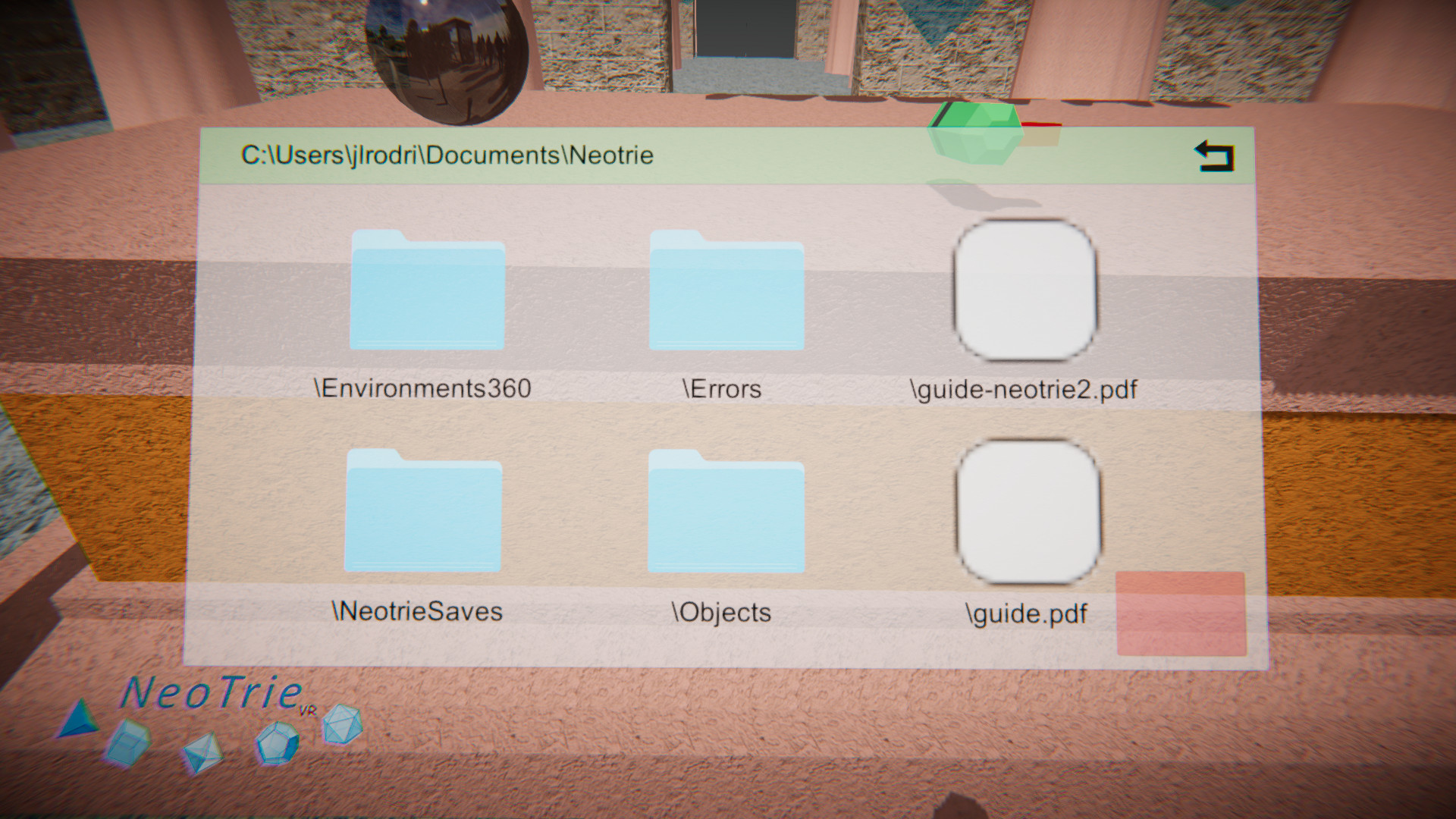
Figures, pictures, objects, sounds, etc. can be loaded directly in the scene with a new windows menu (available formats .neot, .stl, .obj, .jpg, waw, .config, see more details below).
New importing Obj files
OBJ and STL are the most extended formats for 3D objects. Almost all known softwares have this format implemented. In this version, you will be able to import OBJ/STL files from the load and save menu, as well as from the new windows menu. Once in the scene, we can take them with your hands paint and rescale all its parts and save them in your Neot file, for improving your lessons and activities.

New importing pictures
One can insert pictures (JPG format) on the scene from the new windows menu. These pictures can be taken, and enlarged as other objects.

New changing 360º backgrounds
Are you ready to have your geometric constructions in any place of the world? One can change the background of the scene with any desired 360 picture (JPG format). Open it from your folder “environments 360” and move it inside the ball of 360º picture. Now take the ball and approach it to your head. See this video: https://youtu.be/YFDVUSCISQc


One can use the copy tool to have several 360 balls, with distinct environments.
[previewyoutube="_F_yjXV8M34;full"]
Can use Street View download 360 to download pictures from Google Earth, for instance.
Music
Combine geometry and music, by touching the music balls with your hands (or free drawing, objects, balls of the shuttle, etc.). Make any object sound with any chosen waw file. Use the authomatic sliders to move vertices, edges or faces that can touch musical objects to get melodies and rhythms.

[previewyoutube="fcu_LocnCio;full"]
New multiview projections
Multiview planes are now available with applications to engineering drawing.


New bisector tool
Touch three vertices A, B, C to get a point P that bisects the edges AB and AC. This can be useful for instance to find the incenter and the incircle of a triangle. In the next version, it will work touching two edges.
[previewyoutube="nFKxBPLPFKc;full"]https://youtu.be/nFKxBPLPFKc[/previewyoutube]
New selector tool
This new tool can hide a list of vertices and edges (touch menu button when taking the tool).
[previewyoutube="KW8o0Wciet8;full"]https://youtu.be/KW8o0Wciet8 [/previewyoutube]
It can be also used to rotate a selection of vertices, for instance to make a cube from a net.
[previewyoutube="o4ijwG-nP8E;full"]
of of a dodecahedron
[previewyoutube="1vv2tPNZJA8;full"]
New loci pencil
This is the black pencil on the table. This draws the trace of a vertex when it moves. Ready to make plenty of curves?

New slider tool
This new tool allows to automatically move a point passing through a set of vertices.
[previewyoutube="rp87XTLOizE;full"]
This can be used to make plenty of known curves, like for example the conics. We will incluse soon a video here.
New boxes
New boxes are now available with top lids, both are editable, scalable, coloreable. Ask your pupils classify polhyedra or set of figures by types, transport them on the scene.

New shuttle
Shuttles are entering the game with interesting didactical applications. Both the shuttles and the balls are scalable and paintable. They interact with objects. The larger the gun, the larger the balls.


New video-camera
Video-camera has been implemented with a button to start and stop recording inside the scene.

Videos are saved in the local folder
Documents>Neotrie>Videos
Protractor tool improved
The protractor tool gives the dihedral angle between two faces. While maintained the trigger button pressed, touch over one plane and then over another.

Magnet tool improved
This tool allows users to join tiles by two of their edges. It also joins two 3D figures by two of their faces, or also two pair of edges, as shows the video:
Copy tool improved
The copy tool can now copy STL, OBJ objects, free drawings and pictures, and also the tools you see over the table! Use the copy tool to copy the 5 platonic solids of our logo, enlarge, and colour them.

[previewyoutube="TIZEEhI_fdw;full"]
Load your set of tools everywhere you like
Open the hand manu, and pass your hand over picture with a little compass, to hide all the tools. Touch it again to open the tools at your current place in the scene.


Saving system improved
Neot files keep information of all the elements available in a scene of Neotrie VR: vertices, edges, faces (and their colors), STL, OBJ, JPG, waw, etc.
It also keeps the last position of the player when saving the file.
You can edit this files with any text edit, and update old files to this new version as follows. Now, these have the property of being universal, valid for all users. For example, the following lines shows how a figure of type STL is saved in the neot file: position, rotation, scaling, route of the file, and colour of the figure.
Figure(;Objeto;(1.9007, -56.1768, 4.1312);(0.0, 0.0, 0.0, 1.0);(1.0000, 1.0000, 1.0000);[documents]\\Neotrie\\Objects\\Plane.stl;RGBA(0.000, 0.000, 1.000, 1.000);0;)
Therefore, you must change the route of any STL file from an old neot file, for example,
C:\\users\\documents\\Neotrie\\Objects\\Plane.stl
by
[documents]\\Neotrie\\Objects\\Plane.stl
New autosave option
In the windows menu, look at the folder 000_Autosaves to access to automatic copies of your scene, every 5 minutes.
Faster loading from keyboard
This option is useful for lessons, to repeat the same activity with different students. To facilitate this, a faster loading of .neot files has been implemented by using the keys F+0, F+1, …., F+9, L to load file0.neot, file1.neot, file2.neot,... respectively from your NeotrieSaves folder. These names of files can be changed in a config file, as shown below.New config files
Choose the tools that you want to see on the scene, indicating TRUE or FALSE in the file.config. You must have this file in the folder
Documents>Neotrie>Config
This can be edited as a text file. Take care to save it as file.config (and not as file.config.txt). This file can be loaded from the new loading menu. You can have as many config files as you like, naming differently, and maintaining the extension .config. , Pressing the key C to load the default file.config.
One can automatically upload a config file executing a neot scene, including the following line in the neot file:
ConfigFileRoute = [documents]\\Neotrie\\Config\\file.config
You can have different config files for every activity o set of activities.
For instance one can rename the files to load automatically with the keyboard by fixing the route of the name in the config file:
FILE0= namefile0
FILE1= namefile1
FILE2= namefile2
...
FILE9= namefile9
Further changes
- Size of vertices can be changed in the main menu, as well as relative local scale.
- Edges size can be change in the main menu, and they can also be drawn by touching a vertice and maintaining pressed until the second vertice.
- Faces can be drawn by the mode “triangle” and touching the vertices, maintaining pressed.
Credits:
- Edited and produced by José L. Rodríguez (University of Almería)
- Software developed by Diego Cangas (Virtual Dor)
Any reproduction of text, images and videos without prior permission of the authors is prohibited.