The beta for version 1.7 has finished and it is now the default game version. Most of the following notes are the same as for the original beta, but it includes some changes which happened after it, and some clarifications.
Custom train editor
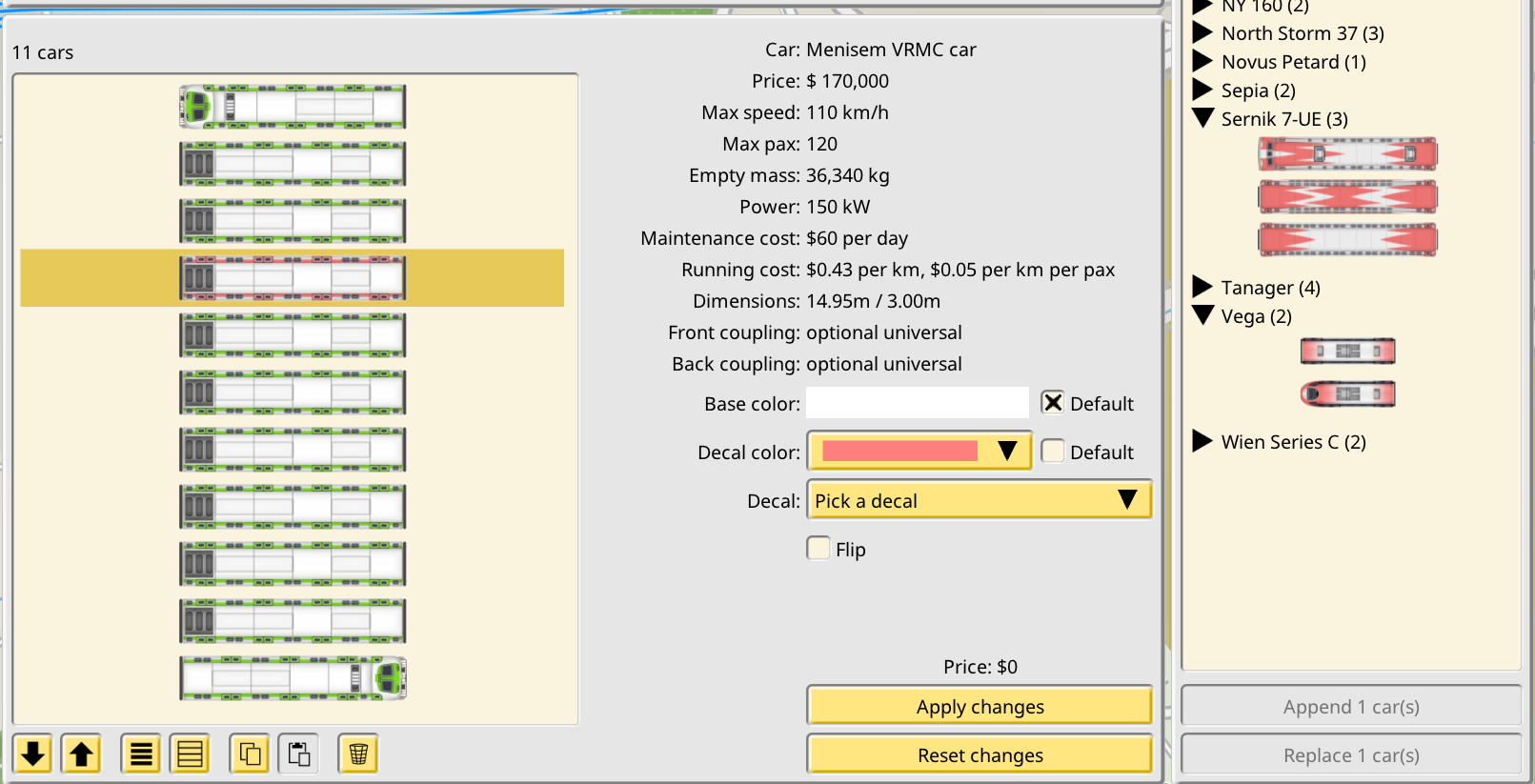
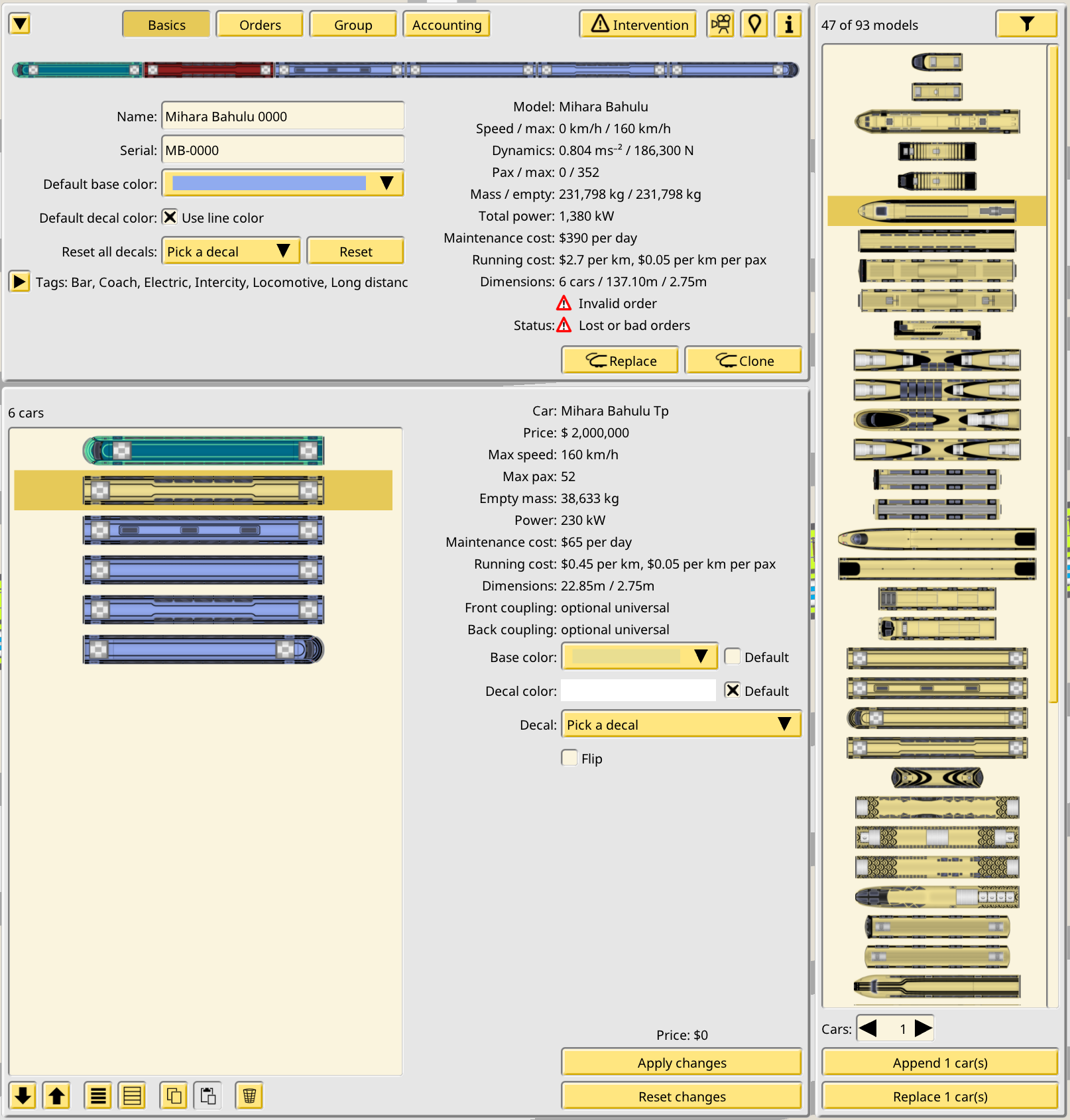
The basic view of the train editor now gains a new panel to inspect each individual car of a train. The usual options seen in other UI editors of the game are present here: multiple selection, clipboard copy/paste (including between trains), reordering of selected cars, etc.
In the right side a new panel appears, the “car shop”, although using it does not spend any money. Here all the car models in the game are shown in a listing. Once you select a car model it is possible to append it to the currently edited train, or to replace the current selection of cars with the new car.
The editor allows the player to make any change they desire, but none of these changes are actually applied to the train. In order to do so the player must explicitly apply the changes with a dedicated option, which makes them pay for the price of the changes (or get refunded if the new composition is cheaper than the original one.) If the new composition is invalid, the option to apply the changes is disabled. The new train purchase mode of this system is very similar, with the usual train bill acting as the apply option.
Car coupling
As part of the new freeform trains, individual train car models can declare which coupling system they support on each side. The train editor restricts which train compositions can be created so these settings are preserved. After beta feedback this system has been made optional with a toggle in the Company panel.
Game sharing
Saved games can now be shared on a world map. You just load your save as usual, center the map on the point and zoom for your pin and preview image, and use the new My shared games dialog to upload your game.
To see other players shared games select the new browser option in the main menu. You can zoom and pan like you would do in-game. Clicking any map icon will directly load the game, and then gives you the option to like it.
Shared games can also be accessed with a web browser in https://share.nimbyrails.com/ if you don't want to load the game, or to show your save to people who don't own the game. This web site collects all the shared saves by players, and offers two main features: a dedicated page for the save, with a preview of the tracks and buildings, and the download link for the save (1.7 can load saved games directly from the Downloads folder of your PC). And the site home page, which shows a world map with a icon for every shared game, similar to the in-game world browser.
Multiplayer also benefits from this feature: the initial save download required for all joining players is now performed via a hidden, temporary shared game. This new method is many times faster than the old one for large saves.
Fixed departure times
1.7 addresses some line timing issues. The most visible change is the fact line departure times now take into account the time it took the train to brake into the station. In 1.6 and earlier departure was just the stop time after the time the train entered the station (actually the moment it crosses the middle of the platform). This is a first step in making line time concepts better match their real world definitions, which will continue in 1.8. Hover the mouse cursor over line times for a detailed breakdown of what every number means and how they add up.
Thanks to this change departure timing is now more robust, so fixed departure times (at the line level) are now possible. This new feature allows the player to input a fixed departure time for one or more line stops, eliminating the guessing and maths required to achieve them with leg and stop timing. Fixed departure times are always relative 0:00:00 in the line timing, so if you want to use this feature for rounded-looking train run times, or for clockface scheduling, make sure your orders are set to a line event which itself is also a nice round number also participating in the scheme (like the first arrival at stop 1, which is always 0:00:00, or to a fixed departure stop, for example).
Mod cleanup
As mods are updated or abandoned, saved games can accumulate broken train modes which are not maintained or used anymore. It is now possible to cleanup abandoned mods which no longer have a valid Steamworks presence, and to cleanup individual objects like train models which became "orphan" after mod changes.
Version 1.7 is now in the beta branch
Version 1.7 is now ready for testing in the beta branch! 1.7 implements a custom train editor, enabling players to compose their own train sets from individual cars. Also a new game sharing feature has been implemented, which will further mature while the game is in beta.
Custom train editor
The basic view of the train editor now gains a new panel to inspect each individual car of a train. The usual options seen in other UI editors of the game are present here: multiple selection, clipboard copy/paste (including between trains), reordering of selected cars, etc.
In the right side a new panel appears, the “car shop”, although using it does not spend any money. Here all the car models in the game are shown in a listing. Once you select a car model it is possible to append it to the currently edited train, or to replace the current selection of cars with the new car.
The editor allows the player to make any change they desire, but none of these changes are actually applied to the train. In order to do so the player must explicitly apply the changes with a dedicated option, which makes them pay for the price of the changes (or get refunded if the new composition is cheaper than the original one.) If the new composition is invalid, the option to apply the changes is disabled. The new train purchase mode of this system is very similar, with the usual train bill acting as the apply option.
[h1Game sharing
The game sharing system is built around a new web site hosted in share.nimbyrails.com. This web site collects all the shared saves by players, and offers two main features: a dedicated page for the save, with a preview of the tracks and buildings, and the download link for the save (1.7 can load saved games directly from the Downloads folder of your PC). And the site home page, which shows a world map with a icon for every shared game.
This system is a bit bare bones at the moment. The main missing feature is in-game browsing of shared saves. This will come later in the 1.7 beta, and with more features than the current web site.
---
Check out the January and the new February devblogs for more details:
Late December and the first half of January were devoted to friends and family, but 1.7 has now started development and its first feature is ready to be made public: save sharing. I decided to implement a custom system, with my own hosting, and generate a preview web map of the save, so players will be able to share the save link with anybody, even if they don't have the game, and give them a preview of their save. See the January blog post for some player contributed examples:
Version 1.6 has finished its beta development and it is now the default game version. 1.6 focus was on multiplayer optimization and fixes, and the new multiplayer mode, private simulation, is capable of hosting much larger games than the default shared mode. Additionally track curve weights and track splitting was introduced, which enabled a new set of track editor tools. Here is a list of the major new features in 1.6:
Multiplayer optimizations
A big focus of the 1.6 private development has been to optimize multiplayer for better scalability. Not all goals have been achieved in 1.6, but it should still be more capable than older versions of playing larger saves in MP.
New multiplayer mode: private simulation
In this (optional) new mode every player runs a private simulation of the game, so time, train motions and pax is private to its local game session. All manual editing actions, like creating tracks, buying trains or editing lines are still shared between all clients. This new mode allows for changing the game speed and should scale to larger map builds since connection bandwidth is only used for editor synchronization.
New multiplayer connection mode: direct connection
By default the game uses the Steam Relay Network, a Valve provided CDN optimized for low latency gaming but with bandwidth caps. Hosters can now disable the Relay Network and instead directly host the game session from an UDP port in their PC. This allows the game to use a much larger fraction of your internet connection, allowing to host much bigger maps.
Track curve weight
It is now possible to manually select the halfway point between two tracks, allowing to alter the curvature of tracks without moving their control points. This feature in turns makes split and tape tools possible.
Track split and tape tools
The track editor gains five new tools: split track, track tape, promote tracks into platforms (demoting platforms into tracks is also available in the track properties panel), building tape and parallel track tape. These tools have a different interaction mode compared to older tools, always working on top of existing tracks.
Track editor "hold" mode for keybindings
This game option changes the way the track editor tool keybindings work. In this mode the track editor is always in selection mode. When pressing a tool keybind the editor switches to the corresponding tool, but only while the key is pressed. On releasing the key the selection mode is enabled again. Experienced players might find this mode a more efficient way to interact with the track editor.
Track editor optimizations
Manipulating track selections involving parallel tracks and/or multiple stations should be noticeably faster in v1.6.
Path trace options in train window
Two new options (accessed from two new buttons in the train window) make it possible to visualize the projected path of a train to its current destination, or to any point in any track.
Bulk edit options for trains
In the train editor it is now possible to select multiple trains by shift-clicking in the train listing. When more than one train is selected the editor shows a panel with options for bulk changing the train order mode, issuing interventions or selling the selected trains.
Check out the 1.6 devblogs for more in depth information: https://carloscarrasco.com/nimby-rails-october-2022/ https://carloscarrasco.com/nimby-rails-november-2022/ https://carloscarrasco.com/nimby-rails-december-2022/
Devblog for December 2022
Public beta development of 1.6 is wrapping up soon so it was time to look back at the new features and changes implemented in December: improvements to track validation, speedup to station rebuild and bulk train editing. December also saw the continuation of the technical work on improving multiplayer, with two new options for game hosters: private sim and direct connections. 1.6 has been a smaller release to compensate for the huge effort of 1.5, but this also means that 1.7 will start development sooner than later, and in this devblog I am announcing its two headline features: save sharing and freeform train compositions.
Version 1.6 is now in beta | Launching the official wiki
Version 1.6 beta
Version 1.6 is ready to begin public beta testing, and it is available to download in the beta branch. Unlike past major versions, 1.6 is a smaller release with shorter development time. Here are the main new features and changes:
Multiplayer optimizations
A big focus of the 1.6 private development has been to optimize multiplayer for better scalability. Not all goals have been achieved in 1.6, but it should still be more capable than older versions of playing larger saves in MP.
Track curve weight
It is now possible to manually select the halfway point between two tracks, allowing to alter the curvature of tracks without moving their control points. This feature in turns makes split and tape tools possible.
Track split and tape tools
The track editor gains five new tools: split track, track tape, promote tracks into platforms (demoting platforms into tracks is also available in the track properties panel), building tape and parallel track tape. These tools have a different interaction mode compared to older tools, always working on top of existing tracks.
Track editor "hold" mode for keybindings
This game option changes the way the track editor tool keybindings work. In this mode the track editor is always in selection mode. When pressing a tool keybind the editor switches to the corresponding tool, but only while the key is pressed. On releasing the key the selection mode is enabled again. Experienced players might find this mode a more efficient way to interact with the track editor.
Track editor optimizations
Manipulating track selections involving parallel tracks and/or multiple stations should be noticeably faster in v1.6.
Path trace options in train window
Two new options (accessed from two new buttons in the train window) make it possible to visualize the projected path of a train to its current destination, or to any point in any track.
Check out the October and November devblogs for more in depth information: https://carloscarrasco.com/nimby-rails-october-2022/ https://carloscarrasco.com/nimby-rails-november-2022/
(NOTE: the "platform tape" and "station tape" tools have been discarded, replaced with the 1.6 "platform promotion" tool. You can get the exact same results as the "platform tape" tool combining the "track tape" and "platform promotion" tools. The original station tool remains in the game).
Official NIMBY Rails Wiki
I'm now hosting a MediaWiki for the NIMBY Rails player community:
https://wiki.nimbyrails.com/
It's only a few days old and it has been mostly private until now, so it's very empty, but it will grow with time.
Devblog for November 2022
With 1.5 having been wrapped up in October, November was fully devoted to private development of v1.6. This version has the single goal of analyzing the current state of multiplayer, and trying to fix it up as much as possible. I did not succeed in applying the full set of fixes I wanted, but nonetheless it should be improved and after the betas give it a pass of bug fixing, it should be the best MP experience so far.
Additionally the tape tools started in October got more polished and two new ones were added. Tape tools will be the only user visible change in 1.6 when it releases, which I hope will be "soon" :). 1.6 will thus be a smaller release compared to the huge 1.5 changes, for a more manageable beta series later on.
Version 1.5.41
The second beta series for version 1.5 is now finished, and it is now the default game version. It includes a lot of fixes and some new features:
- Custom leg timing: set the exact time a train should take between two line stations. - Better late train estimation: late trains are now capable of detecting they are late much sooner in their trip, accelerating earlier to make up for it. - Conflict visualization in the platform table: highlights when two or more line stops happen at the same time in the same platform. - Line services: create a new version of an existing line with private timings, which remains synchronized to the original line.
For more details on these new features check the October devblog:
October is ending so it's time for a new devblog. Most of October was devoted to the second beta series of 1.5. Important new features and UX was added to the 1.5 beta branch: custom leg timings, late train estimation, stop conflict visualization and most importantly, line services. With line services it is now possible to create multiple synchronized versions of the same line, with optionally disabled stops, but with custom timing in all line and stop aspects. 1.5 is ending very soon and this second beta will be made the default game version in the coming days.
1.6 has started private development. While there is only one major theme confirmed for 1.6 (a multiplayer review to try to make it possible to play larger builds in MP), I wanted to start 1.6 with some smaller items which were too risky for the already mature 1.5 betas. 1.6 now features track curve weights, track split and track tape tools. Read the post to see how these tools will make some track building tasks easier in 1.6:
After one month of beta development 1.5 has been made the default game version. It contains many UI and UX improvements to the new order system, making it easier than ever to to give manual orders to a group of trains and to use depot gameplay. The auto run system is also improved, and 1.4 imported lines and new lines default to easy, hands off auto run settings.
The central, foundational rule of the new 1.5 system is: every train arrival and departure in a station has a fixed time in the week.
How to run lines in auto mode
Create a line. Assign trains to run it in auto mode (the default mode). That's it, no more settings are needed. The game automatically keeps a timetable and calculates a fixed interval as you add or remove trains.
How to run a train group with daily scheduled train downtime, the easy way
1) Create a line. The default time settings are okay, but since the trains running the line are going to have a daily downtime period, you can switch the duration to minimal, since it does not really need to perfectly fit any given period.
2) Buy a train and set it to manual orders on purchase time. This will be your train group leader or parent.
3) In the train editor, select the Orders tab for the new train, click "Append new order", and set it to run your line every day of the week, with a departure of 6 in the morning:
4) If you wanted to have the train run all day, you would be done. This setup is a bit inefficient since the line duration does not divide 24h and you are asking the train to run for 24h, so the run just before 6:00:00 is a bit longer, but it's not important since you are also going to add a depot line and that extra round up time will be spent in the depot.
5) In 1.5 "depots" are actually lines. This decouples the act of a train being in downtime from the physical location of a depot. A regular station which does normal pax service during the day is a perfectly valid depot at night, so we can just use the first station of this line as the depot stop. Depot lines are just regular lines with a service level set to "technical maneuvers". This tells pax to avoid this line, and tells trains it is allowed to despawn when they reach a stop (this can be disabled too).
To create a depot line, click the "Create depot line" in the line editor listing, then click on the station platform which serve as a depot.
6) Now go back to the train orders, and add a second order for the newly created depot line, configured to "arrive no later than" 1:00:00, and set to not loop until next order. By unchecking the loop setting, you tell the train to stay put until the next order starts in the morning. Since the selected line is in technical mode, this wait will be done with the train despawned.
And this is how the train schedule looks like after adding the new depot order:
7) You are almost done. Having only one train run these orders might not be enough to service the pax demand, so let's add some trains. Click in the Group tab of the manual train, select the regular line in the drop down of "Duration of", and then click in "Clone as copier" to add as many trains to the group as you want.
And this is it. Your train group now runs a regular pax line during the day, and spends a few hours stored away at night. You control this with exactly two orders in a single train, with all other trains in the group automatically copied and spaced in time.
How to run a train group with daily scheduled train downtime, the aesthetic way
It is possible to create stations to serve as dedicated physical depots if wanted. These are still normal stations, buy you might want to tone down some styling, like disabling buildings around the platforms.
The next step is to create a depot line. But this time we are going to add all the platforms in the station as secondary platforms:
To be able to select secondary platforms for a stop, you first need to select a path signal to serve as the platform distributor. This signal must be able to "see" inside all the secondary and the main platforms, without any other signal cutting the path. You can verify this with the signal editor:
When you use this depot line in your train orders, trains will prefer to pick a secondary platform, and remain spawned during the night, for a depot storage aesthetic:
Trains which do not fit in the available secondary platforms will pick the main platform and despawn there.
Development log
The journey to 1.5 has been long, check the summer devblogs for development progress and the new September devblog for the beta changes: