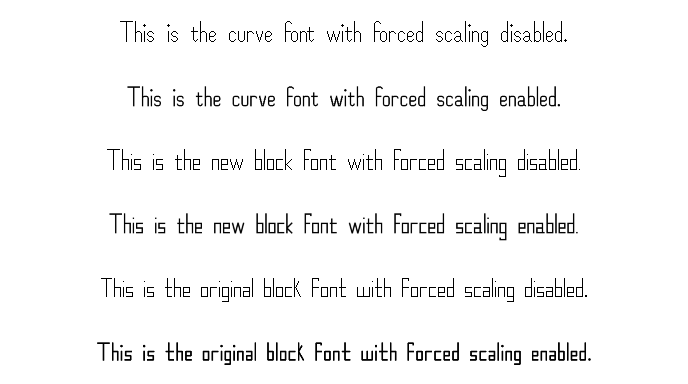
Font options are here! Along with the original font, there's now a new font with similar metrics to the original but with curves instead of blocky corners. There's also an updated version of the original font with some tweaks and more consistency, but the unmodified original font is still selectable if you prefer it. That makes a total of three fonts, with the potential for more being added later.
This update also makes a number of changes to the game's overall appearance, some slight and some significant. A full list of the changes made can be found below.
New fonts
An option has been added to change the font in use. It can be found at (Settings > Appearance > Font).
A new font, called "curve font", has been added to the game as an option.
A modified version of the original font, listed as "block font (new)", has been added to the game.
A new option allows you to choose whether or not you want to always use a scaled higher resolution font.
Each font has a high resolution version, which is scaled up or down to match the game's current resolution settings. At lower game resolutions, though, smaller custom versions of the fonts are used instead, unless this option is enabled.
Fonts now scale dynamically rather than using hard-coded scaling intervals.
Kerning is now only done between letters, with punctuation always being excluded. Previously, certain punctionation like / was subject to the built-in auto font kerning, but things like URLs look better without it.
A comparison of the three fonts with forced scaling on and off at 1080p:
Forced scaling doesn't work as well at low resolutions:
Puzzle hints changes
Puzzle hints are now evenly spaced for both rows and columns.
Puzzle hints are now automatically sized to closely match the size of the puzzle squares.
Puzzle hint highlights are now consistently sized to match the puzzle squares.
Other appearance changes
Improved puzzle grid sizing and placement.
Improved puzzle select button sizing and placement.
The button size is now more consistent between resolutions, and the buttons are now centered vertically in the screen/window.
Improved overall UI scaling. Specifically, UI elements are now always scaled relative to the size of the text, providing a more consistent experience across resolutions.
Improved tutorial page UI element sizing and placement.
Moved optional extra puzzle column and row info to be above the "Fill placeholders" button in the lower left corner of the puzzle screen, leaving more room for the puzzle itself.
Changed the loading screen.
A small image of the frog from my logo now spins in the lower right corner.
Instead of a progress bar, the game's title text gradually fills in with full color as loading progresses.
Moved the checkmarks that optionally mark which puzzles have been solved to the upper right corner of the puzzle select buttons. This leaves more room for the titles of the puzzles.
Added a third type of main menu button arrangement to better match ultra-tall resolutions, which almost certainly no one uses, but whatever.
Changed how the size of toggle and color swatch boxes is determined for better consistency.
Changed toggle and color swatch boxes to no longer move back and forth when the containing button is selected and hovering.
Fixed various issues with overlapping or cut off UI elements at various resolutions.
Fixed the "User puzzles" text on the main menu exceeding the boundaries of the button at certain resolutions.
Fixed sound effect, playlist, and theme editor buttons not downsizing correctly at certain resolutions when they needed to.
Changed the game title and icon to be more consistent across both the title screen in-game and in various other places, such as Steam store and library images.
Settings changes
Changed "Options" to "Settings" for consistency.
Rearranged display, appearance, and puzzle appearance settings.
Added a new sub-menu of "Other appearance options" to make room for the new font settings, with a number of the appearance options having been moved there.
Added a link to puzzle appearance settings to the appearance menu. It can now be accessed both by (Settings > Puzzle > Puzzle appearance) and (Settings > Appearance > Puzzle appearance).
Changed other five-line related options to be greyed out when five lines themselves are disabled.
Other changes
Removed the fade in effect of the intro HopefulToad logo screen, and changed the fade out effect to be skipped when the intro screen is skipped to make getting to the main menu faster.
Removed unused lines of text from the game.
Replaced references to "the below example" in one of the tutorials with "this example," since the examples in question are actually above the text, not below it.
Changed some info pop-up text for clarity and consistency.
Changed text in dialogs and in tutorials to auto-wrap instead of using hard-coded newline locations.
Ensured that the most recently selected puzzle button will always be selected upon re-entering a puzzle select scenario, no matter what settings have been changed mid-puzzle.
Fixed an issue where, at the main menu at certain resolutions, if the settings menu was closed via mouse and the mouse wasn't moved, clicking wouldn't change the currently selected main menu button to the one the mouse was hovering over.
2.01.04 patch notes
Craving more challenge? Try out the new "brainracking mode" option.
With this option enabled (found at Options > Puzzle > Brainracking mode), the following things are disabled:
Hint fading
Xs and placeholders
Undo and redo
Counting
All puzzle assists
The only thing you can do is fill in or remove squares. Everything else has to be done in your mind. This mode is entirely optional and is only for those who really want to give their brain a good workout.
The random puzzle generation process has been overhauled.
When you generate a random puzzle, you can now select the difficulty percentile range you want the puzzle to fall within. For example, if you want a really hard puzzle (relative to the size of the puzzle) you can select the range [99.99 - 99.999%]. That means that 99.99% of puzzles that size are easier and 0.001% of puzzles that size are harder. If you want a medium difficulty puzzle for the selected size, you could choose the range [10 - 50%]. That means that 10% of puzzles that size are easier and 50% of puzzles that size are harder.
The smaller the range you select, the longer it'll most likely take to generate the puzzle. For instance, a puzzle within the range [0.001 - 0.01%] will take much longer to generate than a puzzle within the range [50 - 90%], because 40% of puzzles fall within the latter range while only 0.009% of puzzles fall within the former range.
You can now select the number of threads you want to use when generating the random puzzle. More threads means more CPU usage, which means faster puzzle generation. The selectable number of threads is limited to one less than the total number of logical processors your CPU has, leaving one thread for the main UI (unless you are somehow using a single-core processor, in which case the selectable number of threads is limited to one).
The title screen puzzle animation now continues to play in the background during random puzzle generation.
More information is now shown when the game is in the process of generating a random puzzle. The generation window now shows:
The size of puzzle being generated
The desired difficulty percentile range
The elapsed time
An estimate for the time remaining.
This estimate is based on the average time the generator has taken to generate a solvable puzzle and the estimated number of solvable puzzles that need to be generated before one that falls within the desired difficulty range is expected. For instance, if the percentile range is [99.99 - 99.999%], then only 0.009% of solvable puzzles fall within that range. Thus, on average, about 11,111 solvable puzzles will need to be generated before one of them falls within that range. If the generator has been running for 40 seconds and has generated 1000 solvable puzzles in the meantime, that's 25 per second. If we expect to need to generate around 11,111 before we get one in that range, then it should take about 404 more seconds to generate the desired puzzle.
The time is only an estimate to give you an idea of how long you might have to wait. You could get lucky and get the desired puzzle sooner than expected, or get unlucky and have it take longer than expected.
The total number of puzzles generated
The total number of solvable puzzles generated (and the percentage of all generated puzzles that are solvable)
The total number of unsolvable puzzles generated (and the corresponding percentage)
The number of solvable puzzles that have been generated so far that fall within each of the selectable difficulty ranges
Other changes
Added the characters {|}~ to the game font. The font now covers the entire printable range of ASCII characters. This was done because the URL of the aforementioned paper has the ~ character in it, and I included a mention of the paper and its URL in the game credits.
Randomly generated puzzles now have (R) preceding the date and time in their title so that they can be distinguished from regular user puzzles.
Fixed a bug caused by turning off actionable hints, working on the puzzle, and then turning actionable hints back on (with advanced hint fading disabled).
Fixed a bug where page change arrows wouldn't be properly visible if you had more than a page worth of user puzzles of a certain size but no user puzzles of any other size.
2.01.03 patch notes
Fixed random puzzles not resizing correctly when the resolution is changed.
Fixed some puzzle UI element sizing and overlap issues.
Changed hint fading to default to the original method of hint fading. Advanced hint fading must now be enabled manually.
Fixed random puzzles not showing the size of the puzzle when the option to show the number and size of the puzzle is enabled.
Changed how the random puzzle generator menu works to better communicate that random puzzle complexity cannot be selected when the size of the puzzle is 30 x 30.
Fixed a crash that happened when the first puzzle of a game session was started with no advanced assist options enabled and then said advanced assist options were enabled mid-puzzle.
Random Puzzle Generation (Update 2.01.00)
Randomly generated puzzles are here! Now, you'll never run out of puzzles to solve again! Assuming you don't mind solving puzzles that don't form images, that is.
To generate a random puzzle to solve, just click the Play button on the title screen (renamed from "Puzzle select"), then select the "Generate a random puzzle" option. You can then pick the size of puzzle you want to generate, as well as the relative complexity* of the randomly generated puzzle**.
If you want to stop working on the puzzle and save it for later, just pause and select "Exit". You'll be prompted to save it to your user puzzles, where you'll be able to continue working on it at another time. You can also save the puzzle once it's completed if you liked it, or even share it using the clipboard sharing method.***
Additionally, new puzzle assistance options have been added to the game. You can now enable an assist that will point out rows and columns that can be worked on, to help you narrow down where to look. Also, enabled by default is a new, more advanced method of fading out hints**** that can more accurately determine which hints need to be greyed out. If you feel the new hint fading method is a bit too helpful for your taste, you can always disable it to return to the original method that the game launched with.
A full list of the changes made can be found below. I hope you enjoy the new additions!
Added random puzzle generation.
Random puzzles are generated by filling in a puzzle randomly. The total possible combinations in all rows and columns is then added up to determine its relative complexity. If the amount falls within the expected range, then a solver runs to make sure the puzzle is line solvable. If it is, then the player is presented with the puzzle. If not, then a new puzzle is generated, and the process repeats. As a result, the time it takes to randomly generate a puzzle varies based on the size and complexity the player has selected.
Added an option to use advanced hint fading.
Enabled by default.
This option uses a puzzle solver to comb through the hints and see which ones should be faded out. It catches completed hints that the original hint fading technique would miss. But it doesn't cheat; a hint can be faded out using the new fading method even if the puzzle is filled in incorrectly.
This option cannot be used if hint fading is disabled.
Added an option to only fade out hints that are Xed off, meaning the number group associated with it has either an X or a puzzle edge on either size of it.
Enabled by default.
If you disable this, then, with the new hint fading technique, hints will be greyed out even before you have put Xes on either side of them.
This option cannot be used if hint fading is disabled or if advanced hint fading is disabled.
Added an option to automatically X off hints once they're complete.
This option cannot be used if hint fading is disabled, if advanced hint fading is disabled, or if the option to only fade hints that are Xed off is enabled.
Added an option to point out rows and columns that can be worked on.
When this option is enabled, a square appears next to the hints of any rows or columns that have something that can be done with them.
Various minor optimizations, bug fixes, and improvements.
Note: Enabling advanced hint fading or the new assist that points out workable lines has a performance impact due to them requiring a puzzle solver/validator to work. Puzzles can potentially have tens, hundreds, or even millions of total possible combinations that the solver has to comb through, so for certain very large puzzles, this could have a negative impact on your experience if you're running on low-end hardware. Disabling both advanced hint fading (which is now on by default) and the option to point out workable lines will stop the solver from running and should return CPU usage to the same level as before this update.
The new options can all be found under Options > Puzzle > Puzzle assist.
This update was made possible by adding an efficient puzzle validator/solver to the game, which I was only able to do thanks to two excellent articles on the web. The overall algorithm and method of solving a nonogram was adapted from Hennie de Harder's article "Solving Nonograms with 120 Lines of Code" (https://towardsdatascience.com/solving-nonograms-with-120-lines-of-code-a7c6e0f627e4). (Thanks for pointing out the article, Rushin'!) After implementing my own method of generating all possible combinations that ended up being way too slow to be used for my intended purposes in Nonozle, I found a much more efficient way to generate them all described in James McCaffrey's article "Lightweight Mathematical Combinations Using C#" (https://visualstudiomagazine.com/articles/2022/07/20/math-combinations-using-csharp.aspx).
Edit: I pushed out a couple of further small updates that fixed a couple of crashes that only happened when one particular option was enabled.
* Complexity is determined using total number of possible combinations for all rows and columns of a puzzle. ** Complexity can't be selected for 30x30 puzzles, as it already takes long enough to simply find a random puzzle that size that's actually solvable, much less one that falls within a specified range of total possible combinations. *** Shutting down the game without first converting it into a user puzzle will result in the loss of the puzzle, so be careful. **** Hints is the term I use for the numbers that line the sides of a nonogram.
2.00.03 Patch Notes
Added an option to show or hide the currently selected primary click type. (Options > Puzzle > Puzzle Appearance > Show current primary fill type when using mouse)
If you uncheck this option, I recommend changing your mouse input settings so that left click is always "Fill", rather than "Primary Click". That way, you don't inadvertently change what the left mouse button does via the mouse wheel without a visible indication that it happened.
Added an option to show or hide the checkmarks that were recently added next to the titles of completed puzzles in puzzle select screens. (Options > Appearance > Show checkmarks for solved puzzles)
Reduced text margins to allow more space in menus for the new options.
Fixed a bug where the puzzle shown on the solved puzzle screen would display at an incorrect size after changing the resolution.
2.00.02 Patch Notes
This update adds achievements for completing abstract puzzles! There are six total, one for each puzzle size category and one for completing all of them. If you've already completed some or all of the abstract puzzles, simply opening up the game should cause any resulting achievements to immediately pop up.
Additionally, puzzles in the puzzle select screens now display a checkmark next to the title of the puzzle when they're completed, and, in the main menu, a checkmark displays on the puzzle collection button (either "Original Puzzles" or "Abstract Puzzles) when all the puzzles in said collection are complete.
Abstract Puzzle Update - 100 New Puzzles
This update adds 100 new puzzles for you to solve!
The puzzles are different from the original ones included with the game. For those, much of my focus was on making recognizable pictures, rather than the puzzle itself, so most of the puzzles were relatively easy to solve. For this update, I decided to create abstract, unrecognizable puzzles instead, so I could focus on making puzzles that were more challenging to solve. As a result, this puzzle pack represents a pretty significant difficulty bump from the original 200 puzzles.
Though the puzzles may look somewhat random, they were not randomly generated. I hand-designed and test-solved each one.
Each size category, from 5 by 5 to 25 by 25, has half the amount of puzzles it did in the original puzzle collection, so there are:
4 5x5 puzzles
24 10x10 puzzles
40 15x15 puzzles
20 20x20 puzzles
12 25x25 puzzles
The smaller puzzles are still pretty easy, since it's hard to make challenging small puzzles, but the difficulty ramps up fast once you get into the larger puzzles.
A few minor additional tweaks are included in this update:
Improved counting so that filling in squares during a count no longer automatically stops the count when you stop filling in squares.
Fixed a bug where pressing start on the main puzzle select screen would crash the game (embarrassing...).
Changed puzzle completion achievements to no longer use a puzzle completion count Steam stat and removed the stat. This change means there should no longer be any circumstances where achievements pop up when they shouldn't.
Happy puzzling!
1.05.00 patch notes
Additions
Added the ability to turn on or off individual sound effects. (Options > Sound > Sound effect settings)
Added an option to increase the thickness of the five-line dividers. (Options > Puzzle > Puzzle appearance > Use thicker five lines) Note that this has little to no effect at very low resolutions.
Added an option to turn off the expanding ripple of color that appears when you solve a puzzle. (Options > Animations > Show puzzle solved ripple effect)
Added an option to disable the button inflation/deflation animation. (Options > Animations > Show button inflation animation)
Added an option to not have background music pause upon solving a puzzle. (Options > Sound > Stop music on puzzle solve)
Changes
Changed the text of some option buttons to start with a verb for more consistency.
Bug fixes
Fixed a bug where, after creating a puzzle, testing it, then editing it and retesting it, the number hints would become smaller than they needed to be.
Fixed a bug where holding down a directional input and a page change input on the puzzle select screen could cause two buttons to appear as if they were selected at once (if UI animations were enabled).
1.04.00 patch notes
Version 1.04.00 is a patch that addresses some quality-of-life issues with the puzzle creation and sharing features introduced in 1.03.00.
Changes
Added a '+' button to create a new puzzle on the user puzzle select screen.
On keyboard and controller, the puzzle creation menu can be accessed using whatever key or button is assigned as the pause input.
Added a button to test solve puzzles directly from the pause menu of the puzzle editor.
Changed what the first button of the "puzzle solved" screen says and does based on context:
For built-in puzzles, the text and behavior is unchanged. ("Next unsolved puzzle"/"You're all done!")
For puzzles that were copied from the clipboard (that others shared, presumably), the button is now used to directly start playing a different puzzle that you've copied to the clipboard.
For saved user puzzles, the button is now for sharing the puzzle (copying it to the clipboard).
Changed it so that when a user puzzle is deleted, the next closest puzzle/page is selected afterward instead of always going back to the first page.
Changed how the game determines whether or not there are any unsaved changes when editing a puzzle. Previously, it simply set a flag once the puzzle was modified, meaning it would claim to have unsaved changes even if you then modified the puzzle again to bring it back to its original state. Now, it compares the current state of the puzzle to its initial saved state.
Changed the pause input to be classified as a universal input. This fixes an issue where the pause input could be shared with another interface input, causing a potential conflict. For instance, previously you could set both the pause input and the select input to the same button on a gamepad, and then, when in a puzzle, if you opened a pause menu, you could never select any of the options because the pause menu would be exited before a selection was made due to the order of input processing in the code.
Unfortunately, this means that the Escape key on the keyboard can no longer function both as a back input and a pause input. Instead, the pause input on keyboard now defaults to the space bar. However, your currently configured inputs won't be changed unless you reset them to their defaults. If you leave them be, you won't be able to access the puzzle creation menu from the user puzzle select screen via keyboard because the Escape key will cause you to exit the puzzle select screen before the puzzle creation menu has a chance to open. You can always just click the new "+" button, though, or access the puzzle creation menu from the main menu.
Text-Based Puzzle Sharing Update - Version 1.03.00
About the update
With this new update, it's now possible to create and share puzzles! Once you've created a puzzle and test-solved it, you can share it by copying it to your computer's clipboard. The puzzle is encoded into text that can then be sent to friends or posted online. Others can then play the puzzle by copying the text and then pressing the right button in-game!
You can design puzzles using the built-in puzzle editor, or you can use an external image editor and then simply copy and paste them into the game's editor.
Puzzles are titled simply by the date and time they are saved.
Additions
Added puzzle creation and sharing:
Added a puzzle editor.
Added the ability to copy puzzles to clipboard in text format and read in puzzles from clipboard in text format.
Added a user puzzle select screen, where saved puzzles go and can be played, edited, shared, or deleted.
Added the ability to paste in puzzles from an external image editor when using the puzzle editor. When this is done, dark pixels are interpreted as filled in and light pixels are interpreted as blank.
Added a new track, an alternate version of the main theme.
Added a new option to change what track plays on the title screen and in puzzle select. The new option is found under playlist settings. You can also set the track to "None," if you want to hear music during puzzles but not on the title screen or in puzzle select.
Changes
Changed the two pop-up dialogs that show up before and after applying display changes to have an animated transition between them when UI animations are enabled.
Changed pop-up dialogs to have consistent movement directions during transition animations depending on the pop-up type: info dialogs (the ones with only an "OK" button) now always travel in from the bottom of the screen, while confirmation dialogs (the ones with two buttons, usually "Confirm" and "Cancel") always travel in from the top of the screen.
Changed the page change animation in puzzle select screens to always be based on the direction of change implied by the input given, even when wrapping back to the first page or from the first page to the last page.
Changed there to be only one options menu instance instead of two.
As a result, the main menu screen had to be rearranged to accomodate the buttons to clear all progress, reset options to defaults, and view credits. Previously, those buttons were simply part of the options menu when accessed from the main menu, which was possible because of there being two different options menus that were kept in sync.
Changed the track that plays on the title screen to be (by default) the new alternate main theme.
Changed certain confirmation dialogs to not respond to back input, requiring one of the two options to be intentionally selected.
Bug fixes
Fixed a bug where, when using a gamepad or keyboard, the game would crash when trying to select a preset theme's main color using the expanded color picker (yikes!).
Fixed the "RGB" text above the expanded color picker to re-center each time it changes instead of just centering once.
Probably fixed one or two other bugs that I can't remember.