[✨Update v0.3 is in development and will go live in early July!]
Hi Researchers! We have some exciting news about what's upcoming for Research Story - the v0.3 automation update! Development has been going well and we're happy to say that some of the items that players have been waiting for will be added to the game soon. Here's what we've been working on:
Sprinklers and Sun Sprinklers! 💧
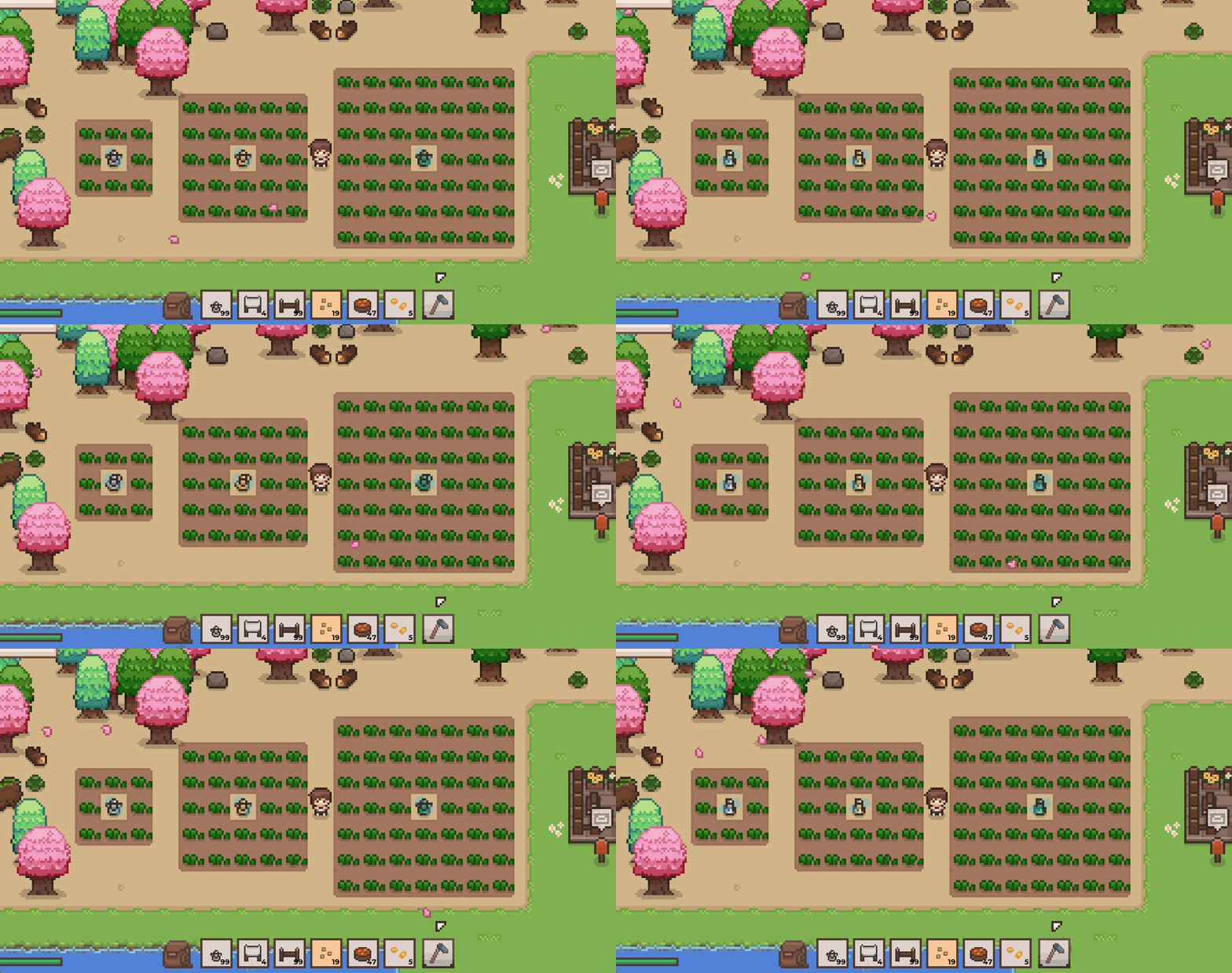
We hear you - an important part of farming sims is having to manage your crops more efficiently (and do away with too much watering!). We'll be adding three tiers of sprinklers that players can craft and buy to help with their farms: Unique to RS, these sprinklers can be built with Sun Lamps on the same tile, allowing for a cleaner setup for crops that require Full Sun. We'll be adding two new tiers of Sun Lamps as well!
Bell Tool for herding creatures 🔔
After taming multiple creatures, having to bring them out and sending them back to their pens can become tedious. The bell tool is perfect for herding your creatures - ring the bell and send your creatures back to their pens! This tool can be upgraded, just like all other tools in the game.
Auto-collector for Creature Pens 📦
Another item that we're adding is the Auto-collector. Place them next to Creature Pens, and it'll collect creature drops and produce daily, adding it to its inventory of 32 slots. To collect the goods, you can access its inventory with just one click!
New Shop: Alfie's Awesome Automations ⚙️
The above items will be available at the newly added Alfie's Awesome Automations. The shop is located to the south of the Smithy in town, where a newcomer will be settling in:
What's Next 📝
Next, I'll be working on: Auto-tapper for trees, Auto-fisher, and Bait Maker. We also plan to add a few Decor Sets, as well as additional content, OSTs, and other improvements. We estimate that the v0.3 update will be shared with players early next month.
Happy to hear what you think of the upcoming changes, and what you'd like to see us work on next!
<3, Miki
Hotfix v0.2.9
Additional items for Lost & Found Box Occasionally, players may lose items such as quest rewards when they have a full inventory, as reward items are dropped on the ground and despawn the following day. This can affect the overall progress and experience of the player, especially if the item is not obtainable via other means.
To address that, we have added quest items that can potentially be lost in this way to the the Lost & Found box on Level 2 of the Violet Archive: - Chest Recipe, if you've read the mail, 'Simple Storage'. - Seed Sieve Recipe, if you've completed 'The Basics of Research' Quest
These are items that can be found in the Lost & Found box since v0.2.5: - Town map, if you've completed the 'Meet the Researchers' Quest - Seed Bowl Recipe, if you've completed the 'Beginnings of a Bestiary Quest'
Other changes - Added Flame Cactus Fruit as possible answer for 'Fresh Fruit' puzzle piece.
Thanks, Miki
Hotfix v0.2.8
- Fixed a rare bug where the 'Unidentified Fish Part' quest cannot be completed when talking to Vallee. - Fixed an occasional bug where NPCs 'after-hangout' dialogue persists on a new day. - Changed: For the 'Unidentified Fish Part' quest, the player no longer needs to have a Fish research scroll in their inventory to complete the quest. - Fixed a visual bug where Vallee was moving on the spot during the 'Unidentified Fish Part' quest.
Thanks, - Miki
Hotfix v0.2.7
- Fixed: Creatures not making produce despite having the right conditions. - Fixed: In-game keyboard for the controller showing up when taming a new creature while using KB/M.
Sorry about the bug regarding creature produce - I made a mistake while optimising the code in our previous update. Creatures should drop their produce accordingly after this fix.
Thanks, - Miki
Hotfix v0.2.6
This hotfix includes some optimisation for later-game saves where players have many crops and creatures on their farms. If you still face any noticeable FPS drops, do let us know and drop us your save file so we can look into it. Thank you!
General - Fixed: Unable to use Blueberries and other crop-berries to craft Berry Bait - Fixed "ghost" dropped item (related to Preservers) that causes "Inventory Full" notifications. - Fixed energy bar overlapping with bag icon, by giving the bar a maximum display length (i.e. any furthur increase in base energy will not translate to a visual increase). - Fixed creature inventory showing in cutscenes - Fixed camera view for Hangout: Waterfall Activity for 2496x1664 resolutions. - Fixed a collision error for a snowmound in the garden area.
Optimisation - Some code optimisation (for crops & tamed creatures), with noticeable improvements on some later-game saves.
Controller fixes - Fixed Fish Map in Sesame's Hut where Fishing Locations were not updating when using LS to navigate. - Fixed being able to open animal info UI and chest simultaneously. - Fixed item overlap with research tooltip (when hovering over magnifying glass)
v0.2.5 Inventory + Organisation QOL Update!
Hi researchers! This update focuses on improving the inventory- and farm- management experience for players, including the addition of a few highly-requested QOL features. Here are the changes:
Inventory QOL
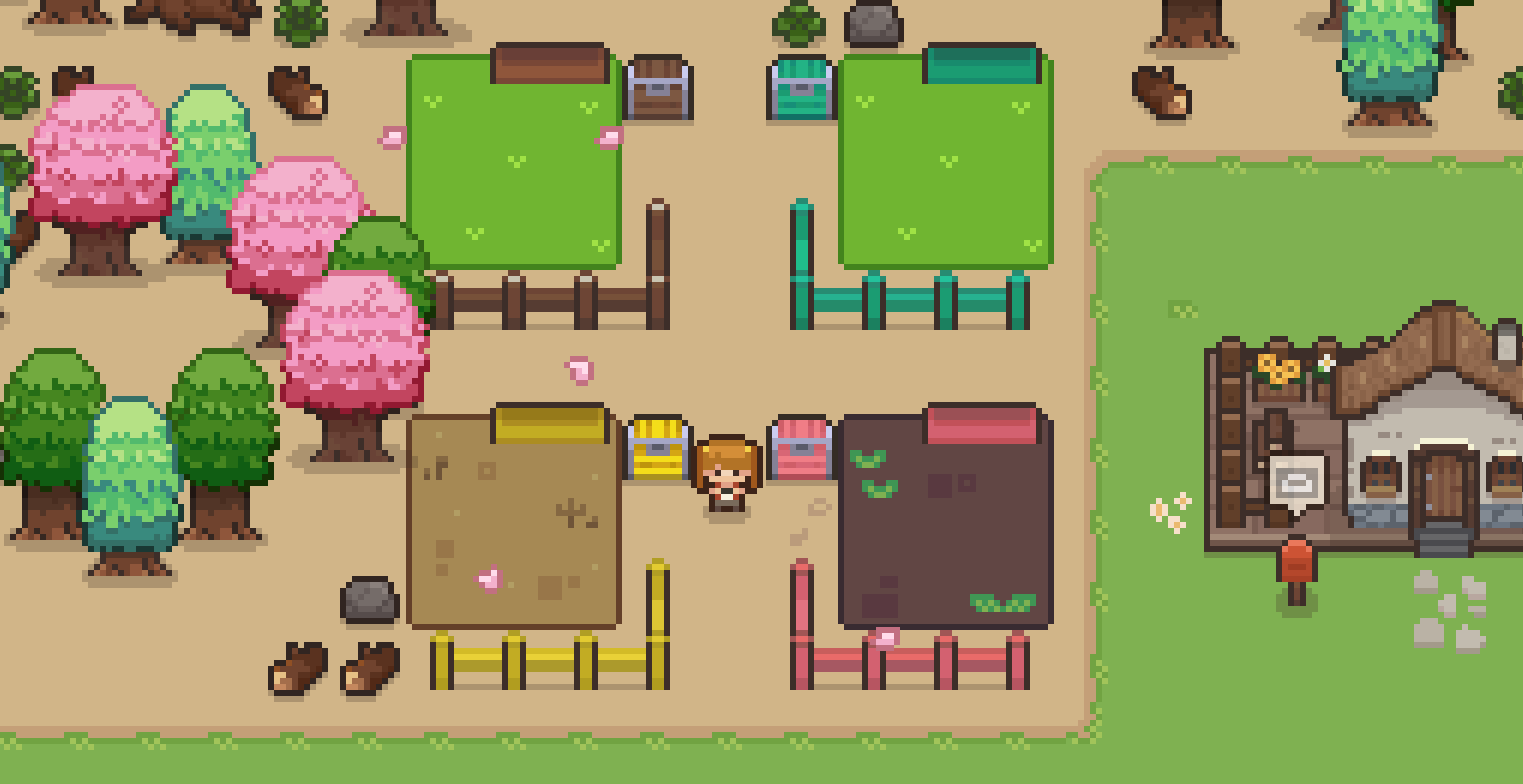
- Added: Auto-sort button for both the player's inventory and chests. - Added: Auto-add to/pull from chest buttons. - Get coloured chests using a Paintbrush.
Pigments & Paints
- Added Pigments and Paintbrushes for 18 colours. - Paintbrushes are a new type of item that has durability. It's currently the only item in game with durability. - Added Mixer (Crafting Station) for making pigments. - Ming will start selling the related recipes and items from 14 Spring onwards at his Marketplace shop. - Items labelled 'Dye material' can be used with the Mixer to make pigments. - More customisation: Paintbrushes can be used on Chests, Fences, and Troughs. Coloured chests, fences and troughs
Lost & Found box
- Added a Lost & Found box at Level 2 of the Violet Archive that stores progression-related items that are lost. Retrieve the following from the box if you haven't received them:
Town map, if you've completed the Meet the Researchers Quest
Seed Bowl Recipe, if you've completed the Beginnings of a Bestiary Quest
Lost & Found Box
Additional Decor
- 3 more Garden Planter variants in Yan Yan's shop. - 3 more paintings in Ming's shop (unlocked with seasons).
Other changes, improvements, and fixes
- [Controller] Improved detection consistency of some objects, such as chests. - Fixed: When chest is open, the tooltip for the last row of inventory overlaps with items. - Fixed: Dung Beetle perk procs on soil that already has the correct fertiliser. - Moved one of the town's benches slightly to the left, to make decorating more symmetrical.
📝What's next
Hope you enjoy these changes! I can't wait to see how players decorate their farms.
We'll continue to fix bugs, and also start working on our first major content update (v0.3). I'll share more details when they're ready, but the v0.3 update will be all about automation, such as adding sprinklers (finally!), and more cool things. Stay tuned! And if you have any ideas, we're always happy to hear from you!
- Miki
📖 Mini-Devlog #4
Greetings, Researchers!
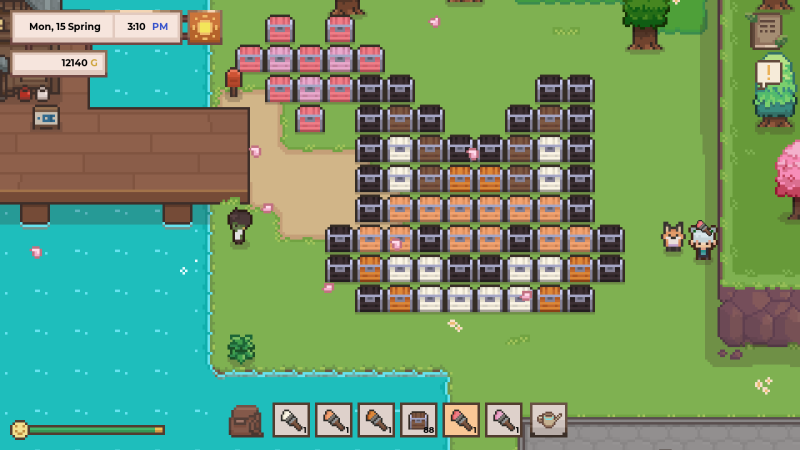
I've started working on the first Inventory QOL update (will be live sometime later in May). Auto-sort, auto-stack to/from chest, and coloured chests are on the top of the to-do list. This mini-devlog shares more about the coloured chests. Here's a fun screenshot!
Fox chest-art and little fox friend
When implementing coloured chests, I was choosing between a more straightforward "select colour from chest UI"-type of mechanic (like in Stardew Valley) and something that worked with paints or dyes (a bit more like Minecraft). After much consideration, I decided to go with the latter as it brings more potential for other coloured items in the future. It also lets the player be more involved in the process, which is something that has always influenced my design choices throughout the development of RS.
So, how does it work? First, players would need to craft a Mixer. Add water (from your trusty Watering Can) and a Dye material to the Mixer. By interacting with a Paintbrush , players will get a coloured Paintbrush to decorate with!
Mixer Process
There are currently 18 dye colours in the game. Most of them can be obtained using the flowers and plants: 18 Coloured Chests
Currently, white and grey cannot be obtained organically, as there are no corresponding Dye materials for them. Ming will be expanding his inventory to sell some Pigments on Sundays, so that is one way to get the rarer colours!
I'm quite excited about this change and am already considering other paintable items, such as fences. What do you think?
See you soon! - Miki
Hotfix v0.2.4a
- [Controller] Fixed a bug with tools changing while the tool wheel is open.
Hotfix v0.2.4
- [Controller] Fixed: Rebinding hotbar scroll right/left to buttons other than RB/LB does not work. - [Controller] Fixed: Crash when attempting to remove Shade Cloth with an Axe. - Players can now pick up Shade Cloths with RMB/X on the controller. For KB/M, players must first hover over one of the wooden stands of the Shade Cloth before pressing RMB. - Text for removing some placed items more clearly states that the Axe is the required tool for removal. - [Steam Deck] Some cutscenes were cut off during play. As a temporary solution, the resolution for Deck users will be automatically set to 1366x768 as a more tested and accurate resolution option.
v0.2 Cloud Save: Save file conflict issues and guide
We have received a few reports regarding save files not showing in the game after the v0.2 update, for players who have played Research Story on 2 or more separate devices prior to the update. If you've played on multiple devices and have yet to launched RS since the v0.2 update, we suggest that you do a manual backup (see Part 1) of your save files before launching the game.
This guide covers potential issues and how to resolve them. At any one point, if you're unsure of the steps, don't hesitate to reach out to us directly via Steam, Discord, or email!
[Part 1] Checking for your saves + manual backup
If you've played RS on 2 separate devices prior to the v0.2 update and cannot see some of your save files in the game after the update, please check for your save files by following the below steps: 1) Open Run app (Windows + R key) 2) Copy this to the field: %LOCALAPPDATA%\ResearchStory\ 3) Press Ok. 4) In the "Saves" folder, check if the save is there (0_Player_savedgame.save). There may be two files with the same starting number "0_...". If so, the save still exists but is not showing in game.
If you can't find your save file in the "Saves" folder, check your second device before launching the game. If it exists, ⚠️please do a manual backup of the saves by copying + pasting all folders somewhere safe (e.g. your desktop) before continuing with the below steps. If you can't find it on any of your devices, please write to petalcatgames@gmail.com and I'll respond to you directly.
[Part 2] Checking your .info files
Once you find your .save files and do a manual backup (see Part 1), the next step is to check your .info files in the 'SavesInfo' folder. These are responsible for locating the saves and showing them when you press 'Play' in game.
For each .save file, there should be a corresponding .info file. For most affected players, the issue arises when there are missing .info files.
[Part 3] Duplicating .info files
For the case in the images above, the player has two .save files (PlayerA and PlayerB) but only one .info file. To resolve this: 1) In the SavesInfo folder: Copy + Paste the 0_SaveInfo.info file in the same folder. Rename the copied file to 1_SaveInfo.info 2) In the Saves folder: Rename 0_PlayerB_savedgame.save to 1_PlayerB_savedgame.save 3) Launch the game. It should show the 2 save files instead of 1. However, the player customisation would be duplicated for both of them.
[Part 4] Remaking a .info file with correct customisation
1) Create a new character with your preferred player customisation, naming the character the name of the player character you're fixing (e.g. PlayerB). Skip the introduction cutscene. The game will be autosaved after the cutscene and creates a new 2_SaveInfo.info file. If you have more than 2 saves, the save you're working with is the newest file that has the largest number prefix.
You can continue these steps in the File Explorer while the game is running: 2) Delete the 1_SaveInfo.info file that is has incorrect customisation. 3) Rename the new 2_SaveInfo.info to 1_SaveInfo.info. 4) In the Saves folder, delete the 2_PlayerB_savedgame.save that was created for the purpose of this fix. Keep your original 1_PlayerB_savedgame.save. 5) Go back to the game, go to main menu and press play again. You should be able to see the changes.
Other issues and contact
If you run into further issues regarding your save files, please reach out to us via Steam, on Discord, or drop us a message at petalcatgames@gmail.com. We'll do our best to work things out with you! Thank you to everyone for your understanding and patience.