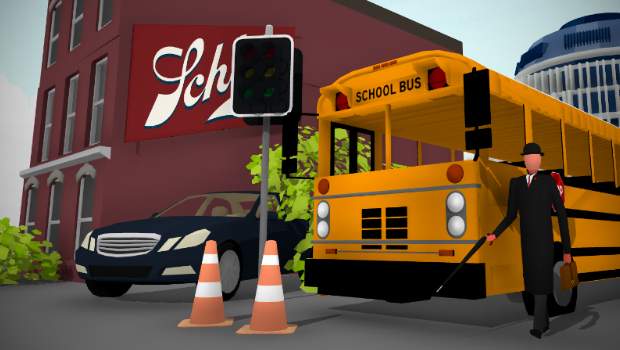
In this update, you can now organize prop mods into custom groups. These groups can even be uploaded and downloaded from the Steam workshop! So instead of uploading prop mods one-by-one, you can now upload them all in a single workshop item.
Creating groups
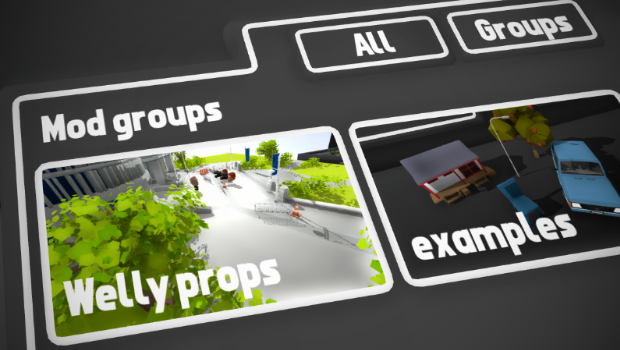
Making your own groups is easy, simply go to the modding menu (Pause menu -> modding) and switch over from "all" to "groups":
From here you can add/remove/edit groups just like any other kind of mod.
When you add a new group (or edit a pre-existing group) you can select which mods are included in the group:
After saving the group, you can then access it in the usual mod spawning drawer:
Simple as that! Once you have made a group you can also upload it to the Steam workshop, which will allow people to download all of your mods included in the group with one single download.
You can use groups to create your own "mod packs" or even simply to just organize the mods you've already downloaded for easy browsing!
Pre-packaged mods
Alongside mod groups, this update also adds the ability to package prop mods inside a layout! This means you can download a layout off the Steam workshop and all of the mods it uses will be included in the same single download. Please note this only includes prop mods, not quickMods or liveries (these must still be downloaded manually).
When uploading a layout, the uploader now has the option to choose (from a list of all their mods) which mods they want to include pre-packaged into the layout upload:
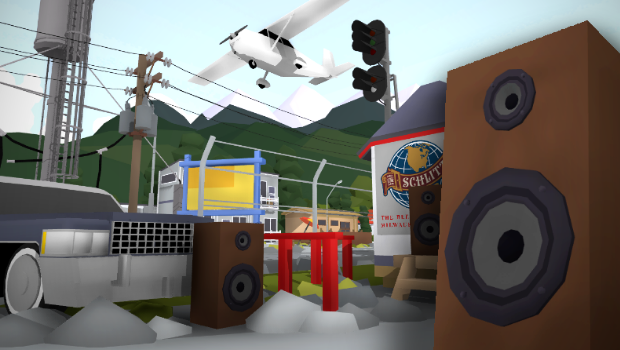
As an example, I've uploaded a copy of the "Wellington Diorama" map i made earlier, but this time it has all of the unique props pre-packaged inside this one download:
If you subscribe to this workshop item, you will be able to play it and view all the modded props without needing to download any extra workshop items!
Please remember, when a mod is packaged into a layout upload you are making a copy of that mod! The files for the mod are being duplicated and uploaded alongside your layout. This means your upload will increase in file size, so please only include vital mods that are unique to your map!
This means you should only really include mods that you made yourself which are important to the core design of your map (e.g. custom billboards and signage, or unique buildings).
General mods like vehicles should be left optional, and not packaged inside the layout. This way the player can choose whether to download these custom props.
As a general guideline, only include mods that are special and unique to your map, and leave out generic props which are used on lots of other maps.
File structure
The main back-end feature that this update changed is the way mods can be organized in folders. You can now have mods nested within folders, which really helps with organizing them.
The folder structure has no effect on groups, so you can organize folders however you like.
You can also store mods multiple layers deep in folders:
This "nested" file structure works inside save files and workshop items too, so you can manually store mods inside local save files the same way.
When mods are stored inside a save file they are only loaded when that map is opened. This means workshop maps with mods included (like the "welly diorama" mentioned before) will not clutter up your mod list! These mods will only be accessible once the map has been loaded.
Other features
This update also adds a new setting to enable/disable the spray feature. The "spray" in Rolling Line is something that has caused far more confusion and annoyance than it was worth... so now it is disabled by default. you can enable it in the "Pause menu -> Misc -> Enable spray" setting.
The spray is a custom image which you can tag on to any surface temporarily (just line in Team Fortress 2) You can edit this image by changing the file "Modding -> spray.png"
I also fixed an issue with animation importing where animations that didn't use a "skinned mesh" would not be recognized. This has been fixed and you can now use shape-based animations as well as skinned meshes in your animated prop mods.
Lastly, duplicate mods will now be automatically ignored. so if you have a mod downloaded, then download a group which also contains the same mod, the duplicate will be ignored.
And that's all for today!
This will be the last modding-themed update for a while, as the next set of updates I am working on are going to add some much-anticipated props and features to the game!
*cough* semaphore signals *cough*
Enjoy!
Animation modding! v3.13
For the first time, you can now import animations into Rolling Line! Prop mods can now make use of fully animated models (.FBX), as well as a bunch of other modding improvements and features.
To quickly summarize:
Animated models for prop mods
Paintable animated meshes
More collision options (custom box colliders)
Scale & rotation randomizer options
Hue randomizer options
Prop placement angle & surface options
Ability to play/pause and control animations (just like audio)
Changing animation play speed
Modding menu cleanup
All sorts of modding fixes
Modding is coming along really nicely, and I'm blown away by the kinds of things the community is making! Animations are unlocking a whole new avenue of possibilities for modders, and it really brings a scene to life when you see things actually moving about.
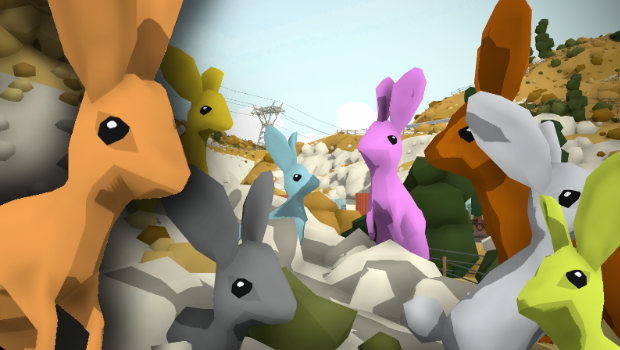
To demonstrate the new modding features I've added a bunch of animals from an older VR game I made in the past called "FrontierVR" and imported them into Rolling Line!
I've uploaded these mods to the Steam Workshop and you can find them here:
These mods (and Blender source files!) are also included in the "example props" folder along with all the other template mods you can have a look at if you are interested in making your own:
(these are found in the "Rolling Line -> Modding -> templates -> prop mod examples" folder)
How to import animations
Including animations is remarkably simple! Just export your model in .FBX format (with the armature, mesh and animation data included) and the animation will be automatically used when you load the model in-game.
You can further customize things like the animation play mode (e.g. loop or play once), playback speed, and change the "Animation clip index" if your FBX file has multiple animations included:
If your animation has multiple clips included like this: (I'm using Blender as an example)
Then you can set the "Animation clip index" to change which animation is used. if you find that your animation is not playing, then I recommend trying to change this value incase your animation is at a different index than the default. Remember: this is a programming-style "index" value, so the first animation = 0, the second = 1 etc...
You can also control how animations (and audio) are controlled in the new "general options" menu.
From here you can make the animation play/pause on click, play automatically etc. (exactly like with audio in the previous update)
New randomizers and surface-snap settings
This update also adds the option to make use of the "randomizers" like scale & rotation as well as a color hue shift for paintable props.
The scale & rotation randomizer is pretty self-explanatory, it makes props rotate and scale with small random changes each time you place it, which is perfect for foliage/trees:
The hue randomizer is a little more complex. when props are paintable you have the option of adding a slight hue-shift color randomness to props. Again, this is perfect for trees & foliage to add variation:
As well as these randomizer settings, you can also now control whether props snap to surface by default:
And a useful little setting for making props snap to wall surfaces. This is perfect for making windows:
Other features
You can manually adjust the box collider bounds now, which is very useful for fine-tuning the collision for your props.
There is also a visual box to show the size of the collider:
You can also now (after many, MANY, requests) completely disable the in-game spray. The "Spray" is a custom .PNG image you can place on the ground anywhere (like in Team Fortress 2) The option to enable it is in the "Misc" menu: (it is now disabled by default)
There is also now a "remove preview prop" button. this simply hides the preview prop when editing a mod. The preview prop is now automatically hidden when you exit out of the mod edit menu.
And lastly, here are a bunch of smaller features/fixes:
If a model is imported with empty UVs (or corrupted UVs) then they will be automatically generated onto the default paint texture.
Mods are now updated when you save on the mod edit menu (previously they were only updated when you refresh the preview mod)
Fixed issues where audio files would not copy when duplicating a mod, which lead to other issues on top of that.
Fixed a minor mesh issue on the Commodore car model (part of the paintable rim was not paintable)
The mod edit menu is opened automatically after adding a new mod or duplicating a mod.
Added a warning when a modded prop is exceptionally large (in case it is a mistake and the model has broken geometry)
And that's everything! Another update full of modding features and lots of quality-of-life improvements.
Keep an eye on the Steam Workshop to see what kind of things people are making with these new features! Enjoy!
Audio modding! v3.12
The new features for prop modding keep coming!
You can now import your own audio files (mp3) into the game and attach them to prop mods!
This means you can:
Make props which give off ambient sounds (e.g. engines, factories, nature, animals, sirens, loudspeakers, etc)
Make props which play sound effects on click (e.g. station voice call-outs, horns, sound boards, etc)
Create your own in-game music players which you can turn off & on!
So far people have already made things like an i-pod dock which plays music, or a Nokia phone with a ringtone, ambient sound sources (like a station platform, nature ambience, industrial ambience) and even some memes (of course ːsteamhappyː)
The possibilities of using custom audio in your mods are endless!
Like for example, this classic old radio made by Ze Trackmeister:
https://www.youtube.com/watch?v=McXwsrbgeGg
Making this update made me realize just how much audio variety was missing from Rolling Line. I Personally haven't paid much attention to ambient audio (beyond the classic "top of the south" main layout) and it has never been much of a priority. But now I've remembered just how much ambient audio can bring a layout to life!
Thanks to these new audio modding features, everyone has the ability to completely control the ambience of their layouts, and I can't wait to see what people can create with this.
For a simple example of what you can do with these new features, here is an example mod I've made for a loudspeaker. It plays the Rolling Line main theme "Rolling Waves" and you can turn it on/off by clicking on it. https://steamcommunity.com/sharedfiles/filedetails/?id=2200038182&searchtext=
Audio options
This update adds a whole bunch of new settings for your prop mods which you can find in the "Audio Options" menu when editing a mod:
From this menu you can change a whole range of settings to set how your sound behaves:
Audio clip - the mp3 file which will be played (simply put it inside the "custom assets" folder just like other model and texture files)
Loop - set whether the audio clip loops or stops playing when it's done.
Volume - the volume of the clip (1-10).
3D audio - choose between 3D or 2D audio. 2D audio will sound the same regardless of where you are in the room (like background music) meanwhile 3D will fade at a distance and comes from a specific point in the world.
Range - if you choose 3D mode, you can also set the range at which you can hear the sound.
Play automatically - this will set whether the audio will start playing immediately or if you need to click on the prop for the audio to start playing.
Lastly, the option "Play Control Type" lets you choose how the sound is triggered:
None - the audio cannot be controlled (it just plays automatically until it is done/loops)
Click to toggle - clicking on the prop will stop/start the audio clip (like play/pause on an mp3 player)
Click to play - clicking on the prop will play the sound once. Just like a sound board
When the prop is not editable (after clicking "apply edits" or loading a map) then you can simply click on the prop in large or miniature scale to play/stop the audio.
If the prop is editable then you instead need to hover over it and press Q:
Other features/fixes
This update also includes a bunch of other stuff:
Fixed issues with prop snapping (specifically when trying to place letters on the side of buildings).
Lowered the minimum size of snappable props. this means you can use even smaller letters without the snapping going away.
The main layout menu is now FLAT instead of curved. The diagonal sides was a big annoyance for designing menus, so its now flat just like the menu in the custom table room.
Mods will now scale to fit your hand if they are overly large/small. This fixes the issue of large props filling up your screen when held.
There is now a help message when the text input popup is visible.
Adding a new prop mod will now automatically open the mod edit window (instead of bringing you back to the mod list).
Compatible file-types are now shown when choosing assets from the asset folder (e.g. OBJ, FBX, PNG, MP3)
When choosing assets from the asset folder you now have the "empty/none" option which resets the value to empty.
Fixed various UI issues with the modding menus.
There is also now a new example prop mod in the "Rolling Line -> modding -> templates -> prop mods" folder of the speaker (to show how audio features are used).
On a side note, after prop mod snapping was added in the last update we have already got a set of snappable road props on the workshop!
Here's a massive shout-out to Jotrain Gamer for making this amazing set of mods! He has also made a bunch of excellent traffic lights too.
You can find the full collection of road props here:
Modding is clearly going to be a MASSIVE part of Rolling Line's future, and I've still got lots of features to add! Stuff like mod packs (groups) and animations.
The next update will continue to expand the modding features, but in the meantime have a look on the Steam Workshop at all the amazing stuff the community is already making!
Enjoy!
Snapping, modding and workshop improvements! v3.11
Today's update adds a bunch of new features to prop modding, as well as improvements to the snapping system, menu changes and the ability to customize workshop tags for all items!
Now that prop modding is officially released I'm going to be doing several updates which add more functionality and features (like custom audio and animations!) over the next few weeks.
It's amazing to see the kind of stuff people are making! there are already 100+ prop mods on the workshop, and heaps more in the works.
And that brings me on to the first part of this update:
Snapping support for prop mods
You can now add snapping to your mods! This means you can edit custom "snap points" for your mod, and allow your mod to snap on to other props that share the same layer.
You can choose between pre-existing layers (like track, shapes, buildings etc) or name your own layer. Using a custom layer is perfect for when you want your props to snap to each other, but not to anything else.
When editing snap points there is even a visualization of where those snap point are on the preview model:
But since i was working on snapping related features, I decided to make some overall improvements to the system while i was at it!
Snapping system improvements
If you've ever used the Rolling Line snapping system then you're bound to know how fiddly it can be with complex builds. Well its just gotten much better!
To start with, you can now only snap on to props that are editable (when you choose "edit details", "edit room" etc). So any props that are not editable (after choosing "apply edits") cannot be snapped on to.
The exception to this is tables, which can be snapped on to regardless.
Secondly, there is a now a system where if you are pointing at a prop then you are 100% guaranteed to snap on to that specific prop (instead of the "nearest" snap point, which can often be inaccurate when large props overlap). This small change makes using the snapping system so much nicer and it completely avoids all the hassle that the old system would cause.
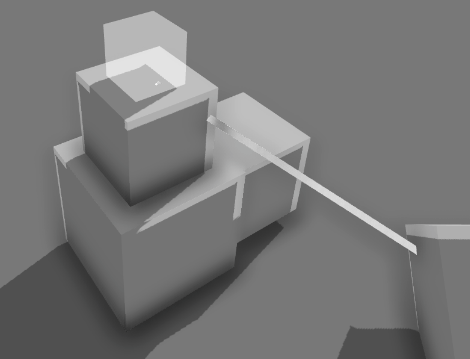
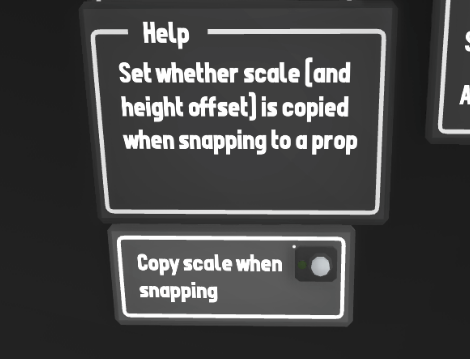
Also there is now a new setting for "copy scale on snap" in the "custom track -> snapping" menu. This setting will enable/disable whether snapping on to something will automatically copy the scale (and height offset) of the prop. There are lots of useful things you can do by deliberately disabling this feature, so im sure the more advanced map makers will be happy with this new option.
Custom workshop tags
Another thing this update adds is the ability to add custom tags to any workshop item. just like with prop mods where you can choose the geographic region (e.g. "North America", "Asia") you can now do the same thing with both layouts and liveries!
This means you can set the location of your layout/livery, and even add custom tags. These custom tags can be anything ranging from more specific countries (e.g. "New Zealand", "Canada") or more descriptive tags for the item (e.g. "Diorama" for a layout, or "City", "Winter").
For prop mods (where you set up the tags while making the mod) the tags are copied across automatically but you can still customize them further before uploading.
Also on the topic of tags, there is now a "Shapes" category on the workshop. This is used for any geometric shapes people might make (e.g. things like custom rectangles, triangle, cylinders etc) preferably with snapping support.
Menu changes
This update also adds a few much-needed quality of life improvements to the menus and UI.
Firstly, there is now popup "confirm" boxes when clicking most important buttons (e.g. quit to desktop, save over, delete, etc). A very useful feature for accidentally clicking the wrong thing.
Remember that backups are automatically made of your save whenever you leave the map! Either by quitting to the menu, saving over or leaving to load a different save. So if you save over your map by accident then you can very likely still find a copy in the "manage saves -> backups" menu!
Another menu-related change is that on PC you can now type the "." and "-" characters when naming saves/mods etc.
Workshop issue fix
Something I completely messed up with the last update is the method with which props are written to save files when comparing locally-saved mods to workshop mods.
You dont have to worry about it, and it very likely wont actually effect anything, but it should be completely solved now.
The only situation where this will cause problems is that if: - A previously uploaded mod is used in a map - Then that mod is updated - Then the map that uses it will loose the reference to that mod.
If you made the mods yourself and have them saved locally, there will be zero problem regardless. same goes if you upload your mod for the first time AFTER this update today. The only problem is when a previously uploaded mod is updated (AND was used in a local layout), but since modding was only just released i doubt this situation will crop up much.
Example/template prop mods
Much like with liveries, there is now a bunch of examples for you to look at when making prop mods. These can be found in the "Rolling Line -> modding -> templates -> prop mod examples" folder.
Each one of these mods is a prop from the game re-created using the modding system. These examples are excellent for figuring out scale and getting started with making models!
There is even an example of shape snapping in action where I've re-created the in-game cube shape using prop modding. It has all the same snapping functionality as the official prop and you can have a look at how the mod was set up to see how it works.
There are also examples of using special materials (the streetlight) and custom collision meshes (the holiday house).
Other features and fixes
There are also a bunch of fixes included in this update:
Fixed the default "empty" save to have the correct drawers open
Changed the drawers in the custom track tutorial back to what they should be
Added a help image when setting a prop mod to be paintable which helps explain how to UV-map your models to be paintable.
Made optimizations to the setup process for props
Fixed bug where the UI for the region of a mod was not being set correctly for the Americas
On a side note, just last night I decided to re-create some scenery from an old game-development project I worked on years ago inside Rolling Line using the prop modding tools. The whole process (copying the 3D models over, setting them up properly, making the mods, making the map, uploading everything to the steam workshop) took only a little over an hour!
It's really amazing just how much is now possible thanks to prop modding, and this mock-up scene was my own attempt at seeing how quickly and easily a scene could be made using these tools.
you can find the full mod collection (map included) here: https://steamcommunity.com/workshop/filedetails/?id=2189936603
And that's all for now, Enjoy! Keep an eye out for more modding features in the near future!
Prop Modding! v3.10
Its finally here! official in-game prop modding!
With this new system you can create your own props from 3D models and textures and share them on the Steam Workshop! All of this is done in-game (aside from making the actual 3D model assets) which means you dont need to do any file management or editing values in text files.
Simply put all your 3D models and textures into the new "custom assets" folder and then you can access them inside the modding menus.
You can make props paintable, and customize all sorts of data for the mod (including a new tag system).
Please note: this is not "prop grouping" as some people have misunderstood. These mods are made from 3D models, not from making shapes out of in-game props. You need to make 3D models in external software. Please make sure you understand how the modding system works before uploading to the workshop! There are already many empty mods showing up.
You can even see a real-time copy of your mod while you are editing it! This "preview model" works exactly the same as any normal prop in the game, so you can clone it, paint it, place it etc... all while still creating your mod.
My main focus of development for a while now has been towards building this new modding system, and bringing mods to the steam workshop. This has been a major goal of mine, and the first step of this new modding system (props) is finally ready for release!
This same system will eventually be used to make train mods (replacing the old "QuickMods") but that will still be a while away as there is tons of work still to do.
Steam Workshop
The best part about this new modding system is that it is completely handled through the Steam workshop. Which means you can upload/share and download mods all entirely through Steam.
I can't wait to see the kind of stuff people can make with these new tools (and many people have already started!)
You can find heaps of new categories and tags on the Steam Workshop to accommodate for the new mods:
Prop mods are divided up in to categories (e.g. Terrain, Vehicles, Trackside) to help organize them. They are also divided into regions of the world (e.g. North America, Europe).
On top of this you can also define your own custom tags when creating a mod. These can be whatever you want, but you can include more specific countries (e.g. New Zealand, Brazil, Mexico, Iraq) or just more specific categories for your mod (e.g. Boat, Car, Plane, Rock, Tree).
Please tag your items correctly! If you leave your mod with default tags it will be much less likely to be seen by people.
Downloading mods
Downloading props to use is incredibly simple, just subscribe to them on the Steam Workshop (just like you would with any livery/layout) and then you will be able to access them in-game.
There is now a new drawer category for mods:
And inside this drawer category you can find a drawer which displays all of your downloaded (and created) mods.
Simply click on the mod you want and it will spawn in just like any other prop! You can also store these props in custom drawers if you want to organize them more.
Creating mods
Creating mods in Rolling Line is much simpler than in most games, but you will still need to have experience with creating 3D models in external software like Blender (or Maya, 3DsMax, etc). But once you have your assets ready then setting them up in-game is easy!
Unlike the vast majority of games with modding, in Rolling Line you can now set up and edit your mods entirely in-game. Simply go to the modding menu "Pause menu -> modding" to get started:
This list will show all of the mods your have created yourself as well as any mods you have downloaded from the workshop.
Keep in mind that you cannot edit mods you have downloaded! But you can make a copy of them which can then be edited. Be careful though with editing other peoples mods as you should ask the original creator of the mod if they are ok with you doing so. In general you should not upload anything you didn't personally create to the Steam Workshop without permission from the owner.
To learn about the full process of making mods, have a read of this amazing guide made by Coconut_pie here on Steam:
This isn't the fully-featured version of prop modding yet and i still have many more features to add. There are likely going to be several more updates in the future that add more functionality to prop modding including things like snapping, animations, audio, and all sorts of little improvements along the way.
Once prop modding is complete, train modding is the next major step! The old "QuickMod" system is going to be replaced by this new in-game modding UI and will be very similar to how prop modding works.
And of course train mods will be coming to the workshop as well!
Other features
Alongside prop modding, this update also includes a bunch of other fixes and features:
There is now a reminder when uploading a workshop item about the rules on copying and re-uploading other peoples content. This is becoming quite a problem at the moment (people just straight-up re-uploading other peoples work) So hopefully this reminds people if they didn't know otherwise.
Moved the quickMod and quickTerrain drawers into the new "modding" category alongside propMods.
Split the "track" category into two separate ones, "track" and "track tools". you can now find things like track detail painters and signals in the "track tools" drawer category.
Fixed issue with missing props in custom drawers causing errors.
Fixed a bug with custom colors where adding new colors would not set the correct drawer page.
And that's all for now!
This update has been in the works for a while now and its so great to finally release it. Prop modding is going to absolutely revolutionize layout building, and add more content into the game than i could ever hope to make myself one-by-one.
It's incredible to see just how much enthusiasm and creativity is already on the workshop. Even though this update has only just been released, i highly recommend going and having a look on the workshop at all the stuff people have already started uploading.
https://steamcommunity.com/app/754150/workshop/
The possibilities of a passionate community and good modding tools are endless!
Enjoy!
Trucks & Bikes! v3.9
Prop modding is still very much a work-in-progress, so in the meantime here's a bunch of great community-made vehicles!
Since prop modding is already in the testing phase, some community members have already started making their own mods with it, and they are looking excellent! Many of the modders have already gotten really good at emulating the games art-style, so props like these fit into the game really well.
You can find all these new vehicles in the vehicle drawer category:
Trucks
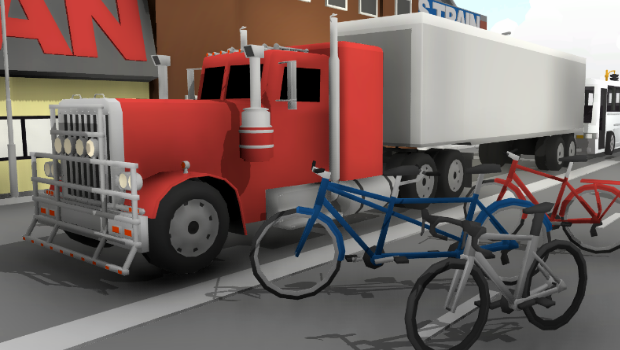
To start off, Rolling Line finally has a truck prop! Specifically two of them, as well as a trailer. These are multi-paintable of course. These truck models were made by Anyone999991!
Bikes
Another thing I've thought about adding for a while (but the community beat me to it!) is bikes. There are now three variations of bikes (tandem, road bike, and classic city bike). These bike models were made by coconut_pie!
In addition to the community made vehicles, this update also adds the lifeboats (from the ferry prop) as their own individual props:
And for a non-prop related feature: You can now manually change which room the pause menu spawns in. The reason for this is that a recent glitch caused some peoples save files to break in such a way that the menu started showing up in the wrong room, so now you can manually fix this if it happened to you!
Keep in mind that the legacy rooms are no longer fully supported, and I recommend sticking to the "custom table" room instead.
Aside from that, this update also includes a bunch of smaller features and fixes:
Pantograph state (raised/lowered) is now saved in the layout save file. so these no longer reset after reloading.
Fixed bug that prevented the "custom track" tutorial from being completed. The step where you need to paint a prop to continue was bugged. this has been fixed now.
Fixed a bug where table style was not correctly saved (e.g. solid black vs wooden)
In-game music will now no longer automatically stop when going near a moving train in large scale (only in miniature scale) previously going near loud noises in large scale would cause the music to fade out.
The autumn leaves props now have randomized color hue and size, this was just a simple oversight.
Also in other news, i made a quick little scenery diorama inspired by "the Lunatic Line" through Kenya. Specifically the scenery of urban decay and slums. I had never seen this style of scenery made in Rolling Line before so i wanted to try it out!
You can find it here: https://steamcommunity.com/sharedfiles/filedetails/?id=2172822471
And that's all for now! Prop modding is still very much in the works and will eventually be ready for release, hopefully within the next few weeks.
But in the meantime, i hope you enjoy these new community made vehicles!
ColorCodes! v3.8
Today's update is actually more of a background game-tech upgrade, so it doesn't have that many exciting new features to try out, but it makes a huge difference in the long run!
Rolling Line has grown tons since it was first released (over 2 years ago!) and the programming behind it has gone through more changes, feature additions and upgrades than I ever planned for. This means that many parts of the background code holding this game together are in dire need of improvement.
Much like with the "dynamic track" updates last year (which completely re-worked the track system) today's update focuses on cleaning up the code behind the color painting system in Rolling Line.
Color painting has gone through SO MANY changes over the years, starting with no color painting at all, to single color painting on props, to multi-painting, to custom colors, and then now, to this new system today which hopefully wraps up all of mistakes of the past systems and will be 100x easier to make changes to in the future.
I wont go into too much detail about how the new color system works, but it involves something I'm calling "KeaColorCodes" ("Kea" being the name i use for the level-editor as a whole). These "Color Codes" store all the necessary information about a color (like material type, transparency, random hue range, etc) and can be easily saved and transferred in lots of different ways.
Thanks to these new color codes lots of new features (like paintable modded props, and paintable room walls, color cloning, etc) are now possible!
From the players perspective, this update adds:
Paintable room walls, floor and roof
You can now use any painter to set the colors of the interior of the custom table room! Simply pickup a painter and paint the menu items in the wall (just like you would paint a prop)
Set the wall type to "Custom" and the walls will use the colors you set!
Clone colors
This feature is for PC only, you can now copy the color of any paintable prop by pointing at it and pressing [Enter] This will give you a painter with the color of the prop you copied! This is incredibly useful for matching the colors of previously placed props, and generally makes the workflow of building a map much easier.
Clone track data
This feature is for PC only as well and has actually been in the game for a while already, but it was quite hidden. You can now make use of copy-pasting track data simply by pointing at any piece of dynamic track and pressing [Enter] After copying the track, go over to the dynamic track generating drawer, and press the new "paste" button.
Doing this will copy dynamic track data from a placed piece of track, then paste it into the dynamic track generator to copy over values.
For example: If you copy a curve with Radius 12 and Angle 30, Then paste it into the dynamic track generator, The corresponding values will update to 12 and 30.
This is very useful if you want to make matching sizes of track or make small changes to a previously placed piece of track.
There are also a few useful quirks to this system:
If you copy a curved piece of track, then paste it onto a turnout, only the curve part of the turnout will be updated.
If you copy a straight piece of track, then paste it onto a turnout, only the straight part of the turnout will be updated.
You can copy a turnout and paste it into a curve to generate a curve that matches the turnout.
Other changes
Most of what this update changes is behind-the-scenes, but here are a few miscellaneous features:
The Biome Brush now saves all multi-paint data. previously it would only save the primary paintable part of the prop, now it saves everything.
fixed bug where switching between drawer categories would not reset the page, leading to an empty page list.
Fixed issues with storing custom painters in custom drawers.
Prop modding
Prop modding is still heavily in development and is my main focus at the moment! The main reason behind doing this color update was to make paintable modded props possible. Using the old system this would have been a nightmare, but with the new ColorCodes it works perfectly.
Prop modding is still several weeks away from completion, but it's all going very smoothly and will change the game in massive ways when it's complete!
And that's all for now!
This is much more a background-tech update more so than an exciting feature update, but it's still incredibly necessary to keep this game stable for future updates.
In the meantime the new little features (like wall painting and color copy-paste) should be pretty useful.
Enjoy!
Miami shelf layout! v3.7
Here's something out of the blue, a brand new official map in the form of a small self layout set in the downtown industries of Miami!
I started working on this on the weekend just for fun, but i was so happy with it that i decided to make some new train liveries to go with it and include it in the game as an official layout. It's only a small shelf layout, but the density of detail makes the most of such a small place. The layout is full of graffiti, references and little details that were a ton of fun to make.
Even though it's not from the same location, i couldn't resist the opportunity to add my favorite livery of all time: the Rock Island blue (aka "The Rock" or "Bankruptcy Blue"). This livery just fitted in really well with the urban-industry scenery theme and I'm sure people will be happy to see it!
This map is completely free (of course) and everyone can access it!
To play this map, simply find it in the "new game" options on the main menu: (Just like with maps like Puzzling World and the Santa Fe)
Keep in mind this is just a small shelf layout, not very large at all. But the goal for this layout was to densely pack details more than any other map I've made, and I'm so happy with how it turned out!
In fact this layout is actually heavily inspired by a real-work model railway built by Lance Mindheim based on a Miami downtown spur. I remember seeing this layout in Model Railroader magazines years ago and i've always loved the sun-bleached soil and graffiti-covered industry it depicts, so it was a hell of a lot of fun finally making something like it in Rolling Line!
Here is the real-world layout I'm talking about: A combination of Lance Mindheim's "Miami Downtown Spur" and his earlier small shelf layout with the same theme.
But that's not all! this update also adds some rust decals which were insanely useful for detailing the rusty industrial buildings for this layout.
Modding update
The real major update that's in the works is modding, and bringing mods to the Steam workshop!
I'm currently working on a huge overhaul of the "QuickMods" system which allows you to set up and edit mods in-game, using and in-game UI and even a preview model that updates as you make changes. These new mods will be shared and download using the Steam workshop too, so both creating and sharing mods will be 100x easier.
First off, im going to be releasing prop modding. With prop modding you can import your own 3D models to add custom props to the game and use them as much as you want in your own maps!
Then after prop modding, I'll be releasing a full modding system for trains, which will have many more features to make use of (like custom headlights, smoke effects, even sounds).
This new modding system is a massive job, and It's going to take a while (and multiple updates) to complete it all, but this may very well be the most influential update in Rolling Lines history! Once prop & train modding is released (and all handled through the steam workshop) there will be more props & trains available to use than i could ever make single-handed.
In fact many people have already started making mods in preparation, and it's looking excellent:
This modding update (well, multiple updates) are going to be in development for a while, at least throughout the next month. It's very likely though that the next Rolling Line update is going to be the first release of prop modding! More advanced prop modding features, and train modding, will be coming afterwards. So there's some pretty major stuff to look forward to!
Modding is currently in the testing phase, but you can try out making basic props if you choose to. I recommend that you dont get too attached to your creations as the modding format may still change in the coming weeks and props made during the testing stage may not still work on release. But none the less, you can still try out the system early if you want. Here is an incredibly helpful guide made by Coconut_pie that describes how to access the mod testing features:
Aside from the new layout, here are a few other features included in this update:
Added the CSX and Rock Island liveries for the U20C model
Added a new drawer "diesel 2" for all the U20C variants
Added new drawer of rust decals
Menu buttons no longer cast shadows (so the sun angle can no longer cause the menu to cast shadows on your layout)
the drawer name list popup uses multiple pages now (previously this was only for custom drawers)
Also, the Steam workshop also now has categories for all of the competitions/jams done in the past, so now you can browse the entries for all the other comps:
I hope you enjoy the new layout! And keep an eye out for future updates around modding, its going to be HUGE!
Fantasy Livery Jam is complete!
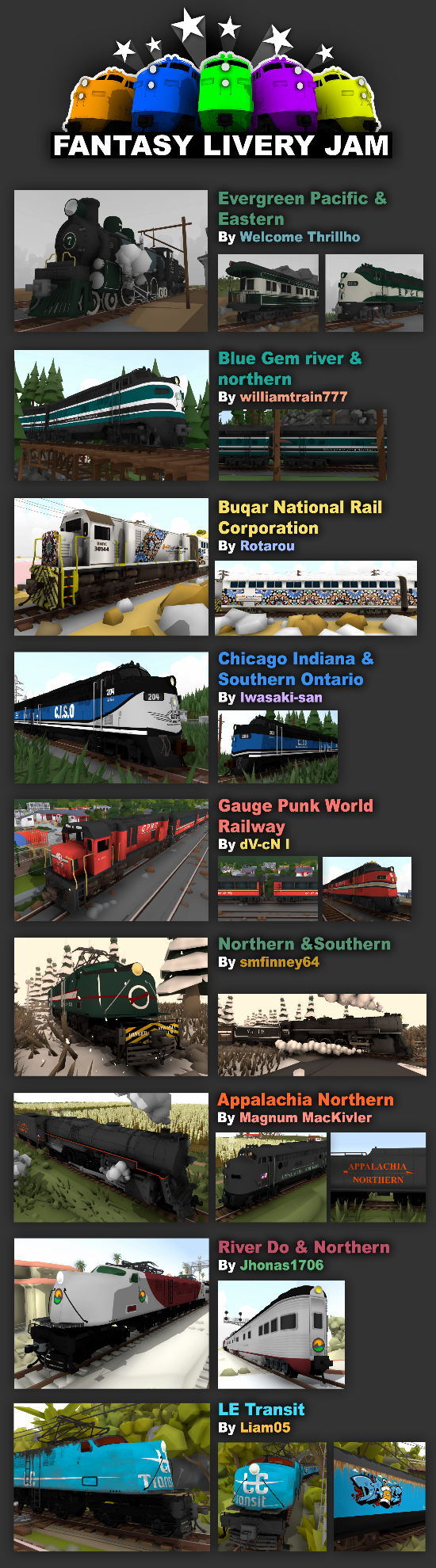
Wohooo! Congrats to everyone who took part in the Fantasy Livery Jam! There were over 500+ entries and SO MANY beautiful designs and creative ideas!
I hope everyone had fun with it and I highly recommend trying out some of the entries to have a look at what everyone's made.
Have a look at the full list of entries here on the Steam Workshop.
Remember this was a jam, not a competition, so there's no "winners and losers" just a ton of great effort and creativity from heaps of people! Everybody who took part deserves a congratulations, but regardless here's a list of my personal favorites!
First up, here's a quick list of my absolute favorites from the whole jam:
The Bluerock Northern RR is amazing, the map is MASSIVE and a truly amazing piece of work. i love the livery scheme too, and overall it was exactly the kind of thing i was hoping to see for this jam! so huge congrats to The Pain Train!
The Minamisakura map has an incredible amount of effort put into it, and the history/backstory to all the rail lines and stations is awesome. Including all the text in the map is an excellent touch and must have taken SO MUCH time, so a very well deserving congrats to MattTheWolff!
And of course the Fury Railroad is just plain awesome. this is probably my personal favorite (even if it is based on a pre-existing idea). The map is so cool and i love the industrial setting. all the rusty train liveries are top notch! I absolutely love it Mr Pink!
And here's a whole bunch of other great layout & livery combos that you can go and try out!
Also, bonus shout-out to the Weebox for making over 50+ liveries for one big collection!
And lastly, here are a ton of great liveries that didn't have an associated layout but definitely deserve a mention! There were so many amazing ones!
Also don't worry if i didn't get a chance to mention your livery/map, there were 500+ items uploaded total (as of now) and i managed to personally try them all, so a HUGE thank you to everyone who took part and made something for the jam!
This update (as well as several small patches in the last 2 weeks) included a few small features and bug fixes. these are:
Increased the custom room size limits to 1000x1000x1000
Fixed issue with "exploding trains" when opening custom drawers
Fixed bug that caused the custom room walls to not set the correct size when loading workshop maps
Fixed distance spacing between props when using the biome brush. Also fixed issue with biome brushes not saving their data correctly.
In other news, the brand new modding system is fully underway! The new modding system is going to completely change how modding works, and bring mods to the Steam Workshop! I'm also adding prop modding, and this will be ready before trains will. So keep an eye out for that!
And that's all for now, Thank you everyone for taking part in the Fantasy Livery Jam!
Fantasy Livery Jam! v3.6
Guess what, time for a livery jam!
Have you ever wanted to think up a fictional railway with its own unique logo, colors and history? Well then this is the perfect opportunity to do so!
It's easy to get caught up in all the little accuracies and details of realism when it comes to making liveries, but why not make something completely new? Personally I absolutely love designing logos and color schemes, so when you combine that with trains what's not to love.
The goal of this jam is to be creative and design your own fantasy (fictional) railway line, along with as many different kinds of liveries as you want to go with it. You can even make a layout based on the locations your railway takes place in! You can even think up a backstory and history to your railway if you want! And of course you can upload as many designs as you want, even multiple different railroads too! There is no limit on how much you can make.
This is a "jam" not a competition, so dont worry about making the largest, most detailed railway in the world, just have fun with it. Even a single wagon with a special color scheme is a worthy entry!
There won't be any specific prizes for this jam, but I'll of course be posting screenshots and giving shoutouts to peoples entries along the way, and at the end of the jam I'll do a nice roundup of some of the most interesting ones!
This jam will last for 2 weeks, and ill post some early-bird shoutouts at the half-way point too!
To include your livery/layout in the jam, all you need to do is tick the "Fantasy livery jam entry" option when you are uploading to the Steam workshop.
And that's all! Simple as that. Just have a go at designing your own fictional railway, make some liveries for it, and include a layout and/or backstory if your feeling adventurous. And try out other peoples entries along the way for inspiration!
To get things started, I've already made my own example: The "Bog Pit Railroad"
It's a coal railway for a fictional mine in the outback of Australia, and it has a range of liveries which all serve a different role in the railways activity (and history).
I can't wait to see what kind of things people can come up with! Designing fantasy railways can be a lot of fun, and I hope you enjoy it ːsteamhappyː
If you've never made a livery before then is actually a lot easier than you think! All you need is very basic image editing software (even Paint is fine!)
There is a full guide here on Steam which explains step-by-step all that you need to make a livery:
Aside from announcing this livery jam, this update also includes a few other features:
Track can now be stored in custom drawers.
Painter props (like color painters, track detail painters, pantographs, plows, etc) can now be placed in custom drawers.
Custom drawers now have multiple pages! If you make lots of drawers they will now be stored over multiple pages which can be switched between.
Rolling Line now has a rainbow prop! you can find it in the "Misc -> Unlocks" drawer.
There is also a special fantasy livery jam wagon, which you can also find in the "Misc -> Unlocks" drawer.
Two new props were added, a beer bottle and a washing machine.
Placed shelves now have an "apply" button when you are placing them. this means that you can place a new shelf on your map, then apply edits, without needing to use the "apply all" option on the edit tool.
Liveries now have a unique ID as well as their name, which means you can give liveries the same name without conflicts. Please keep in mind that this will not apply to previously uploaded liveries. you need to create a new livery for this new ID system to be used. You should still give your liveries unique names though for good practice!
Generic names like "empty" and "new game" are now blocked from being used when uploading items to the workshop. Please give your uploads proper names!
You can now open/close the category and page popup windows on drawers by clicking the button again.
Deleting a livery no longer refreshes the entire livery list, which means the game no longer freezes when deleting a locally saved livery.
Fixed glitch where refreshing the custom livery images would break other liveries that you have saved in the same game session.
Fixed issue with quickMod wheel position in custom drawers.
You can now use the "Insert" key both in photo mode and in normal gameplay to lock/unlock your cursor.
Fixed distance spacing between props when using the biome brush. Also fixed issue with biome brushes not saving their data correctly.
If you experience an error when loading props/trains into a custom drawer and error message will be shown and the broken props will be removed (instead of floating around the sky). Please post in the Bug Reporting thread if you experience this issue. NOTE: this has been fixed! this should no longer happen
Increased the room size limits to 1000x1000x1000 (more than anyone could possibly ever use)
And this everything for this update! On a side note, if you want a high-resolution copy of the "fantasy livery jam" logo (along with the previous competitions) you can download them here:
Fantasy livery jam logo: https://imgur.com/gallery/TdI7dlW