Custom drawer styles & main layout conversion! v3.42
Hello everyone! This has been a slightly longer gap between updates than usual, but that's because some big changes are happening in the background! I'm finally putting some serious time towards improving the optimization of Rolling Line and cleaning up old legacy features that have stuck with the game since release day (over 3 years ago now).
And the single oldest part of Rolling Line is the original main layout, called "Top of the south"
Back when this game came out it only had one single layout, and the map editing tools were hilariously bare-bones compared to what they are now. Because of this, the old "main layout" is actually built using entirely different tools and methods to how every map in the game is made now.
All the systems like skyboxes, switchboards, powerlines, turntables etc were all hard-coded for that single layout. But after many, many updates to the game all of these features can now be done using in-game tools!
Because of all these old "hard-coded" systems being used on the main layout it's been really complicated trying to make optimizations and improvements to how the game runs and loads maps. So something I've been dreaming of doing for a long long time is to finally "convert" the old main layout into a modern map, all using in-game props, track, tools, etc.
And that's exactly what this update is about!
On the surface it hardly looks like anything has changed, but the new "Top of the south" layout (included in this update) is actually a painstakingly-built one-to-one copy of the original. This means that you can now actually edit all the props, track, skyboxes, switchboards, etc, just like any other map in the game!
And best of all, I can finally remove all the old legacy code that the original main layout relies on.
This is all quite technical and hard to explain, but all you need to know is that Rolling Line just got 100x more flexible to future change, so the next series of updates are going to be focused on improving performance, stability, and all-around optimization!
Please keep in mind that no optimizations are in the game yet! This update is just the initial layout conversion that gets things ready for what I have planned next.
But even though it doesn't look like much on the surface, this update is actually a massive milestone for how far the game has come since release. Features like skyboxes, turntables, dynamic track, switchboards, etc, are all now proper in-game tools, yet back when the game came out these were all features I could only dream of. But now, 125 updates later, here we are!
Here is the full list of what's changed in this new version of the main layout:
All track is now editable
New audio sources and ambient audio
Switchboards are now dynamic
All signals now use the new system
All level crossings are now dynamic and use custom triggers
Skyboxes use the new skybox system and are editable
All props (aside from roads and terrain) are editable
The layout is now in the custom table room, instead of the legacy main layout room
All powerlines use the new dynamic wire system
In addition to the main layout conversion though, this update also includes some new features to enjoy:
Drawer style customization
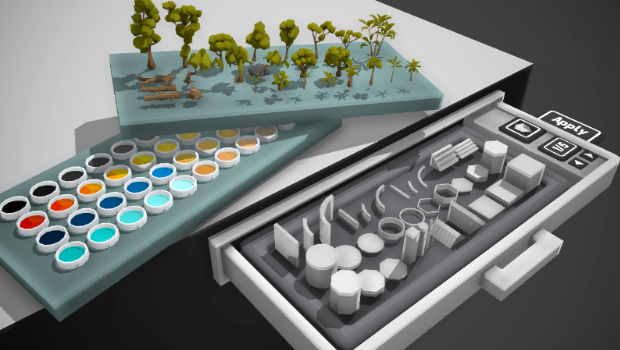
You can now customize the visuals of the portable drawers! Simply press Q (left-hand hover option) to open the popup menu and you can edit a bunch of options.
In this menu you can customize:
Opening drawers (with a handle) or stationary
You can choose to make the drawers open/close when clicking on the handle. So you can place the drawers in the walls and open them when you need them:
Change the shelf style
Choose between a few different shelf styles, like a glass case or a foam holder:
Change the colors
You can change the inner and outer box colors. Just paint them like any other prop in the game:
Enable/disable the inner/outer box
You can also choose to hide either the inner and outer box. This is great for making glass displays (where you don't want the drawer buttons visible).
New props
During the process of converting the main layout there were a few new props which were added. These are:
Two new industrial buildings (originally from Picton)
A bunch of new rock & boulder types
Playground prop
Rubbish bin
Various sign posts
Various road signs
Tent
Roadworks barriers
Seat
Shipping container
New main menu
The main menu is now the Hanmer Springs scene. In the future I plan to make a system where you can create your own custom main menu scenes, or even share/download them on the workshop! But for now, this scene is replacing the old ones in various locations around the main layout.
Kaikoura earthquake map
You may have heard of an easter egg where you could trigger an earthquake on the Kaikoura coast and get a unique post-earthquake scene. Well in the process of re-making the main layout I decided to make this easter egg a proper map that everyone can access from the main menu!
Other changes
The "main layout quality" setting has been removed, since it's no longer used
The "Startup load type" setting has also been removed for the same reason
The "Kaikoura, picton, ward, etc" loading stages are now gone, since the game no longer needs to load these manually
And that's everything!
Even though on the surface this "main layout conversion" doesn't look like much, the amount of work involved was insane and the amount of flexibility for future changes and optimization that this has made possible is massive. Rolling Line certainly has some big changes on the way, and converting the old main layout was the number-one roadblock to making that possible.
And I am very, very excited to be working on what's to come!
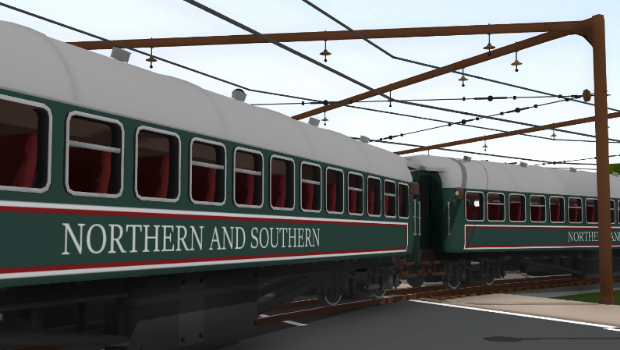
NZR Coach liveries! v3.41
Remember those passenger coaches from the Weka Pass update? Well I've finally added custom livery support for them!
I spent most of this week moving house and things have been very busy. So I decided to do a quick and simple update, and it was the perfect opportunity to add liveries for these coaches.
These new livery types are:
NZR Coach Long 1st class
NZR Coach Long 2nd class
NZR Coach Long Baggage
Lots of people have already started making liveries with these new templates, and you can find a bunch of them on the Steam Workshop. You can find them simply by going to the Steam Workshop and using the “livery type” drop-down list:
Just as with all the other liveries, you can find the templates in the "Rolling Line -> Modding -> templates" folder.
Plus there's a guide here on Steam that explains how to make your own liveries! All you need to make liveries is basic image editing software (even MS Paint is fine):
Added "new" flares to recently added livery templates
Fixed a bug where pressing R and F (delete and transform edit) at the same time would get you stuck in transform edit mode
Fixed a bug with the Top-of-the-south's earthquake easter egg not working properly
And that's all for now!
I've finished the house-moving process and now I can get focused on a larger update next. In the meantime, I hope you enjoy these new livery templates!
Santa Fe Remaster! v3.40
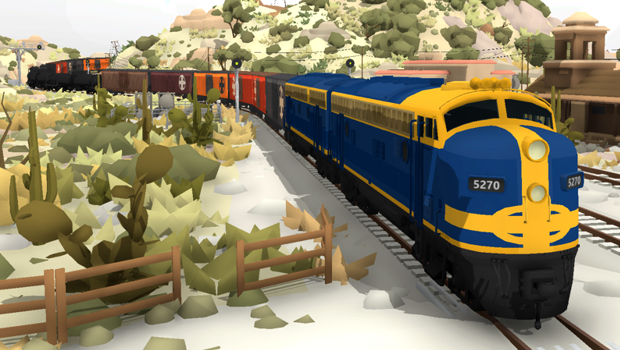
The Santa Fe remaster is here! It's been over 2 years (almost 3!) since I made the Santa Fe map, so it's become pretty out-dated. There's been so many new features added to Rolling Line since then, so this update finally brings it up to the modern standard.
This includes:
Full skyboxes! (extended scenery in miniature mode)
Switchboards
Working signals
Powerlines
Entirely re-laid track
Tunnel regions
Level crossings
But best of all, I've extended the map to include whole new areas! These new locations are:
Goffs, California
Two Guns, Arizona
Twin Arrows, Arizona
Mojave desert
Here's a map showing the newly extended version of the map:
Here is an HD version (click to view):
A tour of the Santa Fe layout
The Santa Fe layout is inspired by the route of the famous "Super Chief" streamliner, and crosses from Pasadena in Los Angeles, through the Mojave desert, and through old Route 66 towns. The map exits through the red desert canyons of Arizona.
Pasadena, Los Angeles
In the outskirts of Los Angeles, Pasadena is one of the iconic stops of the Santa Fe’s flagship passenger train, the "Super Chief". The Super Chief is a streamliner that ran end-to-end from Chicago to Los Angeles and wore the famous red, yellow and silver “Warbonnet” livery.
Railway timetables called Pasadena the "gateway" to Hollywood, Beverly Hills, Santa Monica and the San Fernando Valley.
Goffs, California
Goffs was a classic western mining town on the edge of the Mojave desert with the Santa Fe railway passing straight through. Route 66 use to pass through Goffs, but was later re-routed to bypass the area, which led to the towns slow degradation into a ghost town.
This section of the map serves as a classic "wild west" style American town, and also borders on the vast Mojave desert.
Two Guns, Arizona
Due to its dark history and multiple large fires, the small settlement of Two Guns is considered to be cursed, and sits today as another ghost town along the old Route 66.
Two Guns was the site of a grim conflict between the Apache and Navajo tribes in 1878. Apaches were hiding in a cave but were discovered by the Navajo, which then lit fires at the cave entrance to draw the Apaches out. The smoke suffocated 42 Apaches, which led to the Cave being forever known as the “Death Cave”.
In the 1920s the land at Two guns was purchased and turned into a roadside tourist stop. Despite the areas real history, the land owner brought in lots of fake relics and even painted fake cave drawings to entertain tourists.
One of the other attractions for tourists was a Zoo. It housed mountain lions, cougars, snakes, birds and more. There was also a gift shop, which even sold Apache skulls found in the Death Cave. Selling these skulls is what is believed to be the source of the towns curse.
Twin Arrows, Arizona
Twin Arrows is just a simple trading post which lived and died alongside Route 66.
It was originally called “Canyon Padre Trading Post” but the name was later changed to mimic the nearby town of “Two Guns”. Two giant arrows were built as the icon for the trading post, and business actually vastly improved.
Canyon Diablo, Arizona
Canyon Diablo (aka “Devil's Canyon”) is a steep gorge crossed by the Santa Fe railway. The original trestle was built in 1882, then In 1946 a steel arch bridge replaced the old trestle.
You can actually see both versions of the bridge on the layout, with the modern steel arch bridge on one side, and the old trestle on the other.
Skyboxes
Out of this whole remaster, the most important new addition to the map is full skyboxes! Unlike the old map, there is now scenery filling up your surroundings when in miniature mode.
Here are some examples:
A view of Pasadena:
A view of the whole canyon area:
Other details
The newly remastered layout also makes use of all the modern editing features in the game. This means things like dynamic powerlines:
Switchboards to control turnouts (which you can use inside the trains):
Tunnel effects, custom audio, ambience, etc (all the new miscellaneous map features):
Working signals, which actually detect trains. (the original Santa Fe was so old it didn't even have real working signals!)
And the whole map now has infographics! Which means text and real-life photos around the layout with info about the real locations the map is based on:
And of course:
Easter eggs!
The new version of the Santa Fe now includes a whole bunch of easter eggs (and even some props you can unlock in the "unlocks" drawer from finding them).
New props
This update also adds a few new props. These are:
An RV (made by microcosmologist!)
The "Mountain lions" zoo building from Two Guns
A couple of snapable clay wall props
Plus a bunch of props hidden behind easter egg unlocks!
Accessing the new map
You can play the new version of the Santa Fe by simply starting a new game on the Santa Fe map! The "new game" menu now also has "Updated" flares to show which maps have been recently changed.
Other new features & fixes
Here are a bunch of other small fixes included in this update:
Added a "None" ambient audio option (which mutes ambience)
Fixed the audio for the "desert 2" ambient option
Level crossings now only trigger for trains that are moving. which means that a stationary train will not activate the level crossing
Fixed an issue with trains not being hidden when leaving the skybox if the player is standing still
And that's everything!
It was tons of fun finally getting the chance to extend the Santa Fe layout, since I've always wanted to do more with the American desert scenery. The new locations were interesting to research and I'm really happy with how they turned out.
I hope you have fun with the new map too!
(Also, here's some bonus HD screenshots) https://imgur.com/gallery/LXLQol8
Turnout styles & Tunnel regions! v3.39
Today's update includes a bunch of useful tools and features for layout building, bug fixes and quality of life improvements.
Most of all, turnout lever styles!
But this update also includes:
Tunnel regions (areas you can set where a special lighting effect is used)
Rain exclude regions (areas where rain & snow is disabled, like underground and inside buildings)
Changes and fixes to the wire tool
Optimizations and lag fixes for skyboxes
Various bug fixes
Plus i'll explain a bit about what i'm working on at the moment and what's coming to Rolling Line in the future!
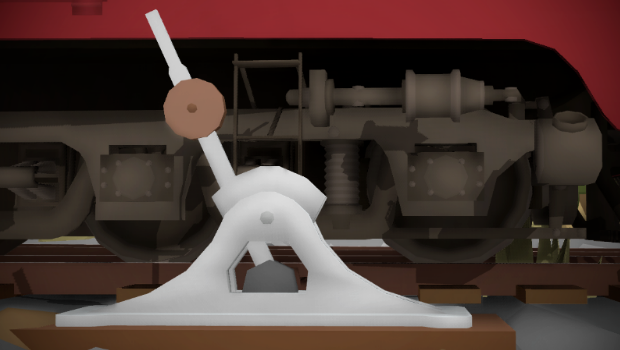
Turnout lever styles
You can now change the style of the control lever on turnouts. There are a whole bunch of options, and you can find them in the new tools drawer in the "track tools" category:
There are six different variations:
You can also the the 'X' painter to remove the turnout lever entirely. This is useful for if you want to make the turnout only controllable from switchboards.
You can also swap the side of the lever (left - right) using the arrow painter.
Tunnel regions
One of the strange features that you can only find on the old "Top of the south" layout is something called a "Tunnel region". Tunnel regions are areas where a special visual effect will happen if the player is inside them. The sun will go darker, and fog will block the distant view.
This effect is used inside tunnels to make things look a bit nicer, but you can also use this same effect to make underground areas darker (or more if you want to be creative with it).
You can now make use of this effect yourself on your own layouts! Simply use the new tunnel region options panel to set where this effect is used. (you can find this panel in the "advanced editing options" panel on the wall)
From here you can spawn in "bounds boxes" (just like with audio regions, skybox regions, etc). If you place these bounds boxes inside tunnels then you will get the tunnel visual effect!
Rain exclude regions
Just like with tunnel regions, this system lets you choose areas on your map which (in this case) exclude rain & snow. When the player is inside one of these regions the rain & snow effects will stop. This is perfect for any indoor or under-cover areas.
Various fixes and features
- The wire tool now has transparent selection points to help make accurate placement easier:
- There is also a bug with the wire tool selection that has been fixed. (changing to the "erase" mode with a selection active could cause the tool to break)
- The level crossing on the Miami Shelf layout now uses the new dynamic trigger system.
- Fixed an issue where leaving the thumbnail capture mode would sometimes spawn you outside the map.
- Fixed issue where region bounds boxes would still have active snap points even when hidden.
- Fixed material issue with the audio panel icon.
- Fixed major optimization issue with skyboxes. You may have noticed lag spikes when running maps with skyboxes (spikes every second, constantly). This has been fixed.
What's next?
Something fun! After a long time of very "technical" updates (designed for map makers) with things like ambient audio, level crossings, wires, switchboards, etc... I'm now working on something a bit more creative!
It's the "Santa Fe remaster" Much like how the Miami Shelf map got an extended skybox and updated wires/switchboards etc, the Santa Fe map also needs this. But this time I am going to be expanding the map a bit, including adding new locations and even some stuff surrounding the Mojave desert and Route 66!
The Santa Fe layout was made a long time ago, and almost every aspect of it (signals, track, skybox, etc) needs to be updated to the new tools that have been added to Rolling Line.
So keep an eye out for that! I personally absolutely love the Santa Fe layout, and I've always wanted to expand it and make the most out of it's beautiful setting and theme.
Enjoy!
Custom audio! v3.38
Something that's always forgotten about in Rolling Line... audio!
I've been meaning to put some time towards the audio system in the game for ages, and that time has finally come! This includes:
Customize the overall ambient audio for your layout
Create "Audio regions" where different ambient audio plays (e.g. different locations in your layout, like cities and deserts)
Create "Audio sources" which play sounds from a specific point in your layout in 3D space
Import your own audio clips to use for both ambiance and audio sources
Share your modded audio on the workshop and package it in your layouts
No longer are you bound to the default ambient birds (that have become synonymous with Rolling Line) you can now have ambiance like city streets, industrial factories, windy grasslands, seaside towns, etc...
You can also use the new "Audio sources" to place specific sounds around your layout. For example, a river that makes rushing water sounds, or a power station with an electrical hum.
And of course you can use the modding system to import your own Mp3 files for all of these features!
Plus I've also made a bunch of improvements to some of the official layouts, like skyboxes, powerlines and full custom audio! (More info on that later in the news post)
Ambient audio
On the wall next to all the other map customization options there is now an "audio options" panel you can open:
On this panel you can easily choose which ambient audio you want from a list of pre-packaged options. Simply choose the one you want and it will replace the default ambiance, and will be included in your save file.
Modded (either created yourself or downloaded from the Steam Workshop) will show up in this list, but more info on that later in the news post.
The main chosen ambiance will play everywhere, regardless of where you are on the layout. But you can also create "Ambient regions" which will play specific ambiance when in specific locations.
Ambient regions
From this menu you can choose to spawn in a new ambient region. Clicking this will give you a little speaker prop which you can then place on the ground.
Once placed on the ground, use the "Edit Options" popup to set it up:
From here you can set up all the options for the audio region. Firstly you can choose which audio clip it will play, and you can set whether it is "high priority" or not. High priority regions will be chosen over others if they overlap.
Next you can use the "add bounds box" button to start setting up the area where this audio will be used. Just like with the skyboxes regions, you use cubes as "bounds boxes" to define the area.
Whenever the player is inside one of these "bounds boxes" the ambient audio will be replaced with the one chosen for this region.
Ambient sources
You can also create simple "audio sources" which will emit a looping sound from a specific point.
You can spawn these from the audio menu on the wall, just like the audio regions. Place the speaker prop on the ground and edit the options using the popup options menu.
You can change things like the audio clip, volume, and range (how far away you will be able to hear this audio source in 3D space).
These little speaker icons are only visible when you have the audio options menu open. Simply click the "Apply and hide audio icons" button on the wall menu to stop editing them.
You can simply open the wall menu again to make them visible again.
Importing your own audio files
You can add your own audio clips using mods! Just like with prop mods, open the modding manager (from the pause menu) and change the category to "Audio clip".
From here you can create a new Audio Clip mod, which only contains a single audio file (Mp3). Just like with all mods, you need to place the assets you want to use (in this case an Mp3 file) in the "Rolling Line -> modding -> custom assets" folder.
Then after you have saved the new mod, the audio clip will show up as an option in any audio choices list (ambient and sources).
If you download an audio clip mod off the workshop, it will also appear in the audio choices list.
Audio mods on the workshop
There is now a new main category on the Steam Workshop for "Audio clips"
As a little example, I've made a quick Far Cry 2 diorama! This layout uses modded audio to add ambiance and music from the game.
As part of this update I've "remastered" a few of the official layouts to include new features.
Most of all the Miami shelf layout now has a full skybox, plus custom audio and also makes use of the new powerlines:
The Hanmer Springs map also now has a full skybox and custom audio too:
And lastly, the Hallowed Cove layout also has an extended skybox and custom spooky audio. The "Halloween sky" is also now stored inside save files! so this means that if you set the sky to use the special Halloween sky, it will be saved in the save file. When you load the Hallowed Cove map, it will now automatically enable the Halloween sky!
Other features
Lastly, this update also includes a few other things.
There are now a bunch of mountain peak props: (You can find them in the terrain drawer)
There are also now a bunch of painters which you can use to switch props over to different skybox layers manually. e.g. if you want to move a prop into the "miniature only" layer without re-placing it. Keep in mind you need to save and re-load your layout for these changes to take effect!
The sky also no longer dims while the weather is set to stormy or heavy cloud in large scale. Previously the room would go a bit darker to reflect the weather, but this feature has been removed. So the room will stay at full brightness regardless of weather.
And thats everything!
Lots of stuff in this update, and I really hope you have a look at the newly updated maps (Miami Shelf, Hanmer Springs and the Hallowed Cove) because the new skyboxes and audio make a world of difference.
Enjoy!
Glowbells! v3.37
This may very well be the strangest update Rolling Line has ever had... So first I'll explain the context!
The last week has been a very busy one, since the New Zealand Games Festival has been happening here in Wellington! I've been attending a bunch of events, including a 48hr game jam called the "PB&Jam"
The goal of the game jam was to make a game in 48 hours from scratch, and to do it in person at the event (so this means I took my laptop over to the venue and made the game there). It's been over 4 years since I've worked on a brand new game project (Rolling Line is a full-time job), so this was a really fun opportunity to make something small and quick from scratch!
I chose to take part in the game jam solo, and I ended up making a colorful little physics platformer called Glowbells!
https://gaugepunkgames.itch.io/glowbells
Now I was thinking... why leave Glowbells as just a standalone game? Rolling Line is moddable & customizable enough that I could definitely import the assets (and more) from Glowbells into the game. Well guess what, I ended up importing the entire game!
On PC (not in VR) you can literally play Glowbells inside Rolling Line:
Along with the game itself, you can also make use of a bunch of props from the game:
And best of all, you can let actual Glowbells loose in your map! These can be placed like normal props, but if you simply drop them they will bounce around just like in the game.
You can even collect them into pens, and make your own Glowbell farms ːsteamhappyː
The NZ Games Festival also included a bunch of meet & greet events, as well as two full days of conferences (called "Play by Play"). So it has been a pretty busy week!
Game developer conferences are always fun, and so inspiring. This is actually the first ever one held in Australia/New Zealand since the pandemic.
In other news...
After this busy week of game development events, and two weekends in a row spent indoors, I'm going to be embarking on a 4-day tramping trip! (aka: hiking/camping).
I'm going to be walking into the Tararua Ranges and I'll be completely out of cellphone/internet reception for likely the whole time. So please bare with me when it comes to bug reports/questions, since I wont be able to respond until i get home.
For anyone who knows the area, or is interested, my tramping route involves: Leaving Waikanae -> Staying in Renata Hut -> Climbing up to Mt Aston and turning around, then staying in Elder Hut -> Staying in Kapakapanui Hut -> Walking back out to Waikanae
And that's all for now!
Updates will get more back to normal once I get back, and in the meantime I hope everyone has fun with this rather unconventional update!
Room and level crossing tools! v3.36
This update has a ton of stuff in it, including some very highly requested features! There's a lot to get through, so I'll go through them one-by-one:
Room scaling (in all directions)
You can now extend the custom room's walls in all directions! Which is perfect if you've ever run in to a situation where you wanted to extend your layout in a direction that is blocked off by the menu corner.
Previously you could only change the width/length/height of the room, but now you can adjust these to negative values to extend the walls in the opposite direction:
Placeable custom menus
You can also now place your own portable menus anywhere in the room! You're no longer limited to just the single menu in the corner of the room, simply place a new pause menu wherever you like in your layout and you can use it just like the default one.
You can also place compact little time/weather menus as well:
You can also set menus as a "teleport point" (simply use the "Q" hover option to toggle on/off)
When you press the pause button you will automatically be teleported to the closest menu which has the "teleport to" option enabled! This means you can have multiple menus around your layout that you can teleport to, instead of just the default one in the corner.
Level crossings
Here's something people have been requesting for ages!
You can now control the trigger area for level crossings (how close a train needs to be to enable the bells and lights) Much like with skyboxes and switchboards, you can place down "bounds boxes" to show where you want the crossing to detect trains:
Of course you can still leave them automatic (which they are by default) but this new system means you can completely control how level crossings detect trains!
There are 3 options: - Automatic (how crossings normally worked, using the default trigger area) - Custom trigger (choose your own trigger area) - Linked (copy the state of another crossing)
linked crossings will activate/deactivate at the same time as the crossing you link them to. This is perfect for when you want 2-4 crossing signals to all activate at the same time! Simply set up one of them to detect trains, then make the other ones link back to the original.
There is also an option to "Use lights offset" which will make the flashing lights alternate to the one you are linked to.
Biome brush improvements
The erase function on the Biome Brush is now much more useful! Biome brushes will now delete anything that matches the items inside it (they no longer need to be placed with the same brush). This means you can load up a map, put a tree in the brush, then easily erase the trees on the map.
The lag caused by using the brush for a long time has also been improved! As long as you "Apply edits" often you can continue to use the brush without any extra lag.
There are also now 16 slots (instead of 8)
plus a few other smaller things:
The "moving help box" setting has been removed and the help box hovers over the selected item by default
Made changes to the wall editing UI
There are now two room tool drawers, instead of just one. And it's more organized
Fixed some mesh issues with the pylon props
Fixed issue where the wire tool would be deleted when using the down action, instead to changing the UI selection
Fixed major issue with the VR keyboard (they keyboard had been broken for ages and somehow managed to not get noticed)
Fixed the transform gizmo breaking after restarting the game (visiting easter egg scenes)
The help text for setting the track gradient to 0 is now more clear (you need to hold ALT and release the left mouse to set the gradient)
Streamliner custom liveries now use the correct default wagon when the livery is not downloaded
And that's all! Tons of stuff in this update, lots of useful things for map makers!
It's great to finally get these features done, i'm gradually getting through the list of everything I've been meaning to add to the game for ages.
Big things are on the way!
Powerlines! v3.35
Here's something I've been wanting to add to the game for ages! Rolling Line has had power poles and pylons for a while, but they were always missing the actual wires.
Well this update finally adds a "wire tool" which lets you connect wires between different points! You can easily connect power poles and pylons (all wires at once) or freely string up wires between any two points.
You can find the new wire tool in the "Room -> tools" drawer:
You can change a few options (like wire thickness and the slack):
Plus you can change the colors of the wire by painting the tool directly:
Using the tool you can connect all the wires of a power pole/pylon in one go:
Or you can change the snapping mode from "all" to "single" which lets you connect wires to each point individually: (Press Q and E two switch between snap points)
All of the power pole and pylon props have snap-points for wires! Plus the two pylon props now have insulators and a few more details:
Plus the power station props have wire snap-points too!
There are also a couple of new single insulator props that you can stick on to anything:
And of course you can add these new snap points to your prop mods too!
Here's an example I've made on the Steam Workshop:
You can find the files for this example mod in the game folder too: "Rolling Line\Modding\templates\prop mod examples"
In addition to the new wire tool, this update also includes a few other things:
There is now a launch tag "-nomods" which makes the game load without any mods (which is great for testing whether mods are causing issues without needing to delete them all)
The room tools drawer is cleaned up and has names for each tool
Legacy liveries now show up for updating in the "mods" list instead of the "layouts" list
The original NZ power pole props are now paintable (and a bit taller)
And that's all for this update, It's going to be great seeing actual wires showing up in everyone's layouts, it adds so much more detail and makes pylons look so much cooler!
Enjoy!
Easter Update! (and more) v3.34
Happy Easter! Despite Rolling Line being out for around 3 years now, this is actually the first Easter update I've ever done for it! (Usually because April Fools is only a few days apart)
Both of my earlier games (Echo Grotto and FrontierVR) have these colorful Easter eggs in them, so it's about time they came to Rolling Line!
There's a wide range of colors and you can find them all in the new "Easter 2021" drawer:
When you crack open these Easter Eggs, you can get all sorts of special items like the classic golden & ghost trains, as well as lots of lesser-known props and even some new interesting stuff added just for these eggs.
You can crack open these eggs by simply pressing E (or right-context action in VR):
You can also throw them to crack them! They'll crack open if they hit any surface hard enough:
But that's not all! This update also includes a ton of quality-of-life features and fixes.
Most importantly:
Transform tool edit for track
You can now move/rotate/scale track pieces using the transform edit tool! (PC only) This is perfect for adjusting the height of track, or getting the angle just right.
Now you'll notice that you can actually scale track too... "Technically" you can, but I dont really officially support it, and scaled track may not behave as you would hope. It's just a fun little feature that it didn't seem necessary to disable. So you can use it if you like... but it's not perfect.
Switchboards in QuickMods
You can now adjust the switchboard location in quickMods! Plus you can enable/disable the switchboard entirely.
These options are: switchboardSpawnOffset 0.004_0_0.002 switchboardSpawnOffsetRotation 0_45_0 spawnSwitchboard false
Switchboards now automatically align better in the cab based on height (which means that taller switchboards will not be cut off by other cab controls).
Align track to zero
You can now hold down ALT (PC only) while placing track to automatically level the gradient to zero. This will make the next piece of track that you connect perfectly flat.
Copy-paste turntable colors and details
The turntable options UI now has a copy-paste button. This means you can easily copy across turntable styles (colors, chosen details, etc) between different turntables.
Other features
This update also includes:
There is now a message blocking the "edit all" buttons. You just need to click "enable" to access them. This is because these options are not deigned for large maps, and this helps prevent people from using them without realizing this
Fixed issue with the multi-paint UI disappearing when outside of the view distance
Improved the popup menu location when editing label text
Fixed issue where the props inside a Biome Brush inside a drawer would not delete when changing drawers
Commas (as well as other blocked characters) are now automatically removed from mod.txt files, as well as when copy-pasting text into input boxes
There is now an icon showing a skybox next to the advance editing options
And that's all! Enjoy, and happy Easter!
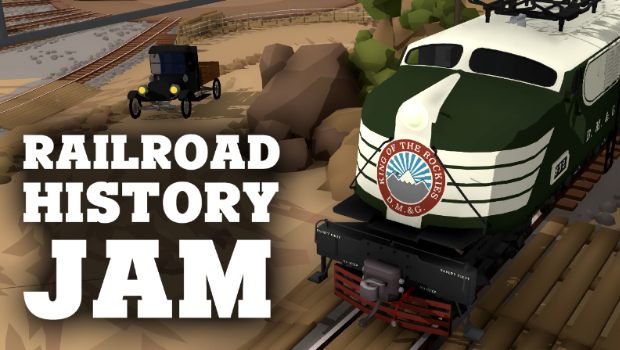
Railroad History Jam favorites!
Massive congratulations to everybody who took part in the Railroad History Jam! There were tons and tons of great entries, and choosing my favorites was probably the hardest out of every jam/competition so far. I especially love how many different and creative ways people found to showcase history, whether it was multiple uploads of your layout in different time periods, or one map with segmented dioramas of different points in history, or even historical changes built into the layout directly!
Plus it is so great to see layouts making use of so many liveries, QuickMods and even modded props! This Jam definitely featured the most modded content of any jam so far.
There were so many great ideas, and I highly recommend going over to the Steam Workshop and having a look at some of the 300+ entries: https://steamcommunity.com/app/754150/workshop/
It was insanely difficult to try and narrow all these entries down to my favorites. There are heaps of maps that I wanted to mention but the list was getting far too long, so don't worry if yours isn't included! I played every single one, and there were far too many awesome ones to list them all.
And that's all for now! There are so, so many more great layouts, so go and have a look for yourself on the Steam Workshop. https://steamcommunity.com/app/754150/workshop/
Congratulations to everyone who took part, and I hope you all had fun!