Put in a lot of work on Scenario 3 (officially now called 'Sesk'). Target delivery is still end November. We are currently testing and balancing two different storylines that can be generated in the battle.
Added new spell Guiding Bolt (Divine Level1).
Added new items Hunter's Helm, Chainmail Gloves, Peasant's Belt and Homespun Trousers.
Fixed a paging issue with the Game Manual.
Designed the Selected Character Dialog and Unit Tooltips mentioned in last week's letter. We are hoping to have these available in a couple of weeks.
All new spells/items will be available in Update 0.080.
This week we will be:
Continuing work on Scenario 3.
Adding more items and spells.
Adding some new Units (friend and foe) that will make their first appearance in Scenario 3.
Cheers!
Ian & Jann
Battlefield Units
Hi Folks.
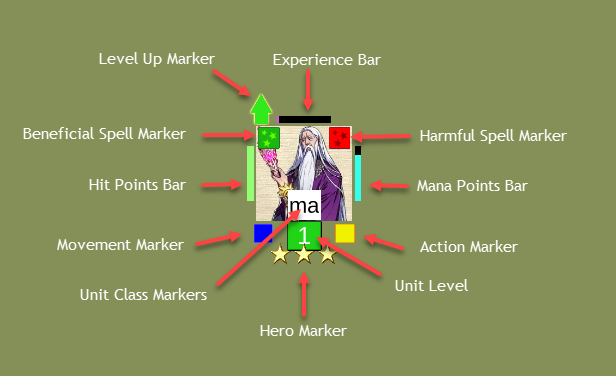
Today we are sharing details on the units that appear on the Battlefield. Each unit is depicted like this:
(Click to download)
Level Up Marker - Every time a unit levels up this marker will be displayed. It indicates that the unit has Character Points that can be allocated to improve the unit. Note that the marker will continue to display whenever there are unallocated Character Points.
Experience Bar - This bar shows how far the unit needs to go to Level Up. As a unit fights and/or casts spells it will gain Experience. When the bar is full the unit will Level Up and the bar will return to empty at the beginning of the next level.
Beneficial Spell Marker - Indicates that there is one or more spells currently cast on the unit that help to improve it. When you click a unit with this marker, a panel will appear above the Unit Buttons showing the current spells and their Remaining Duration. Clicking any of these spells will show the Spell Effects page on the unit's profile. Viewing any of the stats pages in the profile will show which are affected by spells, shown by an 'S' icon in the Buffs column.
Harmful Spell Marker - As above but for spells that currently reduce the stats of your unit.
Hit Points Bar - Reduces as the unit takes damage. Hit Points can be restored by Spells and Potions or by resting to Recover (set via New Campaign Menu - Recovery Rates). If a unit's Hit Points reach zero, it dies.
Mana Points Bar - Reduces as a unit casts spells from its Spellbar or Spellbook. Mana Points can be restored by Spells and Potions or by resting to Recover (also set via New Campaign Menu - Recovery Rates).
Movement Marker - Indicates whether the unit can move any more tiles this turn.
Action Marker - Indicates whether the unit can perform any more actions this turn.
Unit Class Markers - Icons carrying abbreviations to easily identify what type of unit it is. These markers can be turned on/off in the Player Options (set in the Options Menu). The values are:
an - Animal
ar - Archer
cl - Cleric
fv - Fighting Vessel
ma - Mage
ri - Riftmage
ro - Rogue
st - Structure
to - tower
tv - Transport Vessel
wa - Warrior
wm - War Machine
Unit Level - The current Experience Level of the unit. Your units will have a green background while the enemy will have a red background.
Hero Marker - Denotes your Hero or an enemy one. You must not lose your hero or the battle is lost! The enemy has many heroes throughout the campaign, so losing one has no effect. If only one star is displayed on this marker it denotes a Secondary Character of importance. Your objectives will often require you to protect this type of unit as well as your Hero.
Week 1: Newsletter
Hi Folks.
This is the first of our weekly update briefings in which we will keep you up to date with our progress. We'll keep it brief so as not to bore you!
Last week we:
Completed the Game Manual. You can access this from the Main Menu (or on any screen by calling up the Screen Menu) and clicking Player Guides. If anybody would like to see more sections/information included, please let us know.
Added magical variants of Arrows, Dagger, Shortbow and Studded Shield. These will be available in update 0.080.
Started work on Scenario 3 (working title is 'Sesk'). Target delivery is end November.
In addition we (unfortunately) had to fix a few bugs. Apologies to all affected by the problems, we hope there are no issues outstanding. Please let us know if you are experiencing any gameplay difficullties.
This week we will be:
Continuing work on Scenario 3.
Adding more items and spells.
Working on improving the UI. Specifically designing a Selected Character Dialog that will display at the top of the screen below the Selection Bar and will display info about your unit after the mouse is moved away.
Working on new Tooltips for your units that will display info directly on the unit when you hover over it.
Cheers!
Ian & Jann
Version 0.079 Update
Hi Folks.
We uploaded the latest version to fix some issues:
Cannot complete Scenario 2 (A Dangerous Journey) even though all enemies are dead.
Prevent 'grinding' Scenario 2 by returning to the Campaign map.
Units on a Bridge had defense strength too high [reported in-house].
Please note that if you had the 'Cannot complete' problem above, you will need to restart the scenario by loading your last 'Army Management (yyyy-mm-dd hh.mm.ss)' file as, unfortunately, the problem occurred in-scenario and corrupted the saved files. Please let us know if it still gives you problems.
Sorry it took so long to fix, it was a tricky one!
All the Best.
Ian & Jann
Update: Issue with Scenario 2 (cannot complete it)
Hi All.
Not quite finished testing (we're rolling in a couple of other fixes as well). I'm afraid it's going to be tomorrow before we can release Version 0.079.
Thanks for your patience.
All the Best.
Ian & Jann
Update: Issue with Scenario 2 (cannot complete it)
Hey Everyone.
We believe we have found the issue where you cannot finish the scenario even though you kill all the units.
It is going to take us a little while to test (as it was quite involved) but we hope to be able to release an update tomorrow (13th). We just thought we would keep you up to date.
Thanks for your patience and understanding.
Cheers!
Ian & Jann
Version 0.078 Update
Pushed a minor update to fix the following:
Scenario 2 (A Dangerous Journey) some Giant Ants (pesky things) could cause a crash after a reload.
Cheers.
Ian & Jann
Issue with Scenario 2 (A Dangerous Journey)
Hi Folks.
Just to let you know, we are tracking an issue with this scenario when playing the 'Kara the Prelate' objective. It is possible to complete your objectives and not get the victory dialog (i.e. the game does not recognize you have won!)
Please bear with us if you have this issue and we will report back asap.
Kind Regards.
Ian & Jann
Version 0.077 Update
Pushed a minor update to fix the following:
Units Not Appearing in Deployment Dialog
Cheers.
Ian & Jann
The Battlefield User Interface (UI)
Hi Folks.
Today we start a series of posts on the core of the game - the Battlefield. This screen is where you will lead your army throughout the Saga.
Battles will be fought on many different types of terrain. Choose wisely where to position your troops for attack and defense as some will excel on certain tiles whilst others will perform poorly.
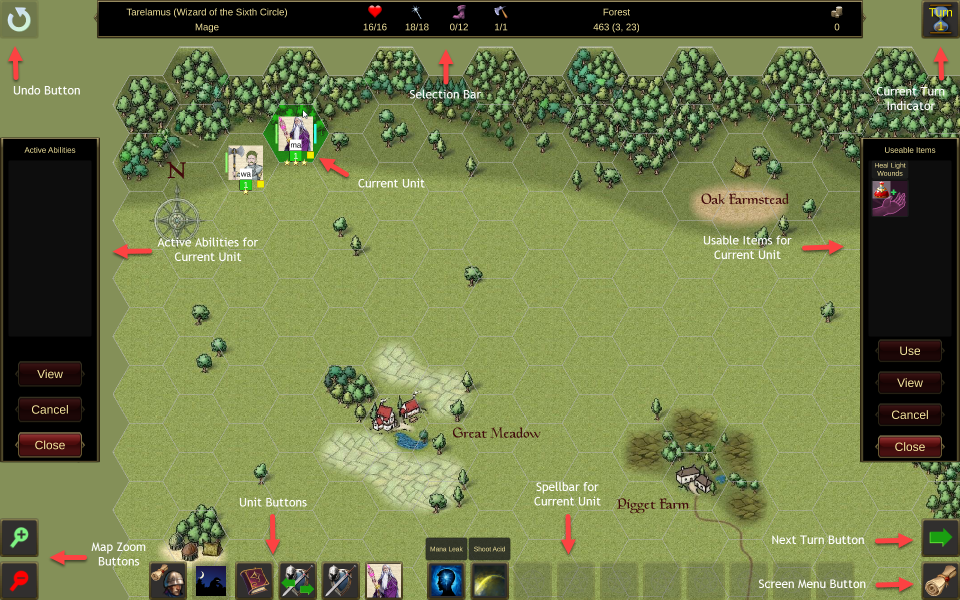
There will be one or more objectives that will have to be achieved to win a battle. The objectives may also vary on every Campaign, as will the number and types of enemy you will face. No battle will ever play exactly the same each time. The interface looks like this:
(Click to download)
There are two of your units shown near the top left of the screen. The unit highlighted in green is the Current Unit and many of the buttons on the screen will invoke actions or display dialogs for this unit.
Across the top of the screen are displayed:
Undo Button - Allows the move of the current unit to be cancelled under certain conditions.
Selection Bar - As you hover the cursor over any tile on the map or you click a specific tile, the Selection Bar will give details about the tile and any unit it contains. The right hand side of the bar also shows the amount of Qaedi you have to spend and the Turn Timer if this has been turned on in the Advanced Rules.
Current Turn Indicator - Display the current turn number in format 'Turn X' or 'Turn X/Y' if the current battle is turn limited.
On the left and right screen edges you can see:
Active Abilities - This dialog will show any Abilities that the current unit can use during its turn. An example might be the Web ability used by some Spider units. Using an ability comsumes an Action for the unit. Most abilities have a limited number of uses in each battle but will recharge between battles.
Usable Items - This dialog will show any Items in the current unit's inventory that can be used during its turn. Potions, Scrolls, Consumables and Tomes are examples of this type. Using an item comsumes an Action for the unit. Items are usually one shot and so using it will consume (destroy) the item and it will be removed from the game. Some items however have 'Charges' which will deplete as they are used.
In the bottom left corner are buttons to scale the map (Zoom In and Zoom Out). This can also be done using the Keyboard (by default the Page Up and Page Down keys) or by scrolling the Mouse Wheel.
In the bottom right corner we have:
Next Turn Button - Will end your turn and activate the AI. You can set options as to whether you want a confirmation dialog to appear and also whether you want to see an animated timer that runs while the AI is playing. This button can be activated via the Keyboard (default T).
Screen Menu Button - Displays a dialog of in-game options (for example Save Game, Player Guides and Exit Game). This button can be activated via the Keyboard (default X).
Along the bottom edge of the screen are buttons that relate to your units. On the left are the Unit Buttons.
(Click to download)
Purchase - Not shown on screenshot. This is In Development and when completed will allow you to spend your Qaedi during battle (for example to buy new units) instead of only Army Management as at present.
Unit Menu - Displays a mini-menu that allows quick cycling through your units on screen. The mini-menu allows you to select Previous Unit (with Moves/Actions), Previous Unit, Next Unit or Next Unit (with Moves/Actions). These functions can also be accessed by the Keyboard by default using the V, B, N, M keys.
Sneaking - Only available if the current unit has a Sneaking attribute of greater than zero (usually Rogues). Will attempt to sneak which makes the unit invisible to the enemy. If the unit is already sneaking, clicking this button will stop doing so. Available on the Keyboard using the '[' key by default.
Spellbook - Only available if the current unit is a Spellcaster (usually Clerics and Mages). Will display the Spellbook page for the current unit. Can be accessed from the Keyboard using the P key.
Transfer - Only active if the current unit is next to another of your units. Clicking this button will highlight any such units and selecting one of them will display the Transfer Items dialog. Available on the Keyboard using the O key by default.
Inventory - Displays the Inventory page for the current unit. Can be accessed on the Keyboard by pressing the I key.
Profile - Displays the profile dialog for the current unit at the Attributes page. Available on the Keyboard by pressing the U key.
Next to the Unit Buttons is the Spellbar. This is only active if the current unit is a Spellcaster and allows quick access to selected spells. By default the Keyboard keys 1 to 0 correspond to the buttons left to right.