

The Qaedon Wars - The Story Begins
Release
Well today is the day!! We have to say this is the most nerve wracking thing we've ever done. A big thank you to all who have shown interest in our game over the past month. We hope you will enjoy it and we will be working hard to release content as quickly as possible towards the Final Release.
Please, please bear in mind this is Early Access and there may be some bugs but everything has been pretty stable through testing so hopefully not too many!
Over the next week we will be:
- Completing the Game Manual.
- Adding more Items and Spells.
- Tweaking Game Balance where appropriate.
- Working on Scenario 3 with a scheduled release before end November.
We would love to hear from you with any thoughts, suggestions or criticisms and we will do our best to respond asap.
All The Best.
Ian & Jann
Unit Customization (9)
When you create your Hero and at any time in the game when a unit Levels Up, the unit will be awarded Character Points that can be used to improve its stats. The number of points is set in the Advanced Rules section when you start a New Campaign.
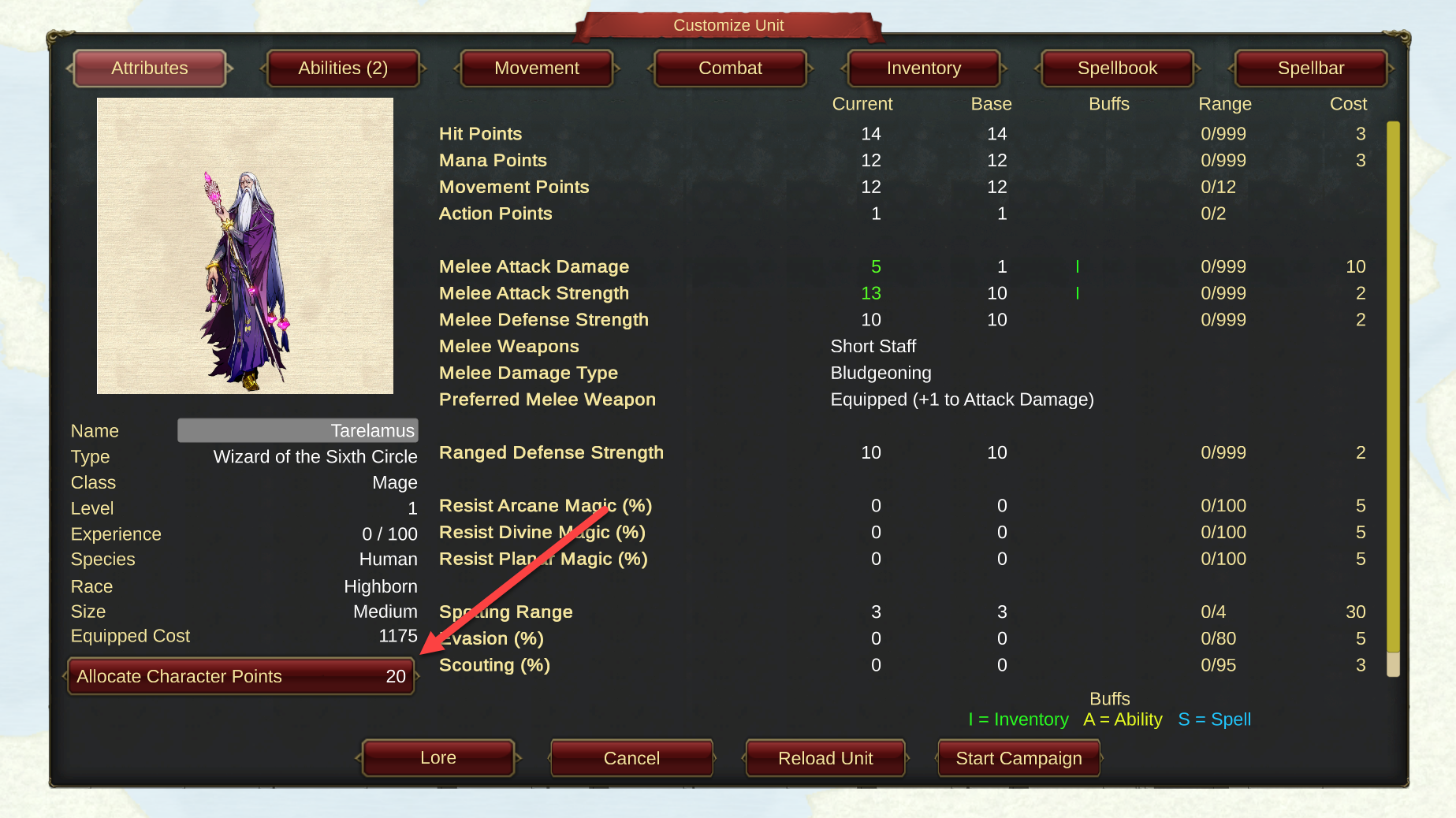
To allocate click the 'Allocate Character Points' button on any profile page as shown here:
 (Click to download)
You will be presented with the 'Allocate Points' dialog which looks like this:
 (Click to download)
You are able to improve Attributes, Movement or Combat stats which can be selected using the buttons at the top of the screen.
To change a stat, click it and it will be highlighted in green. Once selected use the 'Add' and 'Subtract' buttons to change the value as shown here:
 (Click to download)
From this shot you can see that we have improved the number of Mana Points for the Mage. Note also that the Available Character Points shown at the top left has been updated accordingly.
You cannot subtract points below their starting or last accepted values. You can add/subtract at will until you 'Accept' the changes and you can reset the unit at any point before you Accept by clicking the 'Reload Unit' button.
Most stats are improved by 'adding' to the current values but some (for example Movement Costs) are improved by 'subtracting' from the current values in this case to lower the cost of entering a tile.
Happy Allocating!
Ian & Jann
Unit Customization (8)
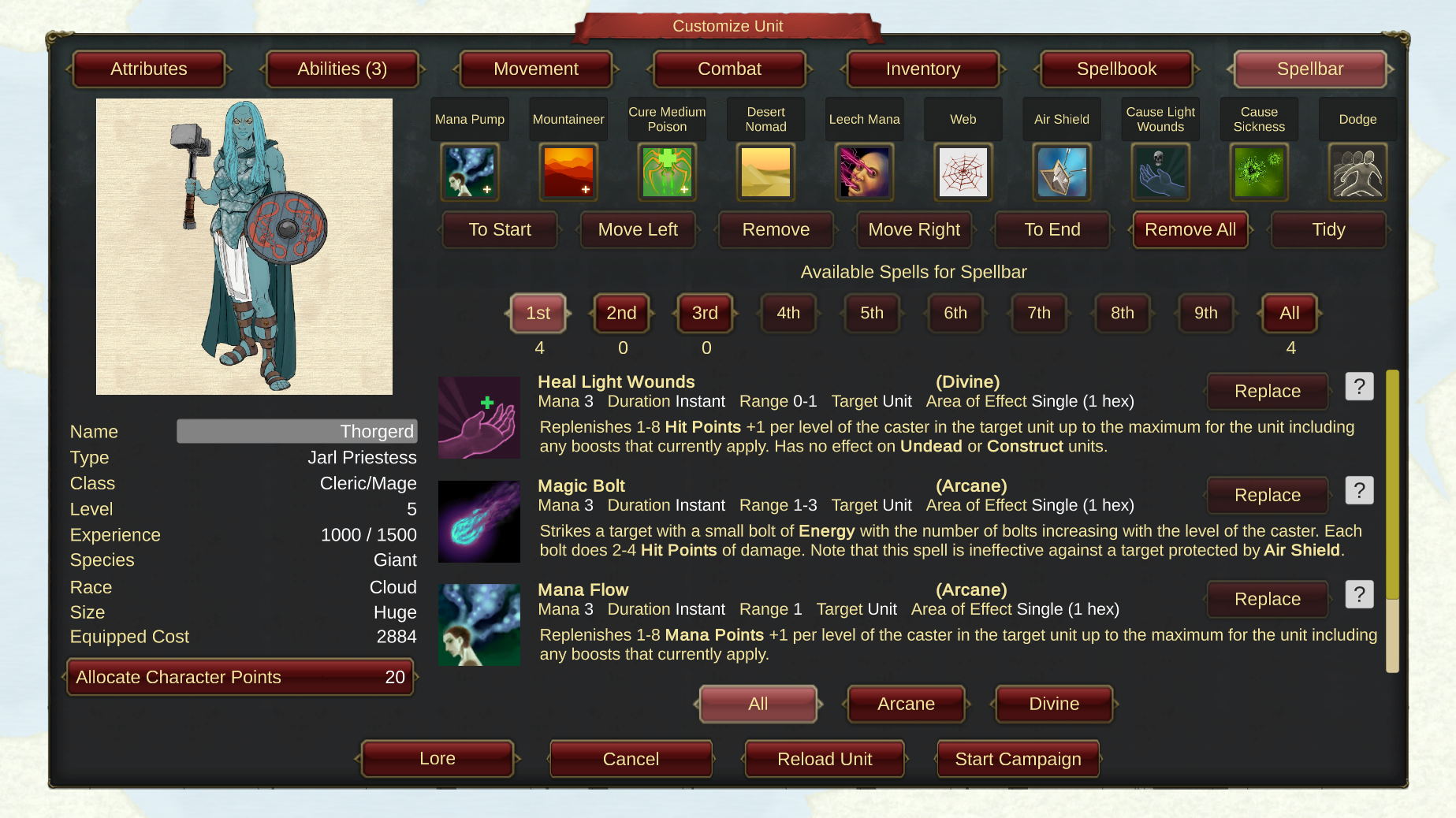
The last of the profile pages in this series is the Spellbar which again is only available to Spellcasters.
 (Click to download)
Here we have a Level 5 Jarl Priestess who, as she is a multi-class Cleric/Mage, has quite a good sized Spellbook. The current Spellbar is shown at the top of the page. On the battlefield the Spellbar is shown at the bottom of the screen and allows for quick access to your favorite spells by clicking a spell or using the keyboard (by default the 1 to 0 keys correspond to the Spellbar slots).
Immediately below is a row of 'Action' buttons that can be used to manipulate the bar. With these buttons you can reorder the existing slots or remove spells from the bar.
Next there is a row of Filter buttons that will display spells that can be added to the Spellbar by level as well as a count of the available spells.
To replace a spell on the bar, click it and the screen will look like this:
 (Click to download)
In this example we are going to replace the Mountaineer spell. Clicking this will outline the slot in green. The 'Action' buttons have all become active as a spell is selected and the 'Replace' buttons in the available spells list are also now active.
Clicking on the Replace button for the Heal Light Wounds spell causes it to switch places with the selected spell, as shown here:
 (Click to download)
Note that now the available spell counts have been updated (Mountaineer is a third level spell so that count has increased while the first level count for Heal Light Wounds has decreased).
Finally, as the Jarl Priestess is multi-class, you can filter the available spells by School of Magic using the 'All/Arcane/Divine' buttons at the bottom of the screen.
All the Best.
Ian & Jann
Unit Customization (7)
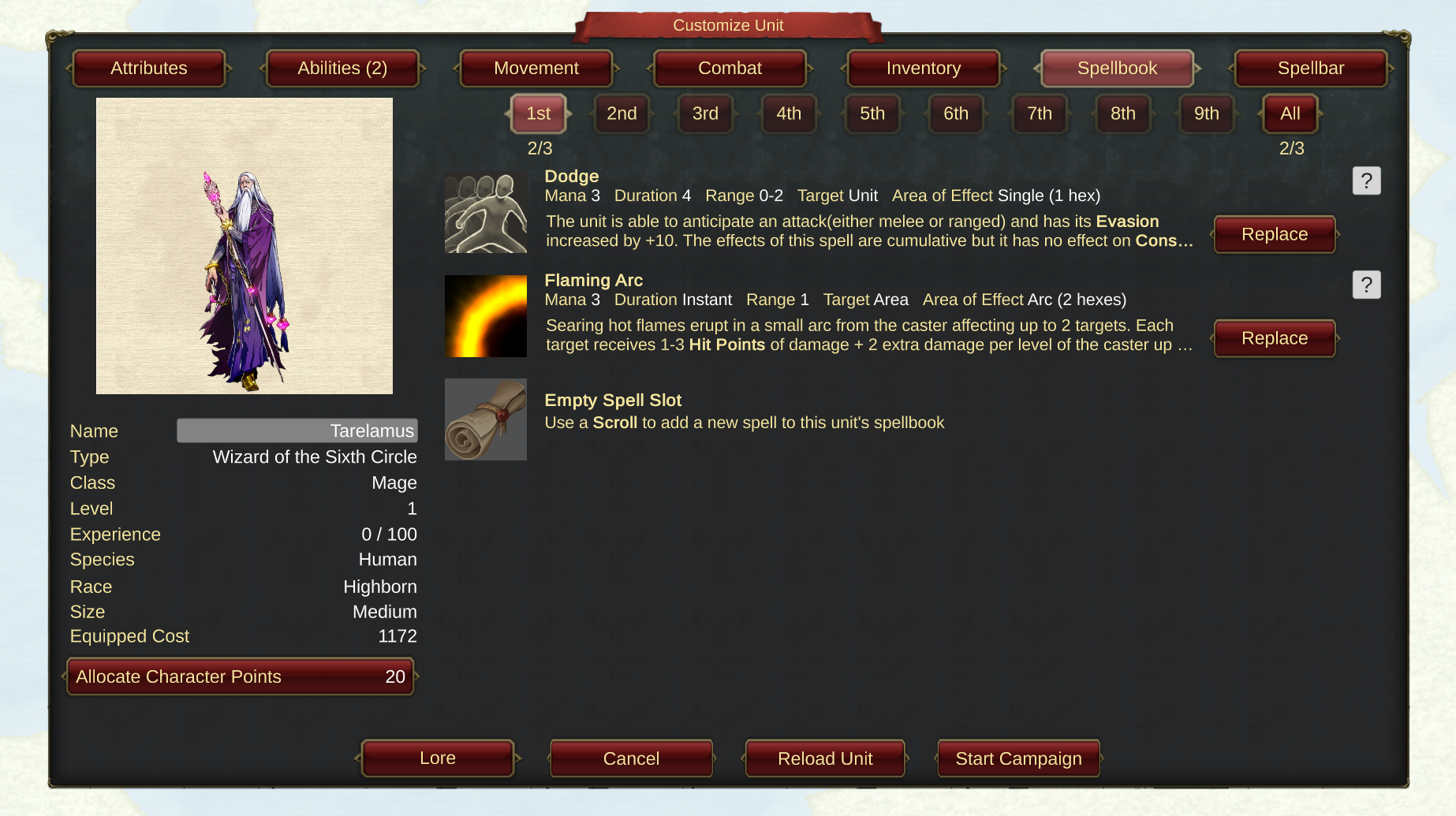
The last 2 buttons on the unit profile are exclusively for Spellcaster units. Clicking on the Spellbook button will display a screen like this:
 (Click to download)
The buttons at the top of the Spellbook will filter by Spell Level. Beneath a level button is a count of the number of spells the Spellcaster currently knows as well as the total number of that level they can have in the Spellbook.
Here we can see that the Mage has 2/3 beneath the 1st. Level button and so the Mage currently knows 2 of a maximum 3 spells of Level 1. This is further illustrated by the spells listed on the page with an Empty Spell Slot displayed for the last spell the Mage can learn at this level.
In this screenshot the buttons for Spell Levels 2-9 are disabled as the Mage does not have enough experience (levels) to learn them.
To find out more information about a spell in the Spellbook, click the '?' icon which in the case of the Flaming Arc spell will display this screen:
 (Click to download)
Depending on how you have chosen to setup your campaign, you may be able to replace existing spells in a units's Spellbook. The default is that this can only be done before a battle. If the 'Replace' option is available at any time, each spell listed will have the appropriate button.
Clicking the 'Replace' button will display a screen like this:
 (Click to download)
In this instance we are looking to replace Dodge with Magic Bolt, so clicking the 'Replace' button beside the Magic Bolt will immediately update the Spellbook for this unit like so:
 (Click to download)
It is important to note that each unit has its own Spellbook so you could for example have one unit that specializes in Offensive spells and another that concentrates on Defensive spells.
In the New Campaign setup, you can choose how you want Spellcasters to operate. The default is for Mages and Clerics to have limited spells which is what is shown in this example. It is possible however to have all spells available to your Spellcasters which makes them much more powerful in the game.
If playing with the 'Limited Spells' option, a Spellcaster can use a Scroll to fill an Empty Spell Slot (this is covered in the topic on Scrolls).
Happy Casting!
Ian & Jann
Unit Customization (6)
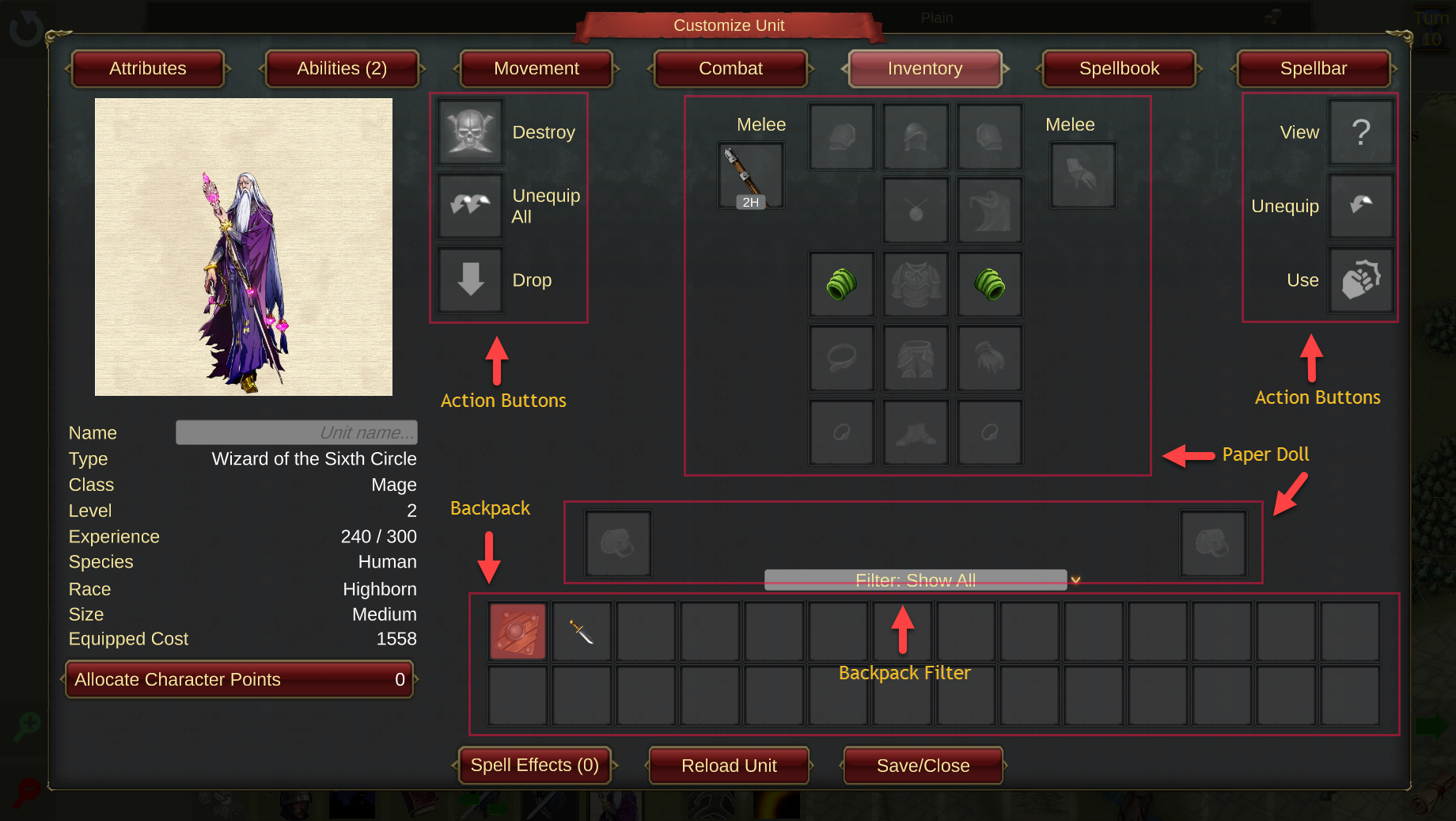
In the previous few posts we've looked at the various stats that define a character's profile. Now it's time to look at the Inventory.
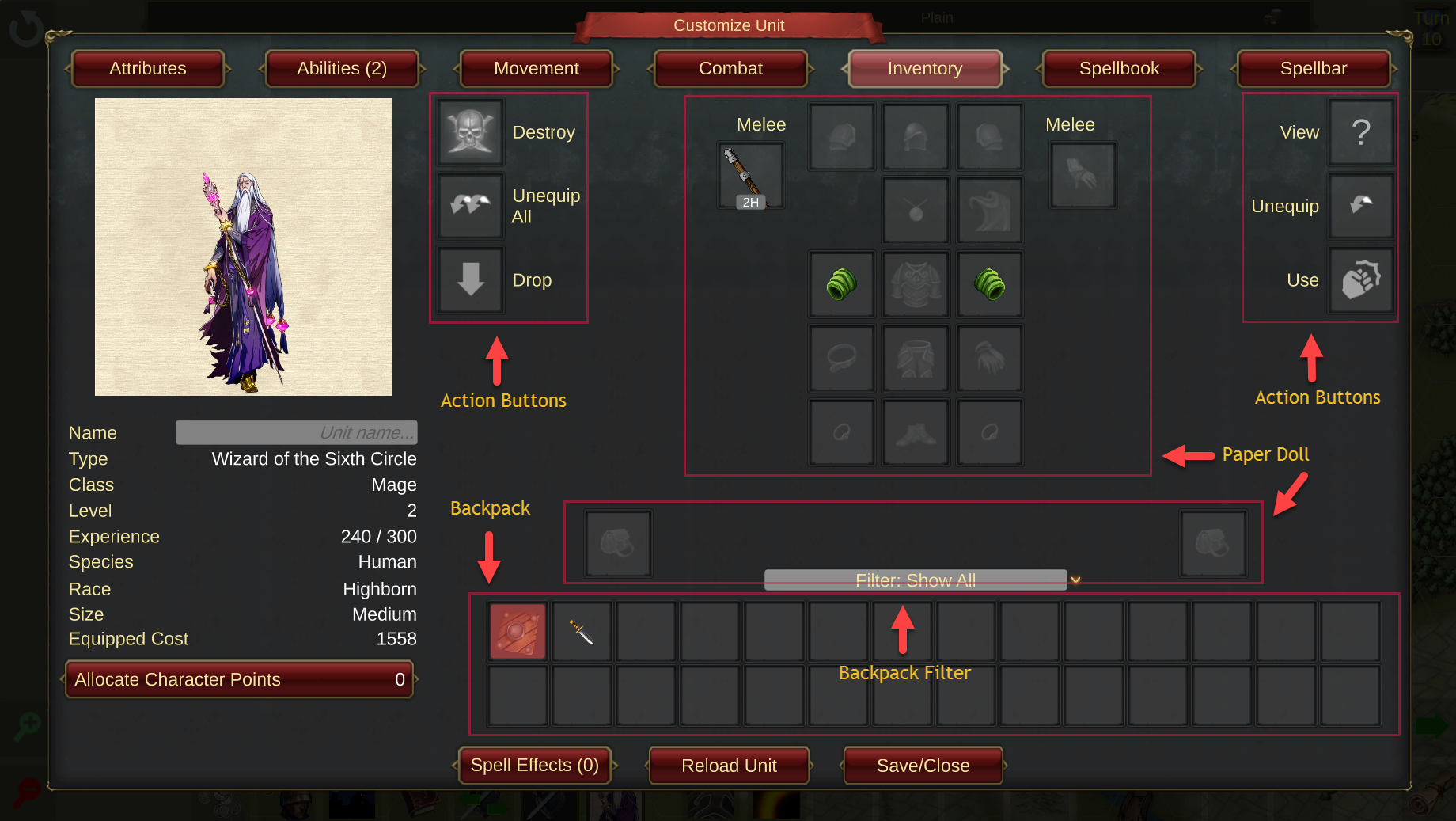
 (Click to download)
The Inventory page is made up of 3 sections.
Paper Doll - a graphical representation of the unit where items are 'equipped'. Any item that is equipped will usually affect one or more stats on the Attributes, Abilities, Movement or Combat pages.
Backpack - where the unit keeps all 'unequipped' items. There is no limit to the number of items in a unit's backpack and they are always displayed in item value order, highest value first. There is also a Filter field placed just above the Backpack where you can narrow down the items displayed. This is most useful if you have a lot of items in the Backpack.
Action Buttons - actions that can be performed within the Inventory.
Items are equipped from the Backpack to the Paper Doll by dragging and dropping. Whenever an item is dragged from the Backpack, the available slots that it can be dropped in are highlighted in green. Items can be swapped by dropping one on top of another on the Paper Doll. In the picture below the Dagger is being dragged and you can see the right and left hand Melee weapon slots are highlighted. You can also see that several of the Action Buttons are highlighted - these are explained below.
 (Click to download)
If the Dagger is dropped on the slot holding the Staff, they will swap places. Also you can see that the Staff is denoted as a 2-handed weapon (with the 2H icon). If the Dagger is dropped on the empty hand slot it will automatically send the Staff into the Backpack as the unit does not have enough hands for the 2 items to be equipped at the same time.
Looking now at the Backpack of this Mage, there is an item in the first slot that is highlighted in red. This indicates that this item is not usable by this unit. To reveal more information about an item you can hover over it to reveal a Tooltip or Right Click the item to get full details as shown in this screenshot. You can also get full details on an item by dragging and dropping it on the View action button.
 (Click to download)
At the top right of the picture you can see that this item is only usable by the Cleric or Warrior classes and thus it is not usable by the Mage.
The following screenshot shows an inventory for an Archer.
 (Click to download)
Compared to the Mage that we saw above, you can see that there are additional slots visible on the Paper Doll. First there is a Quiver slot (second row down) where the Archer will keep Ammunition and then there are left and right hand Ranged slots where the Archer will equip their ranged attack weapon. Archers can have Ranged and Melee weapons equipped at the same time. When distant from an enemy only Ranged attacks can be performed but when adjacent to an enemy the Archer can choose to attack with either its Ranged weapon(s) or its Melee weapons(s).
As mentioned above, items can only be equipped in appropriate slots as determined by the Item Type of the item. The Item Type of each slot is as follows:
 (Click to download)
Example items:
Melee - sword, mace, polearm, dagger...
Ranged - bow, crossbow, sling...
Shoulder - pauldron, epaulette, rerebrace...
Head - helm, hat, cap, coif...
Quiver - arrows, bolts, slingshot...
Necklace - necklace, amulet, chain...
Cloak - cloak, cape, shawl...
Bracer - bracer, vembrace, couter...
Torso - breastplate, chainmail, mantle...
Belt - belt, girdle, sash...
Legs - trousers, pantaloons, cuisses, grieves...
Gloves - gloves, mitts, gauntlets...
Ring - ring, band, circlet...
Feet - boots, shoes, sabatons...
Miscellaneous - orb, statue, bowl...
Looking now at the Action Buttons, there can be up to 6 displayed depending on where in the game the unit profile is being displayed. The buttons are:
Destroy - removes the item from the game forever and cannot be undone!
Unequip All - dragging an item here from the Paper Doll will move all items that are currently equipped into the Backpack.
Drop - only available in a Battle. The item will be placed in a Loot chest on the battlefield where it can be picked up by another unit.
View - the same as right-clicking an item, will give a detailed description of the item.
Unequip - dragging an item here will move that item to the Backpack.
Use - only available during a Battle or Army Management. Using an item will trigger its effects and destroy the item. During a battle Item Types that can be used are Consumables, Potions, Scrolls and Tomes. During Army Management only Scrolls and Tomes can be used.
Cheers!
Ian & Jann
Unit Customization (5)
It's all about the Combat modifiers today. Modifiers are split into the following types:
Attack From - applies to the type of terrain the unit is attacking from.
Defend In - applies to the type of terrain the unit is defending in.
Protection - applies to the kind of attack a unit is defending against.
Other - miscellaneous other stats.
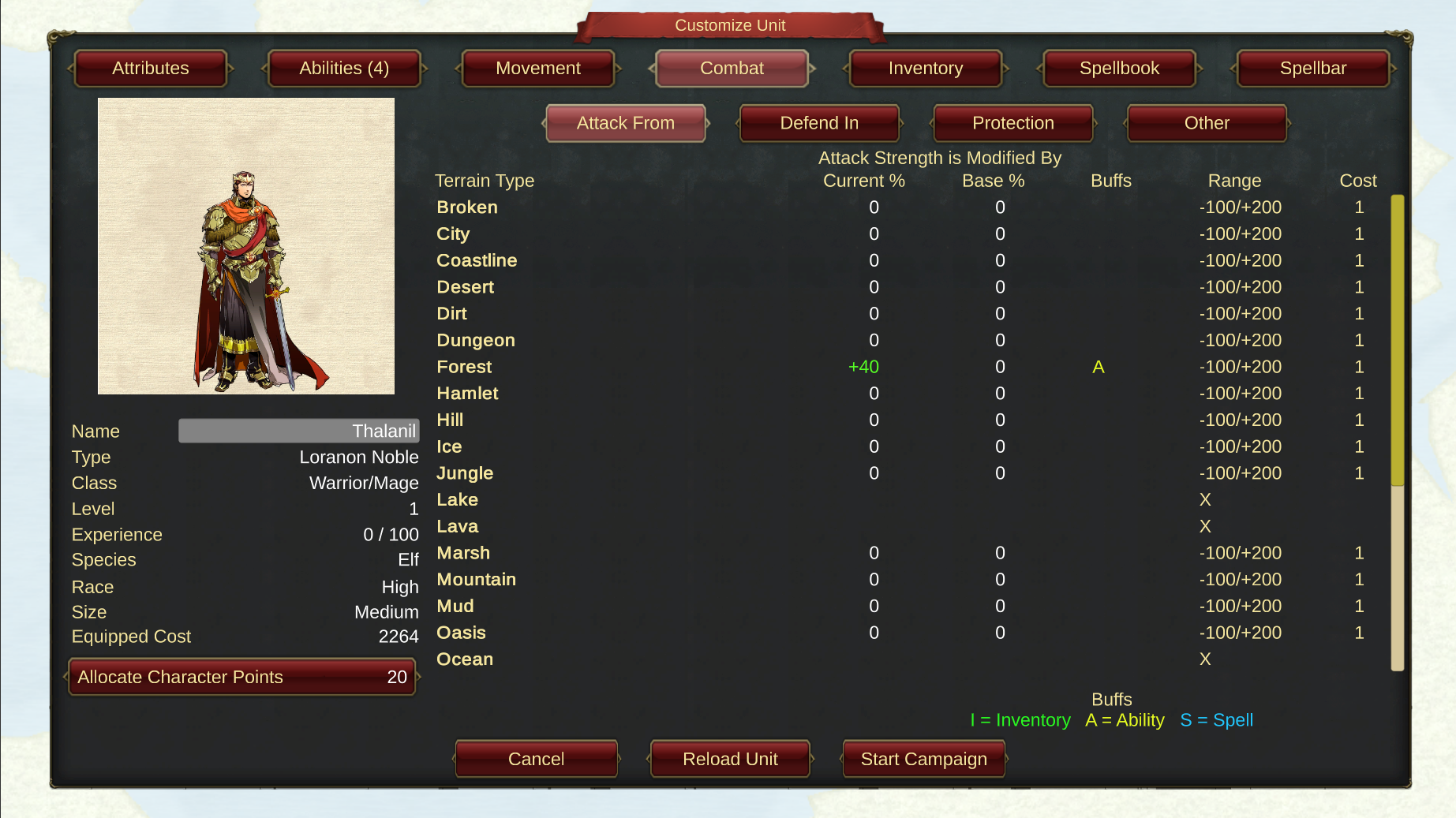
By accessing the 4 combat buttons and using the Loranon Noble elf as an example, the Attack From page looks like this:
 (Click to download)
You can see from this screenshot that the Elf gets +40% improvement on its Attack Strength when it attacks from a Forest tile (the same applies to Wood tiles which are off the bottom of the screenshot). This is indicated by the 'A' marker in the Buffs column as the Loranon Noble has the Forester ability. When attack or defense strength is modified it applies to any Melee and/or Ranged attack that the unit has.
So if a unit has a Melee Attack Strength of 10 with a 40% boost, it has an effective attack strength of 14.
A look at the Defend In page shows:
 (Click to download)
These stats dictate how well a unit defends in the terrain type it currently occupies. Again you can see the Elf benefits from its Forester ability.
The third section in combat deals with Protection.
 (Click to download)
Here we can see that the stats are more about what the unit is 'attacked with'. As an example, a Giant Rat attacks with a Piercing bite whereas an enemy armed with a Mace will perform a Bludgeoning attack. Modifiers on this page can decrease/increase the amount of damage a unit takes when subject to these types of attack.
Finally we have the Other section. This deals with miscellaneous combat options.
 (Click to download)
This shows that a unit can have modifiers when attacking or defending against a Structure (think Siege Weapons here!)
Cheers!
Ian & Jann
Unit Customization (4)
Movement is the subject of this news item. There are currently 31 different types of terrain that your units may encounter on the battlefield. In addition there are 3 terrain modifiers which are things that can appear in a terrain tile that 'modify' the cost of entering that tile. An example of this would be a tile that contains a Road.
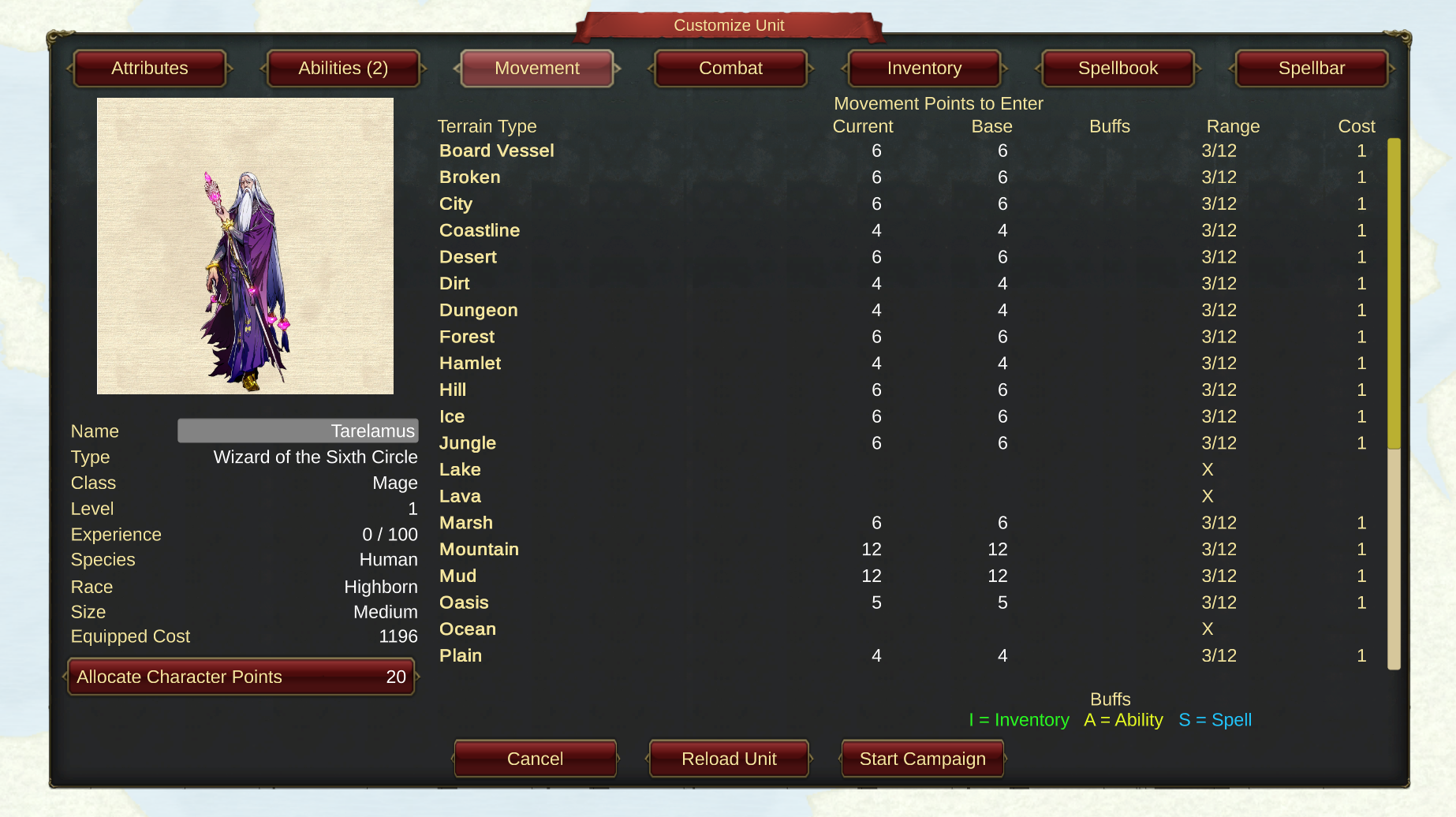
A typical movement page in the unit profile looks like this:
 (Click to download)
The values shown are how many movement points it costs the unit to enter a specific type of terrain. The Current values can be modified in-play by spells, abilities and items. The Haste spell, for example, reduces all movement costs while the Slow spell does the opposite.
Terrain that this unit is unable to enter is marked with an 'X'. In this shot the Mage cannot enter Lake, Lava or Ocean tiles.
The following screenshot shows the lower half of the Movement page.
 (Click to download)
You can see from the left column that the unit here is an Elf. Elvenfolk operate very well in wooded terrain. This unit has the Forester ability which gives it improved movement and combat in Forests and Woods. This is indicated by the lower movement cost and the 'A' marker in the Buffs column of the Woods row (the Forest row is not visible on this screenshot).
At the bottom of the page are the terrain modifiers mentioned at the start. They are:
Road - showing that the cost of a tile with a road is -1.
Obstacle - a whopping +9 to enter.
Snow Covered Ground - an additional cost of +1.
As most units have 12 Movement Points, examples for the Elf would be:
Plains - can move 3 tiles (at a cost of 4 each).
Plains with a Road - can move 4 tiles (at a cost of 3 each).
Plains with an Obstacle - cannot enter (the cost is 13).
[B]Plains with Snow - can move 2 tiles (at a cost of 5 each).
Unused Movement Points in a turn are not carried over. Note also that the cost of entering a tile can never be less that 3. So in the case of our Elf, a Road in a Woods tile will give no benefit as the cost is already at the minimum.
All the Best.
Ian & Jann
Unit Customization (3)
This one is about a unit's Abilities. An ability adds a 'perk' to a unit that gives it some in-game capability.
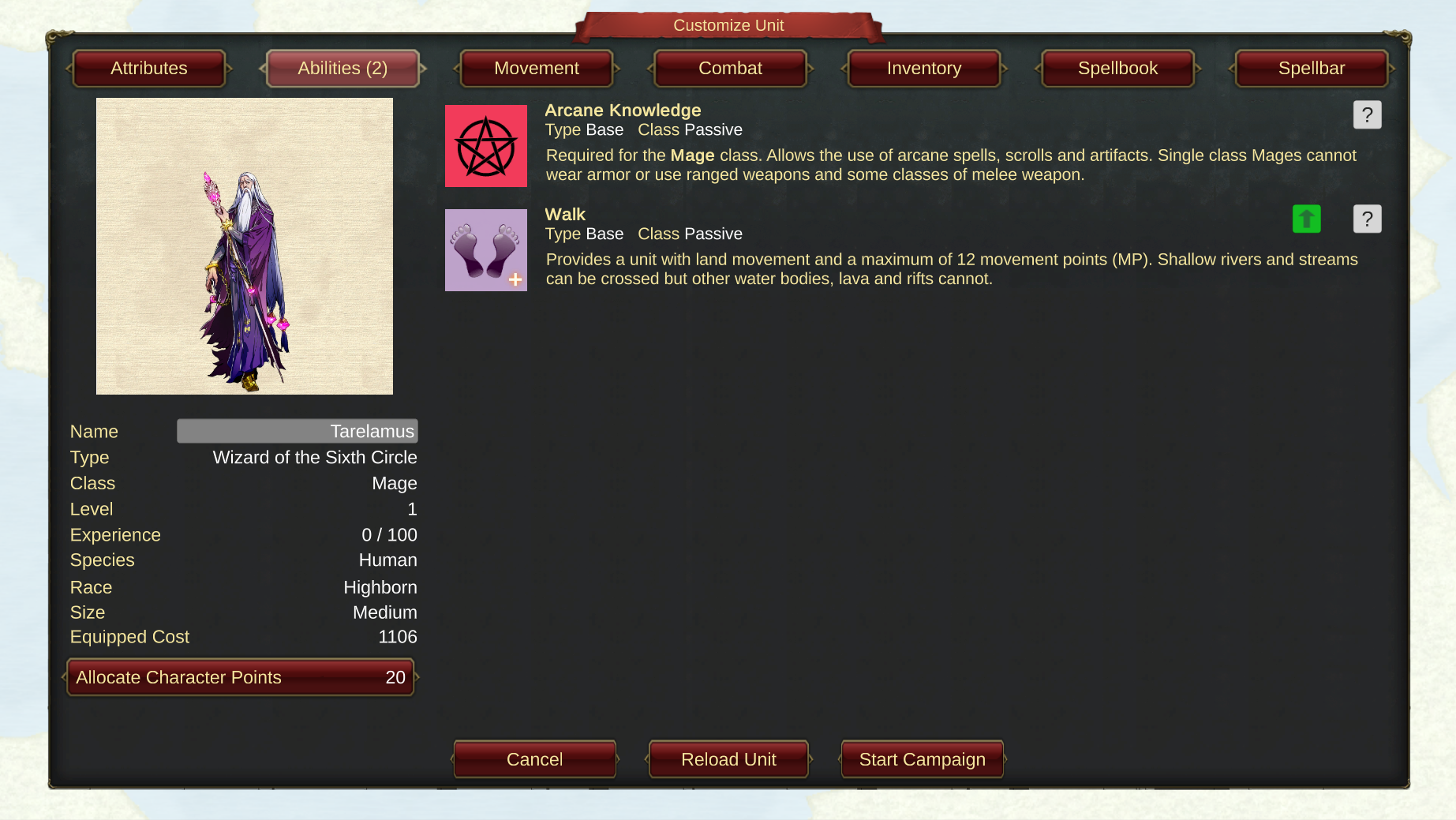
Here is the ability page in the profile of our Mage:
 (Click to download)
Abilities are either Base (defines a unit's Class and Movement) or Enhanced (everything else!). So in the case of our Wizard of the Sixth Circle, Arcane Knowledge makes him a Mage and Walk dictates how he moves around the battlefield. There is a green icon displayed against the Walk ability which indicates that it can be upgraded. This will be covered at a later date.
Clicking the '?' icon will provide a full description of the ability, like this:
 (Click to download)
Each ability also falls into one of three types:
Passive - built-in to the unit and is always 'on'.
Automatic - is applied whenever a unit attacks.
Active - is used by choice. Using an ability consumes 1 Action Point.
In the case of an Active ability, it may have Unlimited uses or a specific number of uses per battle.
If we take a look at a Southern Worg unit (nasty!), we can see some different abilities:
 (Click to download)
So this unpleasant creature has Basic Instinct (which makes it an Animal), Walk (so it moves the same as our Mage) and Seeping Wounds. This last ability is Automatic and so will be applied to the target each time the Southern Worg successfully attacks.
Clicking on the '?' icon for this ability reveals:
 (Click to download)
Cheers!
Ian & Jann
Unit Customization (2)
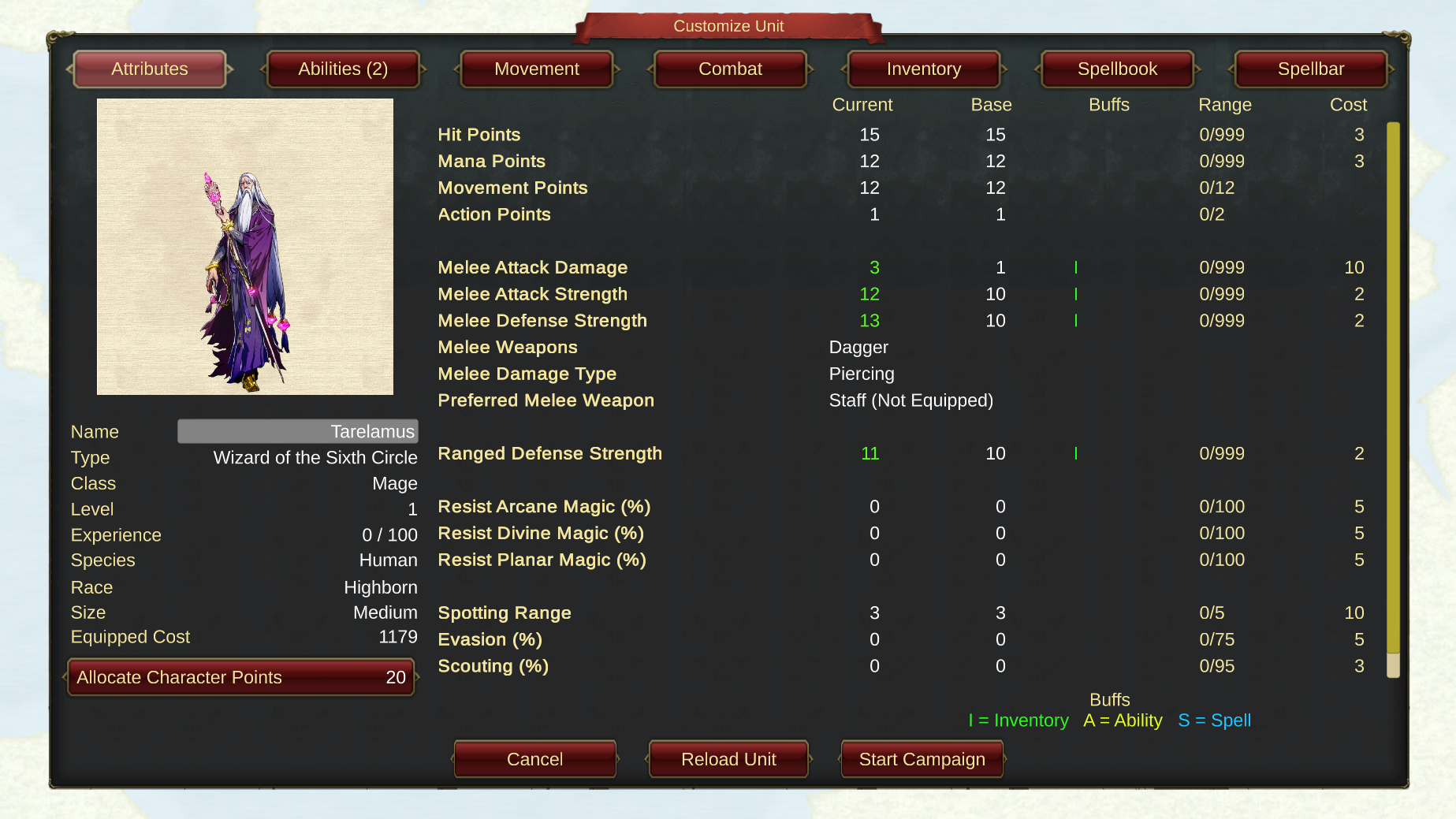
The screenshot below shows the 'profile' dialog that you can call up for any of your units (for example during battle by pressing the 'U' shortcut key or the Unit Profile button on the bottom toolbar).
This shot if of a Mage and it shows 7 buttons along the top edge that give you access to the 7 areas we discussed in the previous post.
 (Click to download)
So today we are highlighting Attributes which is probably the most important.
The left most column gives you an image of the unit and details of their 'personality' (Image, Name, Type, Class, Species, Race, Size) as well as their current progress in the game (Level, Experience, Equipped Cost). The button at the bottom of this column shows you if this unit has any points to allocate (after levelling up).
The right side of the screen shows base properties for the unit. The column headers are:
Current - the value of the stat at this moment in time (the in-play value).
Base - the value of the stat without any buffs.
Buffs - any buff currently applied.
Range - the min/max value a stat can have.
Cost - the number of points required to change the Base stat by 1.
The first stat Hit Points is the most critical. 0 Hit Points = Dead!
Only Spellcasters will have Mana Points which deplete as spells are cast.
Both of these first 2 stats can be 'recovered' by resting the unit during battle. This basically means doing nothing for a turn! They can also be recovered by various spells.
Movement Points and Action Points are replenished at the end of each turn.
All moveable units get 12 Movement Points but the cost to enter a tile on the battlefield varies by unit, so plan your moves carefully.
Most units get 1 Action point per turn. Attacking, casting a spell, consuming a potion, using an ability and other miscellaneous activities consume 1 Action Point.
The next section shows stats for Melee combat. These are the Melee Attack Damage (how many hit points damage the unit does) and Melee Attack Strength/Defense Strength. The latter 2 are a measure of how 'good' a unit is at attacking an enemy or defending itself. We will detail the combat mechanics in a later post.
Note that some of the Current values are higher than the Base values. This is because the Mage has an item 'equipped' in the Inventory which improves these stats (and is indicated by the green 'I' in the buffs column). The type of weapon equipped, it's damage type and whether this is a 'Preferred Weapon' are also shown.
Following this is the Ranged section. As a Mage does not have a Ranged Attack (that's for Archers), the only stat shown is how well this unit defends when attacked from afar.
Then we have the Magic Resistance section. Every spell cast upon the unit is checked against these values to see if the unit 'resisted' the spell. This applies to 'harmful' spells like Magic Bolt and 'beneficial' spells like Healing.
The last section covers some general but still very important stats.
Spotting Range dictates how many tiles a unit can see. Principally used when Fog of War is in effect, any enemy units outside the spotting range of your units will be invisible.
Evasion gives a unit a percentage chance to avoid Melee or Ranged attacks. This can also apply to spells cast specifically at the unit if the Directed Spells rule is in play.
Scouting governs the unit's ability to 'spot' hidden objects. This could be a Rogue who is currently Sneaking around the battlefield and who would be otherwise invisible or it could be a hidden Trap.
Sneaking (off the page on the screenshot) allows a unit to be invisible to the enemy whilst moving around the battlefield. A Sneaking unit will not be attacked by the enemy and when it attacks it gains a Damage Bonus. More on Sneaking another time.
Finally another screenshot that shows the different stats available for a unit that has a Ranged attack (Archers). This shot has been scrolled down so you can see Sneaking stat mentioned above.
 (Click to download)
Cheers!
Ian & Jann
Unit Customization
Hope you had a great weekend. This week we are running a series on how you can customize your units as they level up during the game.
Every unit starts with a host of stats split into 4 areas.
Attributes
This section covers the physical capabilities of the unit (e.g. Hit Points, Mana Points, Melee Attack Strength)
Abilities
Covers the inherent 'perks' of a unit (e.g. Walk, Fly, Forester, Cause Sickness)
Movement
Every unit has the same number of Movement Points and this section defines how many points are spent to enter tiles of a particular type. There are 25+ ground types in the game from plains, hill and swamp to ocean, sea and stream.
Combat
Shows all the modifiers that apply to a unit when attacking from a tile (based on the type of ground it is on) or defending in a tile (again based on the ground it is on). As an illustration, Elves are generally pretty cool on Forest or Wood tiles.
In addition there are modifiers to cover Protection, for example whether the unit has protection from Piercing or Slashing attacks (watch out for those Skeletons).
Your Hero starts with a number of points you can allocate in any of these areas. Each unit gains experience by battling enemies and/or casting spells. Whenever a 'level up' boundary is reached the unit will get a fixed number of 'Character Points' that can be allocated to improve the unit in any way you see fit. The number of points available can be set using the Advanced Options discussed in an earlier post.
Most units also have:
Inventory
Here is where you equip each unit using a traditional 'rag doll' figure. Units can carry an unlimited number of items in their 'backpack' and can have up to 23 slots where these items can be 'equipped'. Equipped items affect your character's stats, those in the 'backpack' do not.
The slots available on a unit are varied depending on the unit type. For example, the teachings of Children of the Inner Light devotees require that they cannot wear headgear nor anything on their hands and feet so that they are always fully attuned with their environment. These units do not have Head, Gloves or Feet slots.
And finally Spellcasters have :
Spellbook
Every spellcaster has their own spellbook. By default spellcasters are also limited in how many spells of each level they can have in the book at any one time. As a spellcaster levels up they have access to more spells and/or higher level spells. Getting extra spells requires finding or buying scrolls. These can then be copied into any empty spell slot the unit may have (this also destroys the scroll).
Spellbar
During battle the Spellbar appears along the bottom of the screen and gives the currently selected unit access to 10 spells. Others can be cast by calling up the spellbook for the unit. You can customize this bar for each unt to have your favorites readily available for quick casting.
The next post will cover the Attributes stats in more detail.
Cheers!
Ian & Jann